
How to Create a Portable Windows 11 USB Drive and Boot Windows 11 from USB
Would you like to carry a complete Windows 11 installation on an external USB hard drive or SSD? With Lazesoft Recovery Suite, you can install Windows 11 onto an external USB drive, make it bootable, and start Windows 11 directly from the drive on a compatible computer.
To improve portability, Lazesoft can also bypass several Windows 11 setup requirements, such as TPM 2.0, Secure Boot, Internet connectivity, and Microsoft-account requirements, making the portable Windows environment more suitable for older and offline computers.
Unlike an ordinary Windows installation USB, which is mainly used to install Windows onto another disk, a portable Windows 11 USB drive contains the Windows operating system itself. Once created, you can select the external drive from the computer's UEFI boot menu and launch Windows 11 directly from it.
This can be useful for Windows troubleshooting, testing, recovery work, carrying a familiar Windows environment, or keeping a separate portable Windows installation.
In this guide, we'll use a Freecom ToughDrive USB Device as the external drive and a Windows 11 ISO file as the installation source.
Portable Windows 11 External USB HDD / SSD UEFI Boot Back Up First
Important: Back up all important data on the target USB drive before continuing. Preparing the drive for Windows may modify or erase existing partitions and files.
Video Tutorial: Create a Portable Windows 11 USB Drive
Watch the complete process, from mounting the Windows 11 ISO and preparing the external USB drive to booting Windows 11 and completing the first-time setup.
What You Need
Before starting, prepare a Windows 11 ISO file, a sufficiently large external USB hard drive or SSD, and Lazesoft Recovery Suite.
Windows 11 ISO
Use a Windows 11 ISO file as the installation source.
External USB Drive
Use a USB hard drive or SSD with enough capacity for Windows 11.
USB 3.x Recommended
A fast external SSD generally provides much better Windows performance than a basic USB flash drive.
USB Boot Support
The computer must support booting from USB. UEFI boot mode is recommended for modern systems.
Step 1: Mount the Windows 11 ISO File
Locate your downloaded Windows 11 ISO file in File Explorer. Right-click the ISO and select Mount.
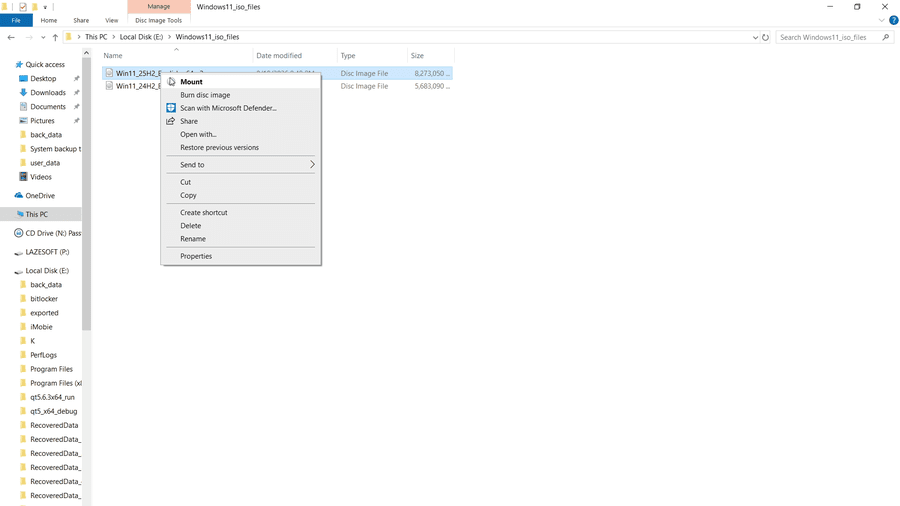
Windows will mount the ISO as a virtual DVD drive.
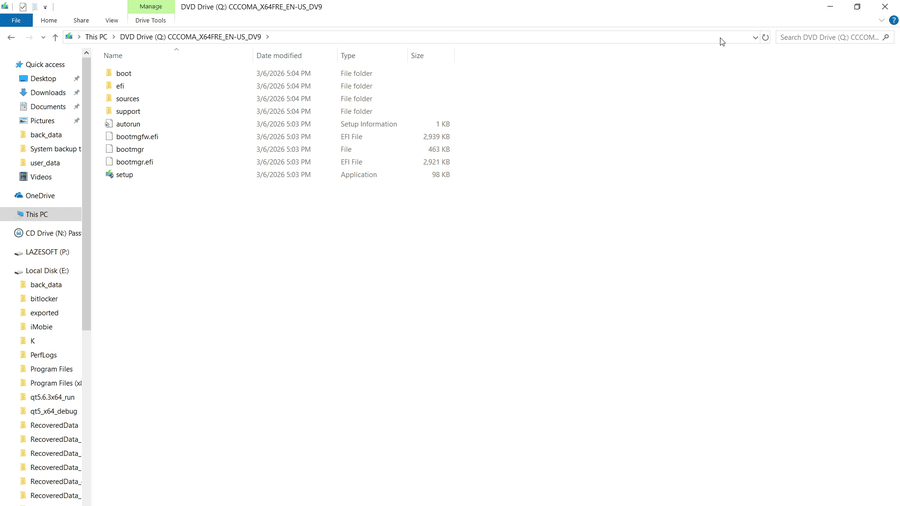
Open the new DVD drive and verify that you can see Windows installation folders such as boot, efi, sources, and support, together with files such as bootmgr, bootmgr.efi, and setup.exe. The mounted drive will be used as the Windows 11 installation source.
Step 2: Open Lazesoft Recovery Suite
Launch Lazesoft Recovery Suite. From the main interface, open VHD Tools, then select Install Windows 11/10/8/7 on USB hard disk.
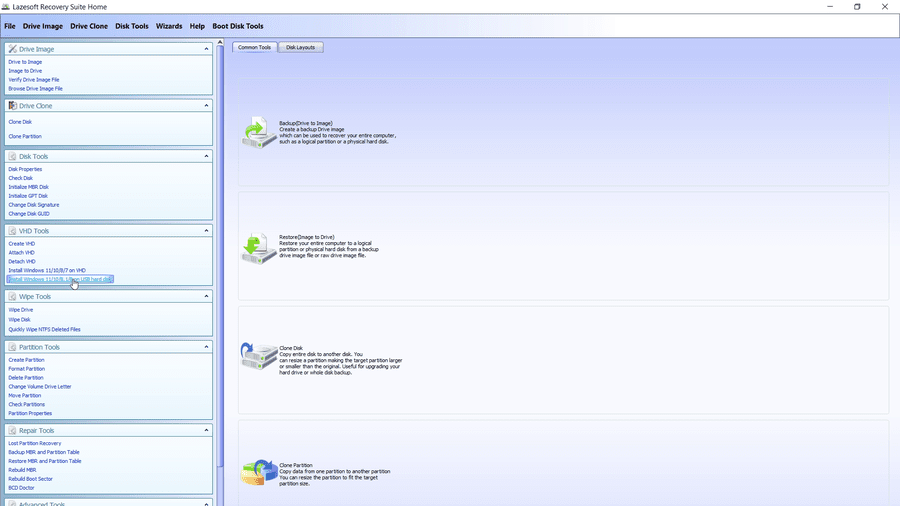
This starts the wizard for creating the portable Windows USB drive.
Step 3: Select the Target USB Hard Disk
In the Lazesoft wizard, select the external USB drive that will contain Windows 11. In this example, the target drive is Freecom ToughDrive USB Device.
Check the disk capacity and device name carefully before continuing. This is especially important if several internal and external drives are connected to the computer. Selecting the wrong drive could result in data loss.
Step 4: Select the Windows 11 Installation DVD
Next, specify the Windows installation source. Select the drive letter assigned to the Windows 11 ISO that you mounted earlier.
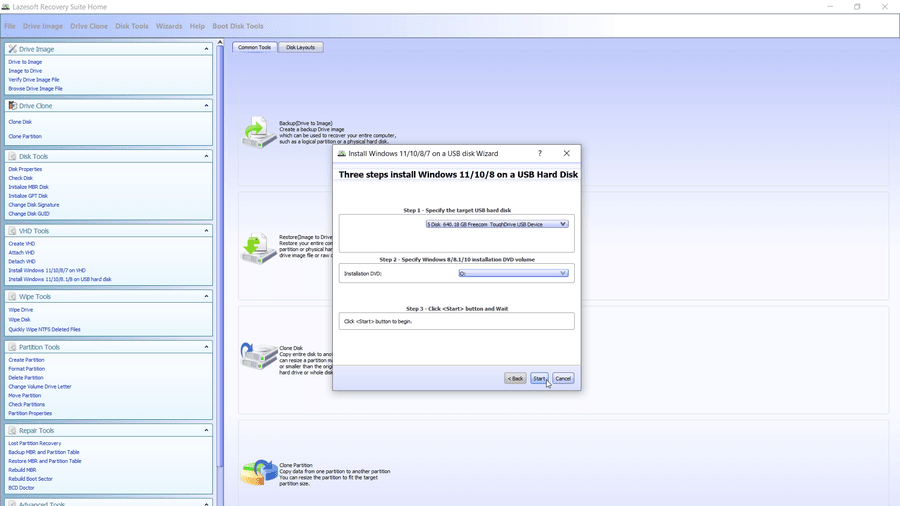
The wizard should now show both the target USB drive and the mounted Windows 11 installation DVD. Verify both selections before proceeding.
Step 5: Start Creating the Portable Windows 11 Drive
Click Start. Lazesoft will begin preparing the external drive and installing the required Windows 11 files.
During this stage, the program may prepare the USB disk and required partitions, copy Windows 11 operating system files, configure Windows boot files, create the bootable Windows environment, and prepare the installation for its first boot.
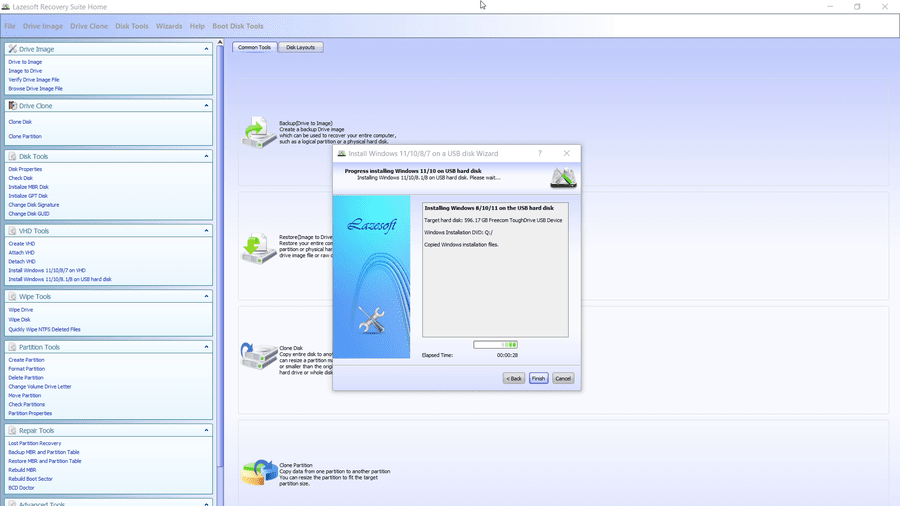
The time required depends mainly on the speed of the USB drive, USB connection, source disk, and computer. For a large Windows installation, this process may take several minutes.
Wait Until the USB Drive Is Ready
When the process finishes successfully, Lazesoft displays a completion message indicating that the USB hard disk has been prepared. At this point, the external drive contains the portable Windows 11 installation.
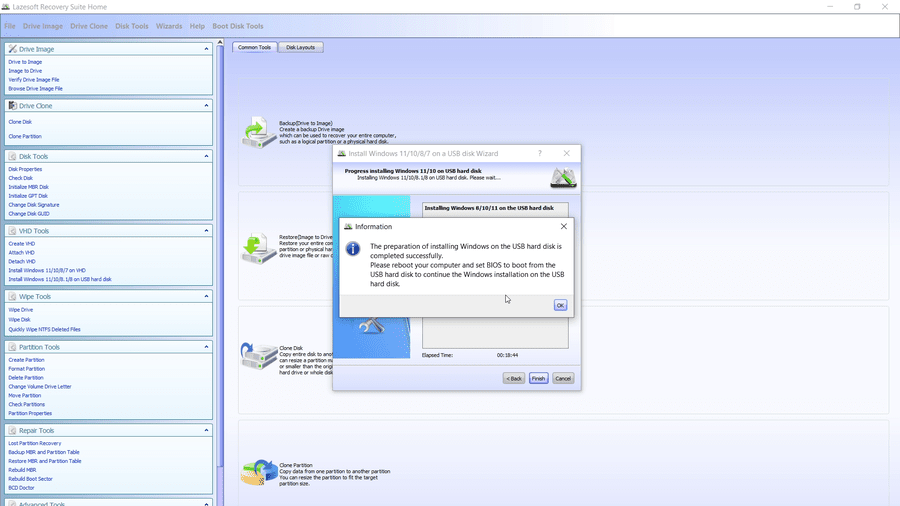
Close the wizard and restart the computer.
How to Boot Windows 11 from the USB Drive
Creating the drive is only the first part. You now need to tell the computer to boot from it instead of the internal Windows disk.
Restart the computer and open its one-time boot menu. The boot-menu key varies by manufacturer and may be F12, F11, F9, Esc, or another function key.
On the test computer shown in the video, the startup menu lists both the internal M.2 drive and the Freecom ToughDrive. Look for USB HDD: Freecom ToughDrive and select the UEFI: Windows Boot Manager entry associated with that external USB drive.
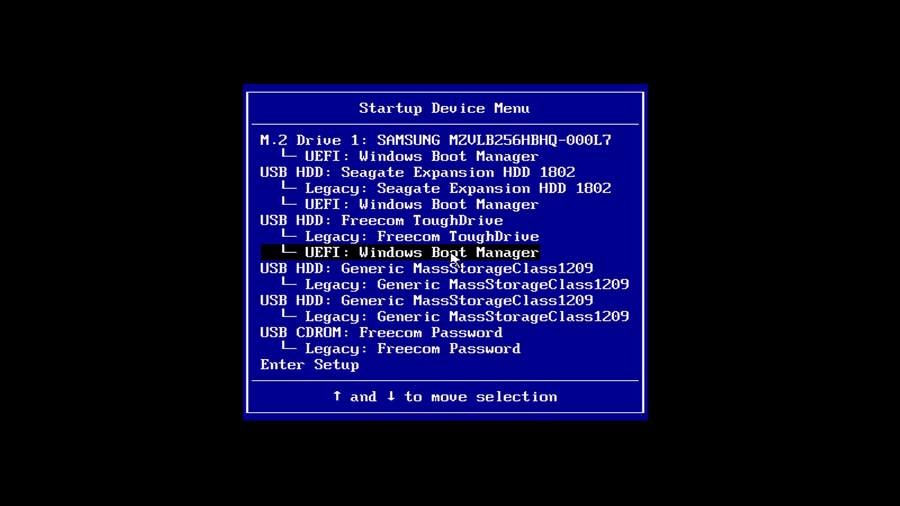
Important: Do not accidentally choose the Windows Boot Manager belonging to the internal M.2 or SSD if your goal is to start the portable copy of Windows.
Windows 11 First Boot
The first boot takes longer than a normal startup because Windows needs to configure the new installation. You may initially see Getting ready.
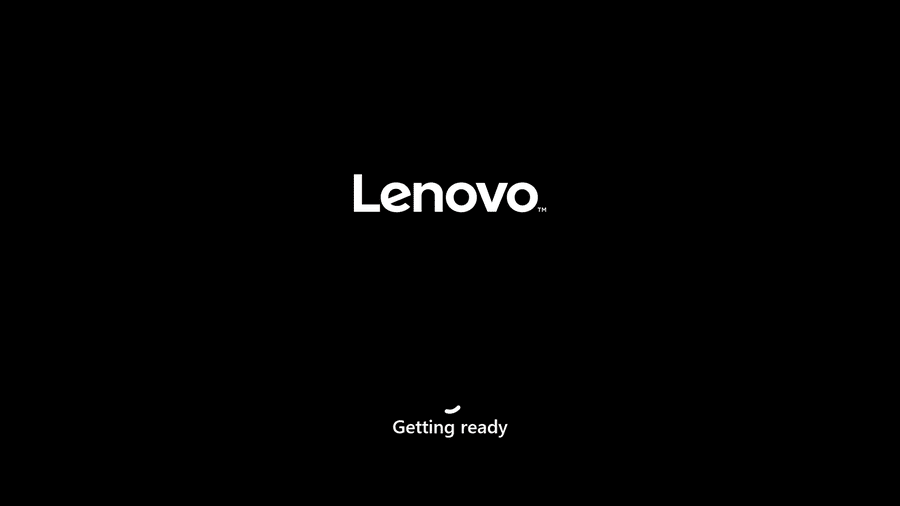
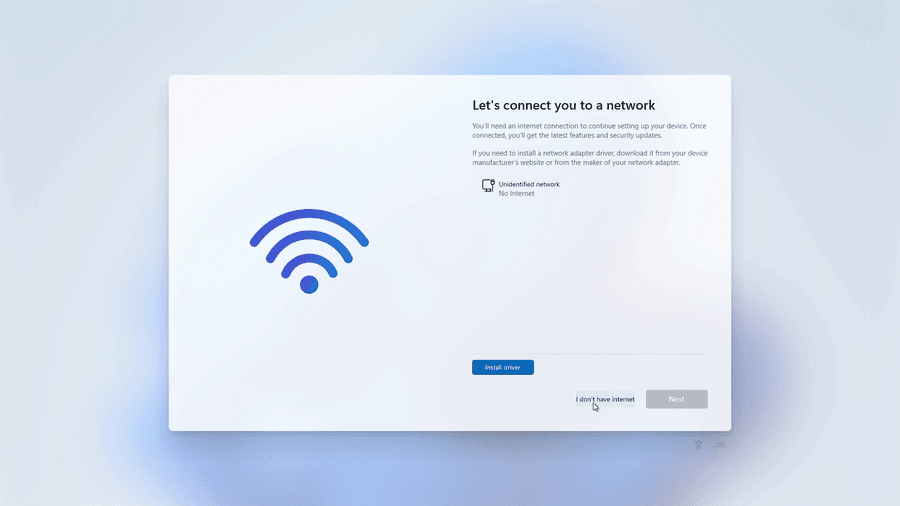
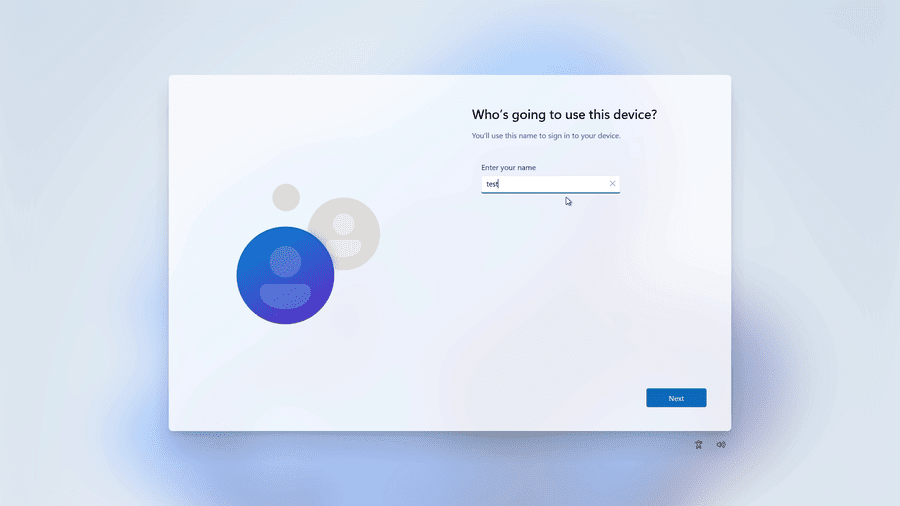
Windows will then launch its normal first-run configuration screens. Follow the on-screen instructions to configure Windows 11.
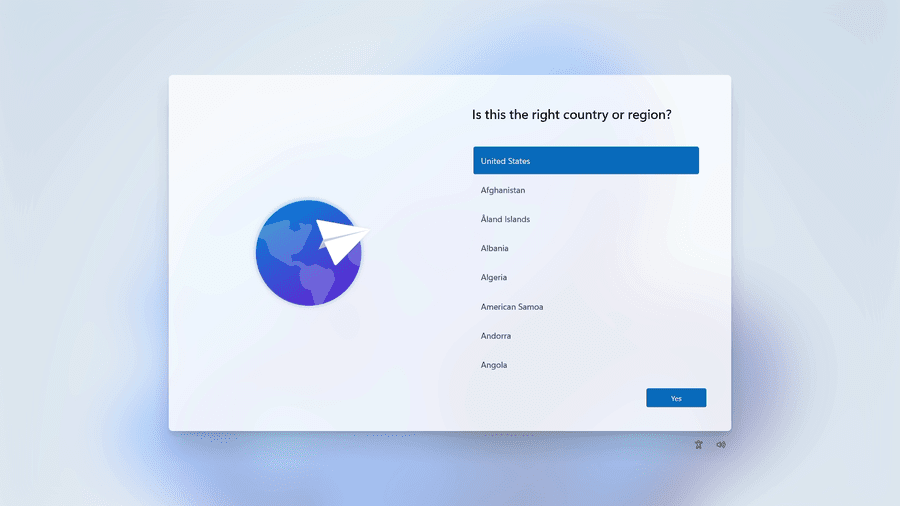
Depending on your Windows version and configuration, setup may ask for your country or region, keyboard layout, network connection, computer name, Windows user account, and privacy settings.

Portable Windows 11 Is Ready
Once the Windows 11 desktop appears, the external drive is working as a bootable Windows system. Windows 11 is now running from the Freecom ToughDrive USB Device rather than from the computer's normal internal Windows installation.
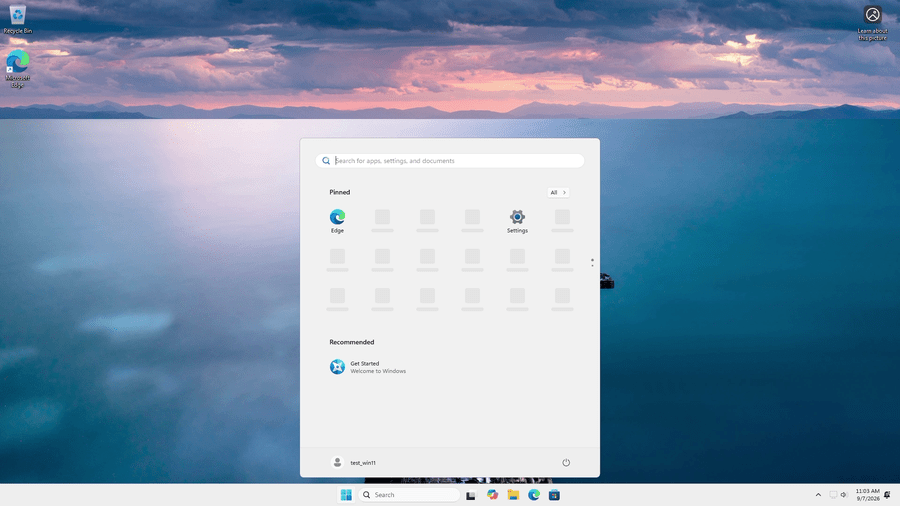
Whenever you want to use this portable system, connect the external USB drive before turning on the computer, open the UEFI boot menu, and select its Windows Boot Manager. To return to the computer's normal Windows installation, boot from its internal SSD or M.2 drive again.
Portable Windows 11 USB vs. Windows 11 Installation USB
These two types of USB drive serve very different purposes.
| USB type | What it does |
|---|---|
| Windows 11 installation USB | Boots Windows Setup and is designed to install or repair Windows on another disk. |
| Portable Windows 11 USB drive | Contains an actual working Windows installation that can reach a normal Windows desktop and run applications directly from the external drive. |
A portable Windows USB is especially useful for testing, troubleshooting, demonstrations, temporary work environments, and PC service work.
Why Use an External SSD?
Windows generates many small disk reads and writes during normal operation. For this reason, an external USB 3.x SSD normally provides the best experience.
A traditional USB hard disk can also work, but booting and application startup will usually be slower. An inexpensive USB flash drive may have significantly lower sustained and random-write performance, making Windows noticeably slower.
For a portable Windows environment that you plan to use regularly, an external SSD is preferable.
Make Windows 11 More Portable on Older Computers
To make the portable Windows 11 USB drive usable on a wider range of computers, Lazesoft can remove or bypass several Windows 11 installation requirements during the portable Windows creation process.
This can be especially useful when you want to boot the USB drive on an older PC that does not fully meet Microsoft's standard Windows 11 hardware or setup requirements.
For example, Lazesoft can help bypass requirements such as:
- TPM 2.0
- Secure Boot
- Certain Windows 11 hardware compatibility checks
- The requirement for an active Internet connection during setup
- The requirement to use a Microsoft account during initial setup, allowing a local account to be created instead
This makes the portable Windows 11 USB drive more flexible for troubleshooting, testing, maintenance, recovery, and use on older computers.
In the video example, Windows 11 can continue through setup without connecting to the Internet, and a local Windows account can be created directly.
Why This Is Useful
A portable Windows environment is most useful when it can boot on different types of computers. Some older systems may not have TPM 2.0 or Secure Boot enabled, and some repair or recovery situations may not have Internet access.
- Older PCs
- Offline computers
- PC repair and recovery work
- Hardware testing
- Emergency troubleshooting
- Technician environments
Note: Bypassing Windows 11 setup requirements does not guarantee that Windows 11 will work correctly on every computer. Hardware drivers, CPU architecture, UEFI support, storage controllers, and other compatibility factors can still affect whether Windows boots and operates properly. Microsoft may also limit support or updates on unsupported hardware.
Can I Boot the Portable Windows 11 Drive on Another Computer?
A portable Windows installation can potentially boot on other compatible PCs, but hardware differences matter.
When Windows starts on different hardware, it may need to detect new devices and install additional drivers. Windows activation can also be affected by major hardware changes.
UEFI configuration, Secure Boot settings, USB boot support, storage-controller drivers, and Windows 11 hardware requirements can also influence whether the portable installation boots successfully.
For this reason, it is better to describe the drive as capable of booting on compatible computers rather than assuming that one portable Windows installation will work on every PC.
Free Lazesoft Recovery Suite for Home Users
Lazesoft Recovery Suite Home Edition is available free for home users. It provides an easy way to try Windows recovery, disk, boot, and portable Windows tools without purchasing a commercial edition.
View Lazesoft Recovery Suite Free / Home Edition
Learn more about Lazesoft Recovery Suite
Commercial and technician use should use the appropriate Lazesoft edition and license.
FAQ
Is a portable Windows 11 USB the same as a Windows installation USB?
No. A standard installation USB starts Windows Setup so you can install or repair Windows on another disk. A portable Windows 11 USB contains a working Windows installation that boots and runs directly from the external drive.
Should I use a USB flash drive or an external SSD?
An external USB 3.x SSD is preferable for regular use because Windows performs many small reads and writes. A USB hard drive can also work, but a basic flash drive may feel much slower.
Which boot option should I choose for the Freecom ToughDrive?
Choose the UEFI: Windows Boot Manager entry associated with the external Freecom ToughDrive, not the Windows Boot Manager belonging to the computer's internal M.2 or SSD.
Can Lazesoft make the portable Windows 11 drive easier to use on older or offline computers?
Yes. During portable Windows creation, Lazesoft can bypass several Windows 11 setup requirements, including TPM 2.0, Secure Boot, certain hardware checks, Internet connectivity, and Microsoft-account requirements. Hardware compatibility can still affect whether Windows runs correctly.
Can the same portable Windows 11 drive boot on every PC?
No guarantee is possible. UEFI support, device drivers, storage-controller configuration, Windows 11 hardware requirements, and activation can differ between computers.
Conclusion
Creating a portable Windows 11 USB drive gives you a complete Windows environment that can boot directly from an external USB hard drive or SSD.
With Lazesoft Recovery Suite, the process is straightforward: mount the Windows 11 ISO, select the external USB drive, let Lazesoft prepare the Windows installation, restart the computer, and choose the USB drive's UEFI Windows Boot Manager.
Once Windows completes its first-time configuration, you have a portable Windows 11 installation ready for testing, troubleshooting, recovery, or other compatible-PC use.
Create your portable Windows 11 USB drive with Lazesoft Recovery Suite and take your Windows environment with you.
Create Your Portable Windows 11 USB Drive with Lazesoft
Lazesoft Recovery Suite Home Edition is free for home users and includes tools for Windows recovery, disk imaging and cloning, and portable Windows USB creation.