
Free Windows 11 Password Recovery
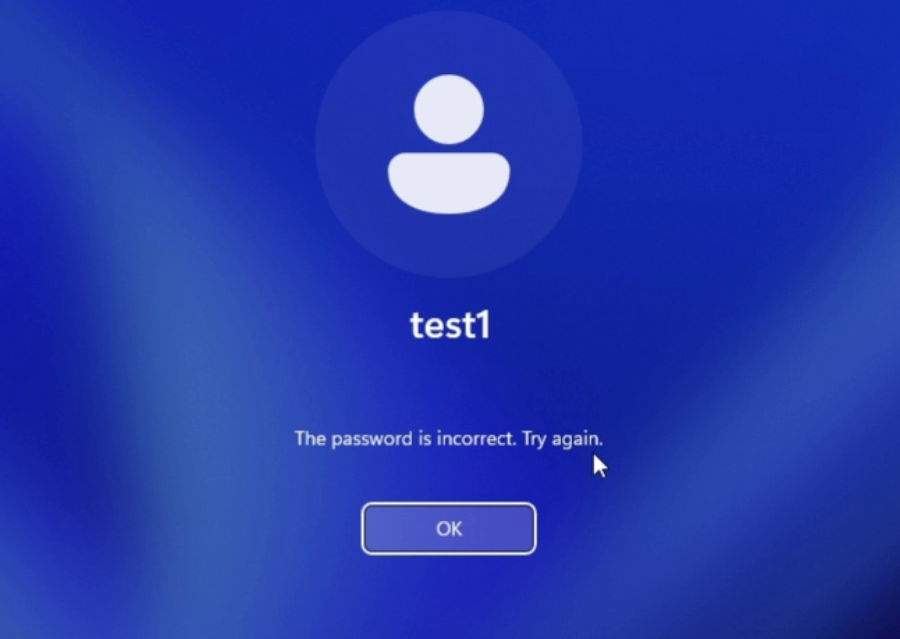
Forgot your Windows 11 sign-in password and can’t log in? If it’s your own PC (or you have permission to access it), you can reset a local Windows password using a bootable recovery USB created with Lazesoft Recovery Suite Home Edition.
Before you start
- Another working computer (to create the bootable USB)
- A USB flash drive (at least 1GB; 4GB+ recommended)
- Your locked Windows 11 PC
Watch: How to Reset a Forgotten Windows 11 Password for Free
This video shows how to use Lazesoft Recovery Suite Home Edition to create a bootable USB disk and reset a forgotten Windows 11 password safely, without reinstalling Windows or losing your files.
Important: This guide is for legitimate recovery only (your device or a device you’re authorized to access). If your Windows 11 drive is protected by BitLocker, you must unlock the drive first using the recovery key.
Step 1: Download and install Lazesoft Recovery Suite (Home Edition)
- On a working computer, download and install Lazesoft Recovery Suite Home Edition.
- Launch the program after installation.
Step 2: Create a Lazesoft bootable USB
- Open Lazesoft Media Builder.
- Select USB Flash Drive as the media type.
- Choose the correct USB drive, then click Start to create the boot disk.
Need help creating the USB? See: How to create a bootable recovery USB disk.
Step 3: Boot the locked Windows 11 PC from the USB
- Insert the newly created USB boot disk into the locked PC.
- Restart the PC and open the boot menu (common keys: F12, Esc, F9, or F8 depending on the brand).
- Select the USB device (UEFI entry if available) and press Enter.
If your USB does not appear in the boot menu, check the troubleshooting section below.
Step 4: Reset the Windows 11 password
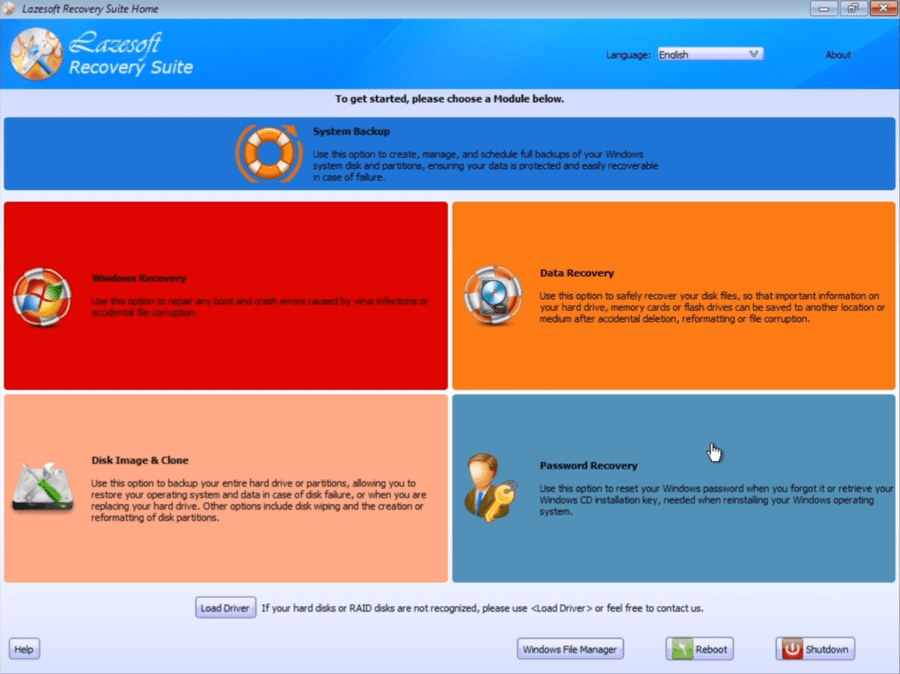
- In Lazesoft Recovery Suite, choose Password Recovery.
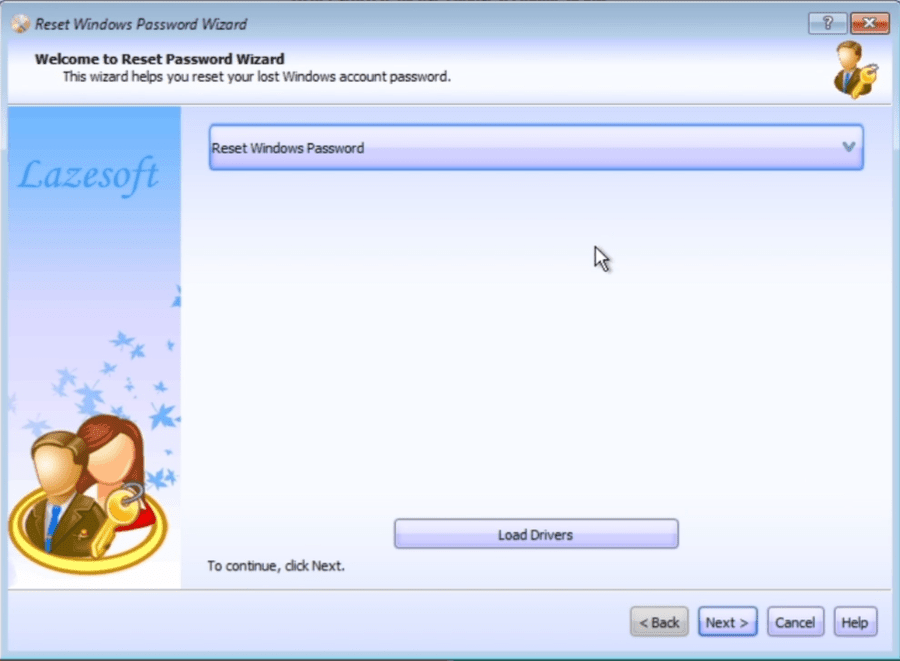
- Select Reset Windows Password
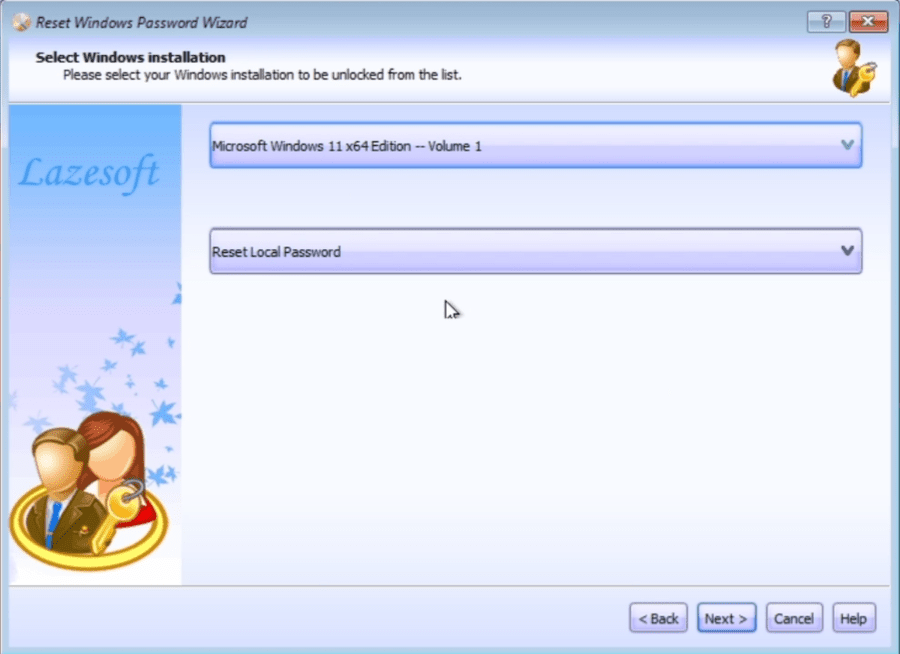
- Select your Windows installation.
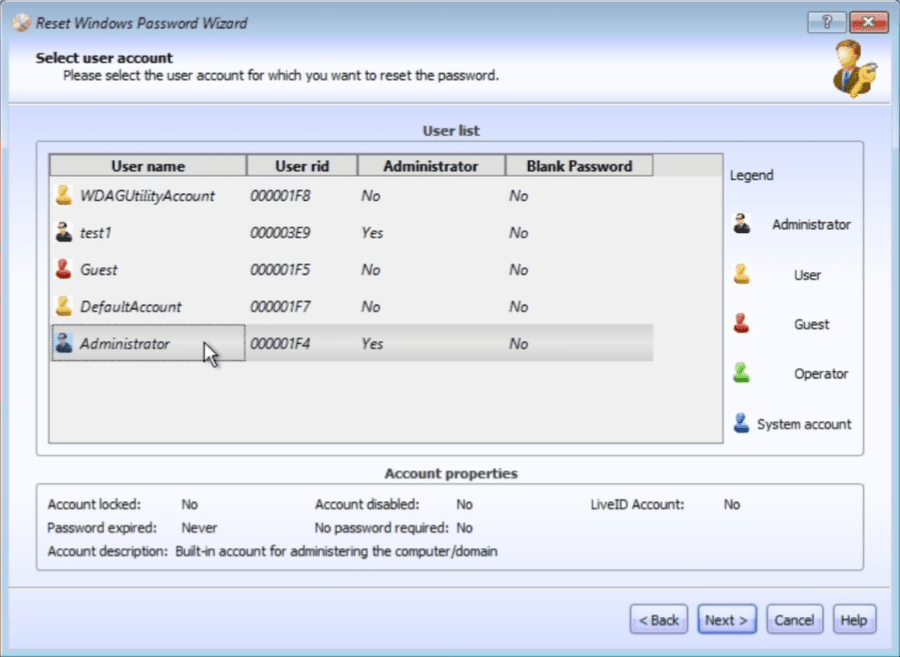
- Select the user account you want to reset:
- Local account: you can set the password to blank or set a new password.
- Built-in Administrator: you can enable/reset it to log in and then fix other accounts later.
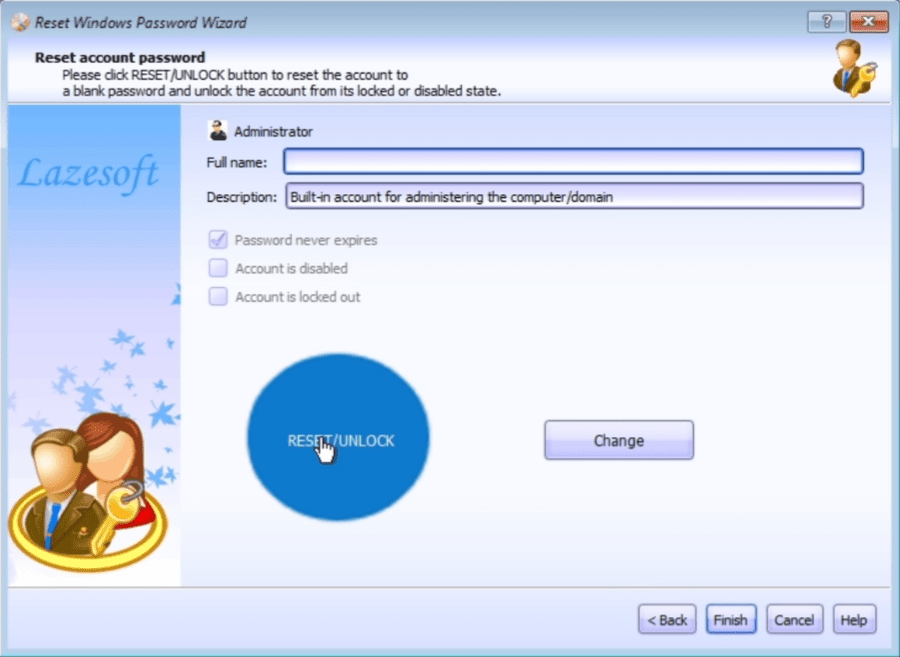
- Click Next / Reset to apply the change.
Step 5: Restart and sign in
- Remove the USB boot disk.
- Restart your PC normally.
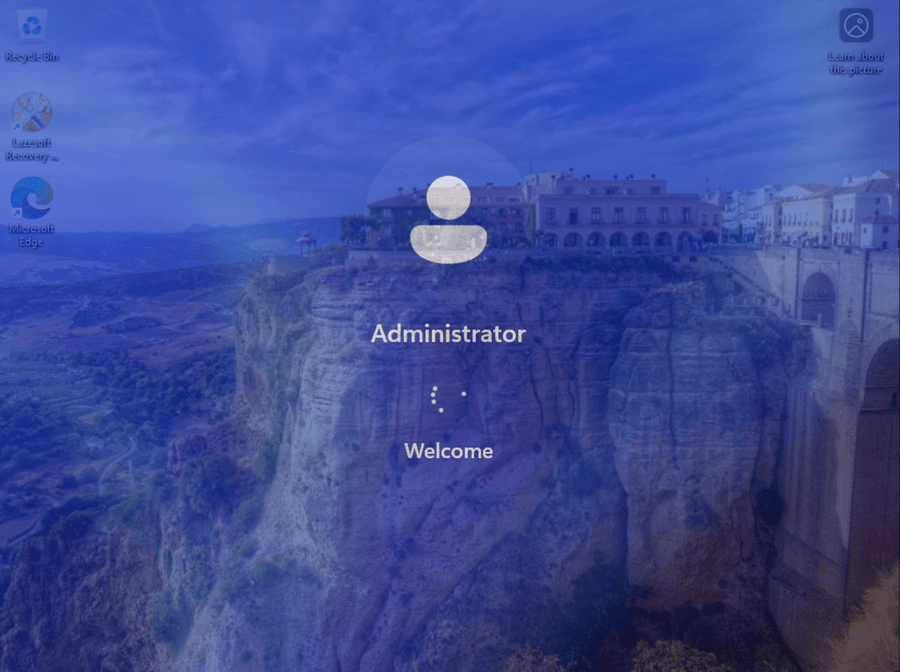
- Sign in with the new password (or a blank password if you cleared it).
After login: what you should do
- If you cleared the password, set a new one right away: Settings → Accounts → Sign-in options.
- Create a password reset option (PIN, security key, recovery email).
- If this PC uses BitLocker, confirm you can access your recovery key and store it safely.
Troubleshooting (FAQ)
USB boot disk is not in the UEFI boot menu
Some UEFI BIOS setups recognize only certain USB partition schemes. Try rebuilding the USB using a different partition scheme (MBR or GPT). For details, see: Create a bootable recovery USB disk.
Hard disk was not detected by the boot disk
If the internal drive doesn’t show up, you may need to load storage/RAID controller drivers. See: How to load WinPE boot disk drivers.
Drive C: is locked by BitLocker
You must unlock BitLocker before you can reset a local Windows password. If you need help, contact us: Lazesoft Support.
Related resources
- How to burn a Windows password recovery CD
- How to boot a Windows password recovery CD
- How to boot a computer from a USB device
Lazesoft Recovery Suite is easy to use, powerful boot disk design to Recover Data, Recover crashed Windows System, Recover Windows Password, Clone or Backup Disk, etc.
Free Windows Password Recovery Resources
Free Windows 11 Password Recovery
Free Recover Lost Windows 7 Password
Free Windows 8 Password Recovery
Free Recover Lost Windows 8 Password
Free Windows Vista Password Recovery
Free Recover Lost Windows XP Password
Free Windows XP Password Recovery
Free Windows Password Recovery
Free Windows 7 Password Recovery
Have forgotten Windows 8 Password, How can I do?
Windows Password Recovery Freeware
Video Help - Reset forgotten Windows 7 Administrator password