
How to boot a computer from a Windows password recovery CD
All modern personal computers, in recent years, are able to boot from a CD. With Lazesoft Recover My Password you can start your PC from a CD instead of your hard drive.
The following are the steps to boot your PC from a Lazesoft password recovery CD:
- Prepare a Lazesoft Recover My Password CD.
- Insert the (newly burned) lazesoft CD into your CD/DVD drive, and restart/reboot your computer.
- If the computer does not start from the CD, change the BIOS boot order so that the CD/DVD drive has boot priority over your HDD in your computer's BIOS settings.
The following procedures are for setting the BIOS to boot from a CD-ROM drive:
When you start your computer, check the boot-screen for setup key. In most modern PCs, this is F2 or DELETE key. This key MUST be pressed within a few seconds after computer startup to enter the BIOS setup options.
If you are running Award Bios, press the appropriate key to enter BIOS setup.
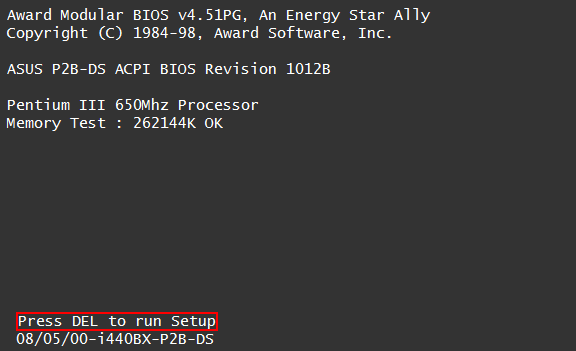
Pressing this key will open a new screen showing setup options. Select 'Advanced Bios Features'.
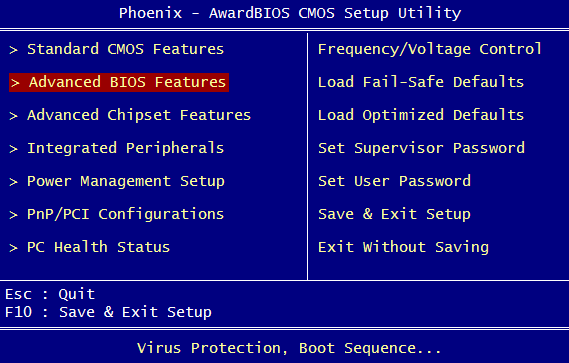
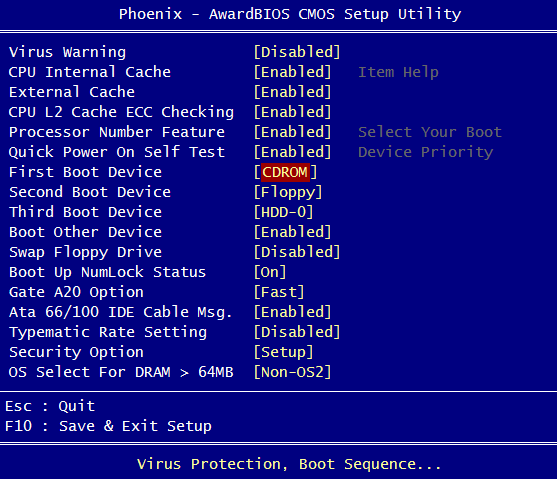
Choose 'First Boot Device' to set your BIOS to start from a CD/DVD drive. Then press F10 to save your settings.
On Ami Bios, you need to press the DEL key to enter the BIOS setup.
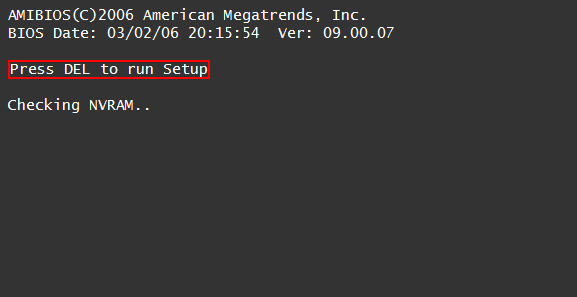
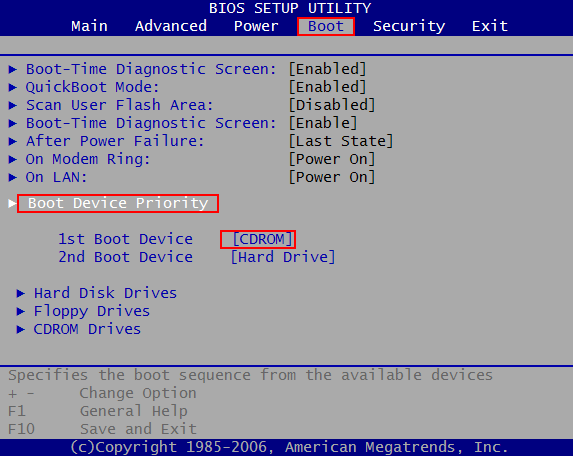
Choose the 'BOOT' option for selecting startup options. Select 'Boot Device Priority' from the menu. And the set 'First Boot Device' as a CD/DVD drive. Press F10 to save the new setting.
Some computers have a option to temporarily boot from a CD Device. When computer begins booting, just keep tapping the F8 button to get a boot option menu and select your CD/DVD drive as the boot device.
Note: Currently, Lazesoft products do not support writing on a DVD.
Lazesoft Recovery Suite is easy to use, powerful boot disk design to Recover Data, Recover crashed Windows System, Recover Windows Password, Clone or Backup Disk, etc.
Recovery manual and guides
How to burn a bootable recovery CD
How to boot from the created recovery CD
How to create a bootable recovery USB Disk and boot from it
How to perform a data recovery
How to recover data from formatted or damaged partition
How to fix boot problems if Windows won't start correctly
How to clone entire disk for backup or upgrading
How to recover Windows login password
How to recover Windows Server password
Forgot Windows admin user password
Forgot Windows Server 2003 2008 Domain Administrator Password
How to burn a Windows password recovery CD
How to boot Windows password recovery CD
How to recover Windows login password
How to recover administrator password
How to recover Windows Server password
How to recover Windows XP password
How to recover Windows Vista password
More...