
How to recover deleted files
If your important files are accidently deleted, do not panic. There is a very good chance that they can be recovered. With Lazesoft Data Recovery, recovering deleted files can be very easy.
The following steps will help you to recover the deleted files using Lazesoft Data Recovery.
1. Install and run Lazesoft Data Recovery.
To recover data when Windows does not boot up normally or when you want to reduce the risk of overwriting important data especially on a Windows boot partition (C:), you can create a Lazesoft recovery CD/USB disk and boot from it to recover your deleted files.
Releated articles:
How to burn a bootable recovery CD
How to boot from the created recovery CD
How to create a bootable recovery USB Disk and boot from it
2. After you have launched the Lazesoft Data Recovery, you will see the 'Data Recovery Wizard' welcome window.
The 'Data Recovery Wizard' screen provides two data recovery options: 'File Recovery' or 'Partition Recovery'.
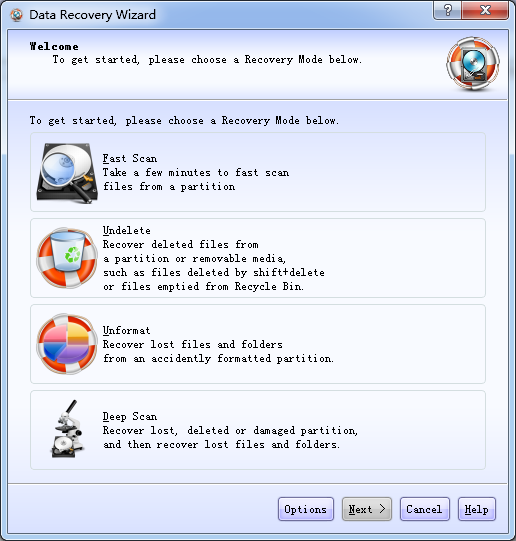
3. Please select 'File Recovery' option.
4. You will be shown a list of all the drives that are accessible in your system, allowing you to select the drive from which the deleted file was lost.
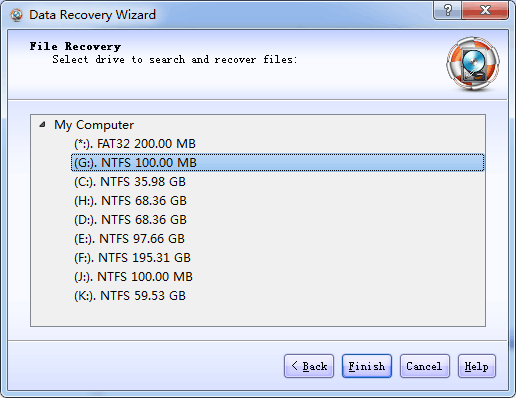
5. Click the <Finish> button to begin a search for the deleted files on the selected partition.
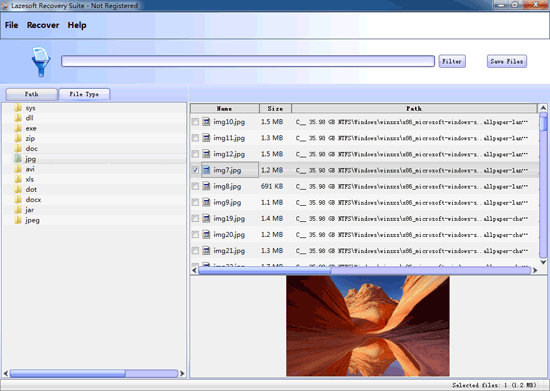
6. After you are shown a list of deleted files in the selected partition, choose the files you want to recover. Then click <Save Files> to copy those files to another location.
In case the 'File Recovery' procedure of Lazesoft Data Recovery fails to find the deleted files you want to recover, you can use the 'Partition Recovery' module as an alternative solution.
Lazesoft Recovery Suite is easy to use, powerful boot disk design to Recover Data, Recover crashed Windows System, Recover Windows Password, Clone or Backup Disk, etc.
Recovery manual and guides
How to burn a bootable recovery CD
How to boot from the created recovery CD
How to create a bootable recovery USB Disk and boot from it
How to perform a data recovery
How to recover data from formatted or damaged partition
How to fix boot problems if Windows won't start correctly
How to clone entire disk for backup or upgrading
How to recover Windows login password
How to recover Windows Server password
Forgot Windows admin user password
Forgot Windows Server 2003 2008 Domain Administrator Password
How to burn a Windows password recovery CD
How to boot Windows password recovery CD
How to recover Windows login password
How to recover administrator password
How to recover Windows Server password
How to recover Windows XP password
How to recover Windows Vista password
More...