
How to Boot a Computer from a Lazesoft Recovery USB Device
If your computer refuses to start, you can use Lazesoft Recovery Software to boot from a USB device, like a flash drive and restore the operating system easily and quickly.
Follow these easy procedures to boot from a flash drive, an external hard drive, or any other bootable USB device.
-
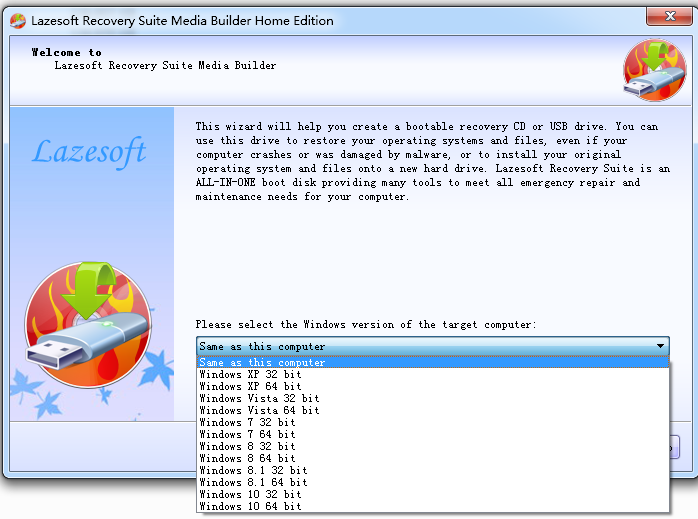
Install and run the Lazesoft Recovery Product Media Builder
-
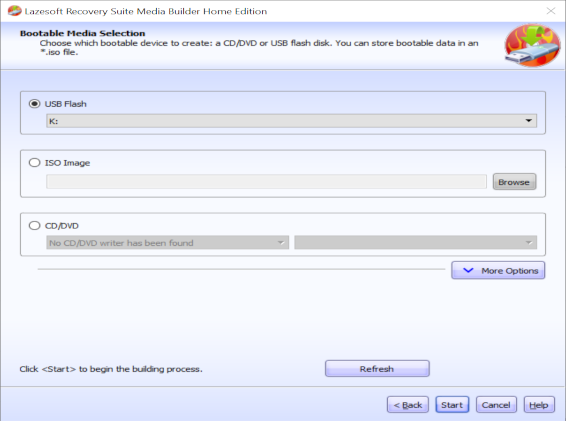
Insert a USB flash drive, and select the device on the bootable media selection page of Lazesoft Recovery Suite media builder. Then click <Next> to create a bootable USB flash key.
-
Shut down the system and turn it back on with the USB key plugged in.
METHOD 1: THE EASIEST WAY TO REBOOT FROM YOUR USB DEVICE IS TO SELECT THE DEVICE FROM THE BOOT DEVICE SELECTION MENU:
Note: You can use the Boot Menu Key (usually, it is F12) to select the active boot device, allowing you to bypass your BIOS for setting the boot sequence temporarily.
METHOD 2: IF YOU CANNOT SELECT YOUR BOOT DEVICE USING THE BOOT DEVICE SELECTION MENU, YOU CAN SETUP THE STARTING DEVICE SEQUENCE THROUGH BIOS:
Note: If you use BIOS to change the order of booting devices on your computer, the new booting order will remain in effect until you undo your changes.
-
Enter the BIOS setup by pressing the appropriate key ('Setup', usually F2 or DELETE)
-
The USB device key will be listed under Hard Drives or Removable Devices.
-
Save the BIOS setting and restart your computer.
No USB Boot Device Found in UEFI Boot Mode
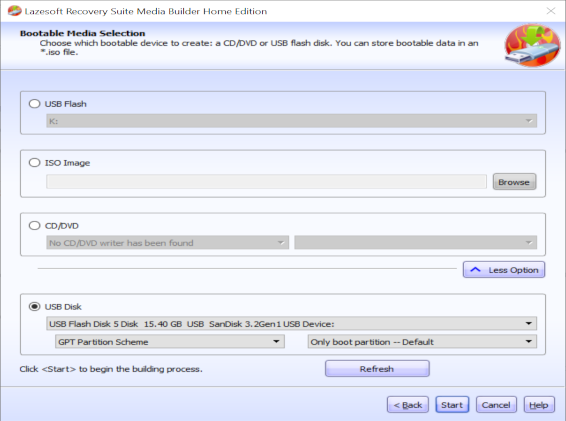
If your computer is running Windows 11 or later with UEFI boot mode but cannot detect the USB disk created using the steps above, it may require the USB disk to use either the MBR or GPT partition scheme.
To create a USB boot disk with the GPT partition scheme, click the "More Options" button, then select the appropriate USB disk and partition scheme, as shown in the image below.
Lazesoft PE Driver Exporter
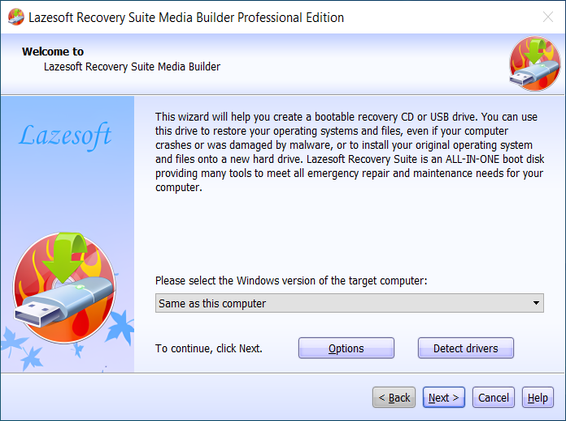
Click the "Detect drivers" button to open Lazesoft PE Driver Exporter, a tool that scans and exports third-party drivers from your current Windows system, making it easier to gather the necessary drivers for creating bootable recovery media.
Tips:
-
Recheck the boot order in BIOS. The number one reason a bootable flash drive or other USB device will not boot is because the BIOS is not configured to check the USB port first.
-
Did not find a "USB Device" boot order listing in BIOS If your computer was manufactured around 2001 or before, it may not have this ability. If your computer is newer, check for some other ways that the USB option might be worded. In some BIOS versions, it is called "Removable Devices" or "External Devices".
-
Change to another USB port. The BIOS on some motherboards only check the first few USB ports. Change to another USB port and restart your computer.
If your computer's motherboard does not support booting from USB drive, please burn a boot CD instead.
Lazesoft Recovery Suite is easy to use, powerful boot disk design to Recover Data, Recover crashed Windows System, Recover Windows Password, Clone or Backup Disk, etc.
Recovery manual and guides
How to burn a bootable recovery CD
How to boot from the created recovery CD
How to create a bootable recovery USB Disk and boot from it
How to perform a data recovery
How to recover data from formatted or damaged partition
How to fix boot problems if Windows won't start correctly
How to clone entire disk for backup or upgrading
How to recover Windows login password
How to recover Windows Server password
Forgot Windows admin user password
Forgot Windows Server 2003 2008 Domain Administrator Password
How to burn a Windows password recovery CD
How to boot Windows password recovery CD
How to recover Windows login password
How to recover administrator password
How to recover Windows Server password
How to recover Windows XP password
How to recover Windows Vista password
More...