
How to Set BIOS to Boot from USB (Phoenix, Award, AMI & UEFI)
This guide focuses on configuring BIOS settings (Phoenix, Award, AMI) to boot from USB. (Step-by-Step Guide 2026)
Note: You can use the Boot Menu Key (usually, it is F2 or F12) to select boot device and you don't need to go into BIOS for setting boot sequence.
The following are the procedures set BIOS to boot from a USB drive:
When you start your computer, check the boot-screen for setup key, in most modern PC it will be DELETE key, so make sure to check it. We list the most common BIOS function keys.
- Delete
- F2
- F12
Before booting, make sure you have created a recovery USB disk. Follow this guide to create a bootable Lazesoft recovery USB disk .
On Phoenix-Award BIOS, press the appropriate key to enter BIOS setup.
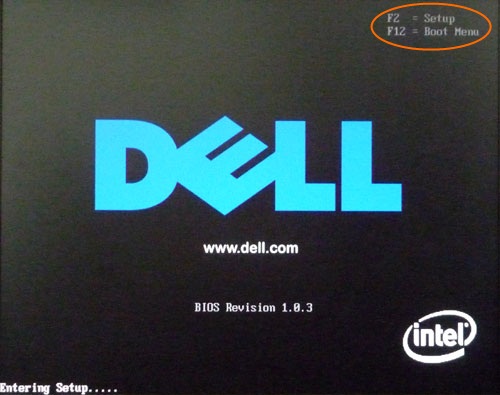
Now you will see some similar screen and select boot device configuration menu.
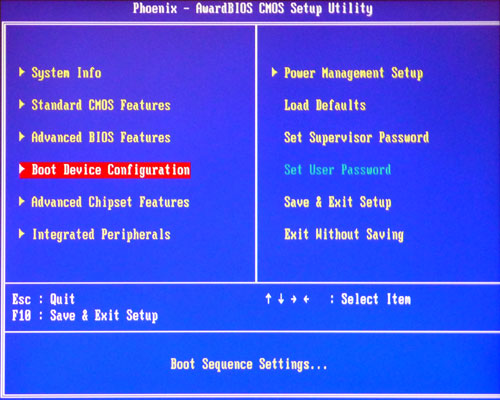
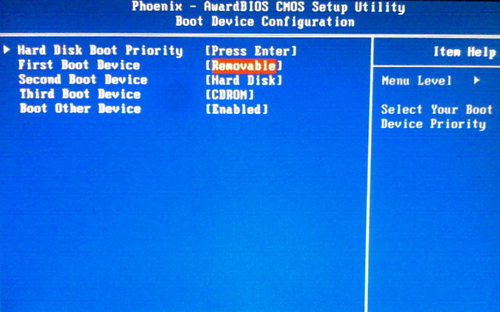
If the first boot device on your system is not set to the USB drive, change it to the USB drive.
On Award Bios, press the correct key to enter BIOS setup:
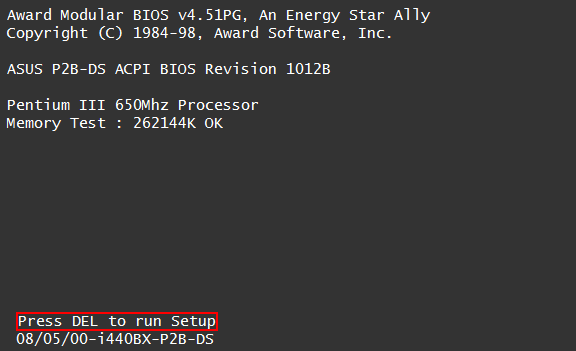
Now you will see similar screen and select Advanced Bios Features.
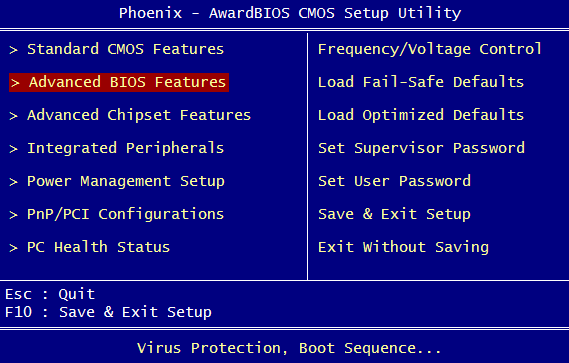
Choose the USB Drive as the 'First Boot Device' and press <F10> to save it.
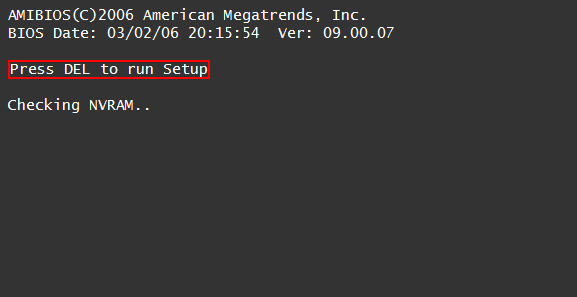
On Ami Bios, you need to press <DEL> key to enter setup.
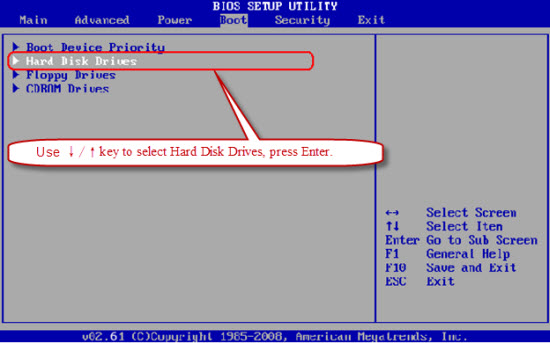
Choose the 'BOOT' option, then enter 'Hard Disk Drives' menu.
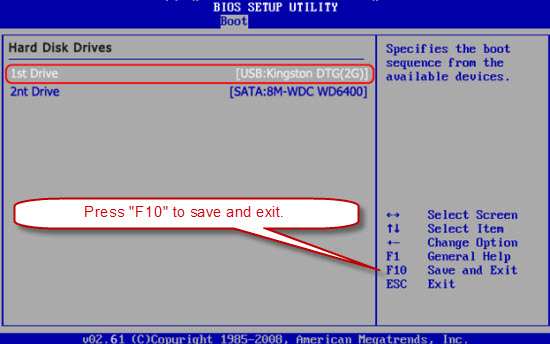
Set the first boot device to the USB drive. Press <F10> to save settings.
Create a bootable Lazesoft USB recovery disk step-by-step
Lazesoft Recovery Suite is easy to use, powerful boot disk design to Recover Data, Recover crashed Windows System, Recover Windows Password, Clone or Backup Disk, etc.
Recovery manual and guides
How to burn a bootable recovery CD
How to boot from the created recovery CD
How to create a bootable recovery USB Disk and boot from it
How to perform a data recovery
How to recover data from formatted or damaged partition
How to fix boot problems if Windows won't start correctly
How to clone entire disk for backup or upgrading
How to recover Windows login password
How to recover Windows Server password
Forgot Windows admin user password
Forgot Windows Server 2003 2008 Domain Administrator Password
How to burn a Windows password recovery CD
How to boot Windows password recovery CD
How to recover Windows login password
How to recover administrator password
How to recover Windows Server password
How to recover Windows XP password
How to recover Windows Vista password
More...