
How to recover data from a formatted or damaged partition
Has this ever happened to you?
- You accidentally reformatted a partition containing important files.
- You reinstalled the Windows operating system on a wrong partition, and your important files have been overwritten.
- One of your partitions suddenly became inaccessible.
There is no need to panic, if you have Lazesoft Data Recovery.
The following are the simple steps you can use to recover data from your reformatted or damaged partitions.
1. Setup and run Lazesoft Data Recovery.
To recover data when Windows does not boot up normally, or if you want to reduce the risk of overwriting important data, especially data on Windows boot partition (C:), create a Lazesoft bootable recovery CD/USB disk; Boot from this disk to perform the data recovery process.
Releated articles:
How to burn a bootable recovery CD
How to boot from the created recovery CD
How to create a bootable recovery USB Disk and boot from it
2. After Lazesoft Data Recovery is launched, click the <Deep Scan> button on the Lazesoft Data Recovery 'Start Wizard Page'.
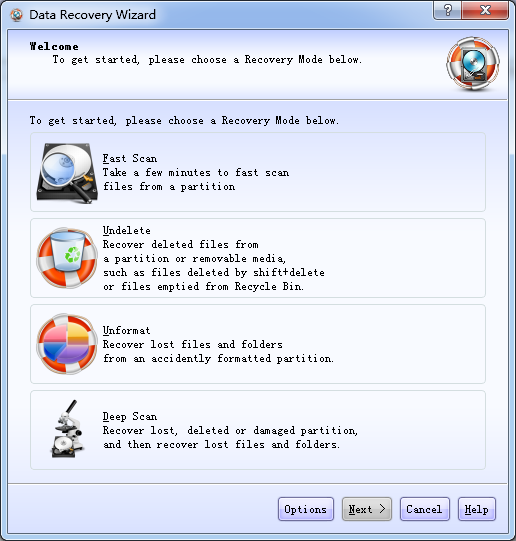
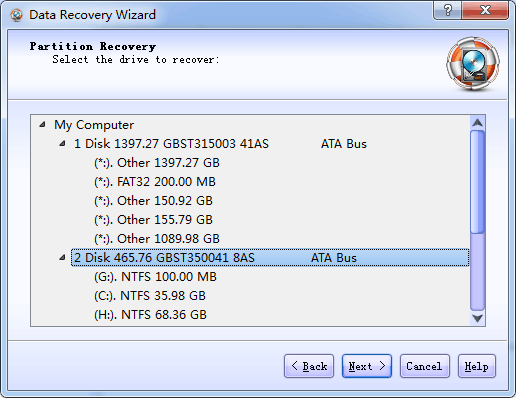
3. Select a source partition for recovering data, then click <Next>.
4. Select the "Automatic partition recovery" option.
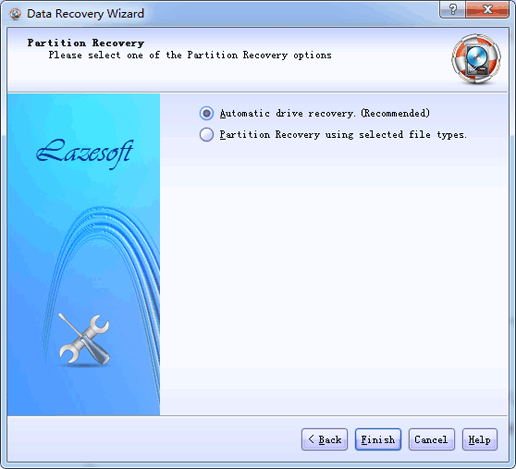
5. Press the <Finish> button to start searching.
6. After the search is completed, you can preview and recover any listed files.
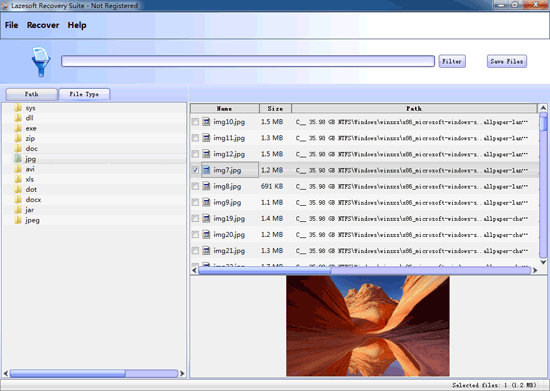
IMPORTANT: Never copy recovered files back to a location on the drive from which you are recovering them (the "bad" drive), or you will overwrite them and they will be gone forever!

Lazesoft Recovery Suite is easy to use, powerful boot disk design to Recover Data, Recover crashed Windows System, Recover Windows Password, Clone or Backup Disk, etc.
Recovery manual and guides
How to burn a bootable recovery CD
How to boot from the created recovery CD
How to create a bootable recovery USB Disk and boot from it
How to perform a data recovery
How to recover data from formatted or damaged partition
How to fix boot problems if Windows won't start correctly
How to clone entire disk for backup or upgrading
How to recover Windows login password
How to recover Windows Server password
Forgot Windows admin user password
Forgot Windows Server 2003 2008 Domain Administrator Password
How to burn a Windows password recovery CD
How to boot Windows password recovery CD
How to recover Windows login password
How to recover administrator password
How to recover Windows Server password
How to recover Windows XP password
How to recover Windows Vista password
More...