
Boot Key Not Working? Fix F2, F12, DEL, ESC Not Entering BIOS
Pressing F2, F12, DEL, ESC but cannot enter BIOS or Boot Menu? This guide explains why boot keys fail and how to fix it on all major laptops and desktops.
If your system won’t boot, you can still recover data or repair Windows using Lazesoft Recovery Suite boot disk.
Download Free Recovery Tool
🔍 Problem Overview
- F2 / DEL does not open BIOS
- F12 / ESC does not show Boot Menu
- USB keyboard not responding during startup
- System boots too fast to press any key
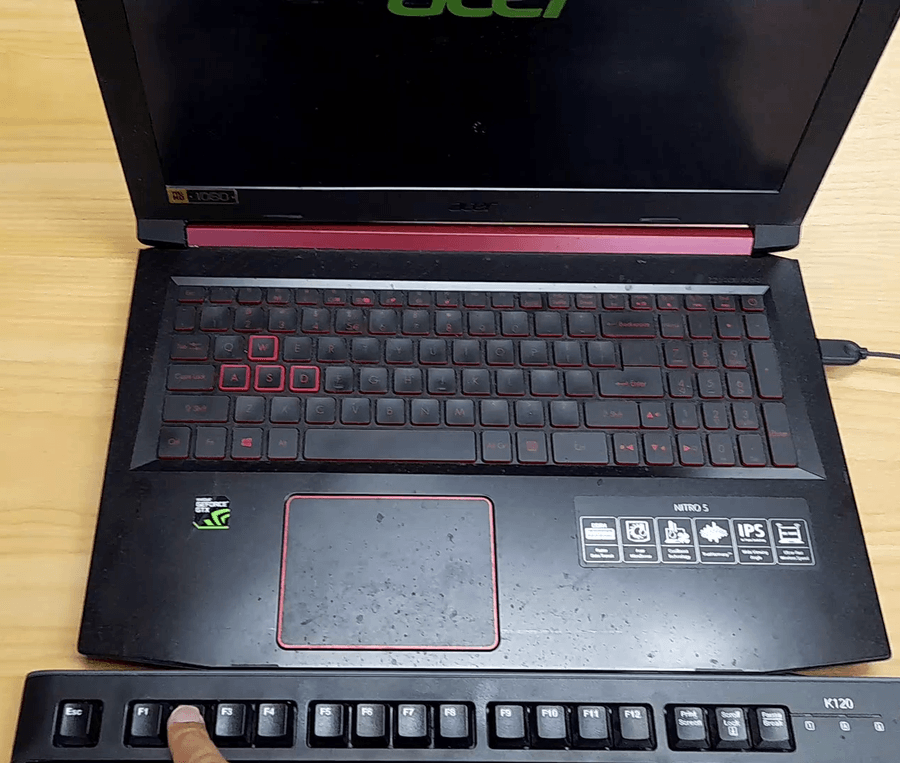
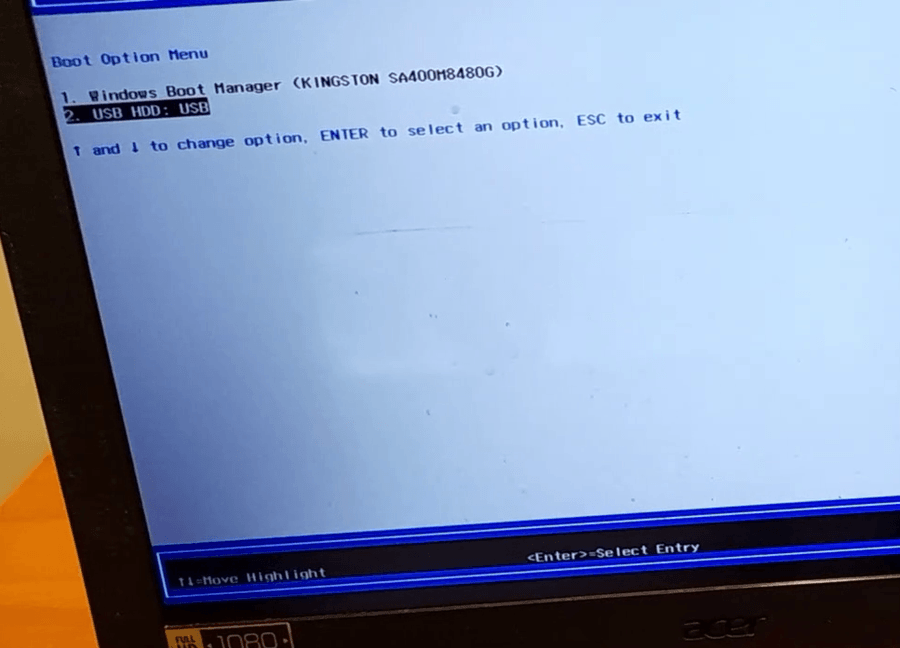
🎥 Watch: Fix boot key not working (Acer example) – enable F12 Boot Menu and use the correct keyboard method.
🧠 Why Boot Keys Fail
1. USB Keyboard Not Ready
BIOS detects keys very early. USB devices initialize later, so your keyboard input may be ignored.
2. Fast Boot Enabled
Modern systems skip hardware checks → keyboard detection window becomes extremely short.
3. Wrong USB Port
USB 3.x ports often initialize slower than USB 2.0 ports.
4. Wireless Keyboards
Bluetooth or dongle keyboards almost always fail during BIOS stage.
⚡ Quick Fix (Try This First)
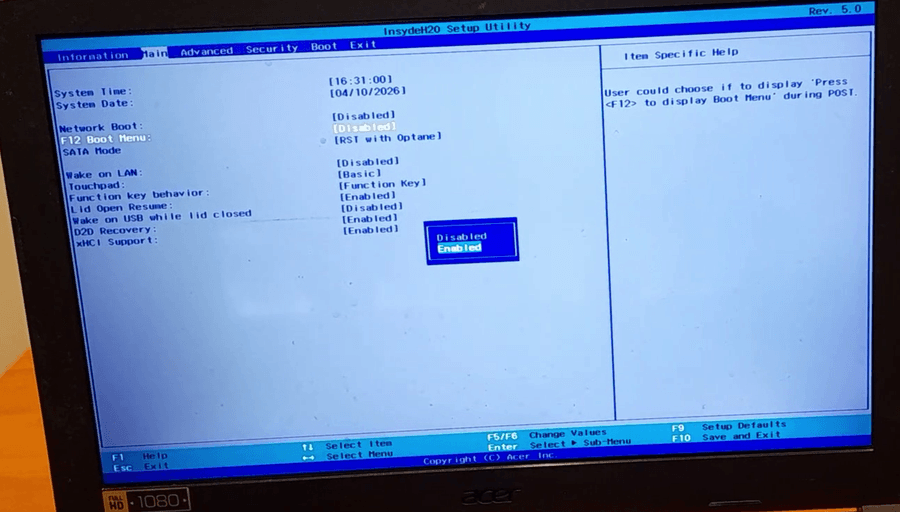
- Use the laptop built-in keyboard
- Power off completely
- Turn on and immediately press F2 or F12 repeatedly
👉 This solves ~80% of cases instantly.
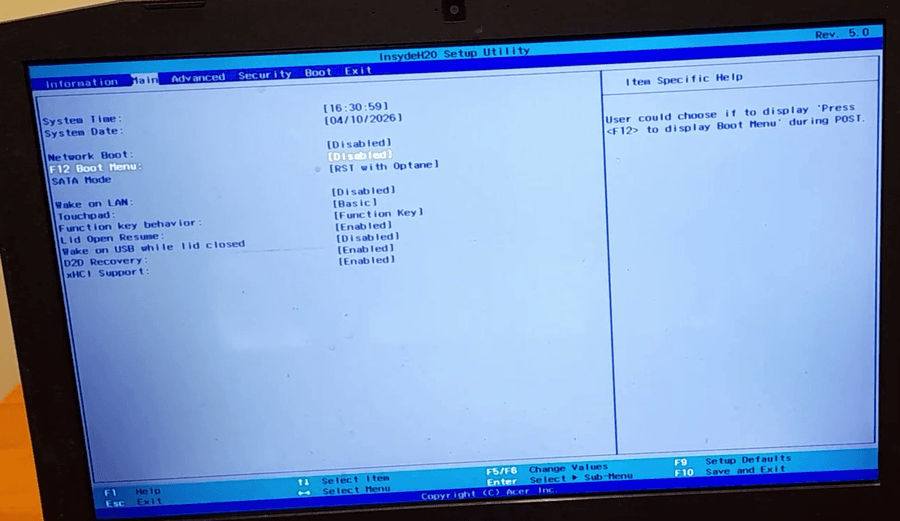
🔧 Detailed Solutions
Fix 1: Disable Fast Boot
- Enter BIOS (using laptop keyboard)
- Find Fast Boot
- Set to Disabled
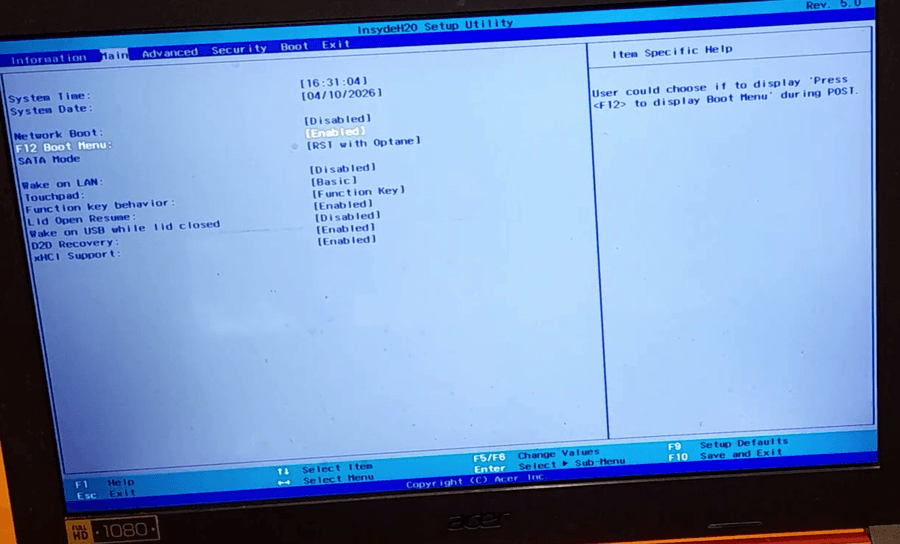
Fix 2: Enable USB Legacy Support
- USB Legacy Support → Enabled
- USB Keyboard Support → Enabled
Fix 3: Use USB 2.0 Port
Plug keyboard into black USB port instead of blue USB 3.x.
Fix 4: Hold Key Before Power On
Hold F2/F12 before pressing power button.
Fix 5: Remove USB Hub / Dock
Connect keyboard directly to laptop or motherboard.
💻 Brand-Specific Tips
Acer
Very aggressive Fast Boot. Internal keyboard recommended.
Dell
Use F2 (BIOS) or F12 (Boot Menu). Disable Fast Boot if needed.
HP
Press ESC repeatedly, then choose BIOS or Boot Menu.
Lenovo
Use NOVO button if keyboard fails.
ASUS
Use DEL or F2. USB keyboard may not work during early boot.
🧪 Advanced Methods
Method 1: Enter BIOS from Windows
- Settings → Recovery
- Advanced Startup → Restart
- Select UEFI Firmware Settings
Method 2: Use Recovery USB
If system cannot boot, use a bootable USB tool:
- Recover data from unbootable PCs
- Fix boot errors (BCD, MBR, EFI)
- Reset Windows passwords
🎯 Final Tips
- Always use built-in keyboard for BIOS
- Avoid wireless keyboards
- Disable Fast Boot for reliability