
How to Boot from USB on Dell, HP, Lenovo and Acer
This guide shows how to boot from a Lazesoft USB recovery disk on Dell, HP, Lenovo, Acer and other PCs. (Step-by-Step Guide 2026)
After you create a Lazesoft bootable USB drive, the next step is to start your computer from that USB disk. This guide explains how to open the BIOS/Boot Menu and select the USB device on most computers.
Before booting, make sure you have created a recovery USB disk. Follow this guide to create a bootable Lazesoft recovery USB disk .
1. Prepare to Boot from USB
- Insert the Lazesoft USB boot disk into the computer’s USB port.
- Shut down the computer completely (not Sleep or Hibernate).
- Turn the computer back on and immediately press the Boot Menu key.
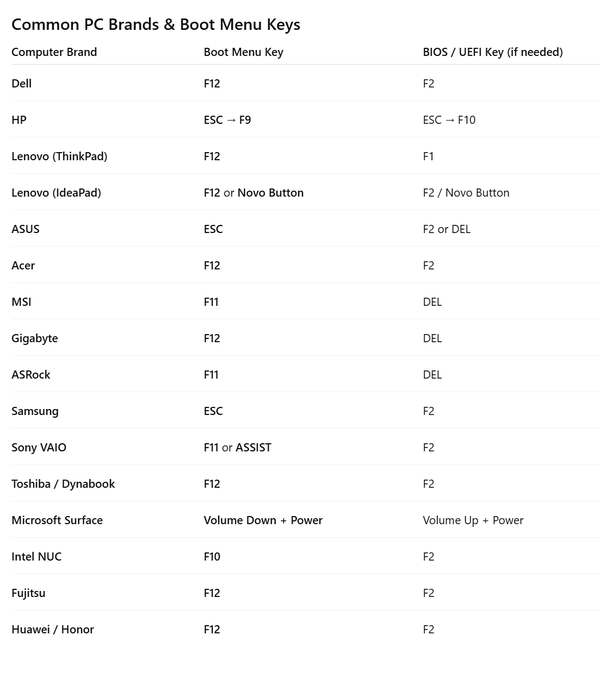
2. Press the Boot Menu Key
As soon as the computer powers on, repeatedly press the boot menu key until the Boot Menu appears.
3. Select the USB Device
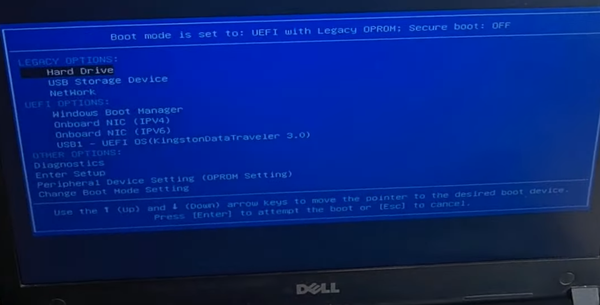
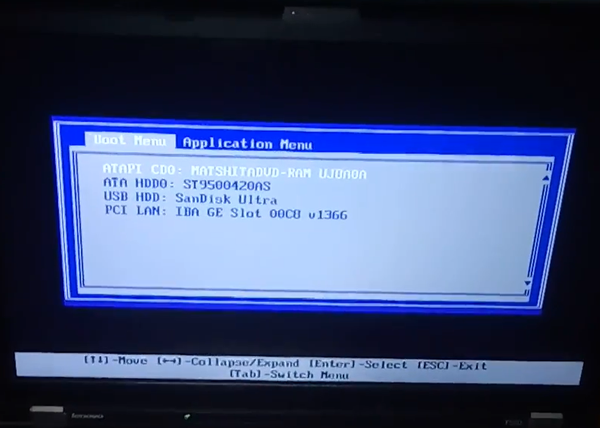
When the boot menu appears:
- Use the arrow keys to highlight USB Storage Device, USB HDD, or the name of your USB drive.
- Press Enter to boot from the USB.
Dell Boot Menu
Lenovo Boot Menu
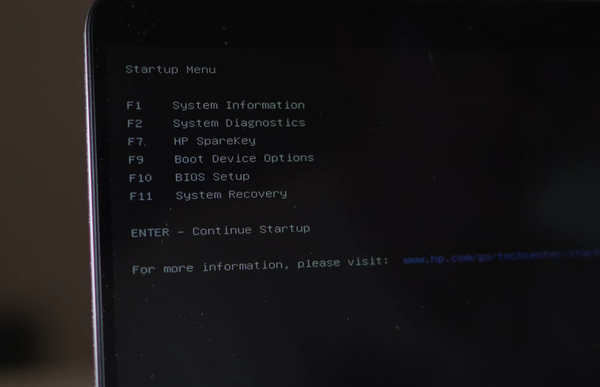
HP Computers
HP uses a two step menu:
- Press ESC to open the Startup Menu.
- Then press F9 to enter Boot Device Options.
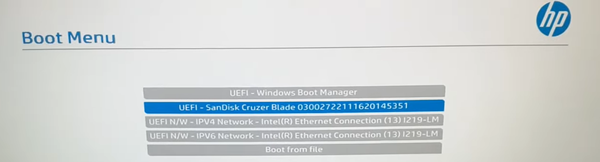
4. If the Boot Menu Does Not Appear
Boot Menu Is Disabled (Acer / Some Lenovo)
Example: Acer Laptop
- Power on and press F2 to enter BIOS Setup.
- Go to the Main tab.
- Find F12 Boot Menu option.
- Change it to Enabled.
- Press F10 to save and reboot.
- Press F12 again to open the boot menu.
5. USB Option Not Showing in Boot Menu
5.1 Enable Legacy / CSM Boot Mode
- Enter BIOS Setup (Del, F2, or F1).
- Find Boot Mode / CSM / Legacy Support.
- Set it to Enabled.
- Save changes and try again.
5.2 Rebuild the USB with Correct Partition Scheme
- UEFI computer → create USB as GPT/MBR.
- Use Lazesoft Media Builder to recreate the USB.
6. After Successful Boot
Once the computer boots from the Lazesoft USB disk:
- Password Recovery
- Data Recovery
- System Repair
- Disk Clone & Backup
7. Tips
- Try different USB ports (rear ports on desktops are better).
- Disable Secure Boot if USB cannot boot.
- Use USB 2.0 port on older computers.
Need Help?
If you still cannot boot from the USB disk, please contact Lazesoft Support and provide:
- Computer brand and model
- BIOS mode (UEFI or Legacy)
- Screenshots of your boot menu
- How the USB was created (MBR/GPT)
If the USB does not appear in the boot menu, you may need to set BIOS to boot from USB and adjust boot order .
Create a bootable Lazesoft USB recovery disk step-by-step
Lazesoft Recovery Suite is easy to use, powerful boot disk design to Recover Data, Recover crashed Windows System, Recover Windows Password, Clone or Backup Disk, etc.
Recovery manual and guides
How to burn a bootable recovery CD
How to boot from the created recovery CD
How to create a bootable recovery USB Disk and boot from it
How to perform a data recovery
How to recover data from formatted or damaged partition
How to fix boot problems if Windows won't start correctly
How to clone entire disk for backup or upgrading
How to recover Windows login password
How to recover Windows Server password
Forgot Windows admin user password
Forgot Windows Server 2003 2008 Domain Administrator Password
How to burn a Windows password recovery CD
How to boot Windows password recovery CD
How to recover Windows login password
How to recover administrator password
How to recover Windows Server password
How to recover Windows XP password
How to recover Windows Vista password
More...