Upgrade your laptop hard drive to faster and bigger without reinstalling Windows
Laptop storage can feel slow or run out of space over time. Upgrading to a larger or (recommended) a faster SSD can dramatically improve boot time and overall performance—without the hassle of reinstalling Windows and applications.
With Lazesoft Disk Image & Clone Home Edition or Lazesoft Recovery Suite Home Edition, you can clone your existing Windows system disk for free onto a new drive, then swap the drives and boot normally—everything stays the same: Windows, programs, settings, and files.
✔ 100% Free for Home Users
Lazesoft Disk Clone is completely free for personal and home use.
There are no size limits, no trial restrictions, and
no forced upgrades when cloning disks on home computers.
Online Disk Clone vs Offline Disk Clone
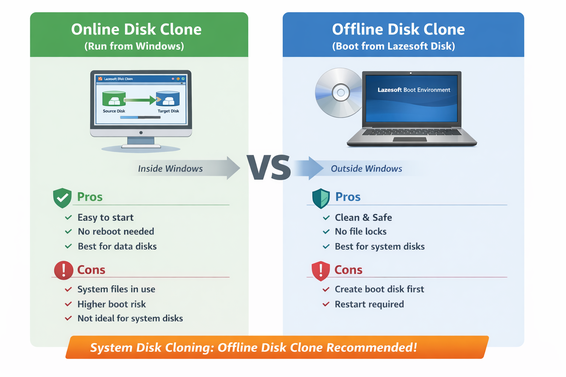
System disk cloning: Offline Disk Clone is recommended for maximum safety.
Lazesoft gives you two flexible ways to clone a disk, depending on how you run the software. Understanding the difference helps you choose the safest option for your system.
🟢 Online Disk Clone (Run from Windows Desktop)
Online disk clone means running Lazesoft directly inside Windows while Windows is running.
- Very convenient for home users
- No reboot or boot disk required
- Fast and easy to start
Limitations: Some system files are in use during cloning. When cloning a Windows system disk, this may increase the chance of boot-related issues.
Best for: data disks, quick upgrades, healthy Windows systems
🔵 Offline Disk Clone (Boot from Lazesoft Boot Disk) — Recommended
Offline disk clone runs from a Lazesoft boot disk, with Windows completely shut down.
- Much cleaner and safer cloning process
- No locked or active system files
- Lowest chance of boot problems
- Works even if Windows fails to boot
Why it’s safer: Windows is fully offline. No background services, updates, or disk writes can interfere with cloning.
Trade-off: requires creating a boot disk and rebooting once.
Best for: system disk cloning, SSD upgrades, long-term stability
| Scenario | Recommended Method |
|---|---|
| Upgrade system disk (HDD → SSD) | Offline Disk Clone |
| Maximum boot reliability | Offline Disk Clone |
| Quick data disk clone | Online Disk Clone |
Tip: For the safest and most reliable result, Lazesoft strongly recommends Offline Disk Clone when cloning a Windows system disk.
Both Online Disk Clone and Offline Disk Clone are fully available at no cost for home users in Lazesoft Home Edition.
Disk Clone Comparison: Lazesoft vs Other Popular Tools
Many disk cloning tools advertise “free” versions, but often include hidden limitations. The table below shows how Lazesoft Disk Clone compares for home users.
| Feature | Lazesoft Disk Clone (Home Edition) |
Competitor A (Free Version) |
Competitor B (Trial Version) |
|---|---|---|---|
| Price for home users | ✔ 100% Free | Free with limitations | Trial only |
| Clone system disk | ✔ Yes | Limited / Restricted | Limited |
| Offline disk clone (boot disk) | ✔ Yes (Recommended) | ✖ Paid only | ✖ Paid only |
| Online disk clone (run in Windows) | ✔ Yes | ✔ Yes | ✔ Yes |
| Disk size limits | ✔ No limits | Limited | Limited |
| SSD upgrade support (HDD → SSD) | ✔ Yes | ✔ Yes | ✔ Yes |
| Windows boot reliability | ✔ Very High | Medium | Medium |
| Forced upgrade prompts | ✔ No | ✔ Yes | ✔ Yes |
| Best choice for home users | ✔ Yes | △ Maybe | ✖ No |
*Competitor features vary by version and may change. Comparison is based on commonly available free editions.
Summary: Lazesoft is one of the few solutions that provides both online and offline disk cloning completely free for home users, without disk size limits or forced upgrades.
Before you start
- Back up important files (recommended for any disk operation).
- If your system drive is BitLocker-encrypted, make sure you have the recovery key.
- Have your laptop model/service guide ready so you know where the drive bay is.
What you need
- A new replacement drive (2.5" SATA HDD/SSD, or M.2 SSD if your laptop uses it)
- A USB enclosure / adapter for the new drive (SATA or NVMe depending on the drive type)
- A USB flash drive (recommended) or blank CD/DVD to create Lazesoft bootable media
- Small screwdrivers for your laptop case and drive bracket
Step-by-step: clone your old drive to the new drive
Step 1 — Install Lazesoft Disk Image & Clone Home Edition or Lazesoft Recovery Suite Home Edition
Download and install the software on the laptop (recommended) or on another working Windows PC.
Step 2 — Create bootable Lazesoft media (USB/CD)
Use the Media Builder to create a bootable recovery USB (recommended) or CD/DVD.
Step 3 — Connect the new drive via USB enclosure/adapter
Install the new drive into the USB enclosure and connect it to the laptop.
Step 4 — Boot the laptop from the Lazesoft boot disk
Restart the laptop and boot from the Lazesoft USB/CD (use the BIOS/UEFI boot menu if needed).
Step 5 — Clone the disk
- Select Disk Clone from the menu.
- Choose the internal disk as the Source.
- Choose the USB-connected new drive as the Destination.
- Choose Fit to Target if you are migrating to a larger drive (recommended).
- Start the clone and wait until it completes.
- When finished, shut down the computer.
Step-by-step: replace the drive in the laptop
- Power off the laptop completely.
- Unplug the charger and (if removable) remove the battery.
- Open the drive cover / bottom cover.
- Remove the old drive and install the new cloned drive.
- Reattach the cover and power on the laptop.
After booting, Windows should start normally from the new drive. Keep the old drive in the USB enclosure as a backup or for external storage (optional).
Troubleshooting tips
UEFI/Secure Boot note: If the boot USB does not appear, temporarily disable Secure Boot in UEFI settings or enable legacy/CSM mode (if available), then try again.
- If the laptop does not boot, re-check BIOS/UEFI boot order and disk detection.
- If the new drive is not detected, try a different USB port/cable or enclosure.
- If partitions look smaller than expected after upgrading to a larger drive, confirm you selected Fit to Target.