
Free Partition Recovery Software for Windows
If a partition disappeared after accidental deletion, a failed resize, partition table corruption, Windows reinstall, power loss, or disk management error, stop writing new data to the drive as soon as possible. The sooner you attempt recovery, the better the chance of restoring the partition and its data successfully.
Looking for reliable free partition recovery software for Windows? You are in the right place. Losing a partition can feel like losing an entire drive at once. One moment your data volume is visible in File Explorer, and the next it has vanished, appears as unallocated space, shows as RAW, or no longer has a drive letter. This can happen after accidental deletion in Disk Management, a partition resize error, boot repair mistake, sudden power interruption, disk corruption, or problems during system migration or cloning.
The good news is that a missing partition is not always permanently erased. In many cases, the data still exists on the disk, and the partition structure can be found and restored with the right recovery tool. A good partition recovery solution should do more than just scan. It should help you work safely, support modern GPT and older MBR disks, and make it easy to recover partitions without increasing the risk of data loss.
Lazesoft Recovery Suite is designed exactly for that purpose. It provides powerful partition and data recovery tools in a practical Windows recovery environment, helping users recover deleted partitions, restore lost volumes, and access important files from damaged or unbootable systems. It is especially valuable for technicians, support teams, and advanced users who need a dependable recovery toolkit.
What Is Partition Recovery?
Partition recovery is the process of finding and restoring a partition that has been deleted, lost, hidden, damaged, or made inaccessible. A partition is a logical section of a hard disk, SSD, NVMe drive, or external storage device. Windows assigns partitions drive letters such as C:, D:, E:, and so on. When partition information is damaged or removed, Windows may stop showing the partition even though much or all of the data may still remain on the disk.
Depending on what happened, partition recovery can involve one or more of the following:
Restore a deleted partition
Recover a partition removed accidentally in Disk Management or by third-party partitioning tools.
Find a lost partition
Locate a partition that disappeared due to corruption, bad edits to the partition table, or failed OS operations.
Recover data from an inaccessible partition
Access files when a partition becomes RAW, unallocated, or unreadable.
Work outside Windows
Boot into a recovery environment when the system cannot start normally.
Why Do Partitions Get Lost or Deleted?
Lost partitions are more common than many users expect. In real-world support cases, partition loss often comes from ordinary maintenance tasks, not dramatic hardware disasters. Here are the most common causes:
| Cause | What happens |
|---|---|
| Accidental deletion | A partition is removed in Windows Disk Management or a partition tool, leaving unallocated space. |
| Failed resize or move | Changing partition size or position can damage the partition table if interrupted or handled incorrectly. |
| Windows reinstall or upgrade | OS setup may overwrite partition metadata, change layouts, or make an existing partition inaccessible. |
| Disk corruption | Partition table, boot sector, or file system corruption can make the partition disappear or show as RAW. |
| Power failure | Sudden shutdown during disk operations can leave partition structures incomplete or inconsistent. |
| Cloning or migration errors | Incorrect source/target selection or interrupted cloning may cause partition loss or mapping issues. |
| Malware or system errors | Malicious or unstable software can damage partition information or disk configuration. |
Signs That You Need Partition Recovery Software
If you notice any of the following symptoms, partition recovery software may help:
- A drive letter has disappeared from File Explorer
- A partition shows as Unallocated in Disk Management
- A partition appears as RAW and asks to be formatted
- Windows says the drive is inaccessible or not initialized
- A data partition is missing after reinstalling Windows
- An external drive no longer shows the expected volume layout
- You deleted the wrong partition by mistake
How to Recover a Lost or Deleted Partition
The exact recovery process depends on the type of damage, but the safest workflow is usually simple:
- Stop using the affected disk to prevent overwriting recoverable data.
- Check Disk Management to confirm whether the partition is missing, unallocated, or RAW.
- Use partition recovery software to scan the disk for lost partition entries.
- Preview or confirm the found partition before restoring it.
- Restore the partition or recover files to a safe location if direct restoration is not suitable.
If Windows cannot boot, recovery should be performed from a bootable recovery environment. That helps avoid writing to the system disk and gives better access to damaged drives.
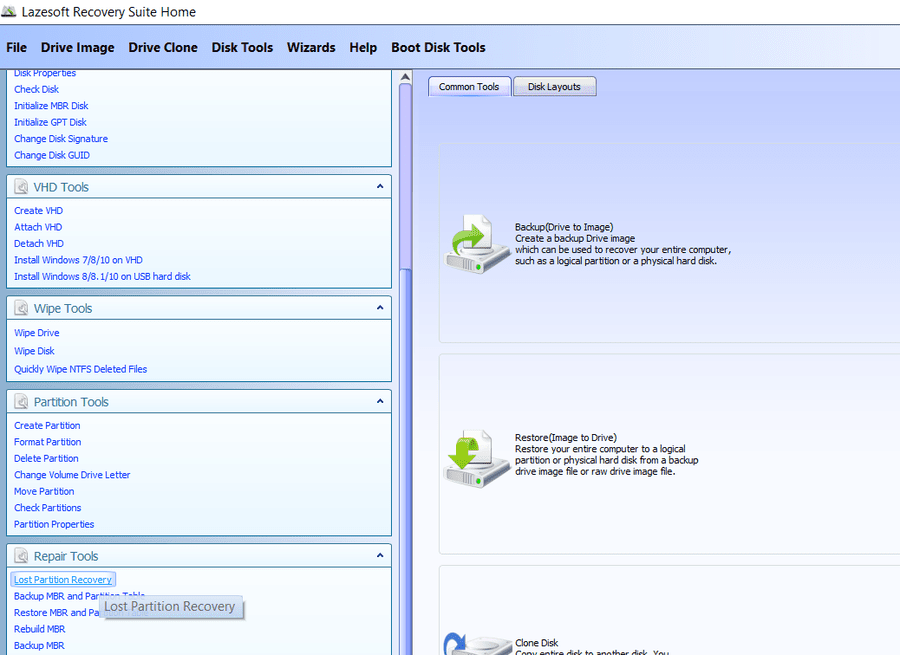
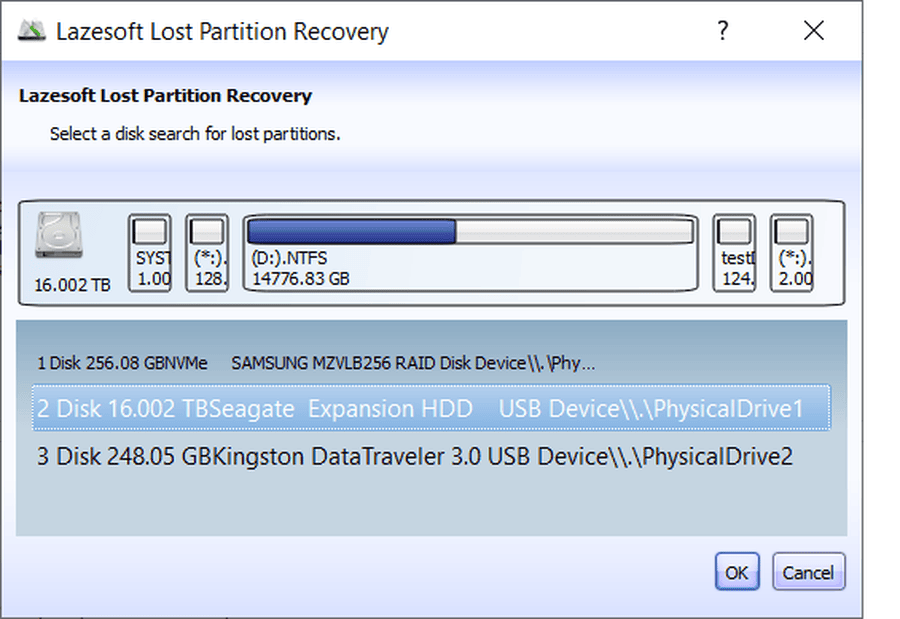
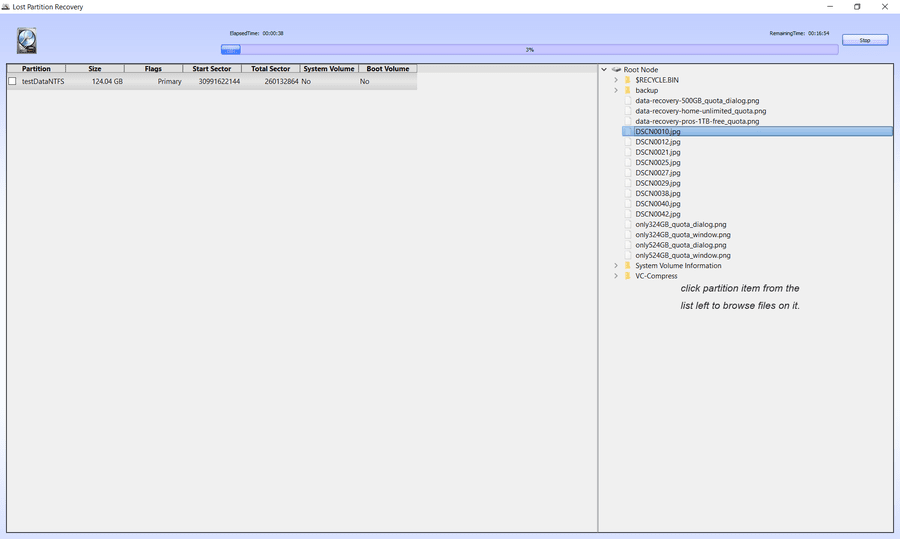
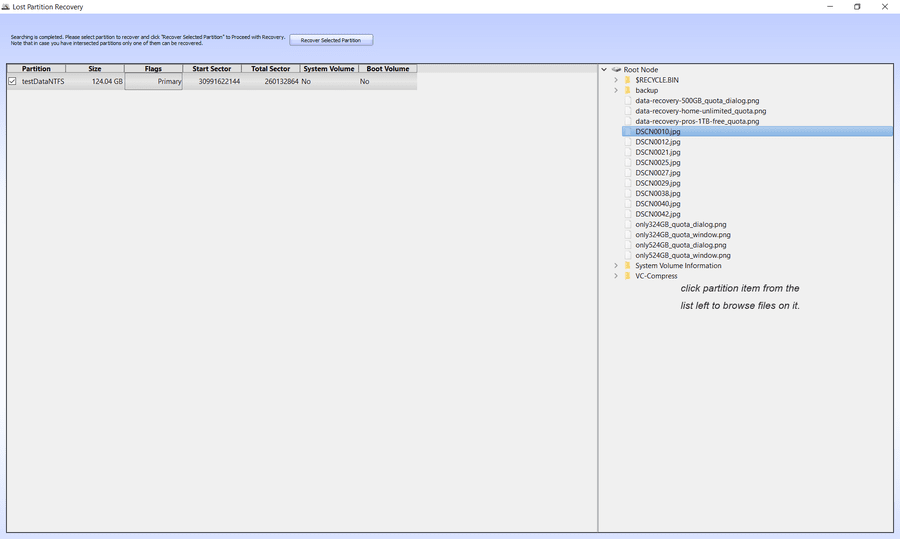
Step-by-Step: Recover a Lost Partition with Lazesoft
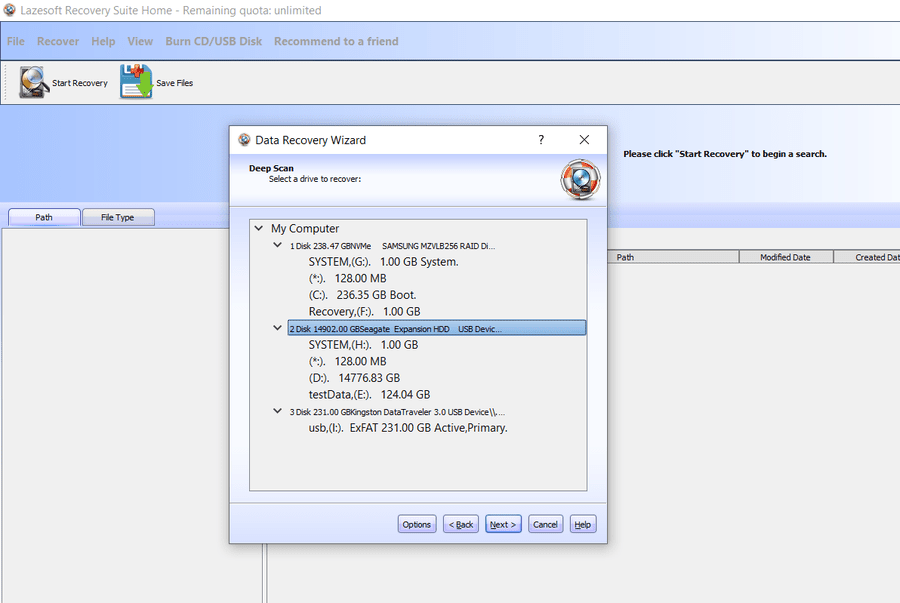
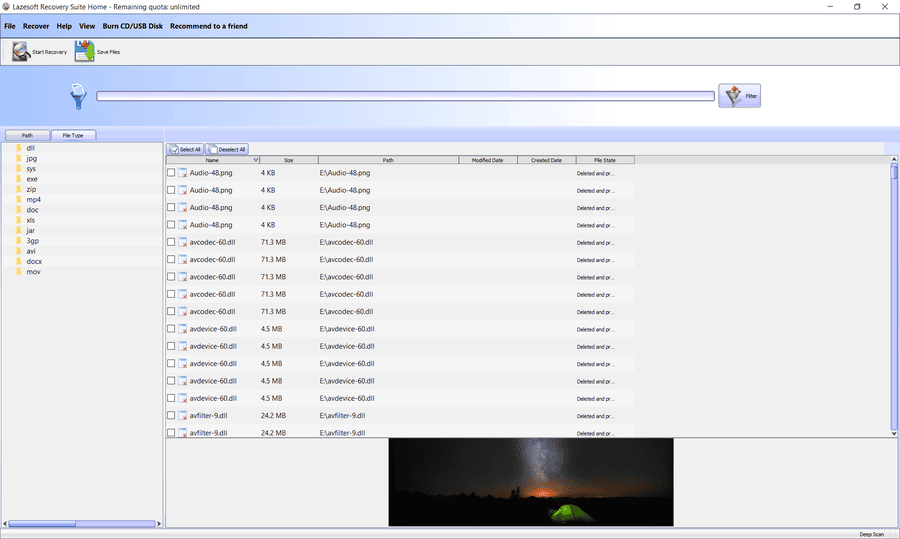
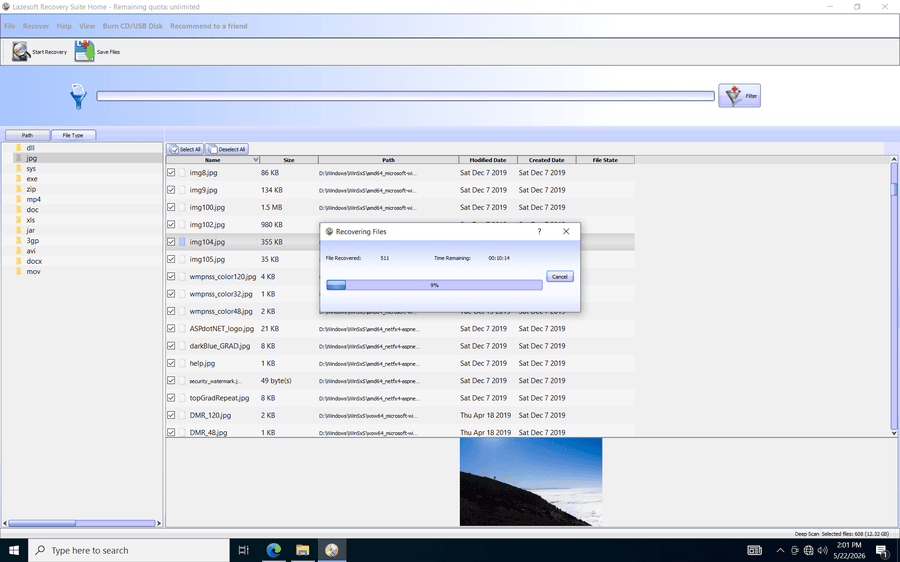
The screenshots below show a typical lost partition recovery workflow in Lazesoft Recovery Suite. You can scan the affected disk, review the found partition, preview files, and recover the selected partition safely.
Free Partition Recovery Software vs. General Data Recovery Tools
Many users search for “free partition recovery,” “partition recovery freeware,” or “best free partition recovery software” and end up comparing very different kinds of tools. Some tools are built to restore partition structures. Others are designed only to recover individual files. Both have value, but they solve different problems.
Partition recovery software
Best when the goal is to restore the missing partition itself so the whole volume becomes available again.
File recovery software
Best when the partition is heavily damaged and you mainly need to extract important files to another disk.
Lazesoft Recovery Suite is especially useful because it is not limited to one narrow task. It combines recovery, repair, boot tools, and disk utilities in one environment, which is often more practical than using separate tools for each stage of a recovery case.
Recover Files from a Damaged Partition First
In some cases, restoring the partition directly may not be the safest first step. If the partition is badly damaged, shows as RAW, or contains important files that must be protected, you can use Lazesoft Data Recovery to preview and recover files to another safe drive before making changes to the damaged disk.
Why Choose Lazesoft as Free Partition Recovery Software?
When selecting partition recovery software, users usually care about five things: safety, compatibility, ease of use, recovery effectiveness, and real value. Lazesoft stands out because it balances all five.
1. Free for home users
Lazesoft offers exceptional value. It is unlimited free for home users, making it highly attractive for personal recovery work. For professional use, it also provides up to 1TB free, which is practical for many real support cases and evaluation scenarios. This gives users a genuine free recovery option rather than a heavily restricted demo.
2. Recover partitions and more
Partition loss is often part of a bigger problem. A disk may also have boot issues, BCD problems, file system errors, or accidental formatting. Lazesoft Recovery Suite is built as an all-in-one recovery toolkit, so users can handle more of the recovery workflow in one place.
3. Useful when Windows cannot boot
If the damaged drive is your system disk, running recovery inside normal Windows may be impossible or unsafe. Lazesoft can be used from bootable recovery media, allowing you to work on offline disks, recover data, and attempt repairs without loading the affected Windows installation first.
4. Supports modern and older Windows environments
Many users still work across mixed hardware generations and different Windows versions. A practical recovery tool needs to support both modern GPT/UEFI systems and older MBR/BIOS-based environments. That flexibility is especially important for technicians and repair shops.
5. Safer workflow for real recovery jobs
Good recovery is not only about finding data. It is also about avoiding additional damage. Lazesoft supports a more cautious workflow by making it easier to boot into recovery mode, inspect the disk, recover data, and proceed methodically.
Typical Recovery Scenarios
Here are common situations where users search for free partition recovery software and where Lazesoft can help:
| Scenario | How Lazesoft helps |
|---|---|
| Deleted partition in Disk Management | Scan the disk for lost partition entries and recover the missing volume. |
| Partition became RAW | Attempt file recovery or recovery from a safe boot environment before destructive repair actions. |
| Drive missing after Windows reinstall | Check partition layout, recover missing volumes, and access data from offline boot media. |
| External USB disk no longer shows data partition | Inspect disk structure and recover lost or deleted partitions from removable storage. |
| System will not boot after disk changes | Boot from Lazesoft media, recover files, and troubleshoot boot-related problems. |
Best Practices Before Recovering a Partition
To improve the chance of success, follow these guidelines before starting recovery:
- Do not format the missing partition even if Windows prompts you
- Do not create new volumes in the unallocated area
- Do not install recovery software onto the affected disk
- Do not save recovered files back to the same damaged partition
- Use a bootable recovery environment if the system disk is involved
- If the disk has physical problems, clone it first if possible
What Makes the Best Free Partition Recovery Software?
A lot of pages claim to offer the “best free partition recovery software,” but the real test is practical recovery performance. Here is what actually matters:
Real free usefulness
Not just a scan-only demo. Users need meaningful recovery ability, not just a preview.
Partition-aware recovery
The tool should recognize deleted and lost partition layouts, not only file signatures.
Bootable recovery support
Critical for system-disk cases and for computers that no longer start normally.
Broad compatibility
Support for common Windows storage environments, disk types, and partition styles.
That is why Lazesoft is a strong choice for users comparing terms like free partition recovery tool, partition recovery freeware, best free partition recovery, and partition recovery software free. It is not just a recovery scanner. It is a practical recovery suite built for real repair situations.
Who Is This Software For?
Lazesoft partition recovery tools are useful for:
- Home users who accidentally deleted a partition
- IT support staff handling damaged Windows disks
- Technicians recovering data from unbootable PCs
- Users migrating drives and encountering partition layout problems
- Anyone who needs a genuine free recovery option before paying for expensive alternatives
When Partition Recovery Is Not Enough
Some cases go beyond partition-table repair. If a disk has severe file system corruption, many bad sectors, or hardware failure, direct partition restoration may not be the best first step. In that situation, the safer approach may be:
- Boot into the recovery environment
- Copy important files to another drive
- Clone the failing disk if possible
- Attempt deeper repair only after the important data is secured
This is another reason an all-in-one recovery environment is valuable. Real recovery often requires flexibility, not just one button.
Try Lazesoft Free Partition Recovery Software
Recover lost or deleted partitions, access data from damaged disks, and work from a bootable recovery environment when Windows cannot start.
Unlimited free for home users.
Up to 1TB free for professionals.
FAQ
Can I recover a deleted partition for free?
In many cases, yes. If the partition was deleted but its data has not been overwritten, free partition recovery software can often find and restore it. Lazesoft provides real recovery value for home users rather than a scan-only experience.
What is the best free partition recovery software for Windows?
The best choice depends on the situation, but a strong tool should support partition recovery, safe workflows, and recovery from unbootable systems. Lazesoft Recovery Suite is a strong option because it combines recovery and repair tools in one environment.
Can I recover a partition after formatting?
Sometimes, yes. If the formatting was quick and little or no new data was written afterwards, recovery may still be possible. The chance of success depends on how much of the original data and partition structure remains.
Can partition recovery software work on SSDs and external drives?
Yes. Partition recovery software can be used on SSDs, HDDs, USB drives, and external disks. However, SSD recovery success may depend more heavily on whether data has been trimmed or overwritten.
Should I restore the partition or recover files first?
If the disk is stable and the lost partition is clearly identified, restoring the partition may be appropriate. If the disk is unstable, corrupted, or physically failing, recovering critical files first is usually safer.
Note: If the affected drive contains important business or irreplaceable personal data, avoid repeated repair attempts and use the safest recovery workflow possible.