
How to Automatically Back Up Your Windows System with Monthly Full + Differential Backups (FREE)
Complete baseline system image
Fast copies of changes since full
Run a manual backup anytime
Verify contents after backup
System crashes, failed Windows updates, ransomware, and hard-drive failures can happen without warning. The safest solution is a system image backup—so you can restore your entire Windows system in minutes.
In this step-by-step tutorial, we’ll use Lazesoft Recovery Suite Home Edition to create a simple, reliable plan: Monthly Full + Differential backups, plus the ability to back up on-demand and verify the image.
Why a System Image Backup Is the Best Protection
A file backup protects documents, but a system image protects your entire Windows environment. A system image can include:
- Windows OS
- Installed programs
- System settings
- Boot partitions (for example: EFI / Recovery)
- Your data (depending on what’s included)
If Windows won’t boot, you can restore the image and get back to a working PC quickly—without reinstalling everything.
Free Automatic Windows Backup (Monthly + Differential) – Lazesoft System Image:
Step 1: Install Lazesoft Recovery Suite Home Edition
- Open the Lazesoft download page.
- Install Lazesoft Recovery Suite Home Edition.
- Launch the program.
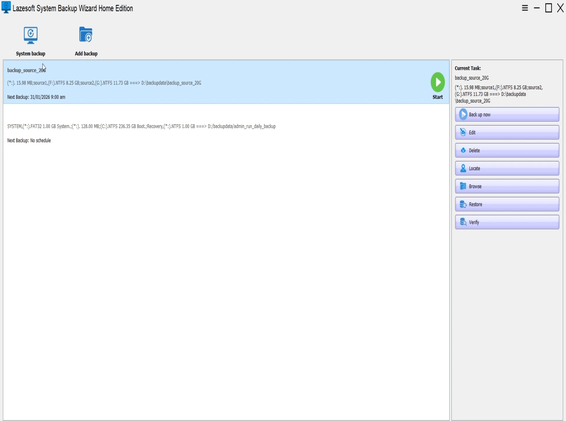
Step 2: Create a New System Backup Task
- In Lazesoft, choose System Backup.
- Create a new backup task for your system image.
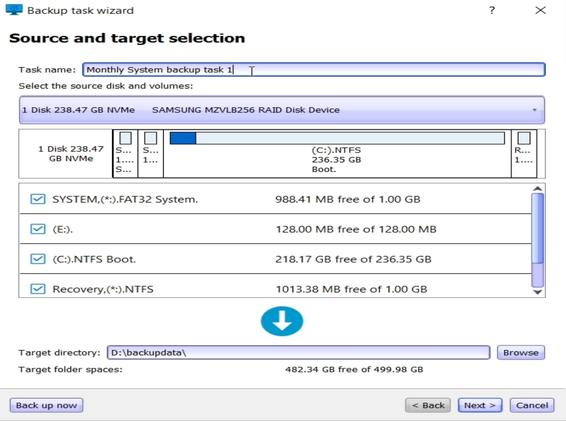
Smart Auto-Selection (What the video shows)
In the workflow shown in your video, Lazesoft reduces mistakes by automatically selecting the important parts for you:
- Auto-detects the system disk
- Auto-selects boot partitions (for example: C:, EFI, Recovery)
- Auto-selects a target drive with the most available free space
- Monthly plan is default (you can adjust it later)
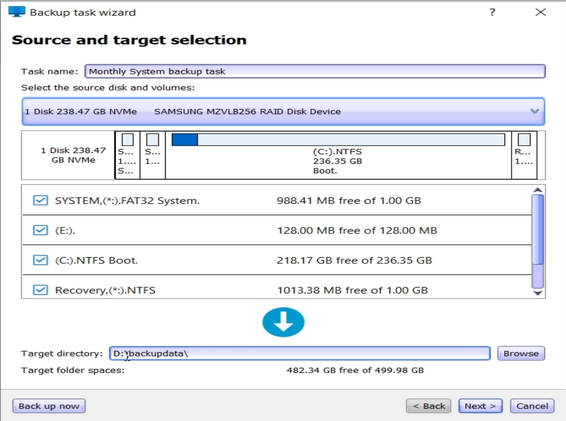
Step 3: Enable a Monthly Full + Differential Backup Schedule
- Turn on Enable Schedule.
- Confirm Full Backup is set to Monthly (default in the video).
- Enable Differential backups (weekly or daily—choose your preference).
- Select a time when your PC is idle (for example: early morning).
- Click Save to activate the schedule.
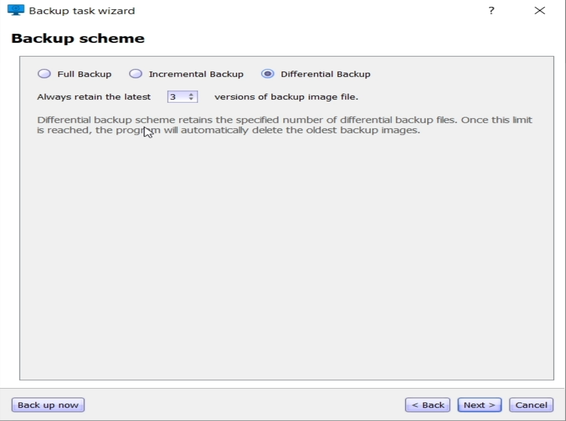
Full vs Differential (quick explanation)
| Backup Type | What it saves | Typical size | Typical speed |
|---|---|---|---|
| Full | Entire system image baseline | Larger | Slower |
| Differential | Changes since last full backup | Smaller | Faster |
Step 4: Back Up Anytime with “Backup Now”
After you set the schedule, you can still run a backup immediately:
- Click Backup Now.
- Wait for the backup to complete.
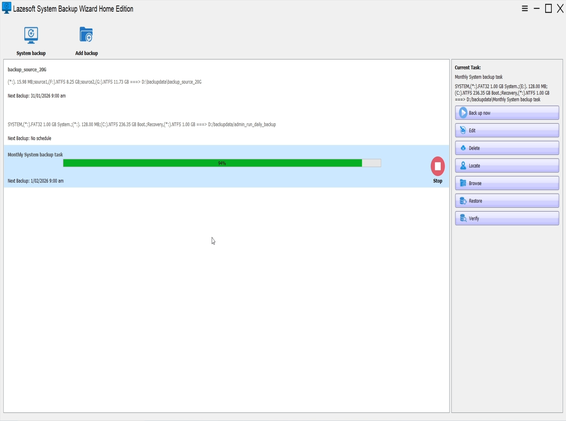
This is especially useful before:
- Major Windows updates
- Driver changes
- Software installs/uninstalls
- Disk upgrades or partition changes
Step 5: Verify Your Backup by Using “Browse Image”
A big trust booster (and a great feature to show in the video) is verification:
- After backup completes, click Browse Image.
- Open the backup image.
- Browse folders/files to confirm the image is readable and contains what you expect.

What You Can Recover with a System Image
- Windows OS
- Installed apps and programs
- System settings and configuration
- Boot partitions needed to start Windows
Summary: Automatic • On-Demand • Verified
With Lazesoft Recovery Suite Home Edition, you can set a reliable protection plan: Monthly full backups + differential backups, then run Backup Now anytime, and verify using Browse Image.
FAQ
What does a system image backup include?
A system image typically includes Windows, installed programs, system settings, and required boot partitions such as EFI and Recovery, so you can restore the entire PC to a working state.
Why use monthly full backup plus differential backups?
The monthly full backup creates a complete baseline image. Differential backups capture only the changes since the last full backup, which is faster and uses less storage while keeping you protected between full backups.
Can I run a backup immediately without waiting for the schedule?
Yes. After you set a schedule, click Backup Now to start a backup at any time—useful before updates, upgrades, or major changes.
How do I verify the backup worked?
After the backup completes, click Browse Image to open the image and view its contents. This confirms the image is readable.
Does Lazesoft automatically select the correct system partitions?
In the workflow shown, Lazesoft auto-detects the system disk and selects the required boot partitions (such as C:, EFI, and Recovery) to reduce configuration errors.
Note: UI labels and available options may vary slightly by version. The steps above follow the workflow shown in the video.