
Windows 10/11 Boot Repair
Fix Windows 10/11 Black Screen After Clone or Restore
If Windows shows the logo, spins for a while, restarts several times, and then stops at a black screen with only the mouse cursor, the problem is often caused by boot and registry drive-letter mapping errors after cloning or restoring a system disk.

Symptoms: Windows Loads, Then Black Screen with Mouse
This boot failure is different from a completely dead computer. The system usually starts to boot. You may see the Windows logo and the loading circle. Sometimes the loading animation appears several times, Windows restarts automatically, and finally the screen becomes black. The mouse cursor is still visible and can move, but the desktop, taskbar, and login screen do not appear.
This issue is commonly reported after disk cloning, SSD migration, system image restore, or restoring Windows to a different disk layout. For example, you may clone an old hard drive to a new SSD or restore a backup image to a replacement disk. The clone appears successful, the BIOS can start the disk, and Windows begins loading. However, Windows cannot finish loading the normal login or desktop environment.
Common signs
- Windows logo appears normally.
- Spinning loading circle is shown.
- Computer may restart two or three times.
- Final screen is black with only a mouse cursor.
- Desktop and taskbar never appear.
Common trigger
- Cloned HDD to SSD or NVMe drive.
- Restored system backup image.
- Changed disk order or partition layout.
- Copied Windows to a different physical disk.
- Recovered Windows after disk failure.
Why This Happens After Cloning or Restore
When Windows boots, it must not only find the boot files. It also needs to mount the correct Windows partition as the system drive, normally C:. After cloning or restoring, this mapping can become incorrect. The boot process may start successfully, but Windows later fails when it tries to load services, profiles, Explorer, or the login environment from the expected system volume.
One important place Windows stores volume and drive-letter mappings is the offline registry key:
HKEY_LOCAL_MACHINE\SYSTEM\MountedDevices
Inside this key, entries such as \DosDevices\C:, \DosDevices\D:, and \??\Volume{...} map drive letters and volume identifiers to disk signatures and partition offsets, ids. If C: points to the wrong partition, or if the original system partition is now assigned another drive letter, Windows can enter a partially loaded state. That is why the mouse may work, but the desktop does not load.
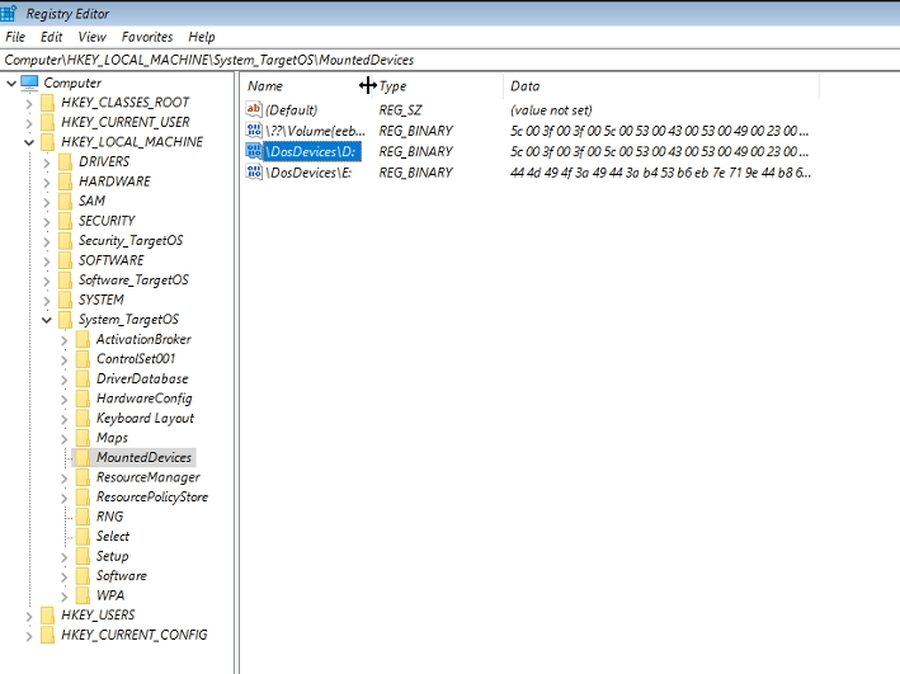
Why the mouse cursor still works
The visible mouse cursor means Windows has loaded part of the graphical environment. Basic video and input support may already be running. However, the login shell or desktop shell may not be able to start correctly because Windows is not using the expected system volume or because boot-related registry information is inconsistent.
Video Guide: Fix Black Screen After Clone or Restore
The following video shows the same problem: Windows starts, displays the loading animation, and then stops at a black screen with mouse cursor. The repair is performed from a Lazesoft boot disk using One Click Fix.
How to Fix It with Lazesoft One Click Fix
The easiest repair method is to boot the computer from a Lazesoft Recovery Suite or Lazesoft Windows Recovery boot disk and run One Click Fix Windows. This avoids manual offline registry editing and checks several boot-related areas in one workflow.
Fix Windows Boot Problems Without Reinstalling
Lazesoft Recovery Suite Home Edition is unlimited free for home users. Create a boot USB, boot the problem PC, and run One Click Fix to repair Windows boot and registry issues.
Download Lazesoft Recovery SuiteStep 1: Create a Lazesoft boot USB
On a working computer, install Lazesoft Recovery Suite and use the media builder to create a bootable USB recovery disk. This USB allows you to start the problem computer even when Windows itself cannot reach the login screen.
If the target computer uses UEFI, boot the USB in UEFI mode. If it is an older computer using legacy BIOS, boot the USB in legacy mode.
Step 2: Boot the problem computer from the USB disk
Insert the USB disk into the computer with the black screen problem. Turn on the computer and open the boot menu. Common boot menu keys include F12, Esc, F9, F11, or F8, depending on the computer brand.
Select the Lazesoft USB disk from the boot menu. When the recovery environment starts, Lazesoft Recovery Suite will load outside the broken Windows installation.
Step 3: Open One Click Fix Windows
In Lazesoft Recovery Suite, choose the Windows Recovery section and run One Click Fix. Select the Windows installation that is failing to boot. The wizard will check the selected boot volume and system volume.
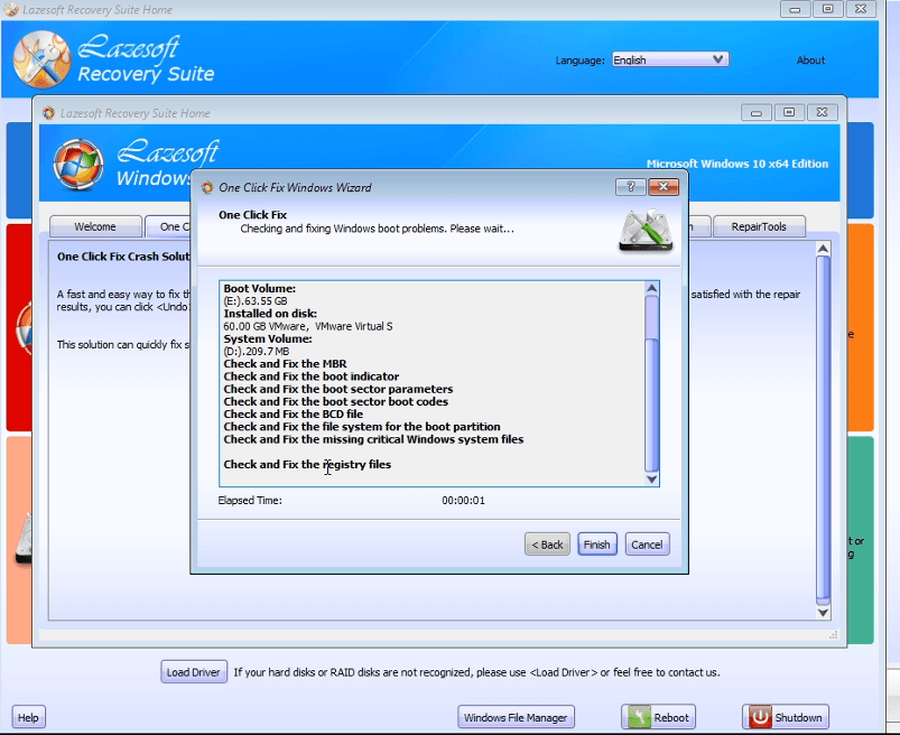
Step 4: Let the wizard repair boot and registry files
The repair wizard checks multiple areas that can break after a clone or restore:
- Check and fix the MBR.
- Check and fix the boot indicator.
- Check and fix the boot sector.
- Check and fix the BCD file.
- Check and fix the file system for the boot partition.
- Check and fix missing critical Windows system files.
- Check and fix registry files, including drive-letter mapping issues.
For the black screen with mouse issue after cloning, the registry repair part is especially important because it can restore the correct system drive mapping.
Step 5: Finish and restart
When the wizard completes, click Finish, remove the USB disk, and restart the computer. If the problem was caused by boot configuration or registry drive-letter mapping, Windows should pass the black screen stage and continue to the login screen or desktop.
What Changes After the Repair?
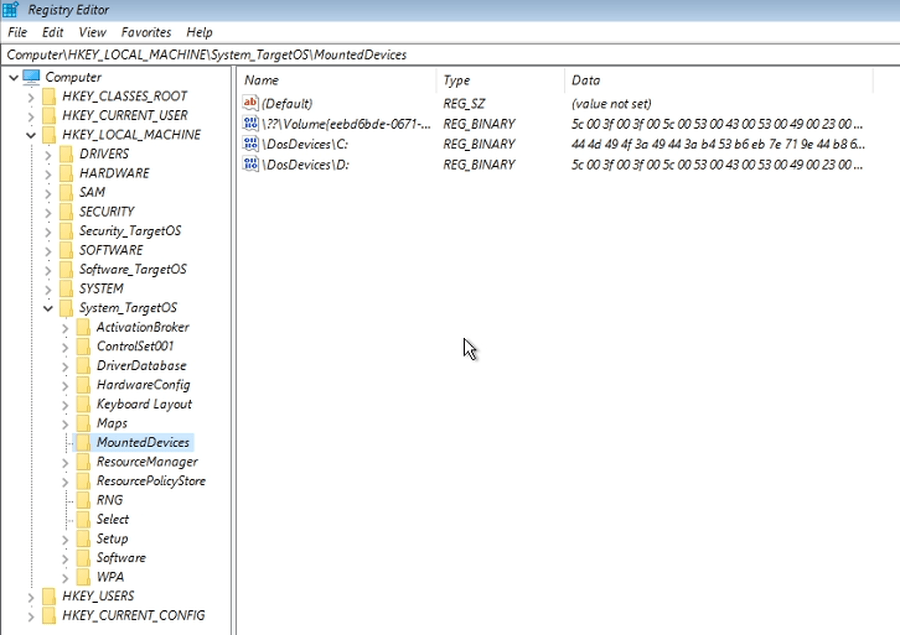
After a successful repair, the offline Windows registry should contain the correct system drive mapping again. The Windows partition should be recognized as the expected system drive, normally C:. This allows Windows to continue loading services, user profiles, and the desktop environment.
| Before repair | After One Click Fix |
|---|---|
| Windows logo appears but desktop never loads. | Windows continues to login screen or desktop. |
| Mouse cursor works on black screen. | Explorer and user environment load normally. |
| MountedDevices may have wrong or missing C: mapping. | System drive mapping is corrected. |
| Manual registry editing may be required. | Repair is performed automatically by the wizard. |
Manual Offline Registry Repair: Advanced Users Only
Advanced users can sometimes fix this problem by manually loading the offline Windows SYSTEM registry hive and editing MountedDevices. However, this is risky. Choosing the wrong binary value or deleting the wrong mapping can make Windows harder to repair.
The manual process usually involves booting into WinPE, opening Registry Editor, loading the offline SYSTEM hive from the Windows installation, and checking this key:
HKEY_LOCAL_MACHINE\System_TargetOS\MountedDevices
Then the user must identify which binary value belongs to the real Windows system partition and make sure it is assigned as \DosDevices\C:. This requires understanding disk signatures, GPT volume identifiers, partition offsets, and offline drive-letter assignments. For most users, One Click Fix is safer and faster.
Other Causes of Black Screen After Clone
Drive-letter mapping is a common cause, but not the only possible cause. If the same issue continues after One Click Fix, check these possibilities:
- Storage controller driver issue: The restored Windows installation may not have the correct driver for SATA, AHCI, RAID, Intel RST, or NVMe mode.
- Wrong BIOS boot mode: A Windows installation created for UEFI/GPT may not boot correctly in legacy mode, and a legacy/MBR installation may not boot correctly as UEFI.
- Damaged user profile: If only one user account fails, the profile may be corrupted.
- GPU driver problem: A display driver can sometimes cause black screen after Windows starts, especially after hardware migration.
- Incomplete clone: The clone may have missed the EFI System Partition, Recovery Partition, or other boot-related partitions.
If your hard disk or SSD is not visible in the recovery environment, use the Load Driver function in Lazesoft Recovery Suite to load the storage controller driver, then run One Click Fix again.
How to Avoid This Problem When Cloning Again
To reduce the chance of a black screen after cloning or restoring, keep the system disk layout consistent and avoid connecting both the old and new system disks during the first boot unless necessary. If Windows sees both the original and cloned system disks at the same time, drive-letter and disk signature conflicts are more likely.
- Clone all required boot partitions, not only the C: partition.
- Use UEFI mode for GPT disks and legacy BIOS mode for MBR disks.
- After cloning, boot from the new disk first before reconnecting the old disk.
- Make sure the target disk is selected as the first boot device in BIOS/UEFI.
- Keep a Lazesoft recovery USB ready before disk migration.
FAQ
Why does Windows show a black screen but the mouse still works?
Windows has loaded part of the graphical environment, so the mouse can move. However, the login shell or desktop shell may fail because Windows cannot correctly use the expected system volume or registry configuration.
Is the problem caused by the cloned SSD?
Not always. If Windows starts to load, the SSD may be readable. The issue is often caused by boot configuration, BCD entries, registry drive-letter mappings, or partition layout changes after cloning.
Can I fix this without reinstalling Windows?
Yes. Lazesoft One Click Fix can repair common boot and registry problems without reinstalling Windows or deleting user files.
Can Safe Mode fix this problem?
Sometimes, but often it cannot. If the offline registry mapping is wrong, Safe Mode may still rely on the same incorrect system drive mapping.
Is Lazesoft Recovery Suite free?
Lazesoft Recovery Suite Home Edition is unlimited free for home users. Professional users can use the free quota according to the product edition policy.
Fix the Black Screen Boot Problem Now
If Windows 10 or Windows 11 is stuck on a black screen with mouse after cloning or restoring, do not reinstall Windows first. Boot from Lazesoft Recovery Suite and run One Click Fix to repair boot files, BCD, and registry drive mapping automatically.
Download Lazesoft Recovery Suite