
Windows 10 & Windows 11 After clone or restore Storage driver repair Free for home users
Fix 0x0000007B / INACCESSIBLE_BOOT_DEVICE After Cloning Windows to a New Computer
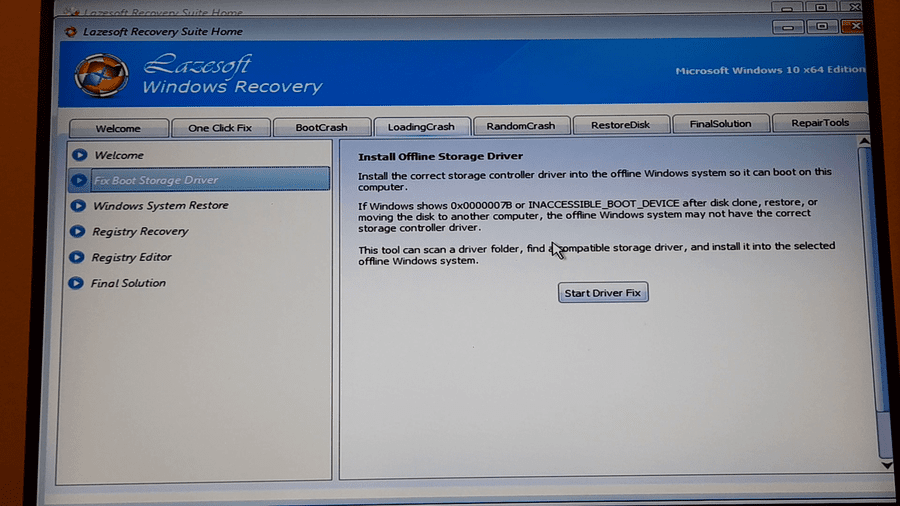
After cloning a Windows system disk to a new computer, replacing the motherboard, restoring a system image to different hardware, or moving a Windows disk from one PC to another, Windows may fail to boot and show this error:
STOP: 0x0000007B
INACCESSIBLE_BOOT_DEVICE
On newer versions of Windows, you may see a blue screen with the stop code INACCESSIBLE_BOOT_DEVICE. This usually means Windows started loading, but it could not access the boot disk.
For example, the old computer may have used AHCI mode, but the new computer may use Intel RST, Intel VMD, RAID, NVMe, or another storage controller. If Windows does not have the correct boot storage driver installed, it cannot read the system disk during startup.
Video Guide: Fix 0x7B INACCESSIBLE_BOOT_DEVICE After Cloning Windows
Watch this video to learn how to fix the 0x0000007B or INACCESSIBLE_BOOT_DEVICE boot error after cloning a system disk, restoring a Windows image, or moving Windows to another computer. The guide shows how to prepare the correct WinPE storage driver package, copy it to a Lazesoft Recovery Suite USB boot disk, and use Windows Recovery → LoadingCrash → Fix Boot Storage Driver to install the matched Intel RST, Intel VMD, RAID, AHCI, or NVMe driver.
When Does This Problem Happen?
The 0x0000007B / INACCESSIBLE_BOOT_DEVICE error may happen after:
Clone or restore
- Cloning a Windows system disk to a new computer.
- Restoring a Windows system image to different hardware.
- Moving an SSD or HDD from one PC to another.
- Migrating Windows from SATA to NVMe SSD.
Hardware or BIOS changes
- Replacing the motherboard.
- Changing BIOS storage mode, such as AHCI, RAID, Intel RST, or Intel VMD.
- Restoring Windows to a computer with a different storage controller.
- Moving Windows to a Dell, HP, Lenovo, or server system with a different disk controller.
In these situations, Windows may still exist on the disk, but it cannot load the correct driver early enough to access the boot device.
Common Causes of 0x7B After Disk Clone or Restore
1. Missing storage controller driver
This is one of the most common reasons after hardware migration. The new computer may require a storage driver such as:
- Intel RST driver
- Intel VMD driver
- RAID controller driver
- AHCI controller driver
- NVMe controller driver
- Dell, HP, Lenovo, or motherboard storage driver
- Server RAID controller driver
If the driver is not installed in the offline Windows system, Windows may fail with 0x7B or INACCESSIBLE_BOOT_DEVICE.
2. Different BIOS storage mode
The old computer and new computer may use different storage modes. For example:
| Old computer | New computer | Possible result |
|---|---|---|
| AHCI | RAID / Intel RST / VMD | Windows may not have the correct boot driver enabled. |
| RAID | AHCI | Windows may still try to load the old storage stack. |
| SATA | NVMe / Intel VMD | Windows may need a different storage controller driver. |
3. Restoring to different hardware
A system image restored to different hardware may not include the storage driver needed by the target computer. This is especially common when restoring an image from an older PC to a newer laptop or workstation using Intel VMD or RAID mode.
4. Wrong driver package
For this repair, you need the storage driver for the new target computer, not the old computer. If you cloned the disk from Computer A to Computer B, download the driver package for Computer B.
Important Before You Start
- Make sure the cloned or restored disk is detected in BIOS.
- Make sure the disk is connected correctly.
- If BitLocker is enabled, prepare the BitLocker recovery key.
- Use the storage driver for the new computer or new motherboard.
- Extract the driver package first. The folder should contain files such as .inf, .sys, and .cat.
The .inf files are important because they describe the driver installation information.
Step 1: Create a Lazesoft USB Boot Disk
First, create a Lazesoft Recovery Suite USB boot disk on another working computer. This USB disk will be used to boot the problem computer and repair the offline Windows installation.
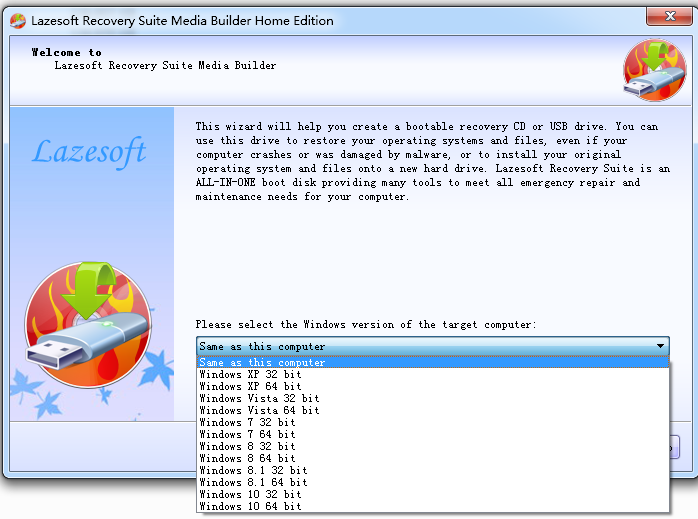
After the USB boot disk is created, keep it connected to the working computer, because you will copy the driver package to this USB disk in the next step.
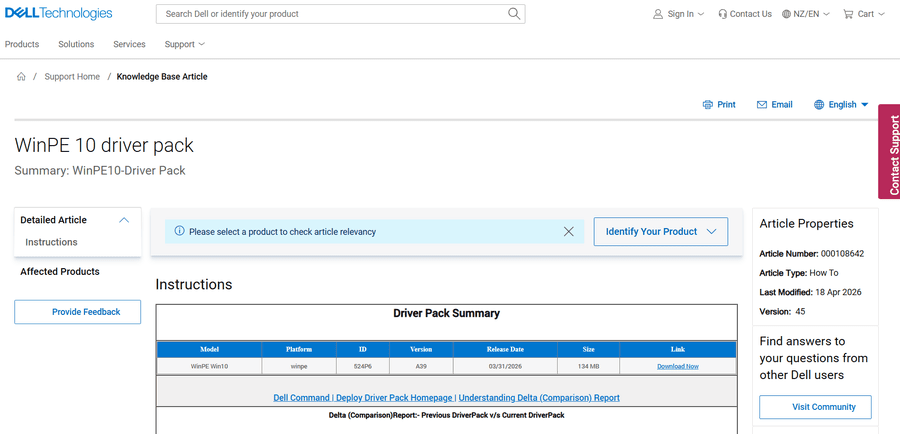
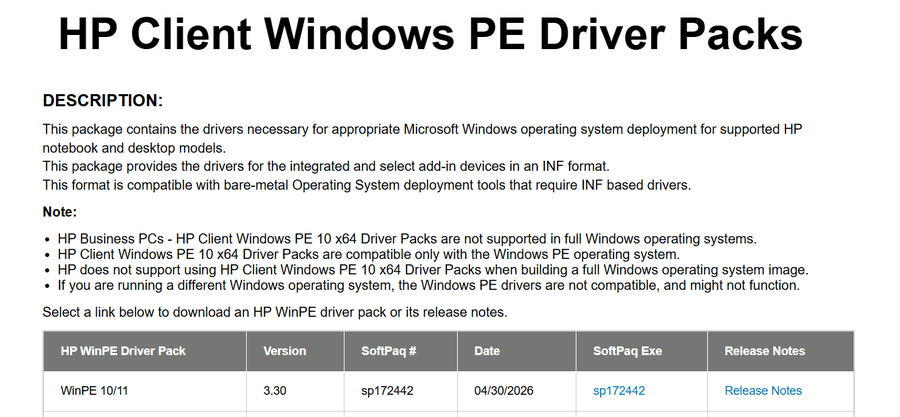
Step 2: Search for the Dell, HP, Lenovo, or Motherboard WinPE Driver Package
Next, download the storage driver package for the new target computer.
For brand-name computers
- Dell WinPE driver package
- HP WinPE driver package
- Lenovo WinPE driver package
- [computer model] storage driver
- [computer model] Intel RST driver
- [computer model] Intel VMD driver
- [computer model] RAID driver
For a custom-built PC
- Intel RST driver
- Intel VMD driver
- RAID driver
- SATA AHCI driver
- NVMe driver
- Storage controller driver
Step 3: Extract and Copy the PE Driver Package to the Lazesoft USB Disk
After downloading the driver package, extract it first. Do not only copy the compressed installer file if the actual driver files are still inside it. You need the extracted driver folder that contains .inf files.
The folder may contain files such as:
iaStorVD.inf
iaStorAC.inf
iaStorVD.sys
iaStorAC.sys
*.cat
Then copy the extracted folder to the Lazesoft USB boot disk.
Lazesoft USB
└── Drivers
    └── Dell-WinPE-Storage-Drivers
or:
Lazesoft USB
└── Drivers
    └── HP-WinPE-Driver-Pack
Step 4: Boot the Problem Computer from the Lazesoft USB Disk
Insert the Lazesoft USB boot disk into the problem computer. Start the computer and open the boot menu.
| Computer brand | Common boot menu key |
|---|---|
| Dell | F12 |
| HP | Esc or F9 |
| Lenovo | F12 |
| Acer | F12 |
| ASUS | Esc or F8 |
| MSI | F11 |
| Gigabyte | F12 |
Choose the Lazesoft USB disk from the boot menu. If the computer does not boot from USB, check that USB boot is enabled, review Secure Boot settings, confirm UEFI / Legacy boot mode, verify the USB disk appears in the boot menu, try a rear USB port on desktop computers, or try another USB port.
Step 5: Choose Windows Recovery
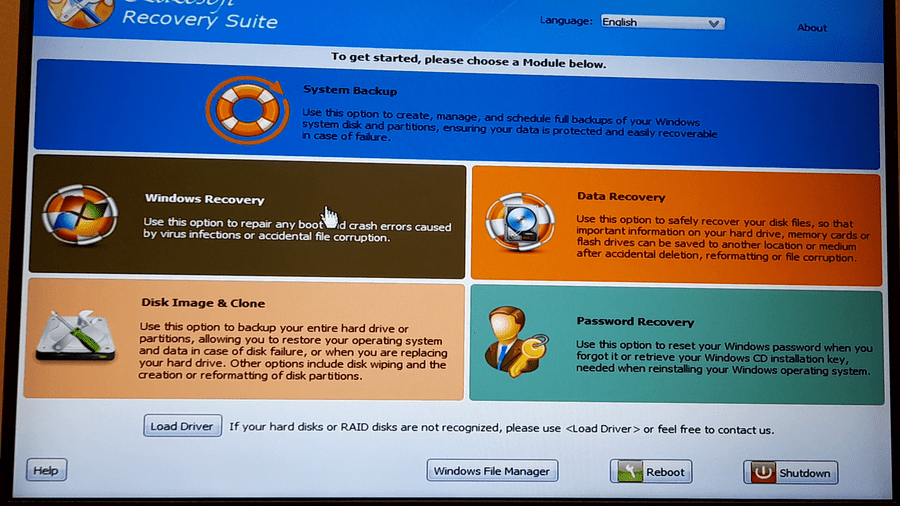
After booting from the Lazesoft USB disk, you will see the Lazesoft Recovery Suite main screen. Choose Windows Recovery.
Step 6: Select the Offline Windows Installation
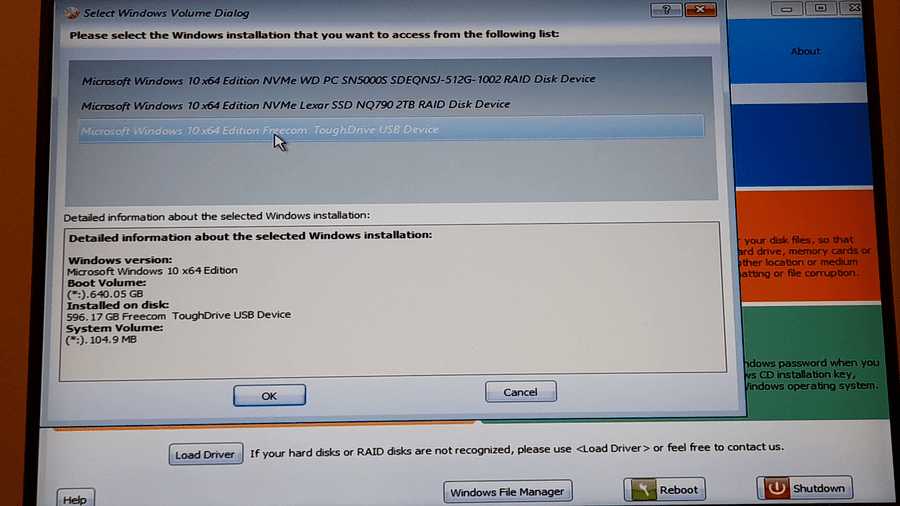
Next, select the offline Windows installation you want to repair. Choose the Windows system volume that failed to boot. Do not choose the Lazesoft USB disk.
Step 7: Go to LoadingCrash → Fix Boot Storage Driver
After selecting the offline Windows installation, go to LoadingCrash → Fix Boot Storage Driver. This function is designed for cases where Windows cannot access the boot disk after disk clone, image restore, or hardware migration.
Step 8: Select the Storage Driver Folder
Select the folder that contains the extracted storage driver files. This should be the driver folder you copied to the Lazesoft USB disk earlier.
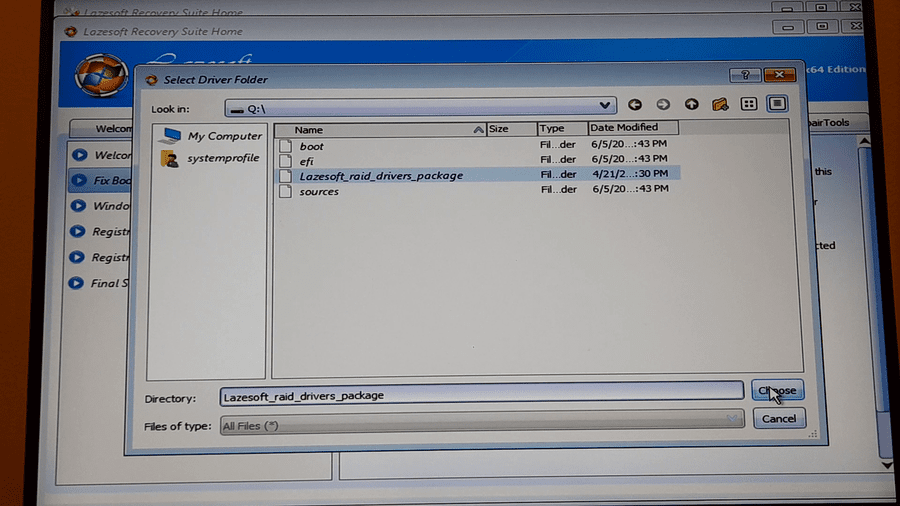
Examples of storage drivers include Intel RST, Intel VMD, RAID controller, AHCI controller, NVMe controller, Dell WinPE storage driver pack, HP WinPE driver pack, and motherboard storage driver package.
Step 9: Install the Matched Storage Driver
Lazesoft Recovery Suite will scan the selected driver folder and list matched drivers. Recommended drivers may be selected automatically.
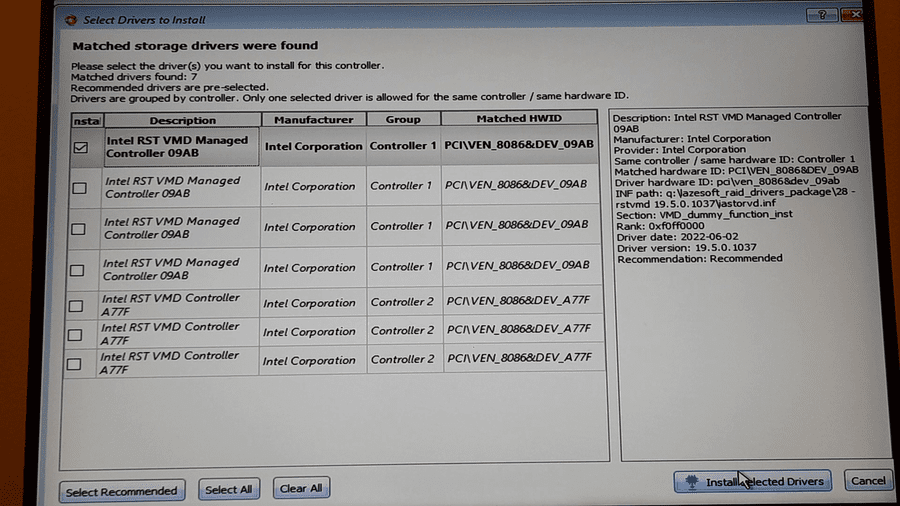
Click Install Selected Drivers. The program will install the selected driver into the offline Windows system.
Step 10: Reboot the Computer
When you see the success message, the driver has been installed into the offline Windows system. Remove the Lazesoft USB boot disk and restart the computer.
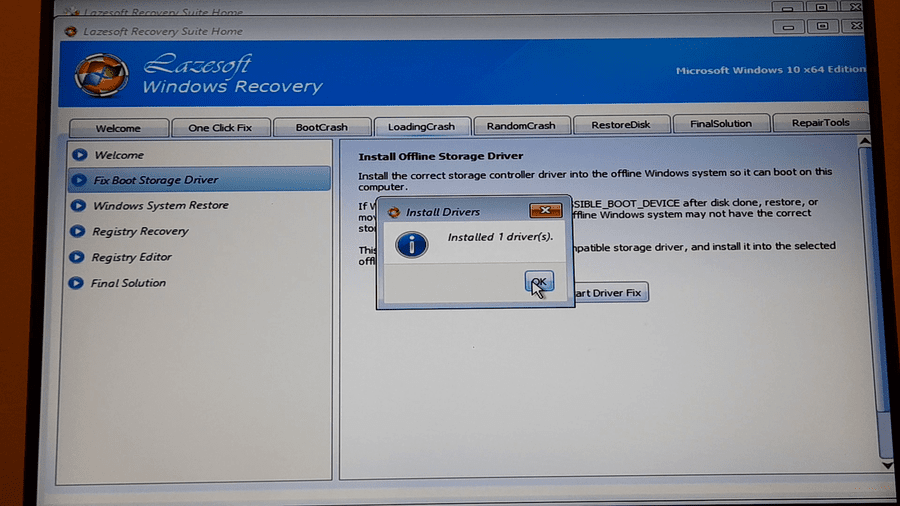
If the 0x7B / INACCESSIBLE_BOOT_DEVICE problem was caused by a missing storage controller driver, Windows should now have a better chance to boot successfully on the new computer.
What If Windows Still Does Not Boot?
Check BIOS storage mode
Open BIOS or UEFI setup and check the storage mode. Common options include AHCI, RAID, Intel RST, Intel VMD, SATA, and NVMe. If the target computer uses Intel VMD or RAID mode, Windows usually needs the matching Intel RST / VMD driver.
Check whether the correct driver was used
Make sure the driver is for the target computer. For example, a new Dell laptop needs the Dell storage driver for that Dell laptop, not the storage driver from the old desktop.
Check whether the driver package was extracted
Some driver downloads are compressed packages or installers. You may need to extract the package before Lazesoft can find the .inf files.
Check UEFI / Legacy boot mode
If Windows was installed in UEFI mode, the computer should normally boot in UEFI mode. If Windows was installed in Legacy BIOS mode, the computer should normally boot in Legacy / CSM mode. A mismatch between disk partition style and boot mode may cause other boot errors.
| Disk style | Normal boot mode |
|---|---|
| GPT disk | UEFI |
| MBR disk | Legacy BIOS / CSM |
Check boot order and BitLocker
Make sure the cloned or restored system disk is the first boot disk after removing the USB boot disk. If the Windows system drive is protected by BitLocker, you may need the recovery key. BitLocker may also prevent access to the offline Windows system until the drive is unlocked.
Try Windows Startup Repair
If the storage driver issue is fixed but Windows still does not boot, you may also need to repair boot files, BCD, or EFI boot entries.
Why Does Installing an Offline Storage Driver Fix 0x7B?
During Windows startup, the operating system must load the correct boot storage driver very early. If the correct driver is missing or disabled, Windows cannot access the system volume. When Windows cannot read the boot disk, it may stop with 0x0000007B or INACCESSIBLE_BOOT_DEVICE.
Installing the correct storage driver into offline Windows allows Windows to recognize the disk controller on the new computer during startup. This is especially useful after cloning to a different computer, restoring an image to new hardware, switching from AHCI to RAID, switching to Intel RST / VMD mode, moving Windows to a new motherboard, or restoring Windows to a server RAID controller.
Which Driver Should I Download?
Download the driver for the new target computer.
| Situation | Driver to download |
|---|---|
| Clone old PC to new Dell laptop | Dell storage / WinPE driver pack for the new Dell laptop |
| Restore image to HP workstation | HP WinPE driver pack or storage driver for that HP model |
| Move Windows to Intel VMD system | Intel RST / VMD storage driver |
| Restore to RAID server | RAID controller driver for that server |
| Move SATA Windows to NVMe system | NVMe / storage controller driver if required |
| Change motherboard | Storage driver from the new motherboard support page |
Do not download drivers for the old computer unless the old and new hardware are the same.
Free Policy
Lazesoft Recovery Suite Home Edition Is Free for Personal and Home Use
Home users can create a Lazesoft USB boot disk and use Windows Recovery tools to help repair boot problems such as 0x0000007B, INACCESSIBLE_BOOT_DEVICE, Windows failed to boot after cloning, and Windows failed to boot after system restore.
Download Lazesoft Recovery SuiteFor professional, business, technician, or server use, please choose the appropriate Pro, Technician, or Server edition.
Lazesoft also provides free-use policies for other recovery functions:
- Data Recovery: Home Edition unlimited free; Pro Edition includes 1 TB free recovery.
- Disk Clone & Drive Image: Home Edition free; Pro Edition free when the source disk capacity is under 1 TB.
- Password Recovery: included in the free Home Edition.
FAQ
What does 0x0000007B mean?
0x0000007B usually means Windows cannot access the boot device during startup. After cloning or restoring Windows to another computer, this is often caused by a missing or incompatible storage controller driver.
Is 0x7B the same as INACCESSIBLE_BOOT_DEVICE?
They are closely related. Older Windows systems may show STOP 0x0000007B, while newer Windows versions may show the stop code INACCESSIBLE_BOOT_DEVICE.
Should I download drivers for the old computer or the new computer?
Download drivers for the new target computer. The new computer’s storage controller is what Windows must recognize during boot.
Can this fix Windows after cloning to NVMe?
Yes, if the boot failure is caused by a missing or incompatible storage controller driver. For NVMe systems, you may need the correct NVMe, Intel RST, or Intel VMD driver depending on the hardware and BIOS settings.
Can this fix Windows after restoring an image to different hardware?
Yes. This method is designed for hardware migration cases where the restored Windows system cannot access the boot disk because the correct storage driver is missing.
What files should be inside the driver folder?
The driver folder should usually contain .inf, .sys, and .cat files. The .inf file is especially important because it contains driver installation information.
What if no matched driver is found?
Try another driver package. Make sure the driver package is extracted and that it is for the correct computer model, motherboard, or storage controller.
Can I use a Dell or HP WinPE driver pack?
Yes. Dell, HP, and other manufacturers often provide WinPE driver packs that include storage drivers useful for recovery environments. Make sure the package matches your target computer or hardware generation.
Will this delete my files?
Installing a storage driver into offline Windows should not delete your personal files. However, if the disk has important data, it is always safer to create a backup before making repairs.
Conclusion
If Windows fails to boot with 0x0000007B or INACCESSIBLE_BOOT_DEVICE after cloning a system disk, restoring a system image, or moving Windows to another computer, the cause may be a missing storage controller driver.
The key steps are to create a Lazesoft USB boot disk, download the WinPE or storage driver package for the new target computer, extract and copy the driver folder to the Lazesoft USB disk, boot the problem computer from the USB disk, choose Windows Recovery, select the offline Windows installation, open LoadingCrash → Fix Boot Storage Driver, select the driver folder, install the matched storage driver, and reboot Windows.
For many clone, restore, and hardware migration boot failures, installing the correct offline storage driver can help Windows access the boot disk again and start successfully.