
Windows Kernel and Boot Repair
How to Fix 0xc000000f ntoskrnl.exe Error in Windows 11, 10 and 7
Windows Boot Manager may say that \Windows\System32\ntoskrnl.exe is missing or contains errors. This guide covers a free graphical repair with Lazesoft Recovery Suite Home Edition and manual SFC, DISM, CHKDSK, Bootrec, and BCDBoot commands.
Video Guide: Fix 0xc000000f ntoskrnl.exe Error
Watch how to boot Lazesoft recovery media, select the offline Windows installation, run SFC Fix, and start Windows again.
Free for Home Users
Lazesoft Recovery Suite Home Edition is free for personal, non-commercial home use. Create a bootable recovery USB and repair an offline Windows installation even when Windows cannot start.
When Windows refuses to start and Windows Boot Manager reports Status: 0xc000000f together with:
File: \Windows\system32\ntoskrnl.exe

Status: 0xc000000f

Info: The operating system couldn't be loaded because the kernel is
missing or contains errors.
the problem usually means Windows cannot correctly load one of the files or boot components required to start the operating system.
ntoskrnl.exe is the Windows NT operating system kernel. It is one of the most important Windows system files, but seeing ntoskrnl.exe on the error screen does not necessarily mean that ntoskrnl.exe itself has been deleted. Corrupted system files, file-system errors, damaged boot configuration data, interrupted Windows updates, storage problems, or an incorrect boot configuration can all produce a similar error.
This guide explains how to repair 0xc000000f ntoskrnl.exe boot errors in Windows 11, Windows 10, and Windows 7, including manual Windows recovery commands and an easier repair method using the free Lazesoft Recovery Suite Home Edition.
Symptoms of the 0xc000000f ntoskrnl.exe Error
A computer affected by this problem may stop at Windows Boot Manager before Windows begins loading.
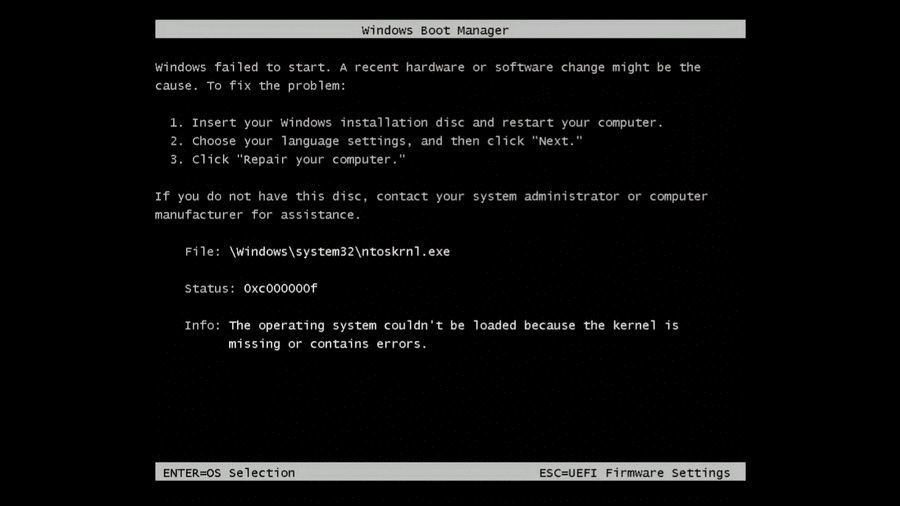
\Windows\system32\ntoskrnl.exe.The important information on this screen is:
File: \Windows\system32\ntoskrnl.exe
Status: 0xc000000f
followed by:
The operating system couldn't be loaded because the kernel is
missing or contains errors.
In some situations, pressing Enter may still display the installed Windows system.
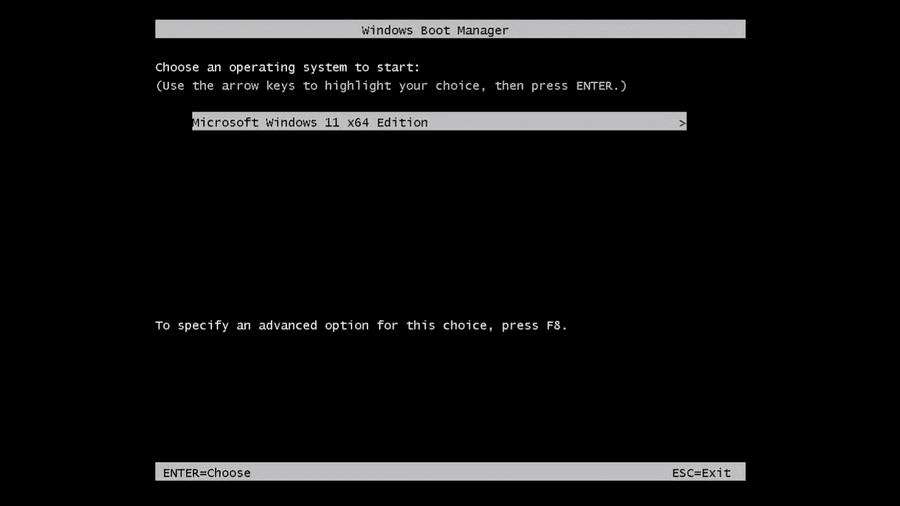
This is a useful clue: the Windows installation may still exist and the disk may be readable, but one or more boot or operating-system components are damaged.
What Causes Error 0xc000000f with ntoskrnl.exe?
Typical causes include corrupted Windows system files, an interrupted Windows update, unexpected power loss, damaged NTFS file-system metadata, disk errors, corrupted BCD data, incorrect EFI or boot files, malware damage, or a failing SSD or hard disk.
Because ntoskrnl.exe is loaded very early during Windows startup, Windows may mention it even when the underlying problem is elsewhere in the boot process.
For this reason, do not download ntoskrnl.exe from a random DLL or EXE download website and copy it into System32. Windows system files are version-specific, digitally signed, and serviced as a matched set. Replacing the file with one from a different Windows build can make the computer even less bootable.
It is safer to use Microsoft's SFC, DISM, CHKDSK, boot repair tools, or a Windows recovery utility.
Method 1: Fix 0xc000000f with Lazesoft Recovery Suite Home Edition
For home users, one of the easiest approaches is to create a bootable Lazesoft Recovery Suite Home Edition USB drive on another working computer.
The recovery environment can access the Windows installation even when the installed copy of Windows cannot start.
Step 1: Boot from the Lazesoft Recovery USB
Insert the Lazesoft bootable USB drive and use your computer's boot menu to start from it.
Depending on the computer manufacturer, the boot-menu key may be F12, F11, F9, Esc, or another key.
When the Lazesoft boot menu appears, select Lazesoft Live CD.
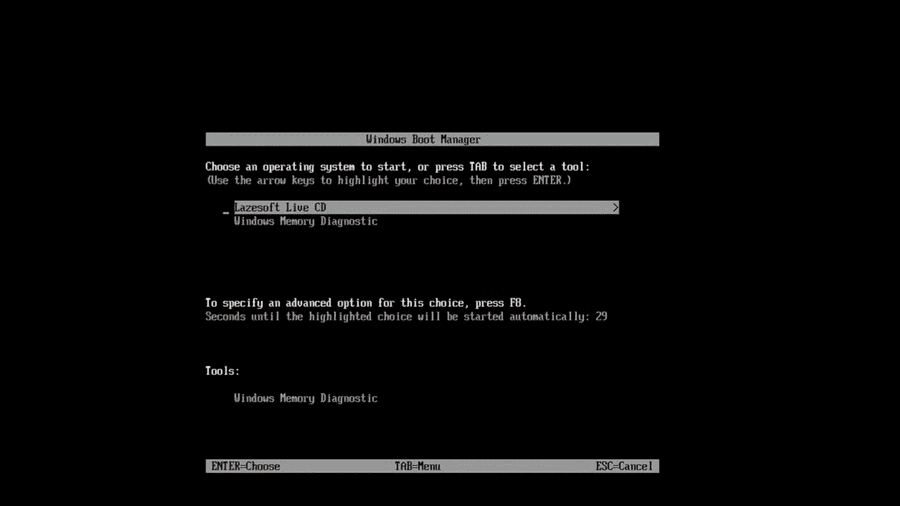
Allow the Lazesoft Windows PE recovery environment to load.
Step 2: Open Windows Recovery
After Lazesoft Recovery Suite starts, select Windows Recovery.
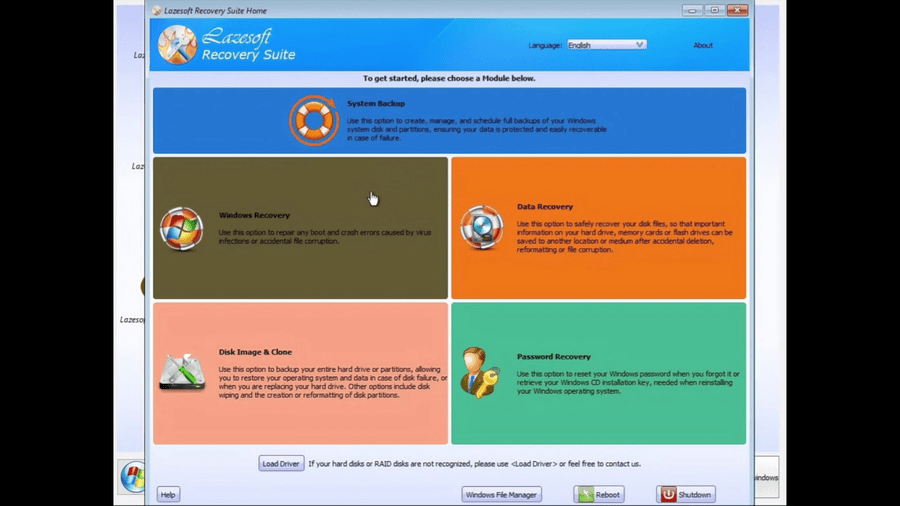
Windows Recovery contains tools designed specifically for repairing Windows systems that cannot boot.
Step 3: Select the Windows Installation
Lazesoft searches the attached disks for Windows installations.
Select the Windows installation that is experiencing the 0xc000000f error and click OK.
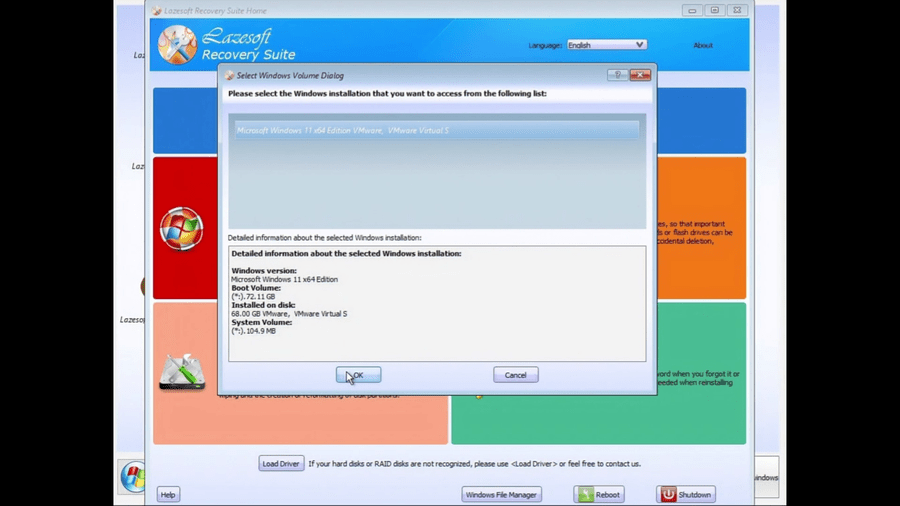
Pay attention to the Windows version and disk information. On a computer with multiple Windows installations or several disks, make sure you select the correct installation.
Step 4: Try One Click Fix
Lazesoft Windows Recovery provides a One Click Fix option intended to automatically check and repair common Windows boot problems.
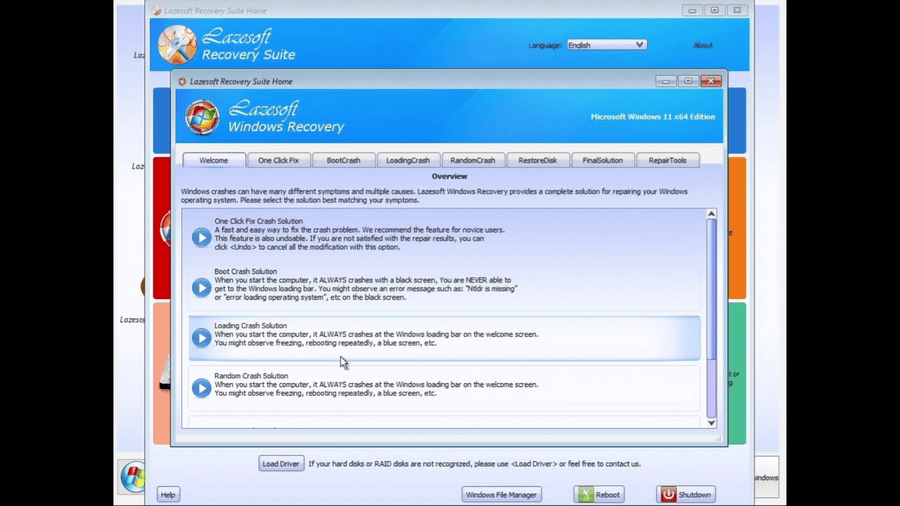
For many users, this is a good first repair attempt because it does not require manually entering Windows recovery commands.
Open the One Click Fix tab and follow the instructions to repair the selected Windows installation.
After the repair completes, shut down or restart the computer, remove the Lazesoft USB drive, and try starting Windows again.
If Windows still reports ntoskrnl.exe or system-file corruption, continue with the SFC repair described below.
Use Lazesoft SFC Fix to Repair ntoskrnl.exe and Other Windows Files
Because the example in this article was caused by corrupted Windows system files, Microsoft System File Checker successfully repaired the installation.
From Windows Recovery, select Loading Crash, and then select SFC Fix.
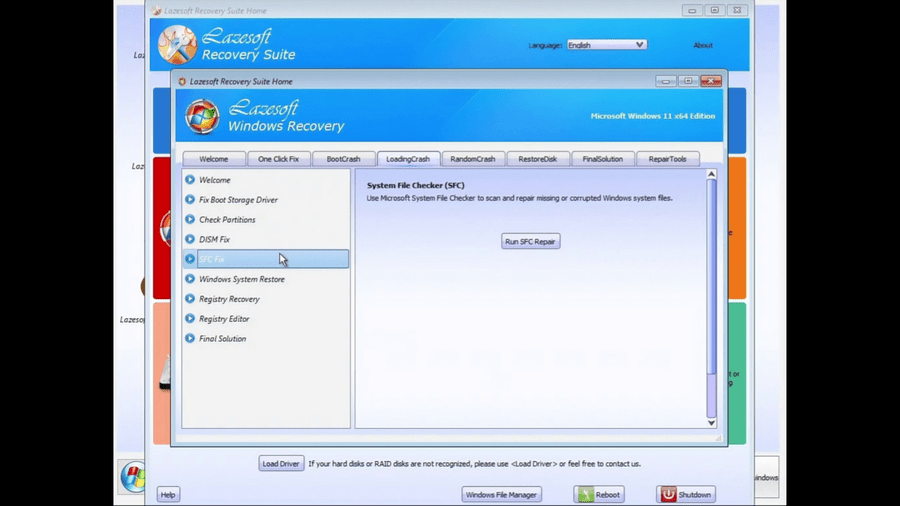
Lazesoft describes this function as System File Checker (SFC) and uses Microsoft's SFC utility to scan the offline Windows installation.
Click Run SFC Repair.
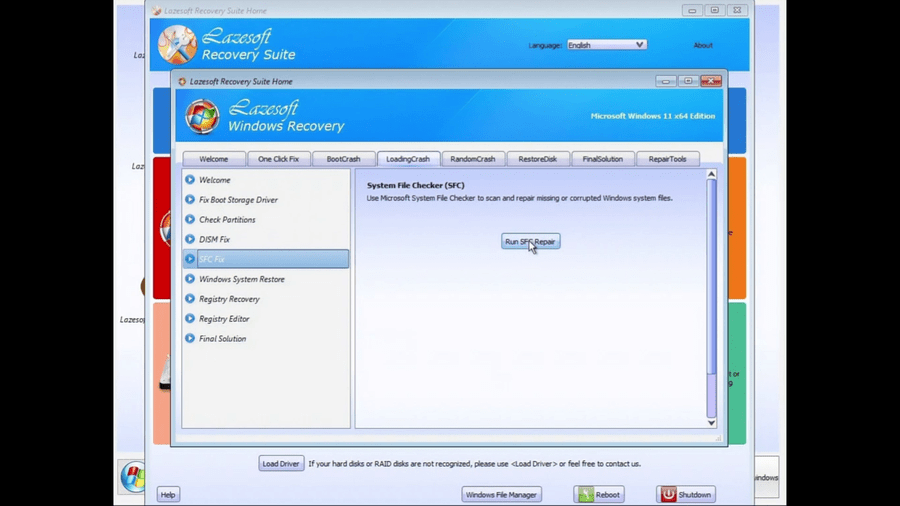
Lazesoft automatically constructs the appropriate offline SFC command for the selected Windows installation.
For example:
sfc /scannow /offbootdir=C:\ /offwindir=C:\WindowsThe actual drive letter may be different on your computer.
Wait for SFC to Complete
System File Checker scans protected Windows files and compares them with the Windows component store.
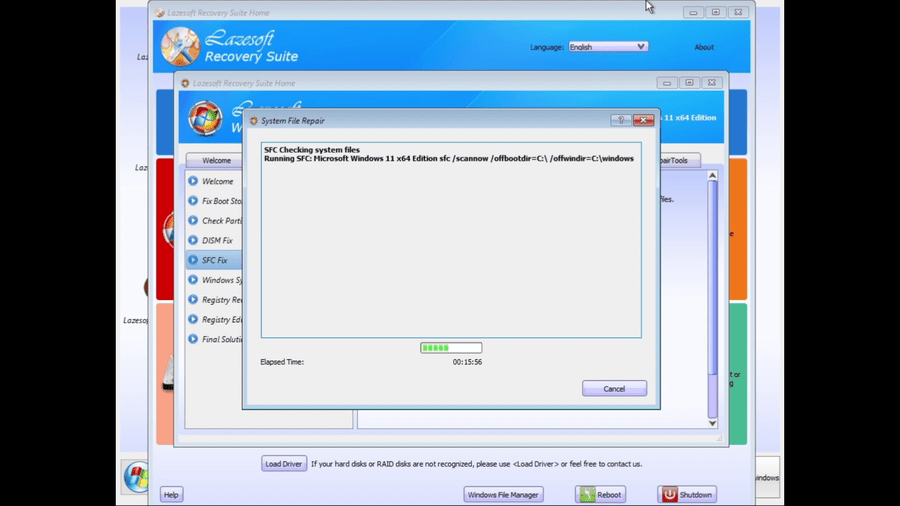
The process may take several minutes or considerably longer depending on the computer, drive speed, and the amount of corruption.
Avoid shutting down the computer while the repair is running.
In this example, SFC finished with:
Windows Resource Protection found corrupt files
and successfully repaired them.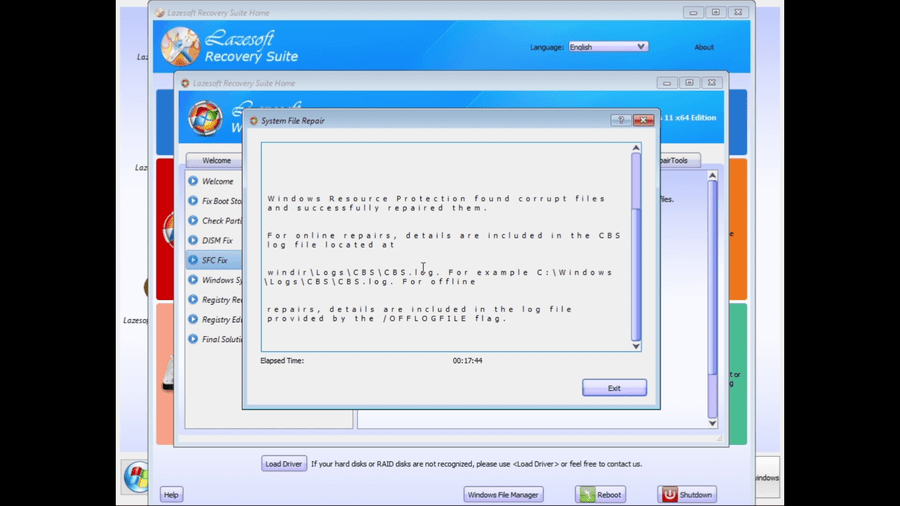
This is the result we want to see.
Exit the repair window and restart the computer.
Restart the Computer and Remove the USB Drive
Before restarting into the repaired Windows installation, unplug the Lazesoft recovery USB so that the computer boots from its normal system disk.
Windows should begin loading again.

In our test, Windows successfully reached the Windows 11 lock screen.
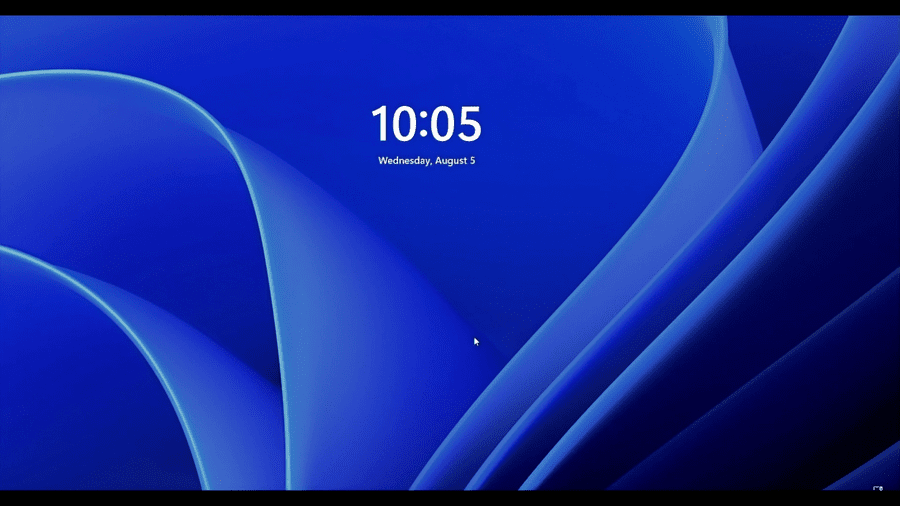
The 0xc000000f and ntoskrnl.exe boot error has now been repaired.
Method 2: Repair 0xc000000f Manually with Windows Recovery Commands
If you prefer Windows command-line tools, boot from a Windows installation USB or Windows Recovery Environment and open:
Troubleshoot → Advanced options → Command Prompt
The exact menus vary slightly between Windows 7, Windows 10, and Windows 11.
The most important thing before running repairs is identifying the correct Windows partition.
Find the Windows Partition
Drive letters in Windows Recovery Environment are not always the same as they are when Windows is running.
Your normal C: drive might appear as D: or another letter.
Run:
diskpart
list volume
exit
Then check likely partitions:
dir C:\Windowsand, if necessary:
dir D:\Windowsor:
dir E:\WindowsContinue until you find the volume containing folders such as:
Windows
Program Files
Users
For the examples below, we will assume Windows is located at:
C:\WindowsReplace C: with the correct drive letter on your system.
Method 3: Check the Windows Partition with CHKDSK
File-system corruption can prevent Windows from reading ntoskrnl.exe even when the file itself exists.
Run:
chkdsk C: /fCHKDSK checks the NTFS file system and repairs logical errors.
If you suspect physical disk problems, you can perform a more extensive scan with:
chkdsk C: /f /rThe /r option also searches for unreadable sectors and can take a very long time, especially on large hard drives.
If CHKDSK repeatedly reports new bad sectors or read errors, consider checking the health of the SSD or hard disk before performing more repairs. A failing drive can repeatedly corrupt Windows files.
Method 4: Run Offline System File Checker
If the Windows kernel or another protected Windows system file is corrupted, offline SFC is one of the most appropriate repair tools.
Run:
sfc /scannow /offbootdir=C:\ /offwindir=C:\WindowsThe important parameter is:
/offwindir=C:\Windowswhich tells SFC which offline Windows installation to repair.
A successful repair may end with:
Windows Resource Protection found corrupt files and successfully repaired them.Restart the computer afterward and test Windows.
This method works with Windows 7, Windows 10, and Windows 11, although the exact SFC behavior can differ between Windows versions.
Method 5: Repair the Windows Component Store with DISM
On Windows 10 and Windows 11, SFC depends on the Windows component store for clean replacement files. If that component store itself is damaged, SFC may be unable to repair everything.
Run:
dism /image:C:\ /cleanup-image /restorehealthAfter DISM finishes successfully, run SFC again:
sfc /scannow /offbootdir=C:\ /offwindir=C:\WindowsThen restart the computer.
If DISM Cannot Find Repair Files
DISM may sometimes report that source files could not be found. In that situation you can provide a matching Windows installation image as the repair source.
For example:
dism /image:C:\ /cleanup-image /restorehealth /source:wim:D:\sources\install.wim:1 /limitaccessThe Windows installation media must match the Windows edition and preferably the installed Windows build.
The index number after install.wim: must also correspond to the correct Windows edition.
Windows 7 note: the modern /RestoreHealth repair workflow used by Windows 10 and Windows 11 is not available in Windows 7 in the same way. For Windows 7, use SFC, CHKDSK, Startup Repair, System Restore, or repair the boot configuration instead.
Method 6: Repair Damaged Boot Configuration Data
Error 0xc000000f can also be associated with damaged or missing Windows boot information.
If SFC finds no problems, or if the computer still cannot start after system-file repair, check the boot configuration.
For a traditional Legacy BIOS/MBR installation, Windows recovery commands commonly include:
bootrec /fixmbr
bootrec /fixboot
bootrec /scanos
bootrec /rebuildbcd
/scanos searches for Windows installations that are not currently represented in the BCD store.
/rebuildbcd attempts to recreate the Windows Boot Configuration Data entries.
These commands are particularly useful for Windows 7 and legacy BIOS systems.
Repair the UEFI Boot Files on Windows 10 or Windows 11
Most modern Windows 10 and Windows 11 computers use UEFI firmware and a GPT system disk.
On these systems, rebuilding the EFI boot files with bcdboot is often more appropriate than relying only on bootrec /fixboot.
First find the EFI System Partition:
diskpart
list volume
The EFI partition is normally FAT32 and usually relatively small.
Select it, for example:
select volume 2
assign letter=S
exit
Then recreate the Windows boot files:
bcdboot C:\Windows /s S: /f UEFIA successful result normally reports:
Boot files successfully created.Restart the computer afterward.
Do not assume that volume 2 or C: will be correct on your computer. Always identify the partitions first.
Windows 7 recovery environments may have older versions of BCDBoot with different command-line options, so on Windows 7 it is generally safer to begin with Startup Repair and bootrec.
What If bootrec /fixboot Says "Access Is Denied"?
This is fairly common on newer UEFI Windows installations.
If:
bootrec /fixbootreturns:
Access is denied.you usually do not need to repeatedly run the same command.
Instead, identify and mount the EFI System Partition and recreate the boot files with:
bcdboot C:\Windows /s S: /f UEFIThis directly rebuilds the Microsoft EFI boot files.
Method 7: Try Windows Startup Repair
Windows also includes an automatic Startup Repair function.
In Windows 10 or Windows 11 recovery, open:
Troubleshoot → Advanced options → Startup Repair
Choose the affected Windows installation and allow Windows to inspect the startup configuration.
On Windows 7 installation media, select:
Repair your computer → Startup Repair
Windows 7 sometimes requires Startup Repair to be run more than once because each run may correct a different stage of the boot process.
Method 8: Use System Restore
If the error appeared immediately after installing a driver, Windows update, antivirus package, or other system software, System Restore may be useful.
From Windows Recovery Environment select:
Troubleshoot → Advanced options → System Restore
or use the Windows System Restore function in Lazesoft Windows Recovery.
Choose a restore point created before the boot failure occurred.
System Restore normally does not delete personal documents, but it can remove recently installed drivers, updates, applications, and system configuration changes.
Which Repair Should You Try First?
For an 0xc000000f screen that specifically names:
\Windows\system32\ntoskrnl.exea practical repair sequence is:
Check the disk → repair Windows system files → repair the component store if necessary → repair BCD/EFI boot files if Windows still cannot start.
For users who do not want to work manually with drive letters, DiskPart, SFC, DISM, BCDBoot, and BootRec commands, Lazesoft Recovery Suite Home Edition's Windows Recovery tools provide a simpler alternative.
You can first try One Click Fix, and if the error points toward damaged system files, use SFC Fix as demonstrated in this guide.
Can You Simply Copy ntoskrnl.exe from Another Computer?
This is generally not recommended.
The file:
C:\Windows\System32\ntoskrnl.exemust match the installed Windows version, build, servicing state, architecture, and related Windows components.
Copying an ntoskrnl.exe file from another Windows computer may create version mismatches and can cause new boot failures.
SFC and DISM are safer because Windows itself verifies and restores the correct protected system files.
What If the Error Comes Back?
If Windows starts successfully after SFC repair but 0xc000000f returns later, investigate the underlying cause rather than repeatedly repairing the same files.
Check the SSD or hard disk health, run a full file-system check, make sure the computer is not losing power unexpectedly, check memory if corruption occurs repeatedly, and verify that Windows updates are completing successfully.
Repeated corruption may indicate a hardware problem rather than a one-time Windows software problem.
Conclusion
The Windows Boot Manager 0xc000000f ntoskrnl.exe error can look serious because the message says that the operating-system kernel is missing or contains errors. However, it does not necessarily mean Windows needs to be reinstalled.
In the example shown in this guide, the Windows 11 installation was repaired by booting from Lazesoft Recovery Suite Home Edition, opening Windows Recovery → Loading Crash → SFC Fix, and running Microsoft System File Checker against the offline Windows installation.
SFC reported:
Windows Resource Protection found corrupt files
and successfully repaired them.
After restarting and removing the recovery USB, Windows 11 booted successfully.
The same general repair principles can be used for Windows 11, Windows 10, and Windows 7: check the disk, repair protected Windows files, repair the Windows image where supported, and rebuild the boot configuration when necessary.
Most importantly, avoid downloading a random replacement ntoskrnl.exe. Repairing Windows through SFC, DISM, BCDBoot, Windows Recovery, or Lazesoft Recovery Suite is much safer than manually replacing critical kernel files.
Repair Windows 0xc000000f with Lazesoft
Lazesoft Recovery Suite Home Edition includes Windows Recovery tools for common Windows 11, Windows 10, and Windows 7 startup problems.