
Windows Boot Repair
How to Fix Windows Boot Error 0xc0000001 in Windows 11, 10 and 7
Error code 0xc0000001 usually appears when Windows Boot Manager cannot load the selected Windows installation. A common cause is a missing, damaged, or incorrect Windows boot-loader entry in the Boot Configuration Data (BCD). This guide shows how to rebuild the BCD manually or repair the problem automatically with Lazesoft Recovery Suite Home Edition.
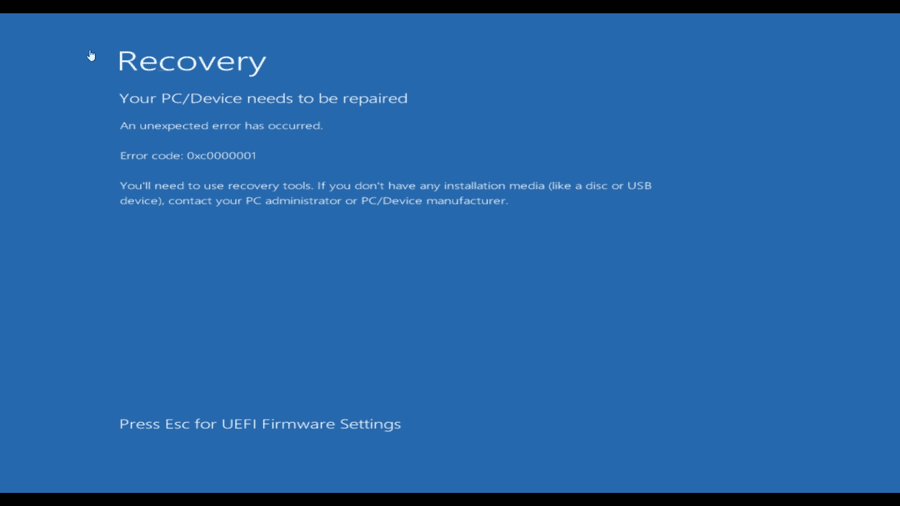
The blue Recovery screen may say “Your PC/Device needs to be repaired”, “An unexpected error has occurred”, or that a required device is not connected or cannot be accessed. Windows may fail before the logo appears, restart repeatedly, or return to the same recovery screen after every reboot.
Error 0xc0000001 does not always mean that Windows or your personal files have been deleted. In many cases, the Windows partition is still intact, but Windows Boot Manager cannot locate or load it because the BCD entry points to the wrong partition or the required boot files are missing or corrupted.
What Windows Boot Error 0xc0000001 Usually Means
The BCD is a small database used by Windows Boot Manager. It contains the Windows boot menu, the location of each Windows installation, and settings used to load winload.exe or winload.efi. For a normal Windows loader entry, important values include the device and osdevice fields. If these values are missing, corrupted, or point to the wrong volume, Boot Manager may stop with error 0xc0000001.
Legacy BIOS / MBR
The BCD store is normally located in \Boot\BCD on the active System Reserved partition or, on some installations, on the Windows partition.
UEFI / GPT
The BCD store is normally located in \EFI\Microsoft\Boot\BCD on the FAT32 EFI System Partition.
Other possible causes include file-system corruption, a failed Windows update, an interrupted clone or restore, an incorrect active partition on an MBR disk, missing EFI files, damaged system files, an SSD or hard-disk problem, or a BIOS storage-controller change such as AHCI, RAID, Intel RST, or Intel VMD.
Video Guide: Fix Error 0xc0000001 with Lazesoft One Click Fix
Watch the following video to see how to boot from a Lazesoft recovery USB, select the offline Windows installation, and run One Click Fix.
The written instructions below also include manual Windows commands for UEFI/GPT and Legacy BIOS/MBR computers.
Free for Home Users
Lazesoft Recovery Suite Home Edition is free for home users. You can create a bootable Lazesoft recovery USB and use Windows Recovery features such as One Click Fix to repair common Windows startup problems.
For business, technician, commercial service, or Windows Server use, choose the appropriate Professional, Technician, or Server edition.
Before You Start
You need a Windows installation or recovery USB, or a Lazesoft Recovery Suite bootable USB. Before repairing the BCD, confirm that the internal SSD or hard disk is detected in BIOS/UEFI. If the disk is not detected there, software commands cannot repair the problem. Check the drive connection, NVMe slot, SATA cable, storage-controller settings, and disk health first.
Drive letters in Windows Recovery Environment and Windows PE may be different from the letters used in normal Windows. The offline Windows installation may appear as D: or E: instead of C:. Always identify the correct Windows partition before running commands.
diskpart
list volume
exit

dir C:\Windows
dir D:\Windows
dir E:\Windows
Use the drive letter that contains folders such as Windows, Program Files, and Users. The command examples below assume Windows is on C:. Replace that letter when necessary. If BitLocker protects the Windows volume, unlock it before rebuilding the BCD or repairing offline system files.
Lazesoft One Click Fix
Recommended for home users who want an automatic repair for common BCD, boot-sector, MBR, EFI, boot-file, registry, and file-system problems.
Windows Recovery Commands
Recommended for advanced users who can correctly identify the Windows, EFI System, or System Reserved partitions.
Method 1: Repair 0xc0000001 with Lazesoft One Click Fix
Lazesoft One Click Fix checks common Windows startup components automatically. It is particularly useful when Windows Startup Repair fails or when you do not want to manually work with DiskPart, BCD paths, and boot partitions.
Step 1: Boot from the Lazesoft Recovery USB
Create a Lazesoft bootable recovery USB on a working Windows computer. Connect it to the problem computer, open the computer’s boot menu, and select the USB device. When Windows Boot Manager appears, choose Lazesoft Live CD and press Enter.
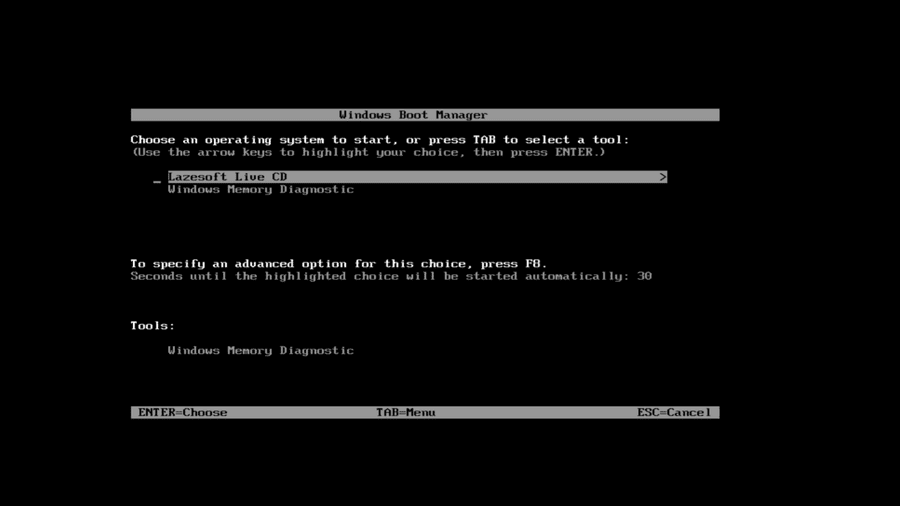
Step 2: Open Windows Recovery
After Lazesoft Recovery Suite Home Edition loads, select Windows Recovery from the main screen.
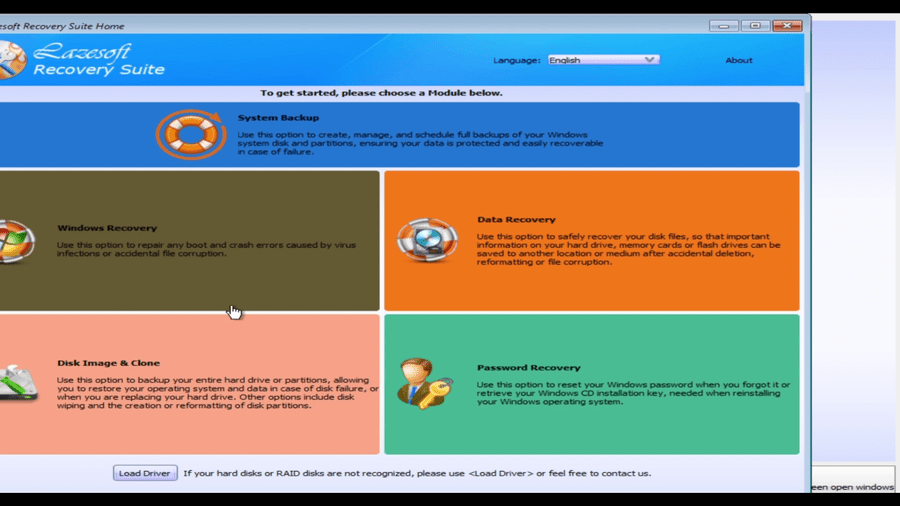
Step 3: Select the Windows Installation to Repair
Lazesoft scans the connected disks and displays the Windows installations it can find. Select the Windows 11, Windows 10, or Windows 7 installation that shows error 0xc0000001, and then click OK. Check the Windows version, boot volume, disk size, and system-volume information carefully.
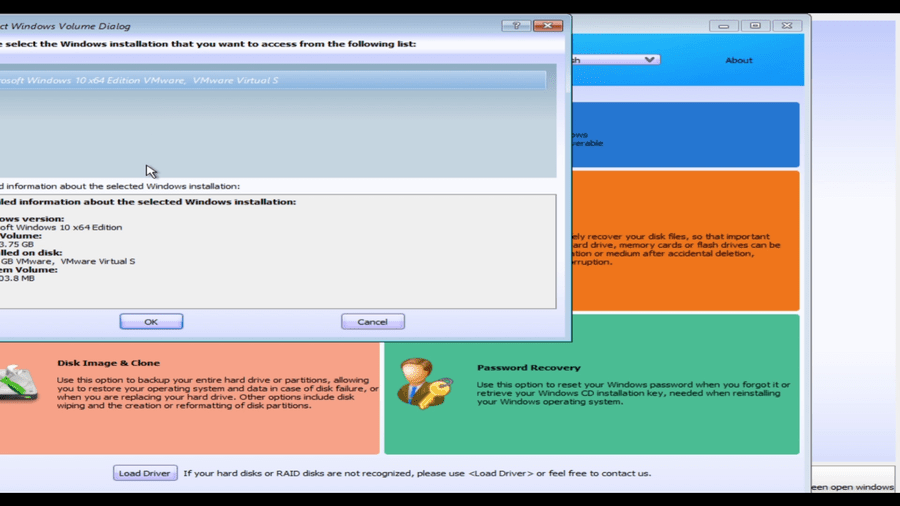
Windows disk not listed? Click Load Driver and load the correct Intel RST, Intel VMD, RAID, AHCI, NVMe, or manufacturer storage driver. The disk must be visible before boot repair can begin.
Step 4: Choose One Click Fix
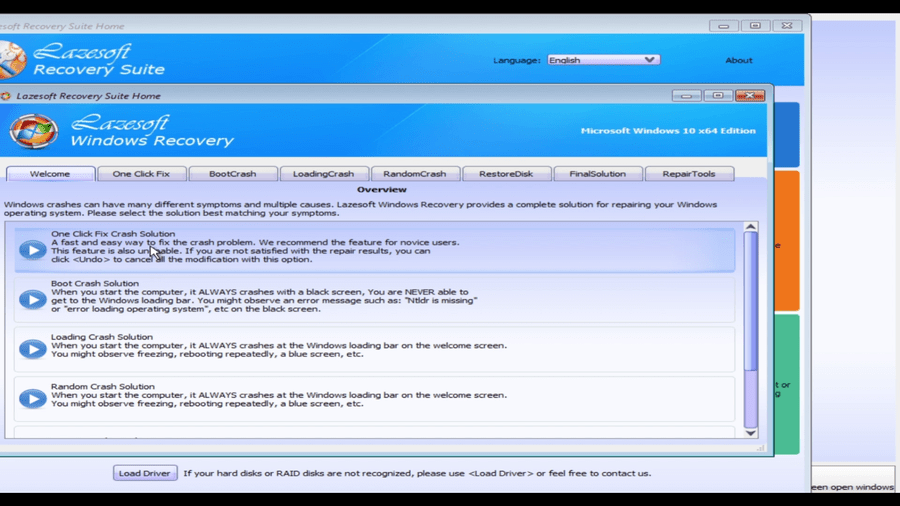
In Lazesoft Windows Recovery, choose One Click Fix Crash Solution or open the One Click Fix tab.
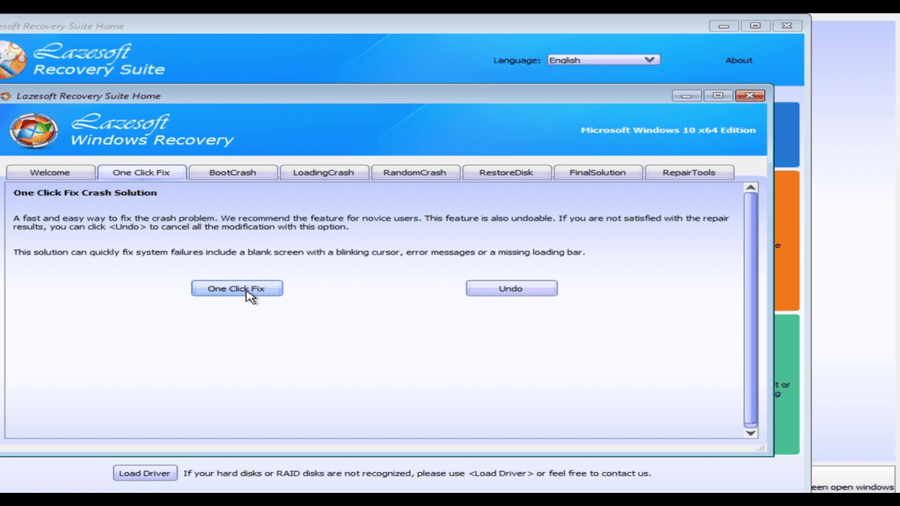
Click the One Click Fix button to start the automatic repair.
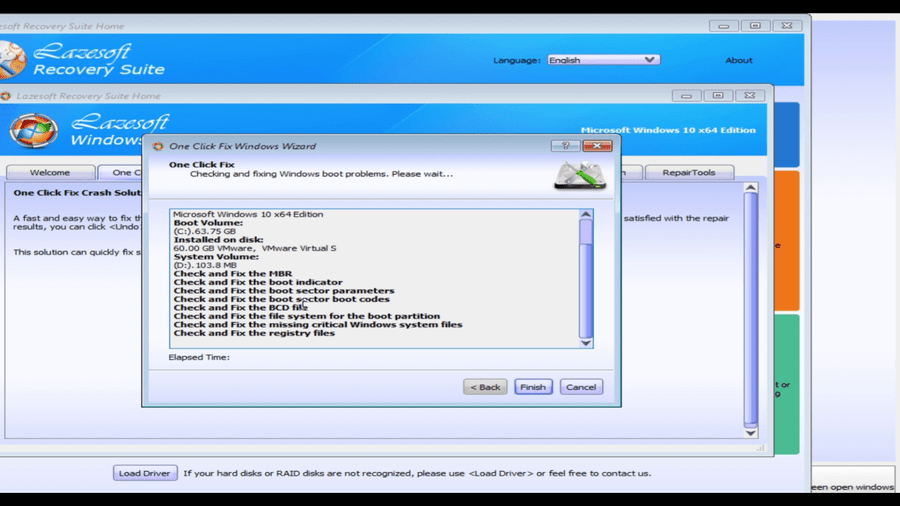
Step 5: Wait for the Boot Repair to Complete
Depending on the disk layout and boot mode, One Click Fix may check the MBR, boot indicator, boot-sector parameters, boot-sector code, BCD store, file system on the boot partition, critical Windows system files, and boot-related registry files.
Step 6: Restart the Computer
When the repair is complete, click Finish, close Lazesoft, and remove the USB drive. Restart the computer and allow it to boot from the internal disk.

Method 2: Run Windows Startup Repair
Windows Startup Repair is the first built-in option to try because it is automatic and normally does not affect personal files. Boot from a Windows installation USB and select:
Repair your computer → Troubleshoot → Advanced options → Startup Repair
Choose the affected Windows installation when prompted. Startup Repair checks boot files, BCD information, the system partition, and several startup settings. Restart the computer after it completes. If Startup Repair reports that it cannot repair the PC, continue with the manual commands below.
Method 3: Repair 0xc0000001 with Windows Commands
Open Command Prompt from Windows Recovery Environment. First identify whether the Windows disk uses GPT or MBR:
diskpart
list disk
exit
An asterisk in the GPT column means the disk uses GPT and normally boots in UEFI mode. No asterisk normally means an MBR disk using Legacy BIOS or CSM mode.
Step 1: Check the Windows Partition for File-System Errors
A damaged file system can prevent Windows Boot Manager from reading the BCD, loader, registry, or other startup files.
chkdsk C: /fFor a deeper scan that also checks for unreadable sectors, use:
chkdsk C: /f /rThe /r scan can take a long time. If the disk shows repeated bad sectors, disappears from BIOS, or makes unusual noises, back up important files before continuing because the drive may be failing.
Repair a UEFI/GPT Computer
On a UEFI system, the BCD is stored on the FAT32 EFI System Partition at \EFI\Microsoft\Boot\BCD. Use DiskPart to find the small FAT32 volume, which is often around 100 MB to 300 MB.
diskpart
list volume
select volume X
assign letter=S
exit
Replace X with the EFI System Partition volume number. Confirm the partition contains an EFI folder:
dir S:\Then recreate the UEFI boot files and BCD store:
bcdboot C:\Windows /s S: /f UEFIA successful command normally displays “Boot files successfully created.” You can inspect the BCD store with:
bcdedit /store S:\EFI\Microsoft\Boot\BCD /enum allRestart the computer and confirm that the firmware is set to UEFI mode and that Windows Boot Manager is first in the boot order.
Do not mark an EFI System Partition active. The active command is for Legacy BIOS/MBR boot partitions, not GPT/UEFI systems.
Repair a Legacy BIOS/MBR Computer
On a Legacy BIOS computer, the BCD is normally stored at \Boot\BCD on the active System Reserved partition or Windows partition. Start with Bootrec:
bootrec /fixmbr
bootrec /fixboot
bootrec /scanos
bootrec /rebuildbcd
If Windows is found, type Y to add it to the boot list. If bootrec /fixboot reports Access is denied, continue with bcdboot.
Find the small NTFS System Reserved partition and assign it a temporary drive letter:
diskpart
list disk
select disk 0
list partition
select partition X
active
assign letter=S
exit
Replace X with the correct System Reserved partition number. Then rebuild the BIOS boot files:
bcdboot C:\Windows /s S: /f BIOSIf there is no separate System Reserved partition and Windows itself is the active system partition, use:
bcdboot C:\Windows /s C: /f BIOSYou can inspect a Legacy BCD store mounted as S: with:
bcdedit /store S:\Boot\BCD /enum allRename a Severely Corrupted BCD and Create a New One
If the existing BCD cannot be opened or rebuilt, rename it instead of deleting it. This preserves a backup.
UEFI/GPT
cd /d S:\EFI\Microsoft\Boot
attrib BCD -s -h -r
ren BCD BCD.old
bcdboot C:\Windows /s S: /f UEFI
Legacy BIOS/MBR
cd /d S:\Boot
attrib BCD -s -h -r
ren BCD BCD.old
bcdboot C:\Windows /s S: /f BIOS
If the BCD file does not exist, skip the rename commands and run the appropriate bcdboot command directly.
Repair Offline Windows System Files
Error 0xc0000001 can also occur when essential Windows loader, registry, or system files are corrupted. Run System File Checker against the offline Windows installation:
sfc /scannow /offbootdir=C:\ /offwindir=C:\WindowsIf the boot files are on a separate partition mounted as S:, you may need:
sfc /scannow /offbootdir=S:\ /offwindir=C:\WindowsFor Windows 10 and Windows 11, also try DISM:
dism /image:C:\ /cleanup-image /restorehealthIf DISM cannot find repair source files, use a matching Windows installation USB as the source. After DISM completes, run SFC again. Windows 7 supports offline SFC, but its DISM repair capabilities are more limited than those in Windows 10 and Windows 11.
What If Error 0xc0000001 Still Appears?
- Verify the boot mode. A GPT Windows disk normally needs UEFI mode. An MBR Windows disk normally needs Legacy BIOS or CSM mode.
- Check the boot order. On UEFI systems, select Windows Boot Manager for the correct internal disk.
- Restore the previous storage-controller setting. Changing AHCI, RAID, Intel RST, or Intel VMD can prevent Windows from accessing the boot device.
- Disconnect extra disks. Old Windows disks or multiple EFI partitions can cause boot files to be created on the wrong drive.
- Check disk health. Repeated CHKDSK errors, slow detection, disappearing disks, or unreadable sectors may indicate hardware failure.
- Check recent changes. If the error followed a clone, restore, partition resize, Windows update, or power loss, rebuild the boot files on the intended system disk.
- Back up important data. If the disk may be failing, recover files before performing more repairs.
Which Repair Method Should You Use?
| Situation | Recommended action |
|---|---|
| You want the simplest repair | Boot Lazesoft Recovery Suite Home Edition and run One Click Fix. |
| Windows Startup Repair is available | Try Startup Repair before entering manual commands. |
| UEFI/GPT computer | Mount the EFI System Partition and run bcdboot C:\Windows /s S: /f UEFI. |
| Legacy BIOS/MBR computer | Run Bootrec, mark the correct system partition active, and rebuild boot files with bcdboot. |
| Disk is not detected in BIOS/UEFI | Check hardware, storage-controller settings, and disk health before attempting software boot repair. |
Frequently Asked Questions
What is the most common cause of Windows error 0xc0000001?
A common cause is a missing, corrupted, or incorrect Windows loader entry in the BCD. The entry may point to the wrong Windows partition, or the BCD and related boot files may be damaged.
Where is the BCD file stored?
On a Legacy BIOS system, it is normally stored at \Boot\BCD. On a UEFI system, it is normally stored at \EFI\Microsoft\Boot\BCD on the EFI System Partition.
Does rebuilding the BCD delete personal files?
No. Rebuilding the BCD recreates Windows boot configuration and boot files. It should not delete documents, photos, or other personal files. However, always select the correct Windows and system partitions.
Can Lazesoft One Click Fix repair 0xc0000001?
Yes, when the disk is detected and the error is caused by common BCD, MBR, boot-sector, EFI boot-file, boot-partition, system-file, or boot-registry problems.
Can these steps be used for Windows 7?
Yes. Bootrec, Bcdboot, CHKDSK, and offline SFC can be used for Windows 7. Most Windows 7 computers use Legacy BIOS/MBR, although some 64-bit installations use UEFI/GPT.
What should I do if the SSD or hard disk is not detected?
Do not continue rebuilding the BCD. Check the SATA or NVMe connection, BIOS storage-controller settings, RAID or VMD configuration, and the physical health of the drive first.
Repair Windows Boot Error 0xc0000001 with Lazesoft
Lazesoft Recovery Suite Home Edition is free for home users and includes Windows Recovery tools for repairing common Windows 11, Windows 10, and Windows 7 startup problems.