
Windows Boot Repair
How to Fix Windows Boot Error 0xc000000d in Windows 11, 10, and 7 for Free
Windows error 0xc000000d usually means the Boot Configuration Data is missing, damaged, incomplete, or pointing to the wrong partition. This guide shows how to rebuild the BCD manually, run Lazesoft One Click Fix, or use Lazesoft BCD Doctor without reinstalling Windows.
Error 0xc000000d Missing BCD BootRec BCDBoot Free Home Edition
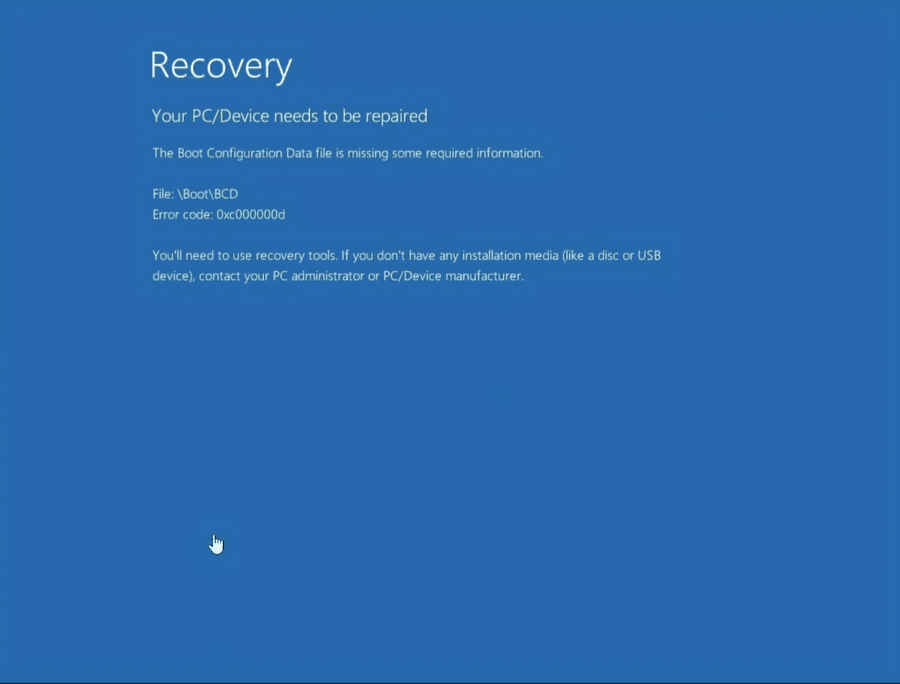
Windows boot error 0xc000000d normally appears before Windows reaches the sign-in screen. The computer may display a blue Recovery screen with a message similar to:
Your PC/Device needs to be repaired.
The Boot Configuration Data file is missing some required information.
Legacy BIOS / MBR: File: \Boot\BCD
UEFI / GPT: File: \EFI\Microsoft\Boot\BCD
Error code: 0xc000000d
The Boot Configuration Data, commonly called the BCD, tells Windows Boot Manager where Windows is installed, which system volume contains the boot files, and which loader settings are required during startup. On a Legacy BIOS/MBR system, the BCD is normally stored at \Boot\BCD on the active system partition. On a UEFI/GPT system, it is normally stored at \EFI\Microsoft\Boot\BCD on the EFI System Partition. If the BCD cannot be opened or contains invalid information, Windows cannot continue booting even when the Windows files and personal data are still present.
This guide provides three repair approaches:
- Repair or rebuild the boot configuration with Windows recovery commands.
- Automatically check common startup components with Lazesoft One Click Fix.
- Use Lazesoft BCD Doctor for focused BCD repair and rebuilding.
Video Guide: Fix Windows Boot Error 0xc000000d for Free
Watch this step-by-step video to see how to repair Windows boot error 0xc000000d using Lazesoft Recovery Suite Home Edition.
The video demonstrates the automatic Lazesoft repair process. The manual Windows command and BCD Doctor methods are also included below.
Free Boot Repair for Home Users
Lazesoft Recovery Suite Home Edition is free for home users. It can create a WinPE recovery USB and provide Windows Recovery tools including One Click Fix and BCD repair features.
For business, technician, commercial-service, or Windows Server use, select the appropriate Professional, Technician, or Server edition.
What Causes Windows Error 0xc000000d?
The error can affect Windows 11, Windows 10, Windows 8, and Windows 7. Common causes include:
- A missing, deleted, damaged, or incomplete BCD store.
- An interrupted Windows update or sudden power loss while boot files were being changed.
- File-system corruption on the EFI System Partition, System Reserved partition, or Windows partition.
- Incorrect changes made by partition-management, cloning, migration, or backup software.
- Cloning Windows to a different hard drive, SSD, or NVMe drive without recreating the boot files.
- Moving Windows between BIOS/MBR and UEFI/GPT systems.
- Changing the firmware boot mode from UEFI to Legacy/CSM, or from Legacy/CSM to UEFI.
- A damaged EFI System Partition or an incorrect active partition on an MBR disk.
- A failed dual-boot installation or removal of another operating system.
- An incorrect BIOS/UEFI boot order or the wrong Windows Boot Manager entry.
- A disconnected, failing, or incorrectly configured storage device.
- A changed RAID, AHCI, Intel RST, or Intel VMD storage-controller setting.
Check disk detection first: Enter BIOS/UEFI setup and confirm that the Windows system disk appears. If the disk is missing, check its connection, RAID configuration, Intel VMD setting, SATA mode, storage-controller driver, and disk health before attempting BCD repair.
Before You Begin
Disconnect extra storage
Remove unnecessary USB drives, memory cards, and external disks. Extra devices can make it difficult to identify the correct Windows, EFI, or System Reserved partition.
Prepare for BitLocker
If the Windows volume is encrypted, keep the BitLocker recovery key available. Repair tools may need the volume unlocked before they can inspect Windows or recreate boot files.
Verify drive letters
Inside Windows Recovery Environment, the Windows partition may not be C:. Always locate the correct Windows folder before running BootRec, BCDBoot, CHKDSK, or SFC.
Match boot mode and disk style
A GPT installation normally boots in UEFI mode. An MBR installation normally boots in Legacy BIOS or CSM mode. Use the repair instructions that match the computer.
Windows Recovery Commands
Use BootRec, DiskPart, BCDBoot, CHKDSK, and offline SFC after correctly identifying the Windows and system partitions.
Lazesoft Boot Repair
Use One Click Fix first, then BCD Doctor if the BCD needs focused repair or a complete rebuild.
Solution 1: Fix Error 0xc000000d with Windows Commands
You can access the Command Prompt from Windows installation media or a Windows recovery drive. This method is intended for users who can identify partitions carefully and choose the correct repair commands for UEFI/GPT or Legacy BIOS/MBR.
Step 1: Start Windows Recovery Environment
Boot the computer from a Windows 11, Windows 10, or Windows 7 installation USB or DVD.
Windows 11 and Windows 10
- Select the language and keyboard layout.
- Click Repair your computer.
- Select Troubleshoot.
- Select Advanced options.
- Open Command Prompt.
Windows 7
- Boot from the Windows 7 installation DVD or recovery disc.
- Select the language and click Repair your computer.
- Select the Windows installation when it is detected.
- Open Command Prompt.
Step 2: Find the Windows Partition
Test the available drive letters. The correct volume should contain folders such as Windows, Program Files, and Users.
dir C:\Windows
dir D:\Windows
dir E:\Windows
dir F:\Windows
You can also inspect the volumes with DiskPart:
diskpart
list volume
exit
The examples below use C: as the Windows volume. Replace it with the actual drive letter found in the recovery environment.
Step 3: Check the Windows Partition for File-System Errors
Run Check Disk against the Windows volume:
chkdsk C: /fIf you suspect unreadable sectors or physical-media problems, use the more thorough scan:
chkdsk C: /f /rThe /r scan can take considerably longer. If the disk is making unusual noises, disappears intermittently, or reports hardware errors, protect or recover important data before repeatedly stressing the disk.
Step 4: Repair a Legacy BIOS / MBR Installation
Legacy BIOS / MBR
For Windows installed in Legacy BIOS mode on an MBR disk, run:
bootrec /fixmbr
bootrec /fixboot
bootrec /scanos
bootrec /rebuildbcd
When bootrec /rebuildbcd finds the Windows installation, type Y and press Enter to add it to the boot list.
If bootrec /fixboot reports Access is denied, try updating the system boot code and then repeat the repair:
bootsect /nt60 sys
bootrec /fixboot
bootrec /rebuildbcd
You can also recreate the boot files directly:
bcdboot C:\WindowsWhen a separate System Reserved partition exists
Assign the small System Reserved partition a temporary drive letter, mark it active, and recreate the BIOS boot files. The volume number below is only an example.
diskpart
list volume
select volume 2
assign letter=S
active
exit
bcdboot C:\Windows /s S: /f BIOS
Do not guess the partition: The active command is intended for the correct system partition on an MBR disk. Do not use it on an EFI System Partition or an unrelated data partition.
Step 5: Repair a UEFI / GPT Installation
UEFI / GPT
Windows 11 normally uses UEFI firmware and a GPT disk. Windows 10 can use either UEFI/GPT or Legacy BIOS/MBR. On a UEFI computer, locate the small FAT32 EFI System Partition, commonly around 100 MB to 500 MB.
diskpart
list volume
Select the correct FAT32 EFI volume and assign it a temporary letter. The following volume number is an example:
select volume 2
assign letter=S
exit
Recreate the UEFI boot files:
bcdboot C:\Windows /s S: /f UEFIA successful operation normally displays:
Boot files successfully created.Remove the Windows installation USB and restart the computer. In the firmware boot menu, select Windows Boot Manager for the repaired disk when that entry is available.
Step 6: Completely Rebuild a Damaged BCD Store
If the normal repair does not work, rename the existing BCD so that BCDBoot can create a new store.
BIOS / MBR BCD location
attrib S:\Boot\BCD -h -r -s
ren S:\Boot\BCD BCD.bak
bcdboot C:\Windows /s S: /f BIOS
UEFI / GPT BCD location
attrib S:\EFI\Microsoft\Boot\BCD -h -r -s
ren S:\EFI\Microsoft\Boot\BCD BCD.bak
bcdboot C:\Windows /s S: /f UEFI
Some older Windows 7 recovery environments may not support the /f option. In that situation, use:
bcdboot C:\Windows /s S:Step 7: Check Offline Windows System Files
If the boot error is part of broader Windows corruption, run System File Checker against the offline installation:
sfc /scannow /offbootdir=C:\ /offwindir=C:\WindowsWhen Windows uses a separate system partition, the /offbootdir value may need to point to that partition. Restart the computer after the scan and repair are complete.
Solution 2: Fix 0xc000000d Automatically with Lazesoft One Click Fix
Command-line repair can be difficult because the Windows, boot, and EFI partitions must be identified correctly. A wrong drive letter, wrong partition, or incorrect firmware mode can cause the commands to fail. Lazesoft Recovery Suite Home Edition provides an automatic One Click Fix function that checks common Windows startup components.
One Click Fix may inspect and repair:
- Master Boot Record information on Legacy/MBR systems.
- Boot indicators and active-partition settings.
- Boot-sector parameters and boot code.
- The Windows BCD store and boot entries.
- File-system problems on the boot partition.
- Missing critical Windows system files.
- Registry files required during startup.
Step 1: Create a Lazesoft Bootable USB
On a working Windows computer, download and install Lazesoft Recovery Suite Home Edition. Open the bootable media builder, insert a USB flash drive, and create a Lazesoft WinPE recovery USB.
USB data warning: Creating bootable media can erase the selected USB drive. Copy important files from it before starting.
Step 2: Boot the Problem Computer from the USB
Insert the Lazesoft USB into the computer displaying error 0xc000000d. Turn on the computer and open its one-time boot menu. Common keys include F8, F9, F10, F11, F12, and Esc. On a UEFI computer, choose the USB entry beginning with UEFI when available.
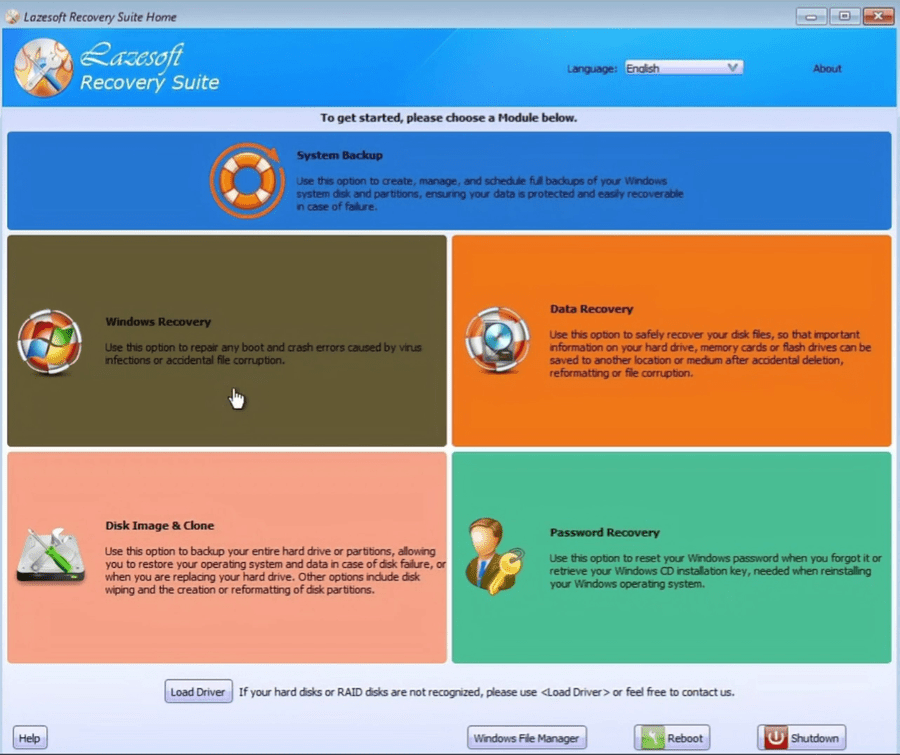
Step 3: Open Windows Recovery and Select Windows
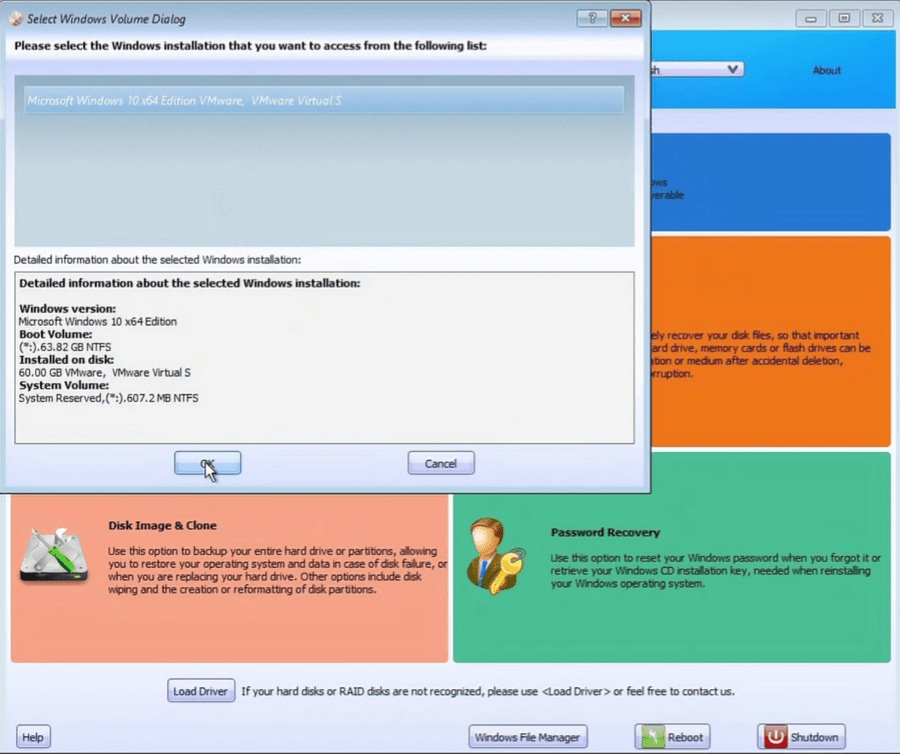
Click Windows Recovery. Lazesoft scans the connected disks for Windows installations. Select the Windows 11, Windows 10, or Windows 7 installation that cannot boot. Carefully check the displayed Windows version, boot volume, disk size, and system volume before continuing.
Step 4: Select One Click Fix
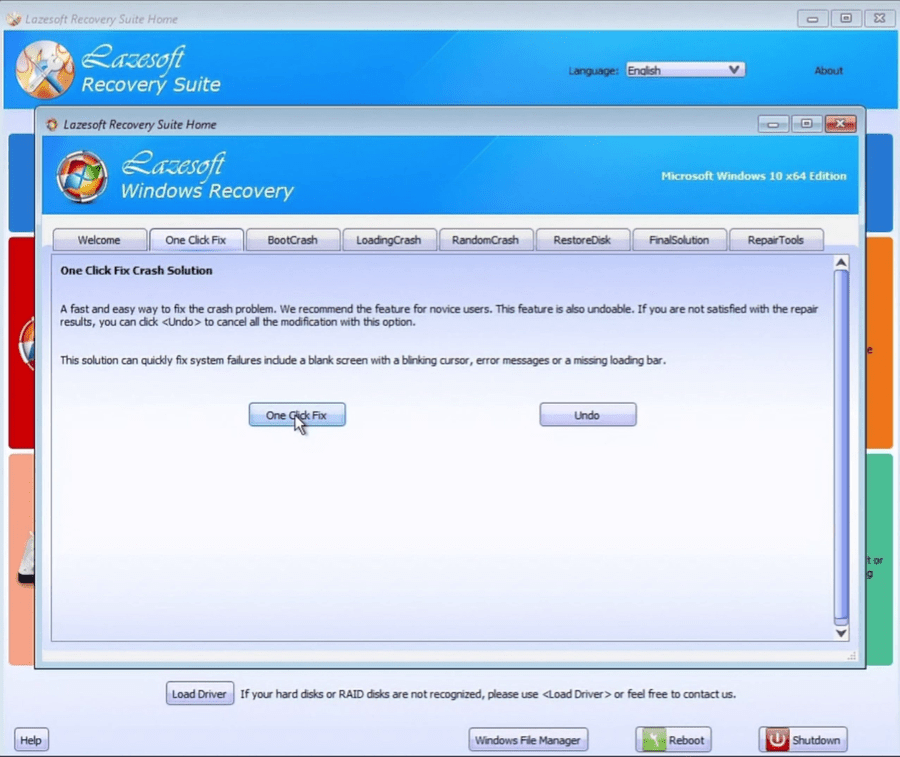
The Windows Recovery workspace includes repair categories such as One Click Fix, Boot Crash, Loading Crash, Random Crash, Restore Disk, Final Solution, and Repair Tools. Begin with One Click Fix.
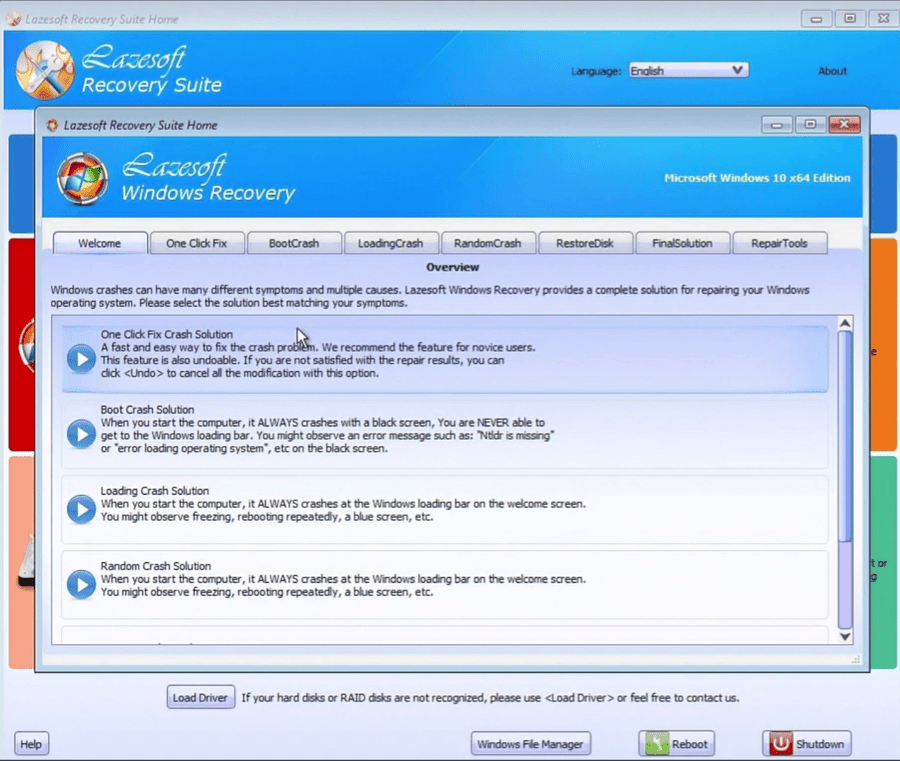
Open the One Click Fix page and click the One Click Fix button.
Step 5: Allow Lazesoft to Repair the System
Lazesoft examines the selected Windows installation and attempts to correct detected startup problems. Do not shut down the computer or remove the recovery USB while the repair is running.
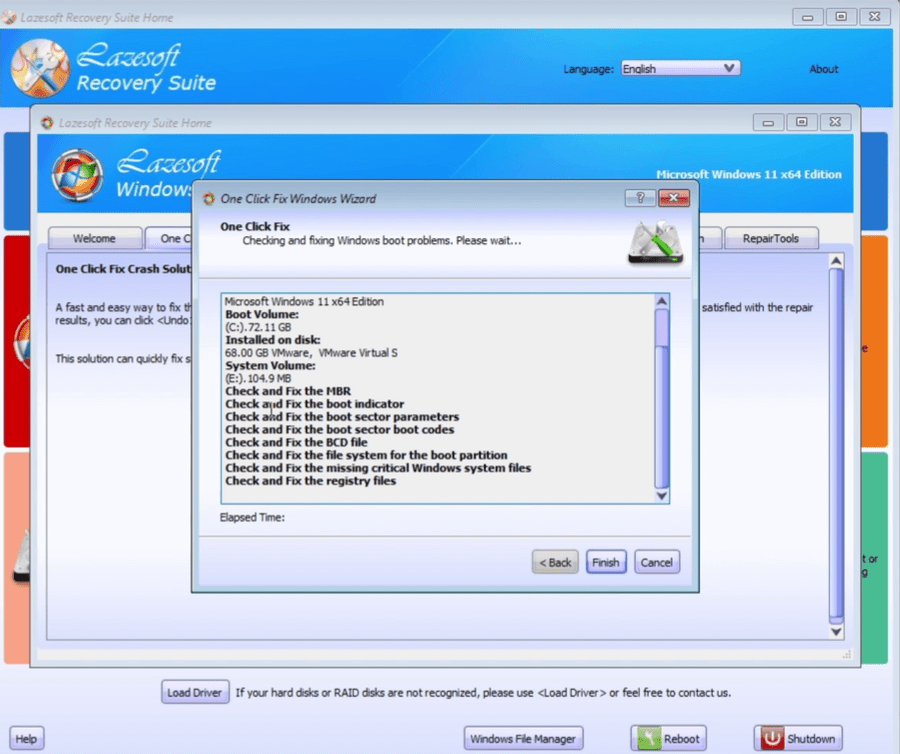
When the repair is complete, click Finish, select Reboot, and remove the USB flash drive as the computer restarts. If the repair succeeds, Windows should pass the Recovery screen and reach the lock or sign-in screen normally.

Solution 3: Rebuild the BCD with Lazesoft BCD Doctor
If One Click Fix does not resolve the error, use Lazesoft BCD Doctor to focus on the Windows Boot Configuration Data. Depending on the Lazesoft version, BCD Doctor is available in the Windows Recovery repair tools.
BCD Doctor is especially useful when:
- The Legacy BIOS BCD at
\Boot\BCD, or the UEFI BCD at\EFI\Microsoft\Boot\BCD, is missing or cannot be opened. - The BCD points to an old, removed, or incorrectly lettered Windows partition.
- Windows was cloned or restored to another disk.
- The EFI System Partition was recreated or repaired.
- BootRec cannot find the installed Windows system.
- Error 0xc000000d appeared after changing partitions or boot mode.
- Boot from the Lazesoft recovery USB.
- Open Windows Recovery and select the affected Windows installation.
- Open the repair tools and start BCD Doctor.
- Select the option to repair or rebuild the BCD.
- Confirm the correct Windows installation and system or EFI partition.
- Allow BCD Doctor to scan the disks and recreate the required boot entries.
- Close BCD Doctor, reboot, and remove the recovery USB.
After rebuilding the BCD, open the BIOS/UEFI boot menu and confirm that the repaired Windows disk is first. On a UEFI computer, select Windows Boot Manager rather than the physical disk when both choices are displayed.
What to Do If Error 0xc000000d Still Appears
Confirm the Firmware Boot Mode
A GPT Windows installation normally requires UEFI mode. An MBR Windows installation normally requires Legacy BIOS or Compatibility Support Module mode. Changing the firmware mode without converting the disk can prevent Windows from starting.
Check the Storage-Controller Setting
If Windows was installed using Intel RST, RAID, Intel VMD, or AHCI mode, changing that setting in BIOS/UEFI can make the system disk inaccessible. Restore the original controller mode whenever possible.
Load the Correct Storage Driver
If Lazesoft or Windows Setup cannot see the Windows disk, use the Load Driver option and provide the appropriate WinPE storage-controller driver. This is common with Intel VMD, Intel Rapid Storage Technology, AMD RAID, Dell PERC controllers, HP or Lenovo RAID configurations, and some newer NVMe controllers.
Test the Disk
Repeated BCD corruption can indicate file-system damage or disk failure. Check the SSD or hard-disk health, run the manufacturer’s diagnostics, and back up or recover important files as soon as possible.
Verify the Correct Windows Installation
A computer containing old cloned disks may have multiple Windows folders and multiple EFI partitions. Temporarily disconnect old disks or carefully verify which Windows installation and system partition should be repaired.
Which Repair Method Should You Use?
| Situation | Recommended action |
|---|---|
| The disk is not detected | Check hardware, storage-controller settings, RAID/VMD configuration, and storage drivers before repairing the BCD. |
| You are comfortable with partitions and commands | Use DiskPart, BootRec, and BCDBoot with the instructions matching UEFI/GPT or Legacy BIOS/MBR. |
| You want an easier automatic repair | Boot Lazesoft Recovery Suite Home Edition and run One Click Fix. |
| The BCD is missing or still invalid | Use Lazesoft BCD Doctor to repair or rebuild the boot configuration. |
| The error returns repeatedly | Check disk health, file-system errors, firmware mode, controller mode, and whether old cloned disks are confusing boot repair. |
Frequently Asked Questions
What does Windows error 0xc000000d mean?
It normally means Windows Boot Manager cannot read a valid Boot Configuration Data store. The BCD may be missing, damaged, incomplete, or pointing to the wrong Windows or system partition.
Can I fix 0xc000000d without reinstalling Windows?
Yes. Many cases can be repaired by rebuilding the BCD with BootRec and BCDBoot, running Lazesoft One Click Fix, or using Lazesoft BCD Doctor. These methods do not normally require formatting the Windows partition.
Which command is most important for a UEFI/GPT computer?
After correctly identifying and assigning a drive letter to the EFI System Partition, bcdboot C:\Windows /s S: /f UEFI can recreate the UEFI boot files. Adjust the drive letters to match the recovery environment.
Why does BootRec fail to find Windows?
The Windows volume may be encrypted, damaged, assigned a different drive letter, hidden behind a missing storage driver, or located on a disk that is not visible because of RAID/VMD settings. The BCD may also point to an old cloned installation.
Can Lazesoft repair Windows 7 error 0xc000000d?
Yes. Lazesoft Windows Recovery can work with supported Windows installations including Windows 7. When using older Windows 7 command-line environments, note that some BCDBoot options available in newer Windows versions may not be supported.
What should I do if the disk is not listed in BIOS or Lazesoft?
Do not begin with BCD repair. Check the physical connection, BIOS/UEFI storage settings, SATA/RAID/AHCI mode, Intel VMD configuration, required WinPE storage driver, and possible disk failure.
Conclusion
Windows error 0xc000000d usually indicates that the Boot Configuration Data is missing, corrupted, incomplete, or no longer matches the installed Windows system. Advanced users can repair the problem with BootRec and BCDBoot commands after identifying the correct partitions and boot mode.
bootrec /fixmbr
bootrec /fixboot
bootrec /rebuildbcd
bcdboot C:\Windows
For UEFI computers, the key repair command is often:
bcdboot C:\Windows /s S: /f UEFIFor a simpler automatic approach, boot the computer with Lazesoft Recovery Suite Home Edition and run One Click Fix. If the BCD needs focused repair, use Lazesoft BCD Doctor to locate the Windows installation and rebuild its boot configuration. These tools provide home users with a free way to repair many Windows 11, Windows 10, and Windows 7 startup problems without reinstalling Windows or deleting personal files.
Repair Windows Boot Problems with Lazesoft Recovery Suite Home Edition
Create a bootable recovery USB and use One Click Fix or BCD repair tools to repair common Windows startup failures.