
Windows Boot Repair
How to Fix Windows 11/10/7 Boot Error 0xC0000225 for Free
Windows failed to start. Status: 0xC0000225. Info: An unexpected error has occurred. This error normally appears before Windows loads because Windows Boot Manager cannot find or use the required boot configuration and startup files.
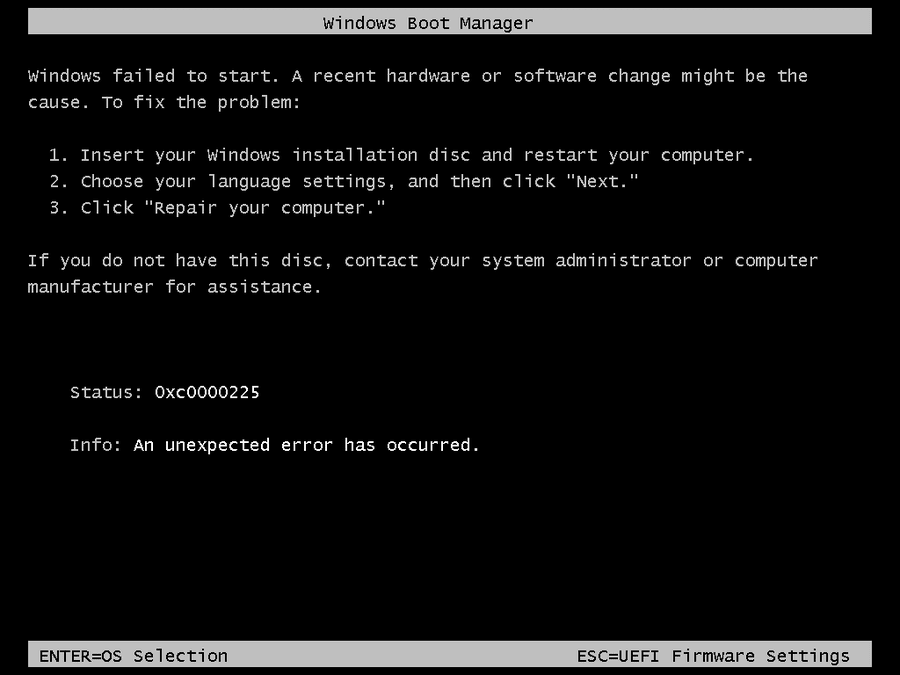
The 0xC0000225 boot error can affect Windows 11, Windows 10, Windows 8 or 8.1, and Windows 7. In many cases, the Windows installation and personal files are still present, but the computer cannot locate or load the correct boot information.
This guide explains two practical repair methods:
- Repair the boot configuration manually with Windows recovery commands.
- Use the free One Click Fix feature in Lazesoft Recovery Suite Home Edition.
Check the disk first: Restart the computer and enter BIOS/UEFI setup. Confirm that the system SSD or hard disk is detected and that the correct disk or Windows Boot Manager entry is first in the boot order. If the disk is not detected, solve the hardware, storage-controller, cable, or driver problem before attempting boot repair.
What Does Error 0xC0000225 Mean?
During startup, the computer firmware launches Windows Boot Manager. Windows Boot Manager then reads the Boot Configuration Data (BCD) and starts the installed Windows system. Error 0xC0000225 usually means that this startup chain is incomplete, damaged, or pointing to the wrong location.
Common causes include:
- Damaged, missing, or incorrect BCD data
- Missing EFI boot files or Windows boot files
- Damaged MBR, boot sector, or boot code
- Incorrect UEFI or Legacy/CSM boot mode
- A damaged EFI System Partition or System Reserved partition
- A failed or interrupted Windows update
- A disk clone, restore, or system migration problem
- A recent hardware or software change
- File-system errors on the Windows or boot partition
Video Guide: Fix 0xC0000225 with Lazesoft One Click Fix
Watch the complete repair process, including selecting the offline Windows installation, running One Click Fix, and restarting Windows successfully.
Free Windows Boot Repair for Home Users
Lazesoft Recovery Suite Home Edition is free for home users. You can create a bootable recovery USB disk and use Windows Recovery tools such as One Click Fix to repair common Windows startup problems.
Business, professional, technician, commercial-service, and Windows Server use requires the appropriate Lazesoft edition.
Windows Recovery Commands
Use DiskPart, BCDBoot, Bootrec, and CHKDSK when you are comfortable identifying the Windows and system partitions.
Lazesoft One Click Fix
Use automatic boot repair when you prefer not to select EFI or System Reserved partitions and type commands manually.
Solution 1: Fix 0xC0000225 Using Windows Recovery Commands
This method uses a Windows installation USB disk or the Windows Recovery Environment. It is suitable for users who understand drive letters, partition types, and the difference between UEFI/GPT and Legacy BIOS/MBR startup.
Step 1: Open Command Prompt from Windows Recovery
Boot the computer from a Windows installation USB disk. When Windows Setup appears, do not select Install now. Instead, choose:
Repair your computer → Troubleshoot → Advanced options → Command Prompt
For Windows 7, choose:
Repair your computer → Command Prompt
Step 2: Find the Windows Partition
Drive letters in Windows Recovery may differ from the letters used in normal Windows. Run:
diskpart
list volume
Look for the large NTFS volume that probably contains Windows. Exit DiskPart and test likely drive letters:
exit
dir C:\Windows
dir D:\Windows
dir E:\Windows
Use the drive letter that contains the Windows folder. The examples below use C:\Windows. Replace it with the correct path on the computer being repaired.
Step 3: Rebuild EFI Boot Files on UEFI/GPT Systems
UEFI / GPT
Most Windows 10 and Windows 11 computers use UEFI firmware and a GPT disk. These systems normally contain a small FAT32 EFI System Partition, often around 100 MB to 300 MB.
Find the EFI System Partition:
diskpart
list volume
Select the correct FAT32 EFI volume and assign it the temporary drive letter S::
select volume X
assign letter=S:
exit
Replace X with the EFI volume number. Then rebuild the UEFI boot files:
bcdboot C:\Windows /s S: /f UEFIA successful repair normally reports:
Boot files successfully created.Restart the computer and remove the installation USB disk:
wpeutil rebootStep 4: Repair MBR and BCD on Legacy BIOS/MBR Systems
Legacy BIOS / MBR
Older Windows 7 systems and some Windows 10 systems use Legacy BIOS or CSM mode with an MBR disk. Run:
bootrec /fixmbr
bootrec /fixboot
bootrec /scanos
bootrec /rebuildbcd
If bootrec /fixboot reports Access is denied, continue by rebuilding the boot files with BCDBoot:
bcdboot C:\Windows /f BIOSIf the computer has a System Reserved partition
Use DiskPart to identify the small NTFS System Reserved partition:
diskpart
list disk
select disk 0
list partition
Select the correct partition, mark it active, and assign it the drive letter S::
select partition X
active
assign letter=S:
exit
Then create the BIOS boot files on it:
bcdboot C:\Windows /s S: /f BIOSIf there is no separate System Reserved partition
Mark the Windows system partition active only after confirming that it is the correct partition:
diskpart
list disk
select disk 0
list partition
select partition X
active
exit
Then rebuild the BIOS boot files:
bcdboot C:\Windows /s C: /f BIOSStep 5: Check the Windows File System
Run CHKDSK if file-system corruption may have damaged the boot partition or Windows volume:
chkdsk C: /fFor an older hard disk where bad sectors are suspected, you may use:
chkdsk C: /f /rThe /r scan can take a long time. Replace C: with the actual Windows drive letter in the recovery environment.
Do not guess partitions: Selecting the wrong EFI, System Reserved, or Windows partition can make the startup configuration more difficult to repair. If the Windows volume is protected by BitLocker, unlock it before running commands that need access to the Windows folder.
Step 6: Restart and Test Windows
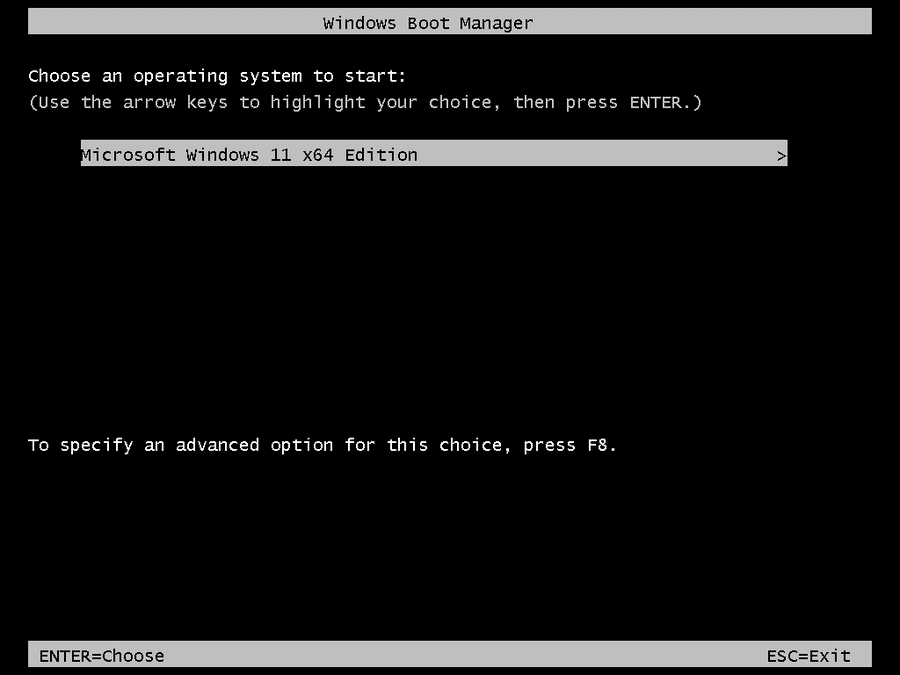
After the repair commands finish, remove the Windows installation USB disk and restart the computer. Windows Boot Manager may first show the operating-system selection screen:
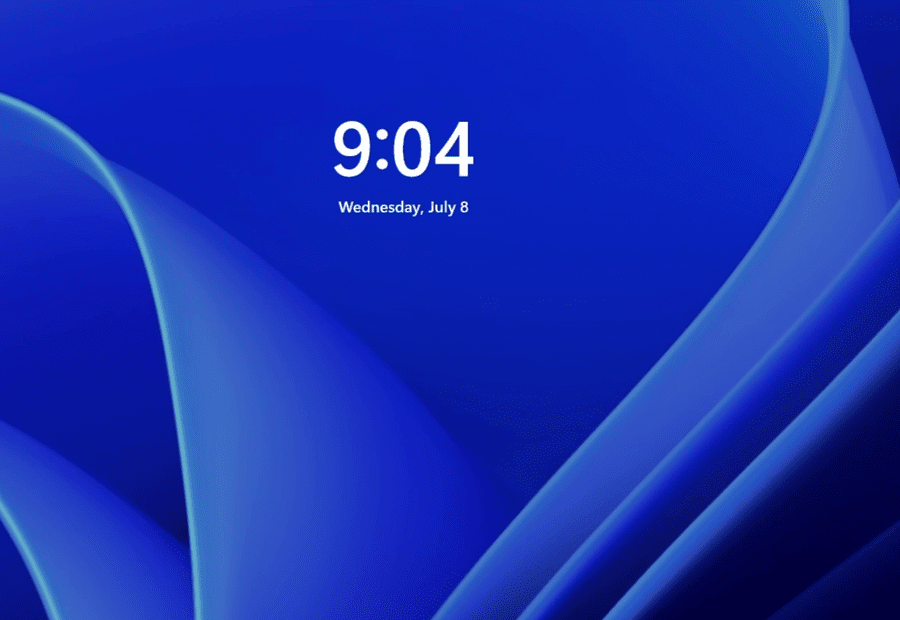
Windows should then continue to the lock screen:
Solution 2: Fix 0xC0000225 with Lazesoft Recovery Suite Home Edition
Lazesoft Recovery Suite Home Edition provides a bootable Windows recovery environment and an automatic One Click Fix feature. It is useful when you do not want to identify system partitions and type DiskPart, Bootrec, or BCDBoot commands manually.
One Click Fix can help when the error is caused by common problems such as:
- Damaged or missing BCD data
- Missing Windows boot files
- MBR or boot-sector problems
- Boot-partition file-system errors
- Incorrect Windows startup configuration
- Missing critical Windows system or registry files
Step 1: Create and Boot from a Lazesoft Recovery USB Disk
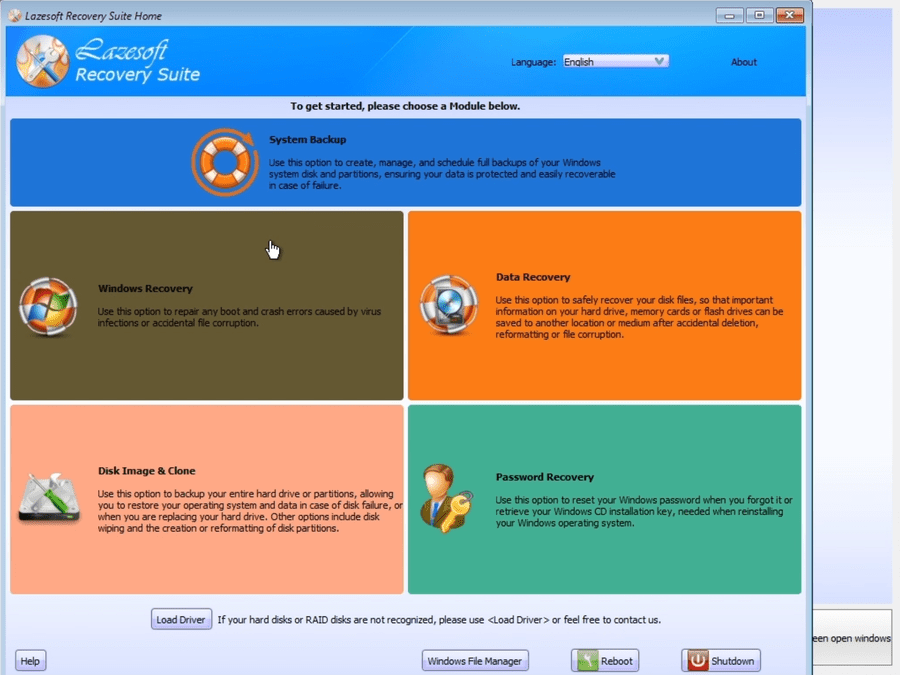
On a working Windows computer, install Lazesoft Recovery Suite Home Edition and create a bootable recovery USB disk. Connect it to the computer showing error 0xC0000225, open the firmware boot menu, and start from the Lazesoft USB disk.
When Lazesoft Recovery Suite opens, select Windows Recovery.
Step 2: Select the Offline Windows Installation
Lazesoft scans the disks and lists the Windows installations it finds. Select the Windows installation on the internal system disk, then click OK.
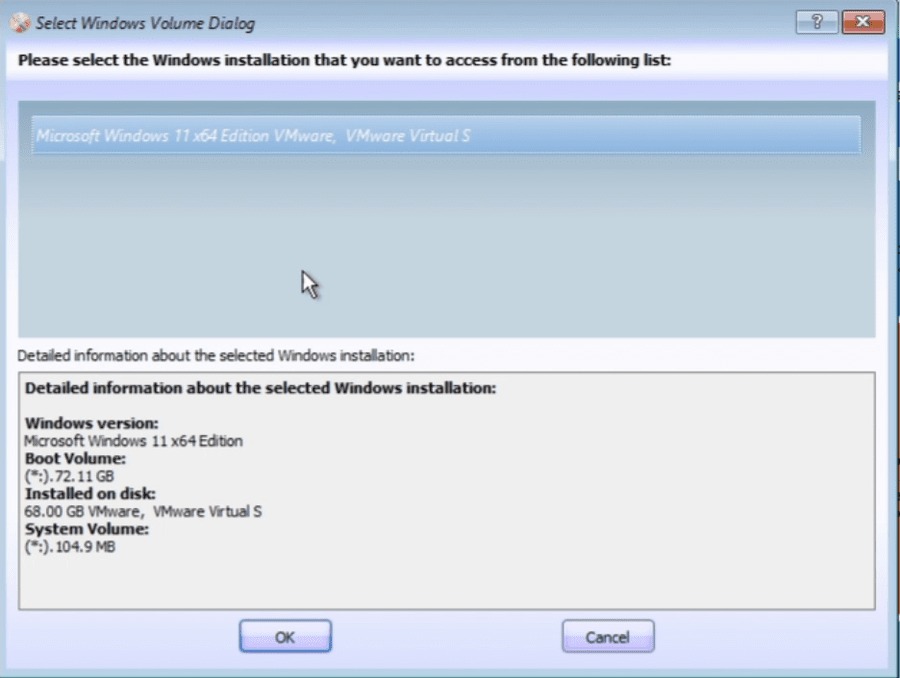
Tip: Check the Windows version, boot volume, system volume, disk capacity, and disk model. Do not select the recovery USB disk itself.
Step 3: Choose One Click Fix Crash Solution
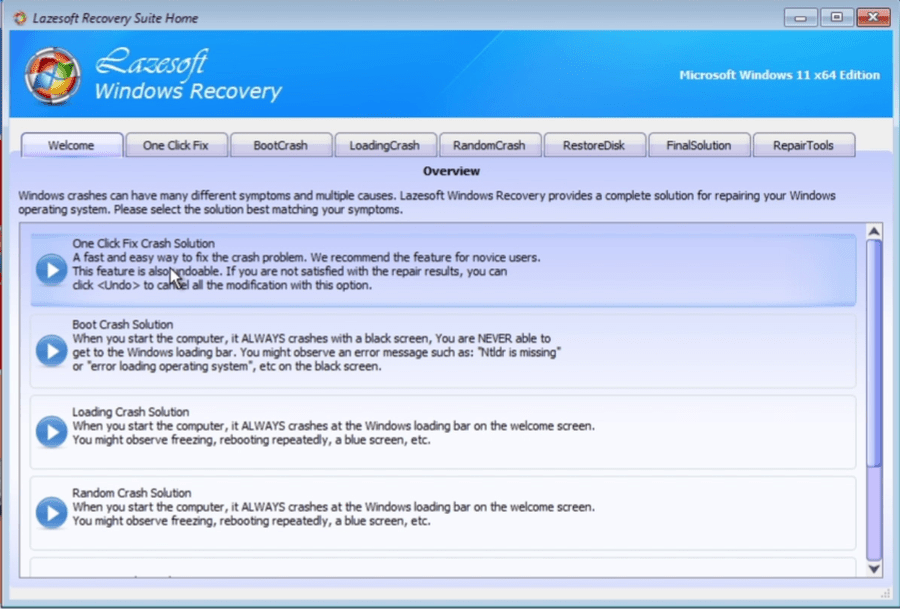
After the Windows Recovery module opens, choose One Click Fix Crash Solution.
Step 4: Click One Click Fix
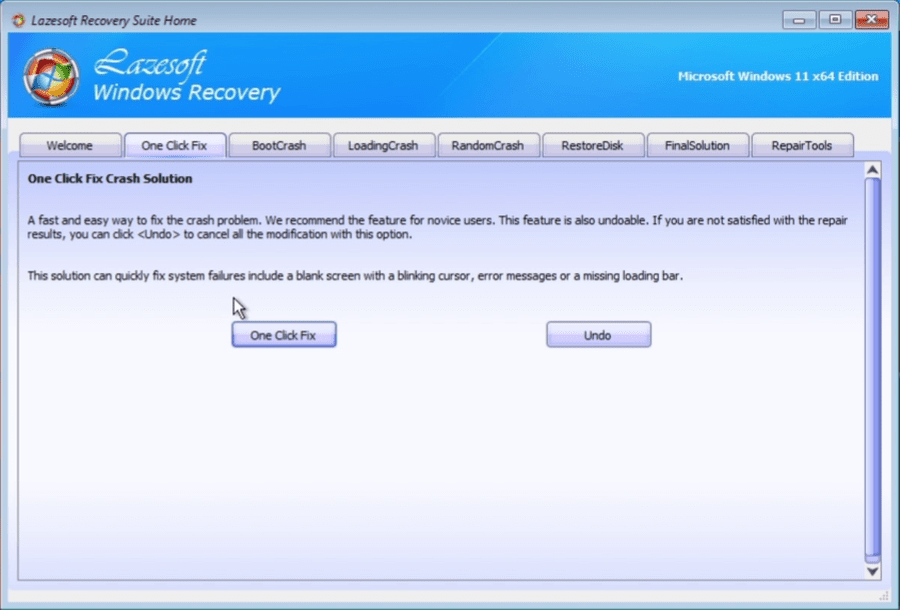
On the One Click Fix page, click the One Click Fix button to begin the automatic boot repair.
Step 5: Wait for the Repair to Finish
During the repair, Lazesoft checks and repairs boot-related components such as the MBR, boot indicator, boot-sector parameters, boot code, BCD store, boot-partition file system, critical Windows system files, and registry files.
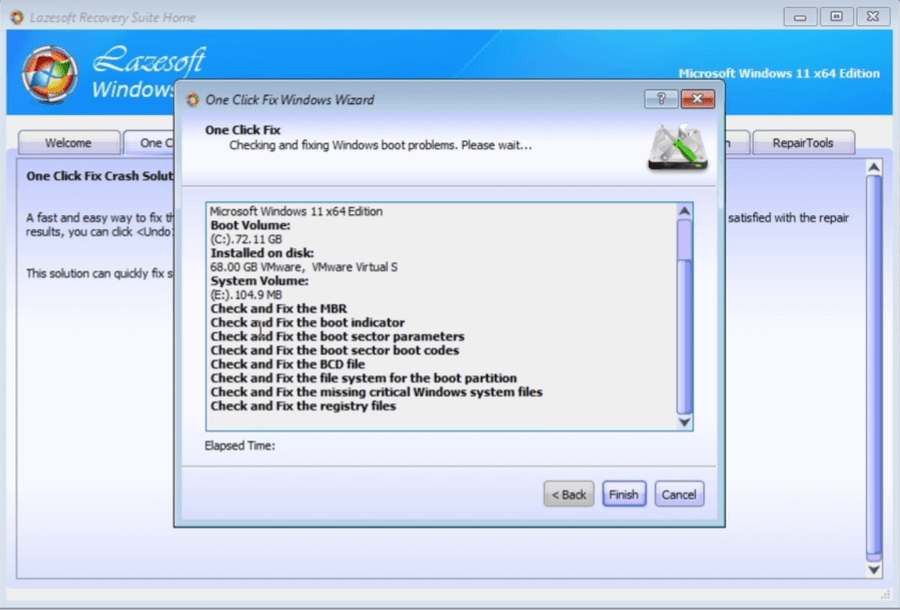
When the process completes, click Finish.
Step 6: Remove the USB Disk and Restart Windows
Remove the Lazesoft recovery USB disk and restart the computer. Windows Boot Manager should be able to find the installed Windows system again.
Which Repair Method Should You Use?
| Situation | Recommended method |
|---|---|
| You understand UEFI, GPT, EFI partitions, MBR, and drive letters | Use Windows Recovery commands to rebuild the correct boot files manually. |
| You prefer an easier automatic repair | Use Lazesoft Recovery Suite Home Edition and One Click Fix. |
| The disk is not detected in BIOS/UEFI | Do not begin boot-file repair yet. Check the disk, connection, storage controller, firmware settings, or required storage driver. |
| The disk is failing or has serious bad sectors | Recover or back up important data first. Boot repair may be temporary or may not succeed. |
Extra Tips If 0xC0000225 Still Appears
- Check the firmware mode. A GPT Windows disk normally requires UEFI mode. An MBR Windows disk normally requires Legacy BIOS or CSM mode.
- Check the boot order. Put the correct Windows disk or Windows Boot Manager entry first.
- Confirm disk detection. If the SSD or hard disk is missing from BIOS/UEFI, this is not only a Windows boot-file problem.
- Check the storage-controller mode. Changing AHCI to RAID, RAID to AHCI, Intel RST, or Intel VMD settings can prevent Windows from starting.
- Check disk health. If diagnostics fail or the disk is very slow, disconnects, or reports bad sectors, protect important data before continuing.
- Unlock BitLocker. Some repair operations require the Windows volume to be unlocked.
- Review recent cloning or migration work. Confirm that the target disk contains the required EFI or System Reserved partition and that its partition style matches the firmware mode.
Frequently Asked Questions
Does error 0xC0000225 mean Windows has been deleted?
Not necessarily. Windows and personal files may still be on the disk. The error often means that Windows Boot Manager cannot find or load the BCD store, EFI files, boot code, or another required startup component.
Can I repair 0xC0000225 without reinstalling Windows?
Yes. Rebuilding the UEFI or BIOS boot files, repairing the BCD store, or using Lazesoft One Click Fix can often restore startup without reinstalling Windows.
Should I use Bootrec or BCDBoot?
Bootrec is commonly used for Legacy BIOS/MBR repair. BCDBoot creates fresh Windows boot files and is especially useful for rebuilding the EFI boot files on UEFI/GPT systems.
What should I do if bootrec /fixboot says Access is denied?
Identify and mount the correct EFI or System Reserved partition, then use BCDBoot to recreate the boot files. For UEFI, a typical command is bcdboot C:\Windows /s S: /f UEFI.
Can Lazesoft repair the error if the SSD is not visible in BIOS?
No software repair tool can access a disk that the computer firmware and recovery environment cannot detect. Check the connection, slot, controller mode, storage driver, and disk health first.
Is Lazesoft Recovery Suite Home Edition free?
It is free for home users. Commercial, professional, technician, business, and Windows Server use requires the appropriate edition.
Repair Windows Boot Error 0xC0000225 Automatically
Lazesoft Recovery Suite Home Edition includes a free bootable Windows recovery environment and One Click Fix for home users.