
Windows Boot Repair
How to Fix “An Operating System Wasn’t Found” Boot Error in Windows
If Windows shows “An operating system wasn’t found,” first check whether the PC can detect the hard disk or SSD and whether the boot order is correct. If the disk is detected but Windows still cannot boot, repair the boot files with Windows commands or Lazesoft One Click Fix.
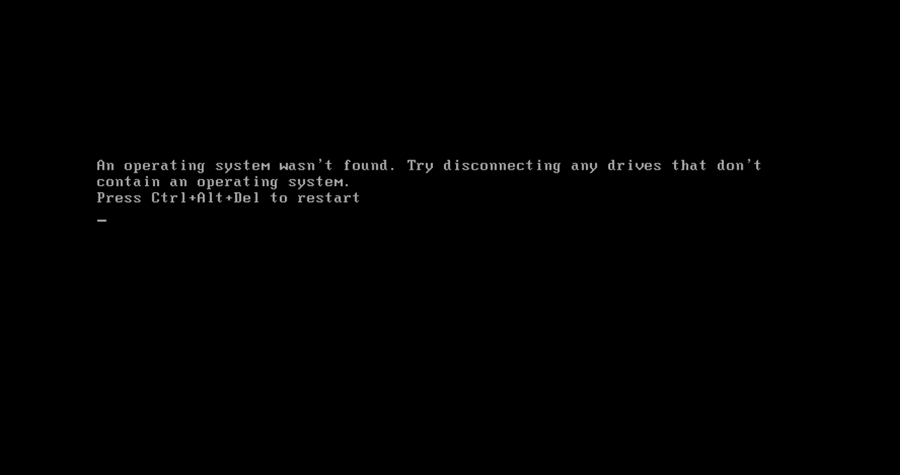
When starting your computer, you may see this black-screen error:
An operating system wasn’t found.
Try disconnecting any drives that don’t contain an operating system.
Press Ctrl+Alt+Del to restart.
This error means the computer cannot find a valid Windows boot loader or a bootable operating system on the selected disk. In many cases, Windows is still on the hard disk or SSD, but the computer cannot start it because of an incorrect BIOS/UEFI setting, wrong boot order, damaged boot files, corrupted BCD configuration, or boot sector problems.
Video Guide: Fix “An Operating System Wasn’t Found” Error
Watch this video to learn how to fix the “An operating system wasn’t found” boot error in Windows. The guide first explains what to check in BIOS/UEFI, including whether the hard disk or SSD is detected, whether the Windows disk is set as the first boot device, whether the correct UEFI or Legacy/CSM boot mode is selected, and whether extra USB drives or external disks should be disconnected. If the disk is detected but Windows still cannot boot, the video shows how to use Lazesoft Windows Recovery Home Edition or Lazesoft Recovery Suite Home Edition to run One Click Fix and automatically repair common boot problems such as MBR errors, boot sector issues, BCD problems, missing boot files, and boot configuration issues.
Free Policy for Home Users
Lazesoft Recovery Suite Home Edition is free for home users. Home users can create a Lazesoft bootable recovery USB and use Windows Recovery features such as One Click Fix to repair common Windows boot problems.
For business, technician, commercial service, or Windows Server environments, please choose the appropriate Professional, Technician, or Server edition.
Step 1: Check BIOS/UEFI First
Before using any boot repair tool or command-line repair method, restart the computer and enter the BIOS/UEFI setup screen. Common BIOS/UEFI keys include F2, Del, Esc, F10, and F12. Press the key immediately after powering on the computer.
1. Is the hard disk or SSD listed?
If the disk is not listed in BIOS/UEFI, software repair cannot fix the boot problem yet. Check the SATA cable, power cable, NVMe installation, storage controller setting, RAID/AHCI/Intel RST/Intel VMD setting, or possible disk failure.
2. Is the Windows disk first?
If the computer tries to boot from the wrong disk, USB drive, memory card, or external hard drive, it may show this error. Make sure the correct Windows disk is first in the boot order.
3. Is the boot mode correct?
Windows installed on a GPT disk usually boots in UEFI mode. Windows installed on an MBR disk usually boots in Legacy/CSM mode.
4. Remove extra USB drives
Disconnect unnecessary USB drives, external disks, memory cards, and other bootable devices. Then restart the computer and test again.
Step 2: If the Disk Is Detected but Windows Still Cannot Boot
If the hard disk or SSD is detected in BIOS/UEFI and the boot order looks correct, the Windows boot files or boot configuration may be damaged.
- Damaged MBR
- Damaged boot sector
- Incorrect boot indicator
- Corrupted BCD file
- Missing Windows boot files
- File system errors on the boot partition
- Boot configuration damaged after disk clone, restore, repartitioning, or system crash
- Wrong UEFI/Legacy boot mode after hardware or BIOS setting changes
Use Windows Commands
Recommended for advanced users who can identify the Windows partition and EFI/System Reserved partition correctly.
Use Lazesoft One Click Fix
Recommended if you want an automatic repair method for common MBR, boot sector, BCD, boot file, and registry boot settings problems.
Method 1: Repair the Boot Error Using Windows Commands
This method uses Windows Recovery Environment or a Windows installation USB disk. It is suitable for advanced users who are comfortable identifying partitions and running command-line tools.
Step 1: Boot into Command Prompt
Boot the computer from a Windows installation USB disk. On the Windows Setup screen, click:
Repair your computer → Troubleshoot → Advanced options → Command Prompt
Do not click Install now.
Step 2: Find the Windows Partition
Drive letters in Windows Recovery Environment may be different from normal Windows. Run:
diskpart
list volume
Look for the Windows partition. It is usually a large NTFS partition. Exit DiskPart:
exitThen test possible drive letters:
dir C:\Windows
dir D:\Windows
dir E:\Windows
Use the drive letter that contains the Windows folder. In the examples below, we assume the Windows partition is C:. If your Windows partition is D:, replace C:\Windows with D:\Windows.
Repair Method A: For UEFI/GPT Systems
UEFI / GPT
Use this method if Windows was installed in UEFI mode and the disk uses GPT. Most modern Windows 10 and Windows 11 computers use UEFI/GPT.
Find the small FAT32 EFI System Partition, usually around 100 MB to 300 MB:
diskpart
list volume
Assign the EFI System Partition a drive letter:
select volume X
assign letter=S:
exit
Replace X with the correct EFI partition volume number. Then rebuild the EFI boot files:
bcdboot C:\Windows /s S: /f UEFIIf the command succeeds, you should see:
Boot files successfully created.Restart the computer:
wpeutil rebootRepair Method B: For Legacy BIOS / MBR Systems
Legacy / MBR
Use this method if Windows was installed in Legacy/CSM mode and the disk uses MBR.
bootrec /fixmbr
bootrec /fixboot
bootrec /scanos
bootrec /rebuildbcd
If bootrec /fixboot shows Access is denied, you can continue by rebuilding the boot files with bcdboot.
If there is a System Reserved partition
diskpart
list disk
select disk 0
list partition
Find the small System Reserved partition. It is usually NTFS and around 100 MB to 600 MB. Select it and mark it active:
select partition X
active
assign letter=S:
exit
Replace X with the correct System Reserved partition number. Then rebuild boot files:
bcdboot C:\Windows /s S: /f BIOSwpeutil rebootIf there is no System Reserved partition
If Windows is installed directly on the active system partition, mark the Windows partition active and rebuild boot files:
diskpart
list disk
select disk 0
list partition
select partition X
active
exit
Replace X with the Windows partition number. Then run:
bcdboot C:\Windows /s C: /f BIOSwpeutil rebootOptional: Check the File System
If the boot partition has file system errors, run:
chkdsk C: /fIf your Windows partition uses a different drive letter in Windows Recovery Environment, replace C: with the correct letter.
chkdsk D: /fImportant: Do not guess the EFI partition, System Reserved partition, or Windows partition. Using the wrong partition may make boot repair more difficult. If the disk uses BitLocker, you may need to unlock the Windows partition before repairing it.
Method 2: Repair the Boot Error with Lazesoft One Click Fix
If you do not want to manually identify partitions and type commands, use Lazesoft Recovery Suite Home Edition or Lazesoft Windows Recovery Home Edition. The One Click Fix feature can automatically check and repair common Windows boot problems.
Step 1: Boot from a Lazesoft Recovery USB Disk
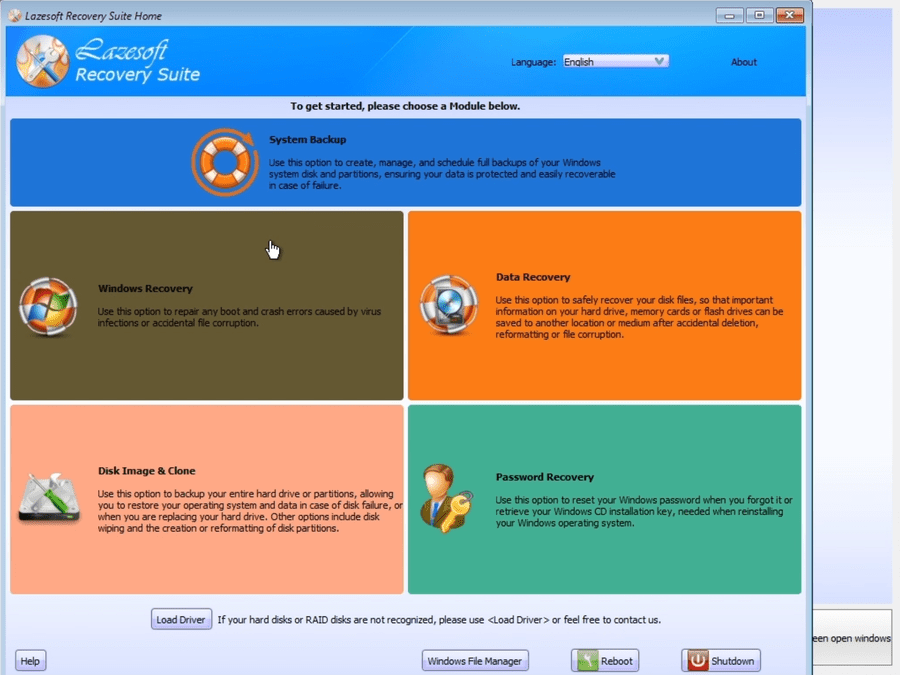
Boot the problem computer from a Lazesoft recovery USB disk. After Lazesoft Recovery Suite starts, select Windows Recovery from the main screen.
Step 2: Choose One Click Fix Crash Solution
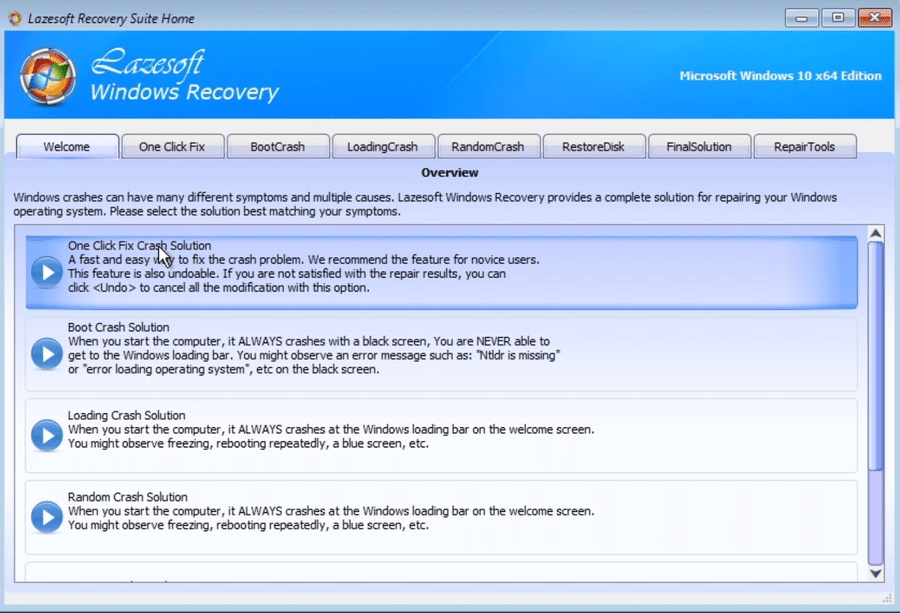
In Lazesoft Windows Recovery, choose One Click Fix Crash Solution. This option is designed for common Windows boot and crash problems.
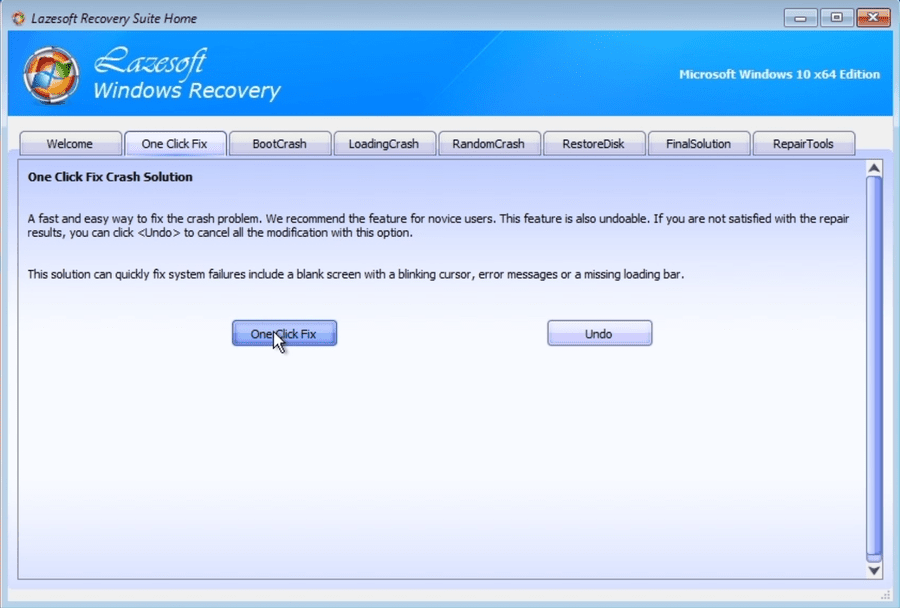
Then click the One Click Fix button.
Step 3: Select the Windows Installation
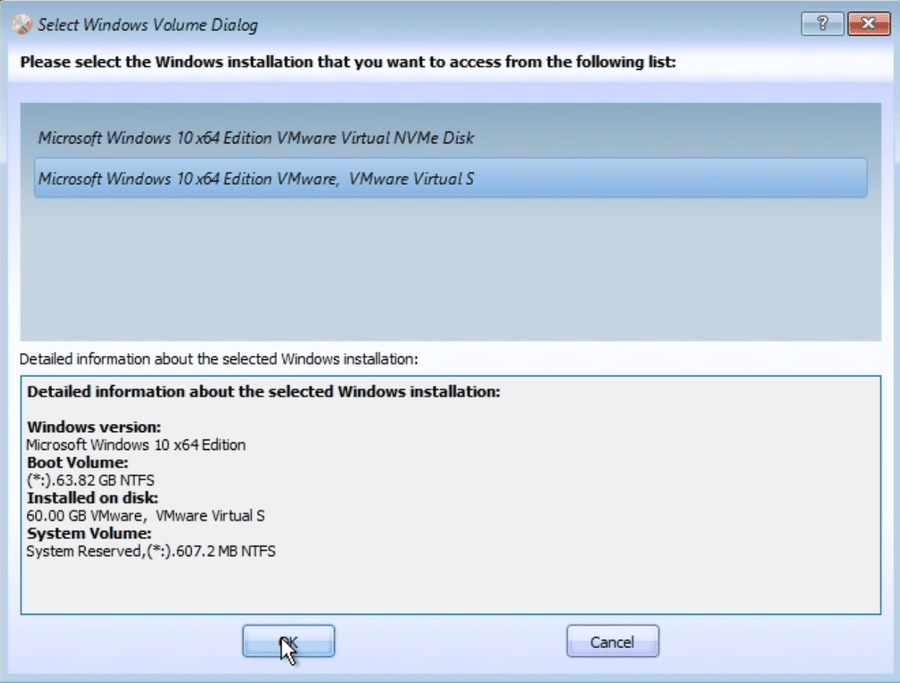
If Lazesoft finds more than one Windows installation, select the correct Windows installation you want to repair. Check the Windows version, boot volume, disk size, and system volume information carefully before continuing.
Step 4: Run One Click Fix
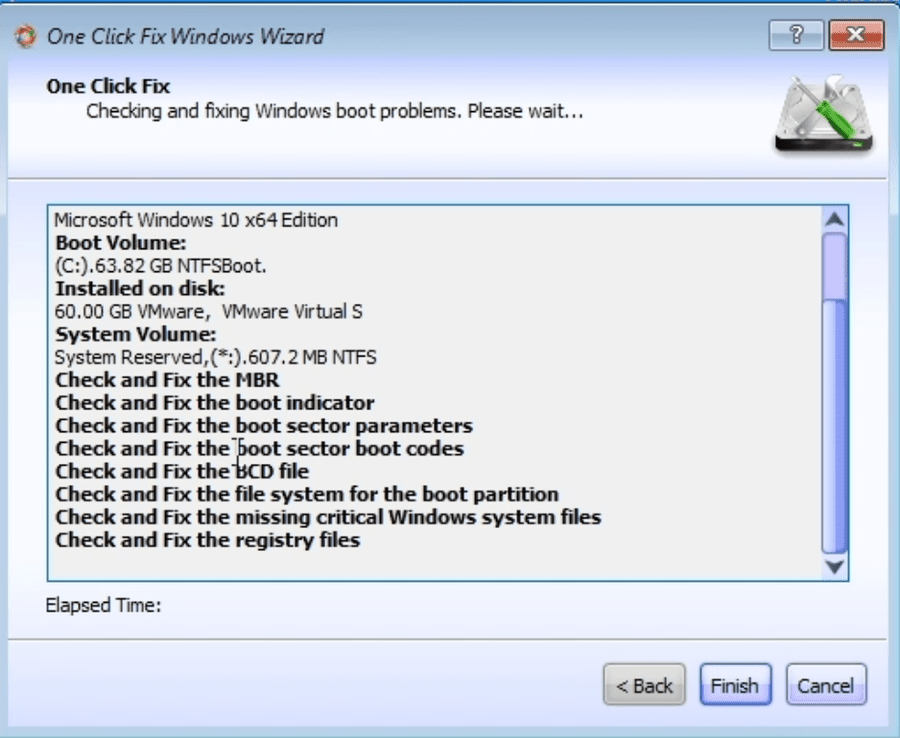
Lazesoft One Click Fix will check and repair common Windows boot problems automatically. It may check and fix the MBR, boot indicator, boot sector parameters, boot sector boot code, BCD file, file system on the boot partition, missing critical Windows system files, and Windows boot-related registry files.
Step 5: Reboot and Test Windows
After the repair is completed, click Finish, remove the Lazesoft USB disk, and restart the computer.
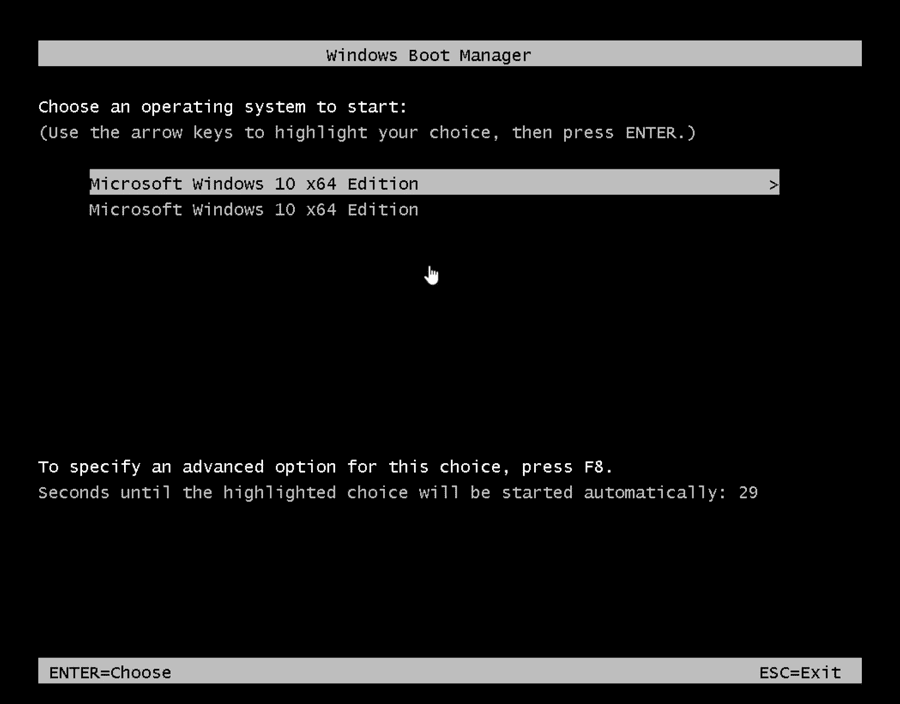
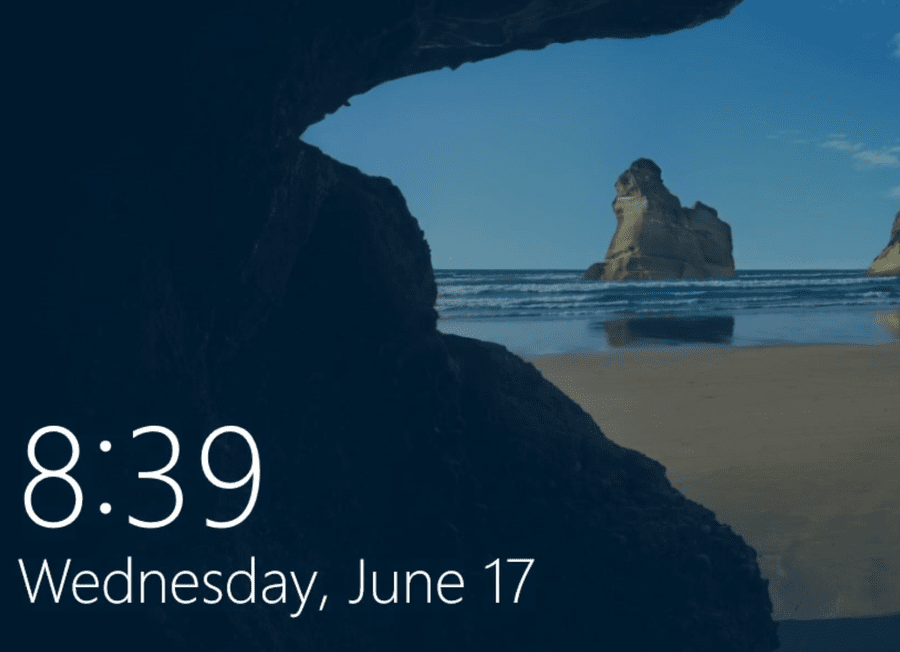
If the boot repair is successful, Windows should start normally again. In some cases, you may see a Windows Boot Manager screen first. Select the correct Windows entry and press Enter.
What If the Error Still Appears?
- Confirm the Windows disk is still listed in BIOS/UEFI.
- Check whether the correct disk is first in the boot order.
- Confirm the correct boot mode: UEFI or Legacy/CSM.
- Disconnect extra USB drives, external disks, and memory cards.
- Check whether the Windows disk has hardware problems.
- If the computer uses RAID, Intel RST, Intel VMD, or a special storage controller, make sure the correct storage driver is available in the recovery environment.
- If Windows was cloned or restored to a new disk, check whether the target disk uses the expected partition style: GPT for UEFI or MBR for Legacy boot.
Which Method Should You Use?
| Method | Best for |
|---|---|
| Windows commands | Advanced users who know whether the computer uses UEFI/GPT or Legacy/MBR and can identify the Windows and EFI/System Reserved partitions correctly. |
| Lazesoft One Click Fix | Users who want an easier automatic repair method for common MBR, boot sector, BCD, missing boot files, and boot registry setting problems. |
FAQ
Does “An operating system wasn’t found” mean my Windows is deleted?
Not always. Windows may still be on the disk. The computer may simply be unable to find a valid boot loader or boot configuration.
Should I repair Windows first or check BIOS first?
Check BIOS/UEFI first. Make sure the hard disk or SSD is detected, the Windows disk is first in boot order, the boot mode is correct, and extra USB drives are disconnected.
Can software repair help if the disk is not listed in BIOS?
No. If the disk is not detected by BIOS/UEFI, first check the disk connection, storage controller setting, or possible disk failure.
What does Lazesoft One Click Fix repair?
It can check and repair common boot problems such as MBR, boot sector parameters, BCD file, missing boot files, file system issues on the boot partition, and boot-related registry settings.
Fix Windows Boot Problems with Lazesoft Recovery Suite Home Edition
Lazesoft Recovery Suite Home Edition is free for home users and includes Windows Recovery tools for repairing common Windows boot problems.