
How to Unformat a FAT32 Partition (Free Recovery Guide)
If you accidentally formatted a FAT32 partition (USB drive, SD card, external HDD, etc.), don’t panic. In many cases, the files are still there until new data overwrites them. This guide shows how to recover files from a formatted FAT32 partition using Lazesoft Data Recovery.
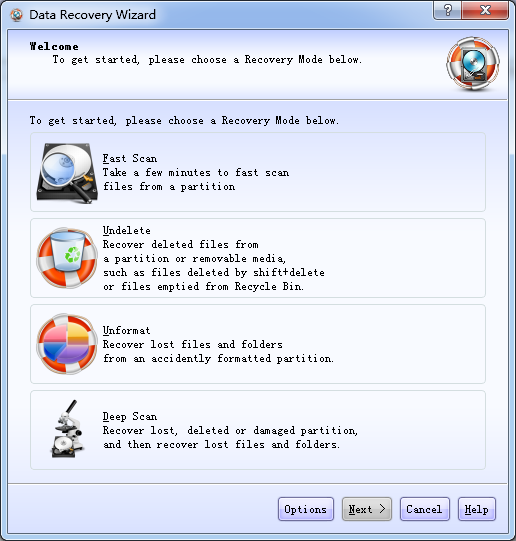
Before you start: do these 3 things first
- Stop using the formatted drive immediately. Every new file you copy to it can overwrite the old data and reduce recovery success.
- Do not reformat again, repartition, or “repair” the disk. Those actions can rewrite key file-system structures.
- Recover to a different drive. Save recovered files to another disk (not the formatted FAT32 partition).
Quick success rule: The less you write to the formatted partition, the higher the chance of recovering photos, documents, and folders.
What is FAT32 (and why recovery is often possible)
FAT32 is an older but widely-supported file system. It’s commonly used on USB flash drives, SD cards (phones/cameras), and some consoles because it works across many devices and operating systems.
When a FAT32 partition is formatted, the boot sector, BPB, and file allocation table (FAT) are rewritten. However, the actual file data on the disk is often still present until it gets overwritten. That’s why recovery software can frequently restore files after an accidental format.
Recover files from a formatted FAT32 partition
Follow these steps to scan the formatted FAT32 partition and copy your files to a safe location:
Step 1 — Install and run Lazesoft Data Recovery
Download and install Lazesoft Data Recovery like a normal Windows application.
Important: Don’t install it onto the formatted drive. Install it on another internal drive or a different disk to avoid overwriting data.
Step 2 — Choose “Partition Recovery”
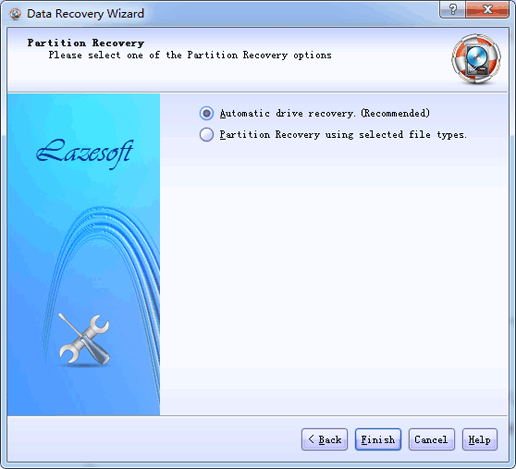
Open the program and select Partition Recovery. This mode is designed for formatted, damaged, or lost partitions.
Step 3 — Select the device or the formatted partition
Choose the correct disk (USB/SD/external/internal) and then select the formatted FAT32 partition. If the partition is missing, select the whole disk to search for lost partitions.
Step 4 — Scan and preview recoverable files
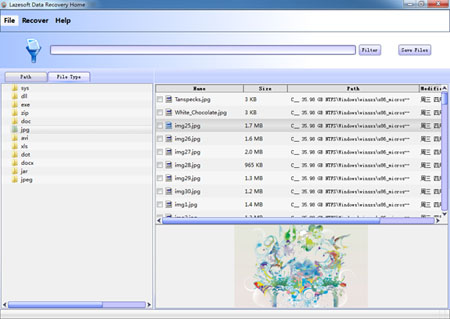
Start the scan and wait for the file list to appear. Use preview (when available) to confirm photos/documents are intact.
Step 5 — Recover (copy) files to another drive
Click Save (or Recover), choose a destination folder on a different disk, and then start copying the recovered files.
Tip: If you only need certain file types (e.g., photos or documents), filter or sort the results to speed up selection.
Should you use the old MS-DOS “UNFORMAT” command?
Older MS‑DOS versions (5.0–6.22) had an UNFORMAT command. On modern Windows systems (Windows XP and later), it’s not a reliable recovery method and may cause additional issues. Using dedicated recovery software is usually safer and more effective.
Common mistakes to avoid
- Creating a new partition on the formatted space
- Running “repair” tools that modify the file system
- Saving recovered files back to the formatted partition
- Continuing to use the drive for normal storage before recovery
Related guides
- How to recover data from a formatted or damaged partition
- How to perform a data recovery
- Create a bootable recovery USB disk
Need help? If your drive is not detected or uses RAID/BitLocker, see the support resources on our website or contact Lazesoft Support.
Lazesoft Recovery Suite is easy to use, powerful boot disk design to Recover Data, Recover crashed Windows System, Recover Windows Password, Clone or Backup Disk, etc.