
Windows 11 Setup Troubleshooting
How to Find the Exact Windows 11 Setup Error
When Windows 11 Setup displays only a generic installation failure, the real cause is often recorded in setuperr.log and setupact.log. This guide shows how to open the Panther Setup logs and identify the exact error code and failed Setup component.
When Windows 11 installation fails, Setup may display a generic message such as:
Windows Setup could not configure Windows to run on this computer's hardware.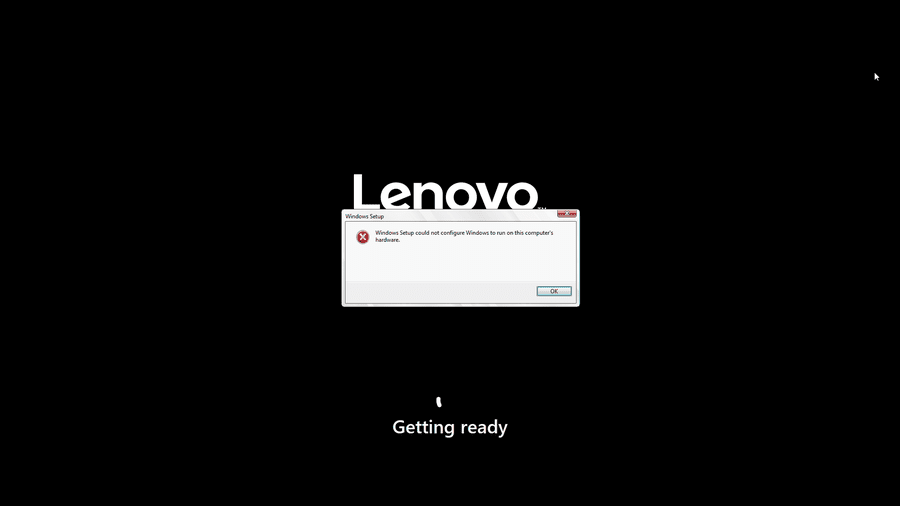
This message does not explain what actually failed. The real cause is often recorded in the Windows Setup log files.
By opening setuperr.log and setupact.log, you can find the exact error code and the Windows Setup component that failed.
Why Check the Windows Setup Log?
A Windows installation error can be caused by many different problems, including:
- EFI or System partition problems
- BCD configuration errors
- Sysprep failures
- Storage controller or disk driver problems
- Incorrect disk or partition layout
- Hardware initialization problems
- Damaged installation files
- Windows Setup configuration errors
Instead of guessing, check the Windows Setup logs first.
In the example shown in this guide, Windows displays only the generic hardware configuration message. But the actual log reports:
SYSPRP BCD: Failed to get system partition.
Status: c0000451
It also reports:
SYSPRP Sysprep_Specialize_Bcd:
There was an error opening the system store.
Status=[0xc0000451]
This immediately points the troubleshooting process toward the system partition and BCD configuration.
Video Guide: Find the Exact Windows 11 Setup Error
Watch how to open Command Prompt during Windows Setup, launch Notepad, browse to the Panther folder, and open setuperr.log to find the real installation error.
Method: Open the Windows 11 Setup Error Log
Step 1: Open Command Prompt
When the Windows 11 Setup error appears, press:
Shift + F10This opens Command Prompt directly from Windows Setup.
If Shift + F10 does not work on some laptops, you may need to press:
Shift + Fn + F10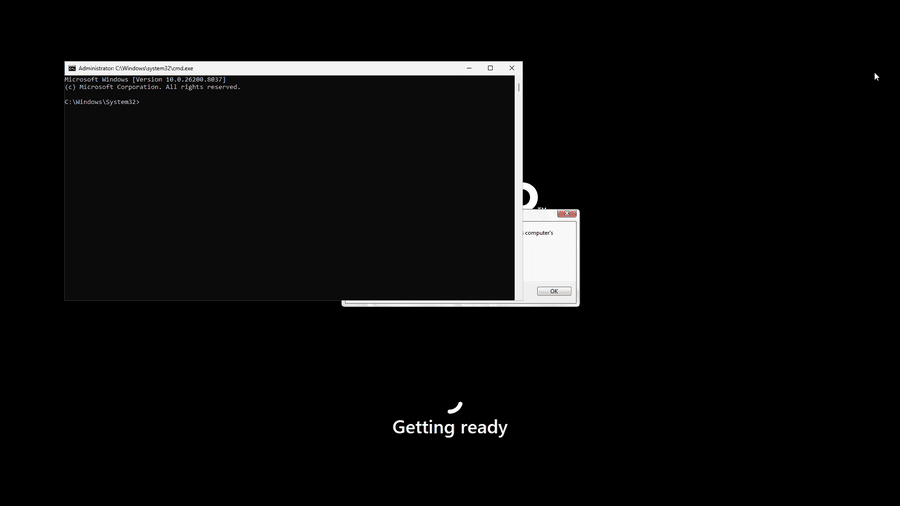
Step 2: Start Notepad
At the Command Prompt, type:
notepadThen press Enter.
Notepad provides an easy way to browse the Windows file system while Windows Setup is still running.
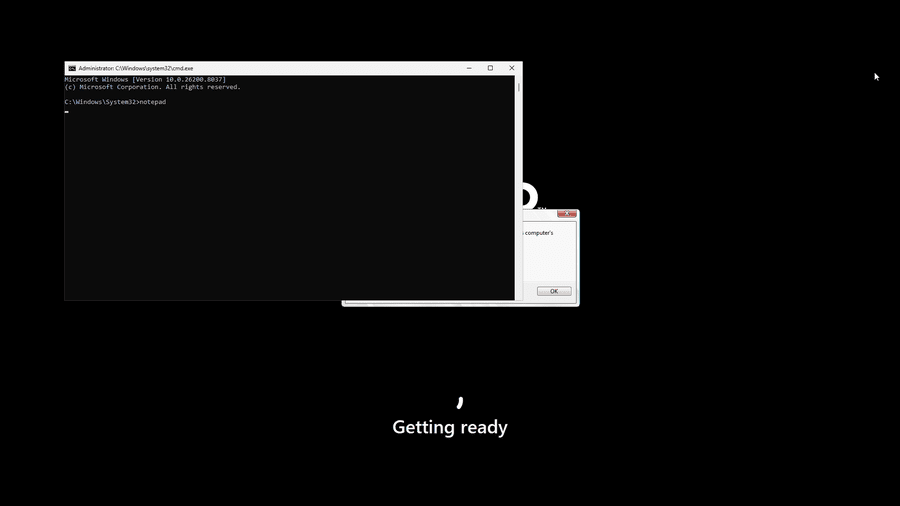
notepad and press Enter.Step 3: Open the File Browser
In Notepad, click:
File → Open
This opens a standard Windows file browser.
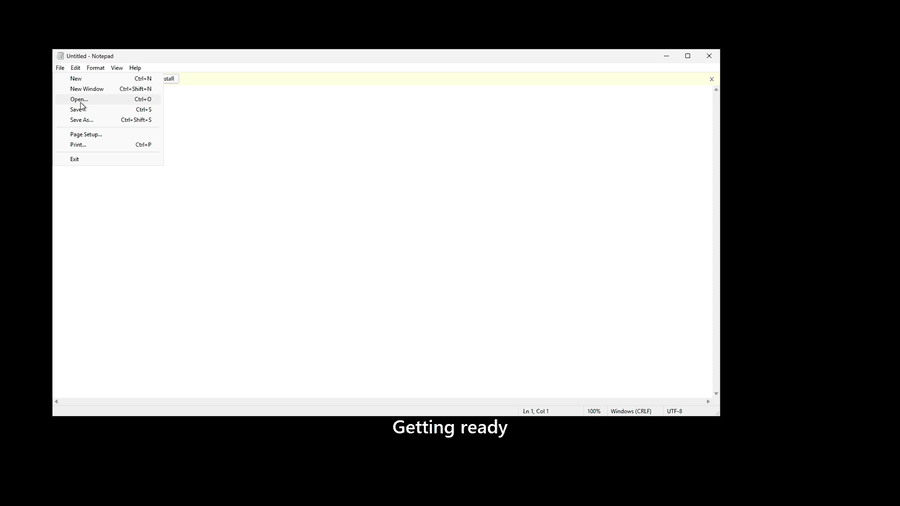
Step 4: Browse to the Panther Folder
Navigate to:
C:\Windows\PantherThe Panther folder contains important Windows Setup logs.
Step 5: Change the File Type to All Files
At the bottom of the Open dialog, change Text Documents (*.txt) to All Files.
This allows .log files to appear in the file list.
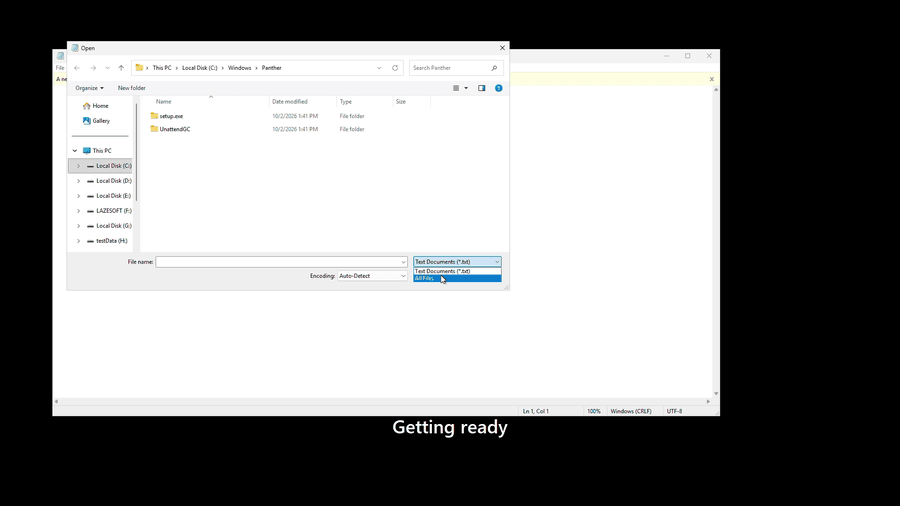
C:\Windows\Panther and change the file type to All Files.Step 6: Open setuperr.log
Find and open:
setuperr.logsetuperr.log contains errors generated during Windows Setup.
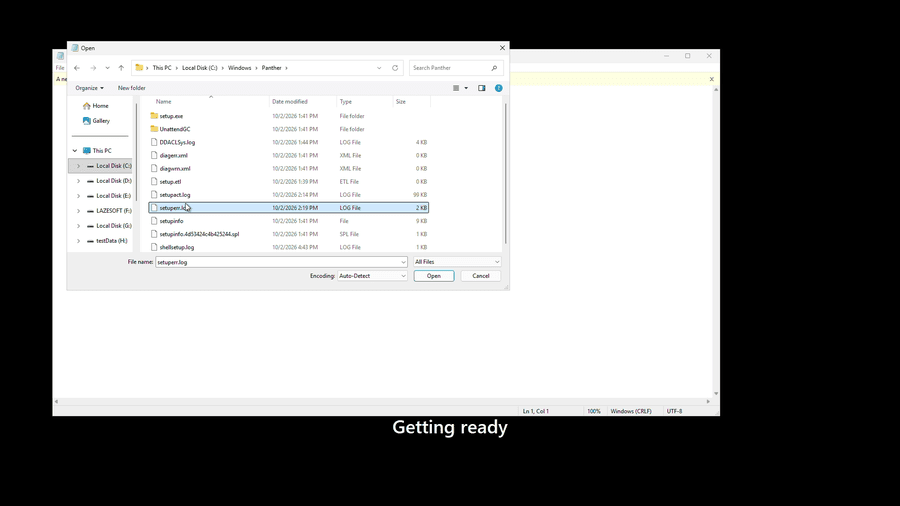
setuperr.log in the Panther folder and click Open.Step 7: Find the Exact Windows Setup Error
Look at the latest entries near the bottom of setuperr.log.
In this example, Windows reports:
SYSPRP BCD: Failed to get system partition. Status: c0000451and:
SYSPRP Sysprep_Specialize_Bcd:
There was an error opening the system store.
Status=[0xc0000451]
Instead of troubleshooting the generic Windows Setup message, you can now investigate the specific BCD or system partition problem.
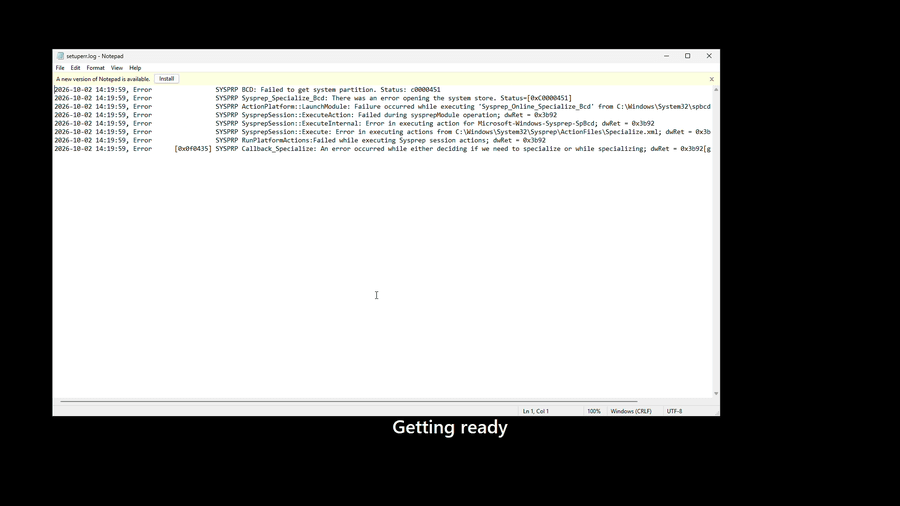
c0000451.Also Check setupact.log
If setuperr.log does not provide enough information, also open:
C:\Windows\Panther\setupact.logsetupact.log records more detailed Windows Setup activity.
A useful troubleshooting method is:
- Find the failure time in
setuperr.log. - Open
setupact.log. - Search for approximately the same timestamp.
- Review the entries immediately before the error.
This can show which Setup operation was running when the failure occurred.
Other Windows Setup Log Locations
The log location can vary depending on the installation stage.
Another common location is:
C:\$WINDOWS.~BT\Sources\PantherIf the expected log is not under C:\Windows\Panther, check this folder as well.
You may find files such as:
setuperr.log
setupact.log
setupapi.dev.log
Each log provides different troubleshooting information.
setuperr.log vs setupact.log
| Log file | Purpose |
|---|---|
setuperr.log | Shows Windows Setup errors |
setupact.log | Shows detailed Windows Setup activity |
setupapi.dev.log | Useful for device and driver installation problems |
For a quick diagnosis, start with setuperr.log.
For deeper troubleshooting, compare the same timestamp with setupact.log.
Example: Generic Error vs Actual Error
Windows Setup displays:
Windows Setup could not configure Windows to run
on this computer's hardware.
This is only a general error message.
The Setup log reveals:
Failed to get system partition
Status: c0000451
That is much more useful because it indicates the area that requires investigation.
Important
Do not assume that every occurrence of the generic Windows Setup message has the same cause. Another computer could show exactly the same message but have a completely different error recorded in setuperr.log.
Quick Reference
When Windows 11 Setup fails:
1. Press Shift + F10
2. Type: notepad
3. File → Open
4. Go to C:\Windows\Panther
5. Select All Files
6. Open setuperr.log
7. Check the latest errors
Also check:
C:\Windows\Panther\setupact.logand, when applicable:
C:\$WINDOWS.~BT\Sources\PantherConclusion
If Windows 11 Setup fails with a vague or generic error message, avoid immediately trying random repair commands.
Open the Windows Setup logs first.
setuperr.log can reveal the exact error code and failed Setup component, while setupact.log can provide the detailed activity leading up to the failure.
Knowing the actual error makes it much easier to determine whether the problem involves the BCD, EFI/System partition, storage drivers, disk layout, hardware, or another Windows Setup component.
Need Help Repairing Windows?
Lazesoft Recovery Suite includes Windows Recovery tools that can help diagnose and repair common Windows boot and startup problems.