
Windows 11 BCD and Boot Repair
How to Fix Windows 11 Error 0xc000014c
Repair a missing or corrupted Boot Configuration Data (BCD) store with Lazesoft Recovery Suite and restore Windows 11 startup without reinstalling Windows.
Video Guide: Fix Windows 11 Error 0xc000014c
Watch the complete repair: boot Lazesoft recovery media, select the affected Windows 11 installation, run One Click Fix, repair the BCD, and restart Windows.
Repair Windows Boot Problems with Lazesoft
Lazesoft Recovery Suite Home Edition includes Windows Recovery tools that can check the BCD and other startup components from a bootable recovery USB.
Windows 11 Error 0xc000014c
Windows 11 may sometimes fail to start and display a Windows Boot Manager error similar to:
File: \EFI\MICROSOFT\BOOT\BCD

Status: 0xc000014c

Info: The Boot Configuration Data for your PC is missing or contains errors.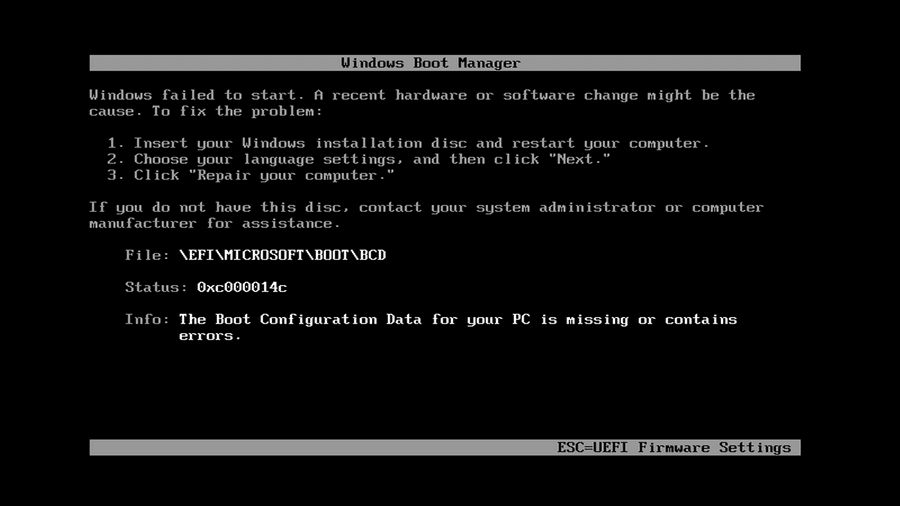
This error indicates that Windows Boot Manager cannot correctly read the Boot Configuration Data (BCD) required to locate and start Windows.
If the Windows installation itself is still intact, repairing or rebuilding the boot configuration may allow Windows 11 to start normally again.
In this guide, we demonstrate how to repair Windows 11 error 0xc000014c using Lazesoft Recovery Suite.
What Is Windows Error 0xc000014c?
The BCD is a database used by Windows Boot Manager to store important startup information, including:
- The location of installed Windows systems
- Boot loader information
- Windows startup parameters
- Recovery environment information
- Boot menu entries
If the BCD becomes damaged, incomplete, or inaccessible, Windows Boot Manager may stop before Windows begins loading.
Error 0xc000014c is therefore commonly associated with a missing or corrupted boot configuration.
Common causes include
- An interrupted Windows update
- Unexpected shutdown or power loss
- Damaged BCD files
- Incorrect partition or boot configuration
- Disk cloning or partition changes
- Damaged EFI boot files
- File-system corruption
The important point is that this error does not necessarily mean the Windows installation or personal files are lost. In many cases, only the startup configuration needs to be repaired.
How to Fix Windows 11 Error 0xc000014c with Lazesoft Recovery Suite
You will need a Lazesoft Recovery Suite bootable USB drive.
Connect the bootable USB to the affected computer and start the computer from it.
Important: If the Windows installation uses UEFI, boot the Lazesoft recovery media in UEFI mode whenever possible.
Step 1: Boot into Lazesoft Recovery Suite
After starting the computer from the Lazesoft recovery USB, the Windows Boot Manager menu appears.
Select:
Lazesoft Live CD
and press Enter.
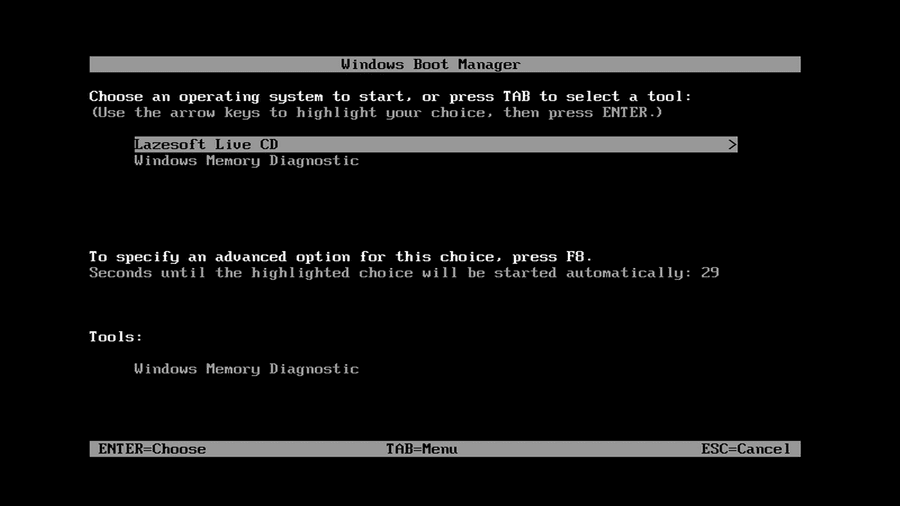
Wait for the Lazesoft recovery environment to finish loading.
Step 2: Open Windows Recovery
When Lazesoft Recovery Suite starts, several recovery modules are available.
Select:
Windows Recovery
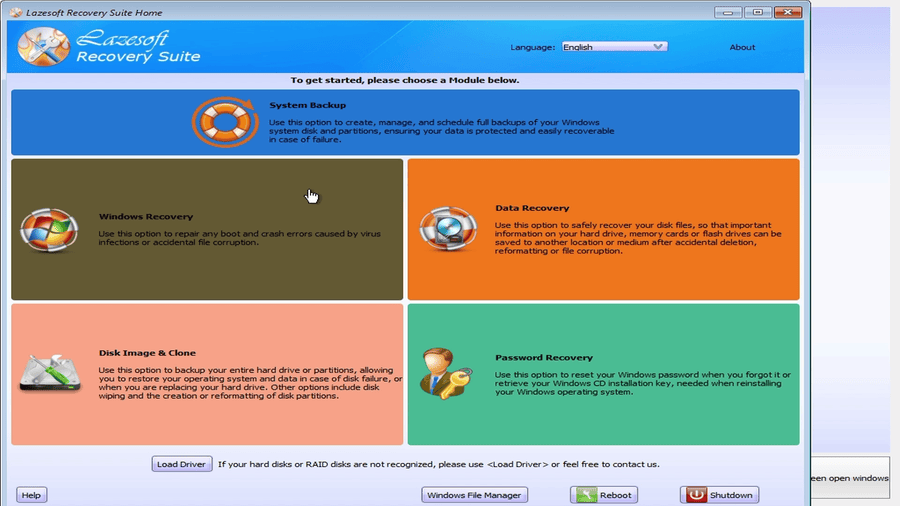
Windows Recovery is designed to diagnose and repair Windows startup and boot problems.
Step 3: Select the Windows 11 Installation
Lazesoft scans the connected disks for Windows installations.
Select the Windows 11 installation that produces error 0xc000014c, then click OK.
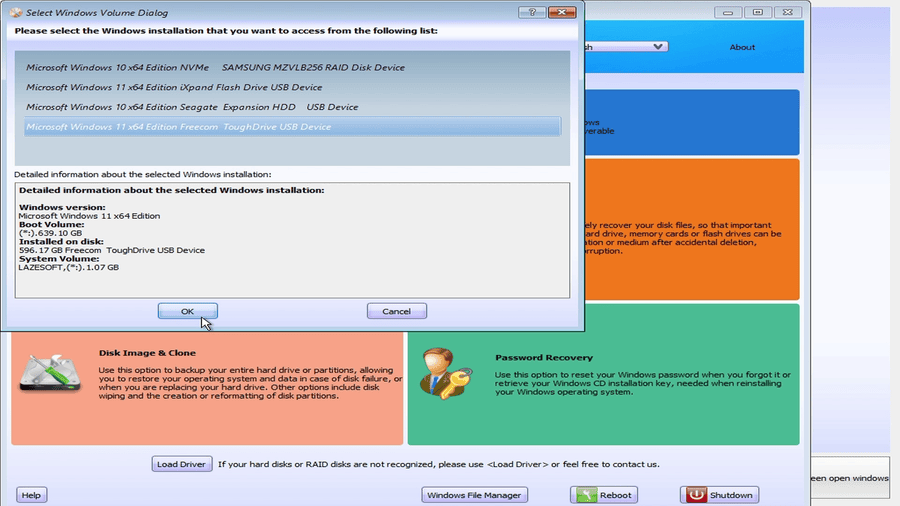
In our test system, several Windows installations were available on different disks.
Be careful when multiple Windows installations are detected
Check the following information before continuing:
- Windows version
- Boot volume
- Physical disk
- Disk capacity
- System volume
Make sure you repair the correct installation.
If your internal SSD or RAID disk is not displayed, you may need to use Load Driver to load the appropriate storage, Intel RST/VMD, RAID controller driver.
Step 4: Open One Click Fix
After selecting Windows, Lazesoft Windows Recovery opens.
Choose One Click Fix.
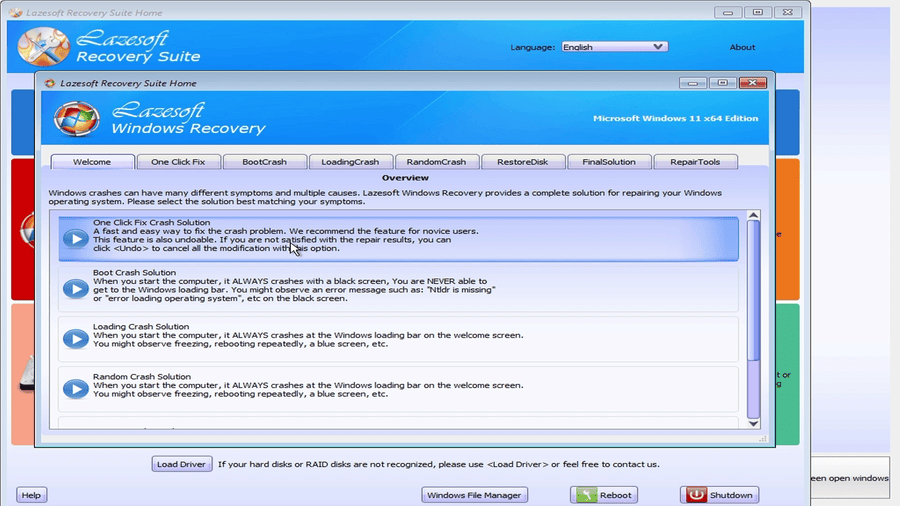
One Click Fix is intended to automatically inspect common Windows startup components instead of requiring the user to manually run multiple command-line tools.
Step 5: Start the Boot Repair
On the One Click Fix Crash Solution page, click:
One Click Fix
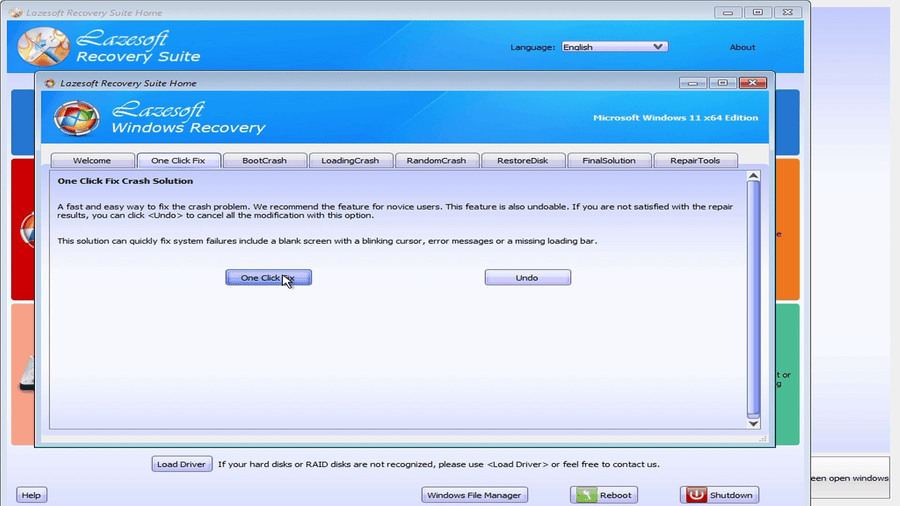
Lazesoft will begin checking the selected Windows installation.
Step 6: Repair the BCD and Other Windows Boot Components
During the repair, Lazesoft checks several boot-related components.
The repair screen in our test includes checks for:
- MBR
- Boot indicator
- Boot sector parameters
- Boot sector boot code
- BCD file
- Boot-partition file system
- Missing critical Windows system files
- Windows registry files
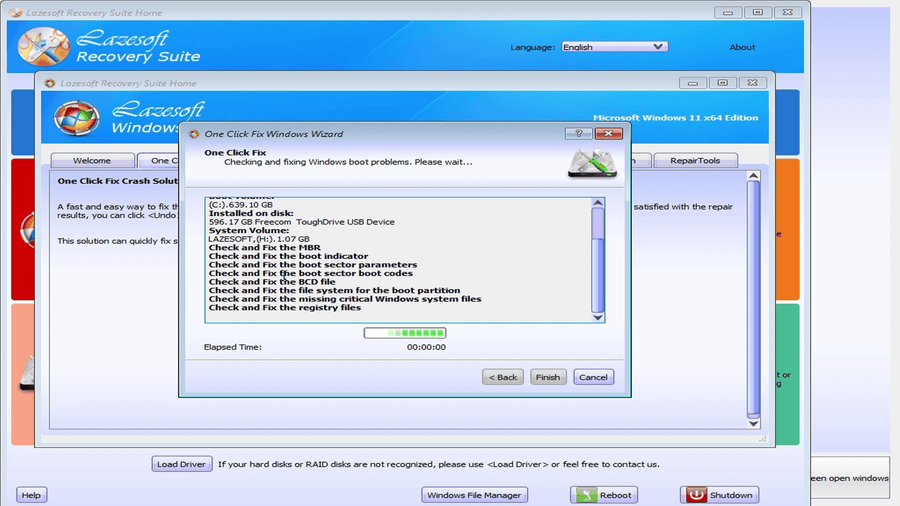
For error 0xc000014c, the BCD check and repair is particularly important because the original Windows Boot Manager message identifies:
\EFI\MICROSOFT\BOOT\BCDas the affected boot configuration file.
Lazesoft performs the boot checks automatically and repairs detected startup configuration problems.
Step 7: Finish the Repair
When the operation completes, click Finish.
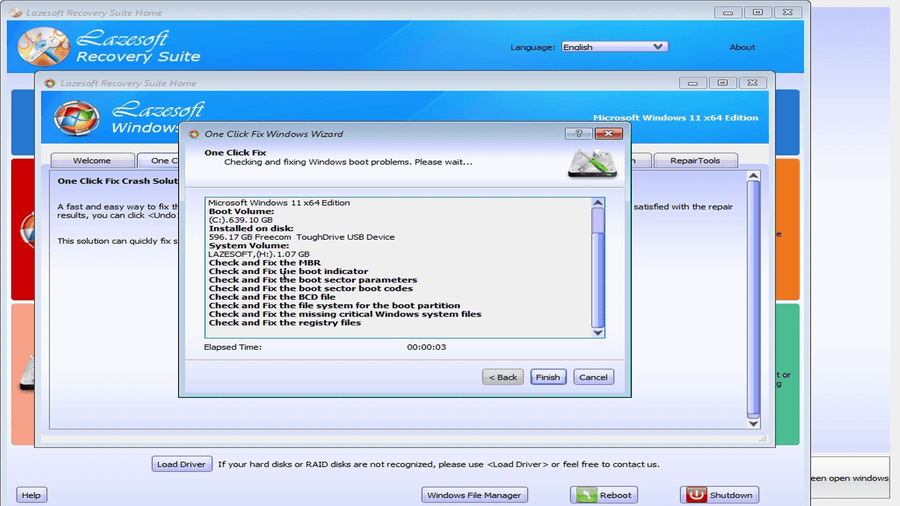
Close the recovery environment and restart the computer.
It is normally a good idea to remove the Lazesoft USB drive before the next normal Windows boot, or select the repaired Windows disk from the firmware boot menu.
Step 8: Start the Repaired Windows 11 Installation
After the repair, Windows Boot Manager should once again be able to locate the Windows installation.
Select the repaired Microsoft Windows 11 x64 Edition entry if a boot menu is displayed.
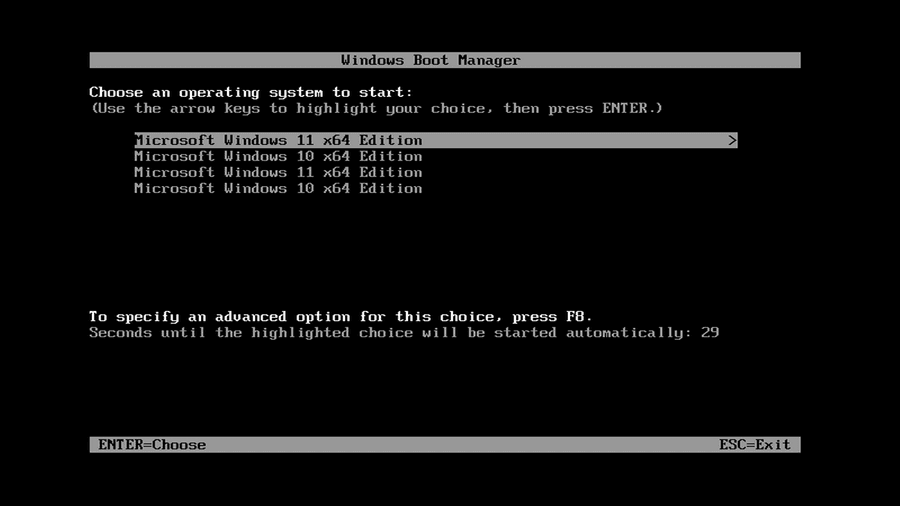
Windows should now continue through the normal startup process.
Error 0xc000014c Fixed
In our test, Windows 11 successfully reached the lock screen after the repair.
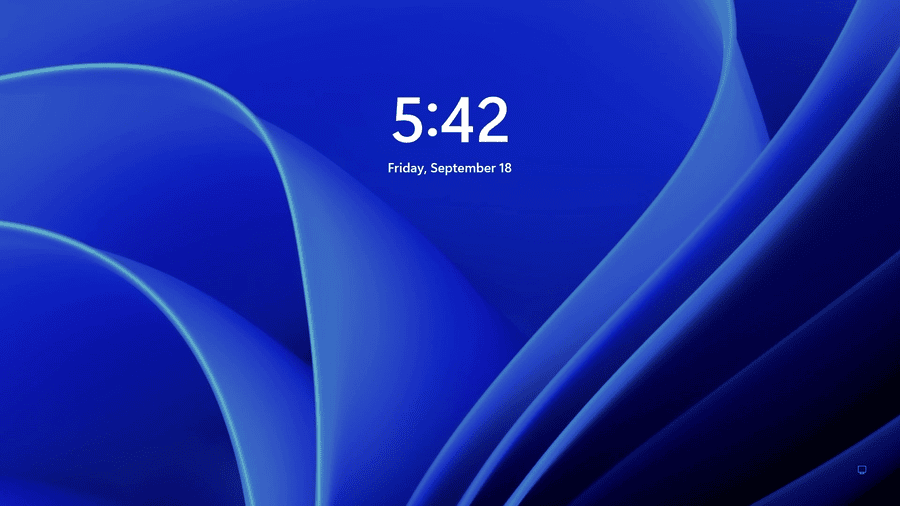
The Windows login screen also loaded normally.
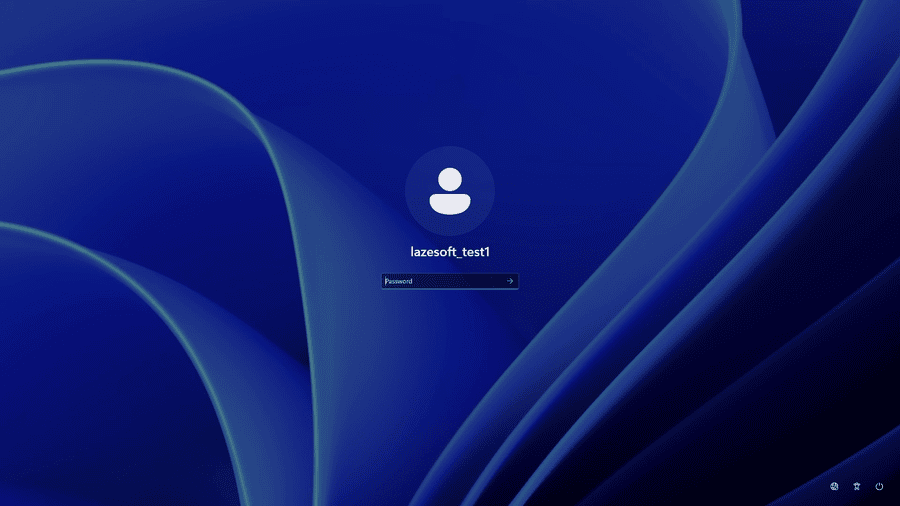
This confirms that Windows Boot Manager can once again locate and start the Windows 11 installation.
What If Error 0xc000014c Is Still Not Fixed?
A damaged BCD is not the only possible reason Windows cannot boot.
If Windows still does not start after repairing the boot configuration, check the following.
1. Make sure you repaired the correct Windows installation
This is especially important when multiple Windows disks, cloned systems, external drives, or recovery installations are connected.
Temporarily disconnecting unnecessary drives can make troubleshooting easier.
2. Check UEFI versus Legacy boot mode
A modern Windows 11 installation normally boots using:
UEFI → Windows Boot Manager
Changing the firmware from UEFI to Legacy/CSM can prevent an otherwise healthy Windows installation from starting.
3. Verify that the system disk is detected
If the SSD or NVMe drive does not appear in Lazesoft, the recovery environment may require the storage-controller driver.
This is common on computers using technologies such as:
- Intel VMD
- Intel RST
- RAID
- AMD RAID
- Vendor-specific storage controllers
Use Load Driver in Lazesoft Recovery Suite if necessary.
4. Check Windows system files
If the BCD is successfully repaired but Windows begins loading and then fails, Windows system files may also be damaged.
In that situation, additional repairs such as SFC or DISM may be appropriate.
5. Check the disk for hardware problems
Repeated file-system corruption or boot-file damage may indicate storage problems.
If error 0xc000014c returns after being repaired, check the SSD or hard drive health and back up important data as soon as possible.
BCD Repair vs Reinstalling Windows
When error 0xc000014c appears, reinstalling Windows should generally not be the first troubleshooting step.
If the Windows partition and files are still present, repairing the boot environment may restore startup without reinstalling Windows or deleting existing programs and user data.
That makes boot repair particularly useful when the problem is limited to:
- BCD corruption
- EFI startup files
- Boot configuration
- Boot-sector information
- Startup system files
However, always keep an up-to-date backup of important data before carrying out major disk or operating-system repairs.
Video Tutorial
For users who prefer to follow the process visually, the accompanying video demonstrates the complete recovery:
Windows 11 0xc000014c error → boot Lazesoft recovery media → select Windows 11 → run One Click Fix → repair BCD → restart → Windows 11 boots successfully.
A suitable video heading for the article is:
Watch: How to Fix Windows 11 Error 0xc000014c
You can embed your YouTube video immediately below this heading.
Frequently Asked Questions
What does Windows error 0xc000014c mean?
Error 0xc000014c commonly appears when Windows Boot Manager cannot correctly access the Boot Configuration Data required to start Windows.
What is the BCD file?
BCD stands for Boot Configuration Data. It contains startup information used by Windows Boot Manager to locate and load Windows.
Where is the BCD located on a UEFI Windows system?
The error screen in this example identifies:
\EFI\MICROSOFT\BOOT\BCDwhich is on the EFI System Partition used for UEFI booting.
Will repairing the BCD delete my files?
A boot repair is intended to repair Windows startup information rather than erase personal files. However, backing up important data before performing system or disk repairs is always recommended.
Can Lazesoft repair Windows 11 boot problems automatically?
Lazesoft Windows Recovery includes One Click Fix, which checks multiple startup components, including the BCD and other Windows boot-related files and settings.
Conclusion
Windows 11 error 0xc000014c can prevent the computer from starting when the Windows Boot Configuration Data is missing, corrupted, or otherwise inaccessible.
With Lazesoft Recovery Suite, the repair process can be performed from a bootable recovery USB:
Boot Lazesoft → Windows Recovery → select Windows 11 → One Click Fix → repair BCD → restart Windows.
In the example shown here, repairing the Windows boot configuration successfully restored Windows 11 startup without reinstalling the operating system.
Related keywords: Windows 11 0xc000014c, fix 0xc000014c, BCD error, Boot Configuration Data missing, corrupted BCD, Windows Boot Manager error, repair Windows 11 boot, repair EFI BCD, Lazesoft Windows Recovery.
Fix Windows 11 Boot Problems with Lazesoft
Use Lazesoft Recovery Suite Windows Recovery to check and repair BCD, EFI boot files, and other Windows startup components from a bootable recovery USB.