
Windows 10 Boot Repair
How to Fix Windows Boot Error 0xc0000221 (winload.efi) in Windows 10 for Free
If Windows 10 refuses to start and Windows Boot Manager reports \Windows\System32\winload.efi with status 0xc0000221, a critical Windows boot or system file may be corrupted. This guide shows how to use Lazesoft Recovery Suite Home Edition and its SFC Fix tool to repair the offline Windows installation.
Video Guide: Fix 0xc0000221 winload.efi Boot Error
Watch the complete repair: boot from Lazesoft recovery media, select the offline Windows 10 installation, run SFC Fix, and restart Windows successfully.
Free for Home Users
Lazesoft Recovery Suite Home Edition is free for personal, non-commercial home use. You can create a bootable recovery USB and repair an offline Windows installation even when Windows itself cannot start.
A typical Windows Boot Manager message for this problem looks like:
File: \Windows\System32\winload.efi
Status: 0xc0000221
Info: The header checksum for this file doesn't match the computed checksum.
This error can occur when winload.efi or another critical Windows system file has become corrupted or no longer matches the version Windows expects.
In the test system used for this guide, Windows could not boot because of error 0xc0000221. After running SFC from the Lazesoft recovery environment, Windows 10 was able to start normally again.
What Does Error 0xc0000221 Mean?
Windows error 0xc0000221 usually indicates that Windows detected corruption or an integrity problem in a system file required during startup.
In this example, Windows Boot Manager reports:
File: \Windows\System32\winload.efiwinload.efi is an important Windows boot loader component used on UEFI-based Windows installations. Windows Boot Manager loads it during startup so that Windows can continue loading the operating system.
The additional message:
The header checksum for this file doesn't match the computed checksum.
means Windows checked the file and found that its contents did not match the expected checksum.
This can happen because of:
- Corrupted Windows system files
- An interrupted Windows update
- An unexpected shutdown or power loss
- File-system corruption
- Bad sectors or storage problems
- Failed or incomplete software installation
- Malware or unwanted modification of system files
- RAM errors that caused corrupted data to be written to disk
Although the error screen may specifically mention winload.efi, it does not always mean that only this file is damaged. Other Windows components may also be corrupted. For that reason, running System File Checker (SFC) is a good first repair method.
The Error in Our Test System
The Windows 10 computer used in this example could not start. Windows Boot Manager displayed:
File: \Windows\System32\winload.efi
Status: 0xc0000221
Info: The header checksum for this file doesn't match the computed checksum.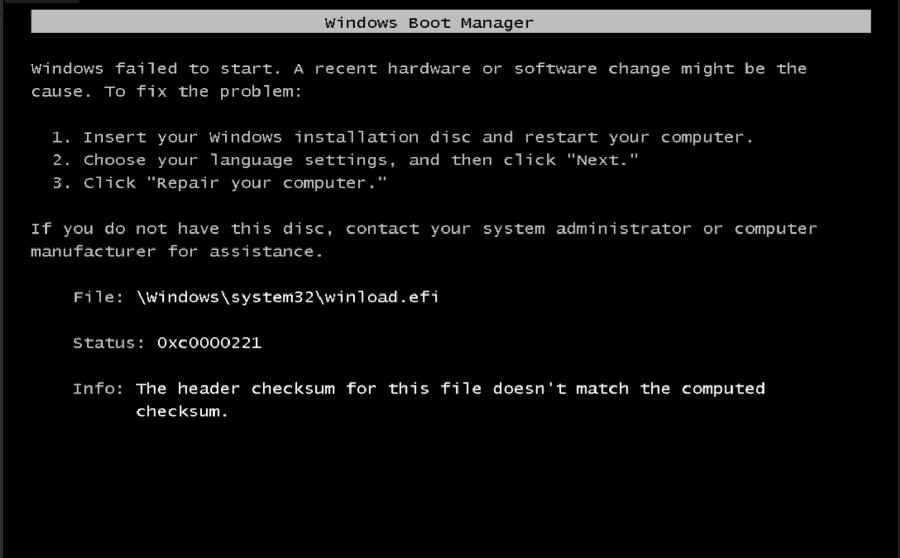
\Windows\System32\winload.efi.Windows stopped before reaching the normal desktop or sign-in screen. Because Windows itself could not boot, we needed to run SFC against the Windows installation offline from a bootable recovery environment.
What You Need
To follow this repair method, you need:
- Another working Windows computer
- A USB flash drive
- Lazesoft Recovery Suite Home Edition
- A bootable Lazesoft Recovery USB
Lazesoft Recovery Suite Home Edition is available free for home users and includes Windows recovery tools that can run even when the installed Windows system cannot start.
After creating the recovery USB, connect it to the problem computer and boot from it.
Step 1: Boot the Computer from the Lazesoft Recovery USB
Turn on the computer and open its boot menu. Depending on your PC manufacturer, the boot-menu key may be F12, F11, F9, Esc, F8, or another key.
Select the USB device containing the Lazesoft recovery environment. On some systems you may see a Windows Boot Manager-style menu containing Lazesoft Live CD.
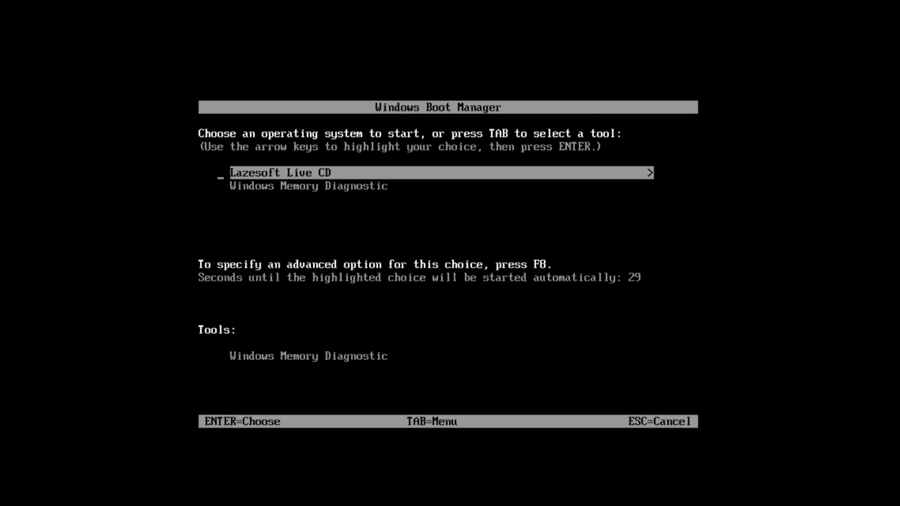
Select Lazesoft Live CD, press Enter, and wait for the recovery environment to load.
Step 2: Open Windows Recovery
After Lazesoft Recovery Suite starts, you will see the main program screen containing recovery modules such as System Backup, Windows Recovery, Data Recovery, Disk Image & Clone, and Password Recovery.
Choose Windows Recovery.

Windows Recovery contains tools for repairing Windows startup and system problems.
Step 3: Select the Windows 10 Installation
Lazesoft searches the attached disks for Windows installations. Select the Windows installation that you want to repair.
In our example, Lazesoft detected Microsoft Windows 10 x64 Edition. The dialog also displays the Windows version, boot volume, disk containing Windows, and system volume.
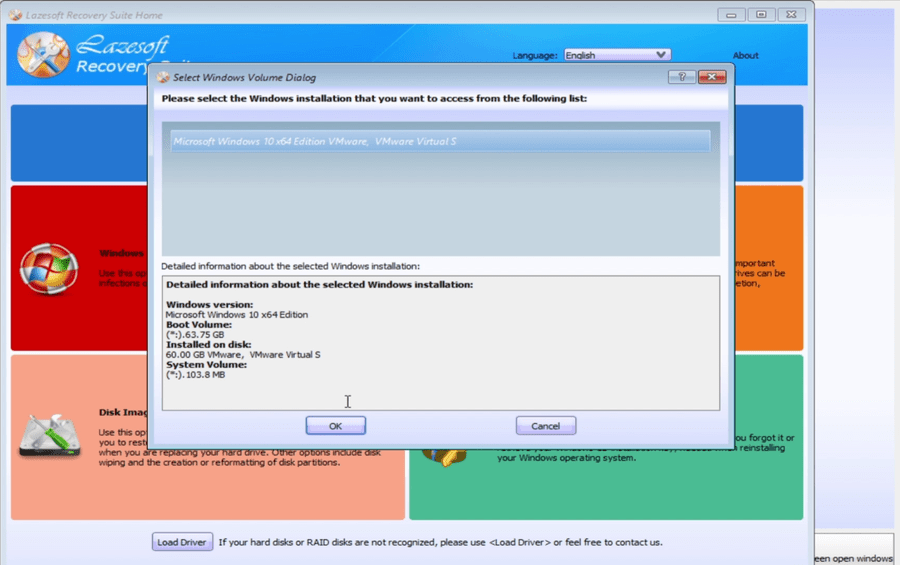
Make sure you select the Windows installation on the computer's internal disk rather than the recovery USB, then click OK.
Step 4: Open SFC Fix and Start the Repair
Inside Lazesoft Windows Recovery, select SFC Fix. The SFC Fix page uses Microsoft System File Checker to scan and repair missing or corrupted Windows system files.
Click SFC Repair.
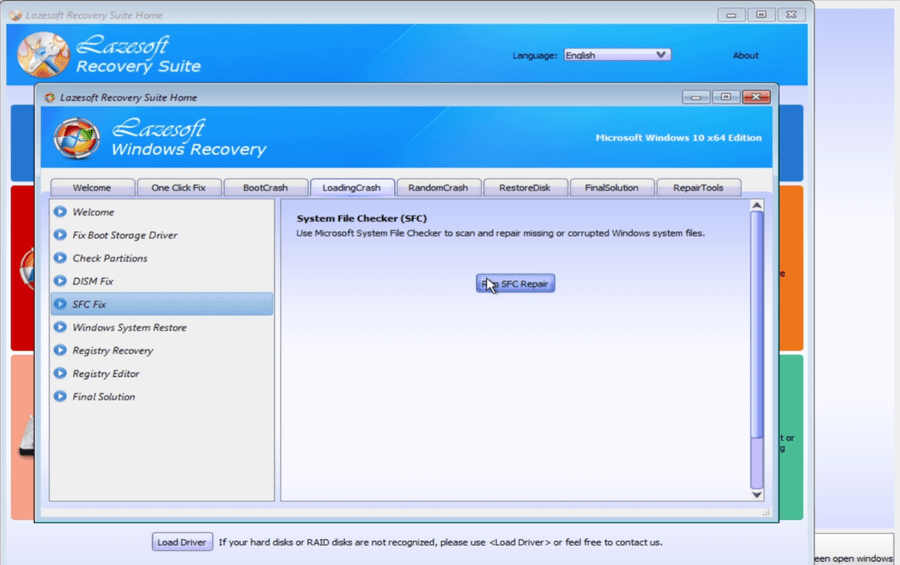
Lazesoft now runs Microsoft's System File Checker against the offline Windows installation.
Step 5: Let SFC Scan the Offline Windows Installation
For a Windows installation that normally uses drive C:, the underlying repair command is similar to:
sfc /scannow /offbootdir=C:\ /offwindir=C:\WindowsThe important difference from a normal SFC scan is that Windows is currently offline. When Windows is running normally, the command is simply:
sfc /scannowBecause error 0xc0000221 prevents Windows from starting, SFC must be directed to the Windows folder on the offline system disk. Lazesoft handles this automatically.
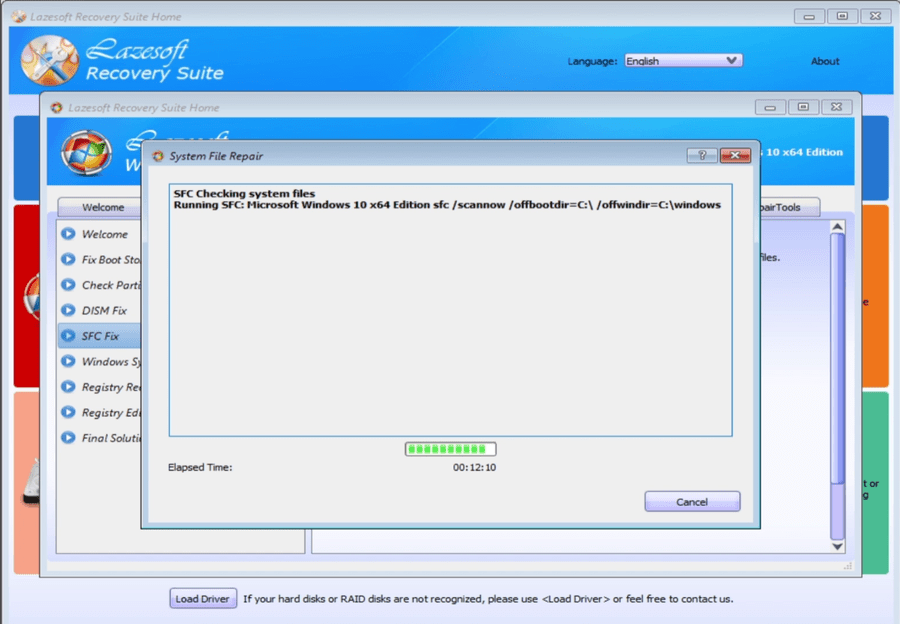
The scan can take several minutes depending on disk speed, Windows installation size, the number of corrupted files, SSD or HDD performance, and the condition of the file system. Do not shut down the computer while the repair is running.
Step 6: Check the SFC Result
When the scan finishes, review the result displayed by System File Checker.
In our test, SFC reported:
Windows Resource Protection found corrupt files but was unable to fix some of them.
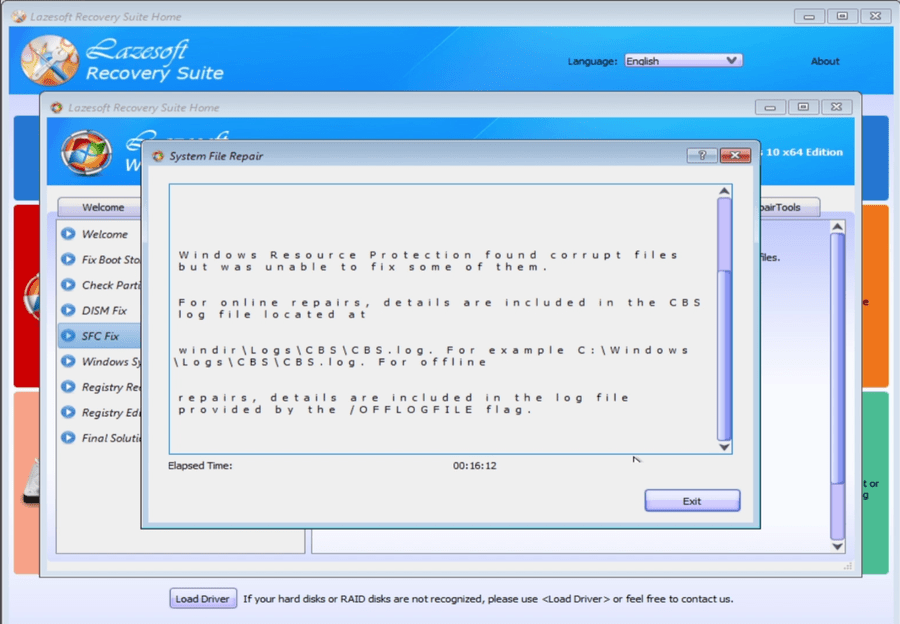
At first, this may appear to mean that the repair failed. However, SFC can repair some corrupted files while still reporting that some other files could not be repaired.
The important question is whether the corruption preventing Windows from booting was successfully repaired. In our test system, it was.
Step 7: Restart the Computer
Exit the System File Repair window and shut down or restart the computer. Remove the Lazesoft recovery USB so that the PC boots from its internal Windows drive.
Allow Windows Boot Manager to start Windows normally.
Step 8: Windows 10 Boots Successfully
After restarting, our test computer passed the point where error 0xc0000221 had previously appeared. Instead of stopping on the winload.efi checksum error, Windows reached the normal lock screen.

This confirmed that the critical corruption preventing Windows from booting had been repaired sufficiently for Windows 10 to start again.
What If SFC Says It Could Not Repair Some Files?
Do not immediately assume that the repair failed. As demonstrated in our test, SFC reported that it could not repair some files, but Windows still became bootable.
Restart the computer first and see whether Windows starts. If Windows successfully boots, open Command Prompt as Administrator and run:
DISM /Online /Cleanup-Image /RestoreHealthAfter DISM completes, run:
sfc /scannowDISM repairs the Windows component store that SFC uses as a source for replacement system files. Running SFC again afterward can sometimes repair files that could not be fixed during the offline repair.
What If Error 0xc0000221 Still Appears?
If Windows still displays error 0xc0000221 after running SFC, additional troubleshooting may be required.
Run DISM Repair
If the Windows component store is damaged, SFC may not have a valid copy of the damaged file available for replacement. An offline DISM repair may help repair the Windows image before running SFC again.
Check the Windows Partition
File-system corruption can damage Windows system files repeatedly. Run a disk check on the Windows partition:
chkdsk C: /fIf you suspect disk damage, a more thorough scan can be performed with:
chkdsk C: /f /rThe /r scan can take a long time, particularly on large hard drives.
Check the SSD or Hard Drive
If system files become corrupted repeatedly, check the health of the storage device. Warning signs can include frequent file corruption, slow disk access, read/write errors, Windows freezing, SMART warnings, or repeated boot problems.
If the disk appears to be failing, back up important data as soon as possible.
Test the Computer's Memory
Bad RAM can also result in corrupted system files. Run Windows Memory Diagnostic or another dedicated memory-testing utility. If memory errors are found, repair or replace the faulty RAM before repeatedly attempting Windows repairs.
Check Recent Hardware or Software Changes
The Windows Boot Manager screen itself warns that a recent hardware or software change might be the cause. Consider what happened immediately before the problem started:
- Did Windows install an update?
- Was the PC powered off unexpectedly?
- Was a disk cloned?
- Was a new SSD installed?
- Was Windows restored from an image?
- Was BIOS/UEFI configuration changed?
- Did the computer crash during an update?
The timing can help determine the underlying cause.
Should You Manually Replace winload.efi?
Because Windows Boot Manager specifically displays winload.efi, it may be tempting to download another copy of the file and replace it manually. This is generally not the first repair method we recommend.
Windows system files are version-specific. Copying winload.efi from another Windows computer with a different build or update level can introduce additional problems.
Using SFC is safer because Windows attempts to restore the correct protected system-file version for the installed operating system.
Try, in order:
- SFC
- DISM
- SFC again
- Disk and memory diagnostics
before manually replacing individual Windows boot files.
Why SFC Can Fix a winload.efi 0xc0000221 Error
System File Checker verifies protected Windows system files against known valid Windows components. If it detects that an important system file has been altered, damaged, or corrupted, SFC attempts to replace it with a valid copy.
That makes SFC particularly useful when Windows Boot Manager reports problems such as:
- Header checksum mismatch
- Corrupt system file
- Invalid Windows image
- Missing protected system file
The advantage of using Lazesoft Windows Recovery is that SFC can be launched against the installed Windows system even when that Windows installation itself cannot boot.
Quick Summary
If Windows 10 displays:
File: \Windows\System32\winload.efi
Status: 0xc0000221
Info: The header checksum for this file doesn't match the computed checksum.
try the following:
- Create a Lazesoft Recovery Suite bootable USB.
- Boot the problem computer from the USB.
- Select Lazesoft Live CD.
- Open Windows Recovery.
- Select the Windows 10 installation.
- Open SFC Fix.
- Click SFC Repair.
- Wait for the offline SFC scan to finish.
- Restart the computer.
- Check whether Windows starts normally.
In our test, SFC found corrupted system files and reported that some files could not be repaired, but after restarting, Windows 10 successfully booted again.
Conclusion
Windows boot error 0xc0000221 with winload.efi can look serious because the computer stops before Windows even reaches the sign-in screen. However, if the problem is caused by corrupted Windows system files, you may be able to repair the installation without reinstalling Windows.
Using Lazesoft Recovery Suite Home Edition, you can boot into a recovery environment, select the offline Windows installation, and run Microsoft's System File Checker to repair damaged system files.
In the example shown in this guide, the computer initially failed with 0xc0000221 – winload.efi header checksum mismatch. After running SFC Fix and restarting the computer, Windows 10 booted successfully again.
Before considering a Windows reinstall, an offline SFC repair is therefore a useful first step for this type of boot failure.
Repair Windows 0xc0000221 with Lazesoft
Lazesoft Recovery Suite Home Edition includes Windows Recovery and SFC Fix tools for repairing common Windows startup and system-file problems.