
Windows 11 Setup and Local Account
How to Install Windows 11 Without a Microsoft Account: 2 Local Account Methods
On supported Windows 11 builds, you may be able to create a local account during the Out-of-Box Experience (OOBE) by opening Command Prompt and using either start ms-cxh:localonly or OOBE\BYPASSNRO.
Video Guide: Install Windows 11 Without a Microsoft Account
Watch the complete Windows 11 OOBE process, open Command Prompt with Shift + F10, run the local-account command, and finish setup with a local user.
Windows 11 normally encourages—or on some editions and setup flows requires—you to connect to the internet and sign in with a Microsoft account during the Out-of-Box Experience (OOBE).
However, on supported Windows 11 builds, you may be able to create a local account instead by using Command Prompt during setup.
This guide shows two command-line methods:
start ms-cxh:localonly
OOBE\BYPASSNRO
A local account is stored on the PC itself and does not require an internet connection to sign in. A Microsoft account, by contrast, connects Windows with Microsoft cloud services such as OneDrive and can synchronize information across devices.
Important: Windows 11 Builds Change
Windows 11 setup behavior changes between releases. Microsoft has been removing several local-account bypass mechanisms from newer Windows builds, so one or both commands may not work on every Windows 11 ISO or update.
Method 1: Create a Local Account with start ms-cxh:localonly
This is the faster method on Windows 11 builds where the command is still supported because it can open the local-account creation dialog directly without restarting the computer.
Step 1: Reach the Windows 11 Network Setup Screen
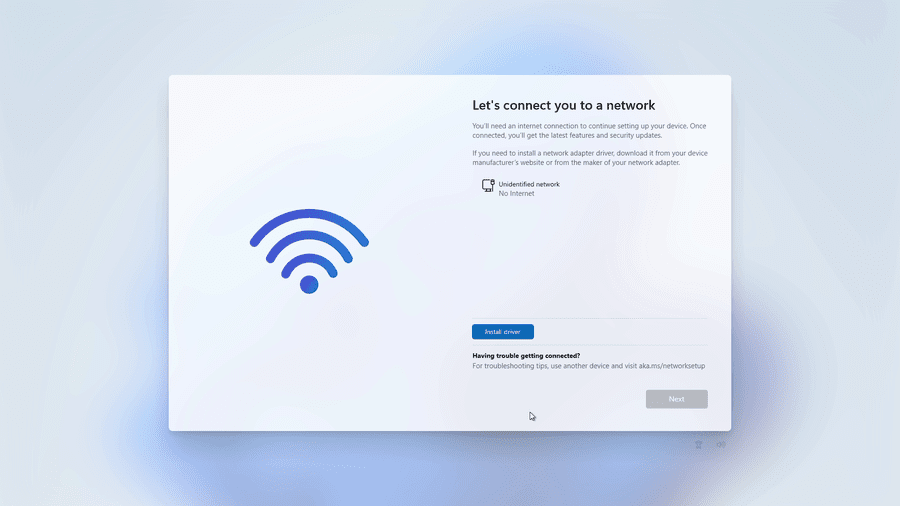
Continue Windows 11 installation until you reach:
Let's connect you to a network
If Windows asks you to connect to Wi-Fi or Ethernet before continuing, stay on this screen.
Step 2: Open Command Prompt
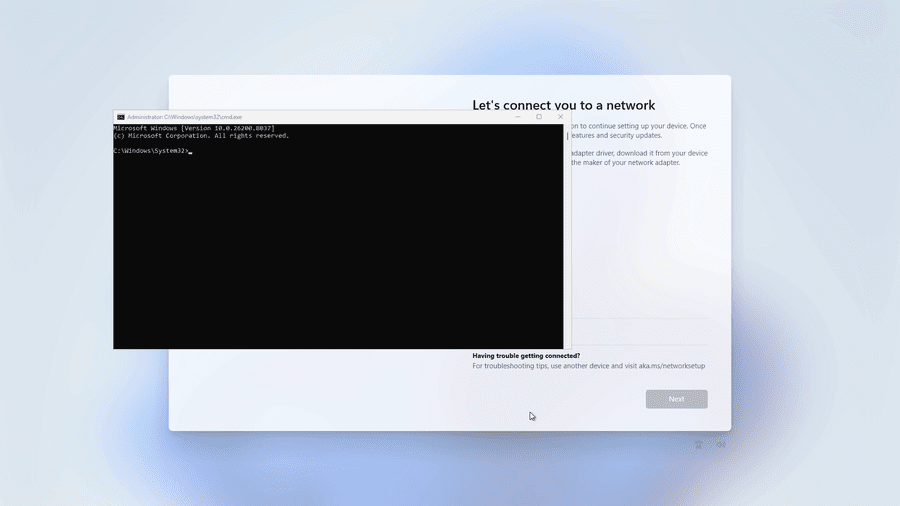
Press:
Shift + F10On some laptops you may need:
Shift + Fn + F10Command Prompt should appear over the Windows Setup screen.
Step 3: Run the Local Account Command
Enter:
start ms-cxh:localonlyPress Enter.
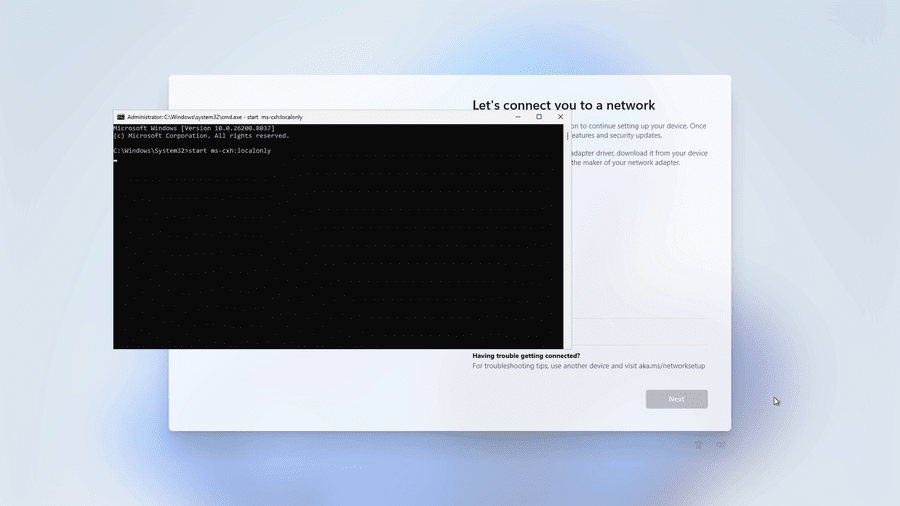
start ms-cxh:localonly from Command Prompt.On supported builds, Windows should open a local-account creation dialog.
Step 4: Create the Local User
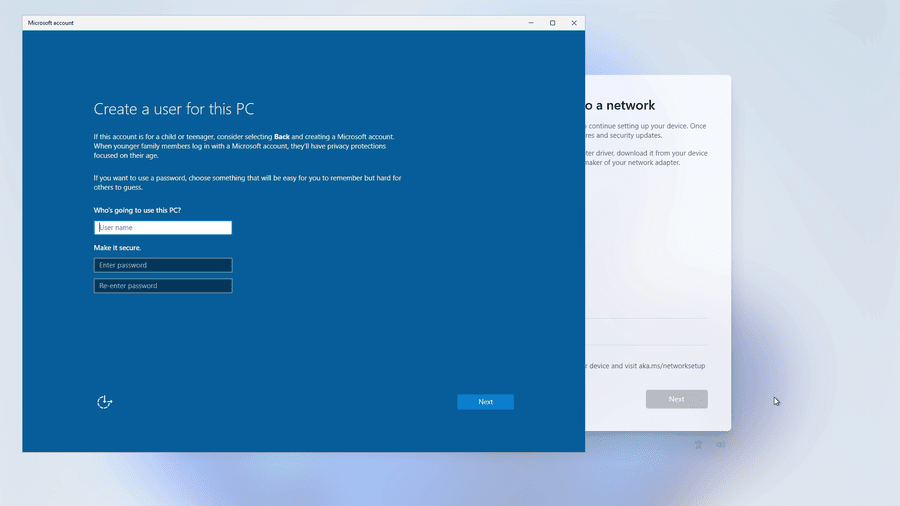
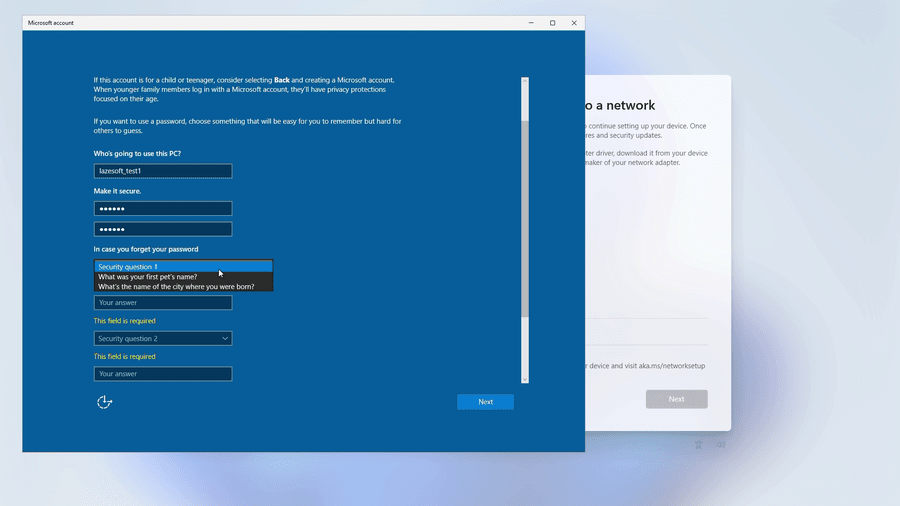
Enter the name you want to use for the Windows account.
You can then enter a password or continue through the available local-account options.
Step 5: Configure the Password and Security Questions
If you create a password, Windows may ask you to configure security questions that can be used if you forget it.
Step 6: Finish Windows Setup
Continue through the remaining OOBE screens. Windows will complete its initial configuration and eventually display the desktop.


Why Use This Method?
The main advantage of start ms-cxh:localonly is speed. On a Windows build that supports it, you can go directly from OOBE to local-account creation without rebooting.
However, newer Windows 11 builds may remove or disable local-only OOBE mechanisms, so this command should be treated as build-dependent.
Method 2: Use OOBE\BYPASSNRO
Another well-known method is:
OOBE\BYPASSNROInstead of opening the account dialog immediately, this method traditionally restarts Windows Setup and enables an offline setup path.
Step 1: Open Command Prompt
At the Windows 11 network screen, press Shift + F10, or on some laptops press Shift + Fn + F10.
Step 2: Run the BypassNRO Command
Type:
OOBE\BYPASSNROand press Enter.
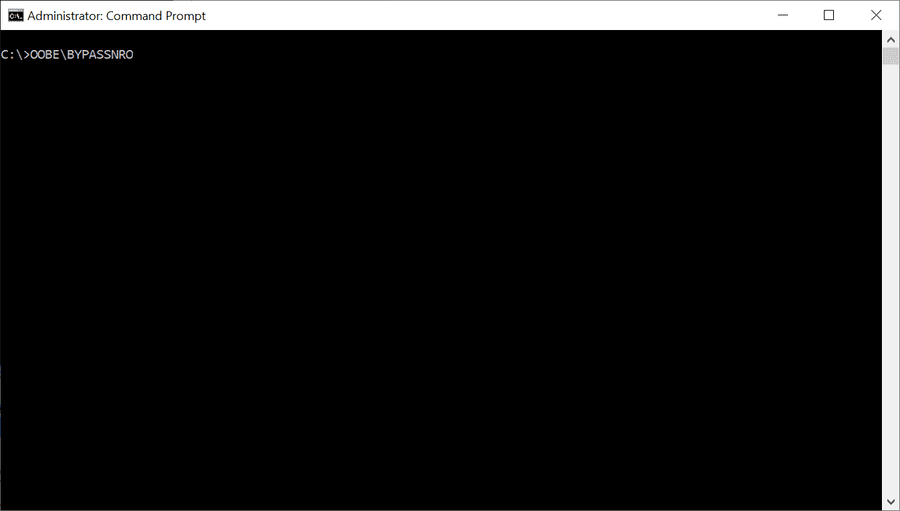
OOBE\BYPASSNRO from Command Prompt.On builds that still contain the BypassNRO script, Windows Setup restarts.
Step 3: Disconnect from the Internet
After Windows Setup restarts, make sure the computer is not connected to the internet.
- Wired Ethernet: unplug the Ethernet/network cable from the computer.
- Wi-Fi: do not connect to a wireless network. If already connected, disconnect from Wi-Fi if possible.
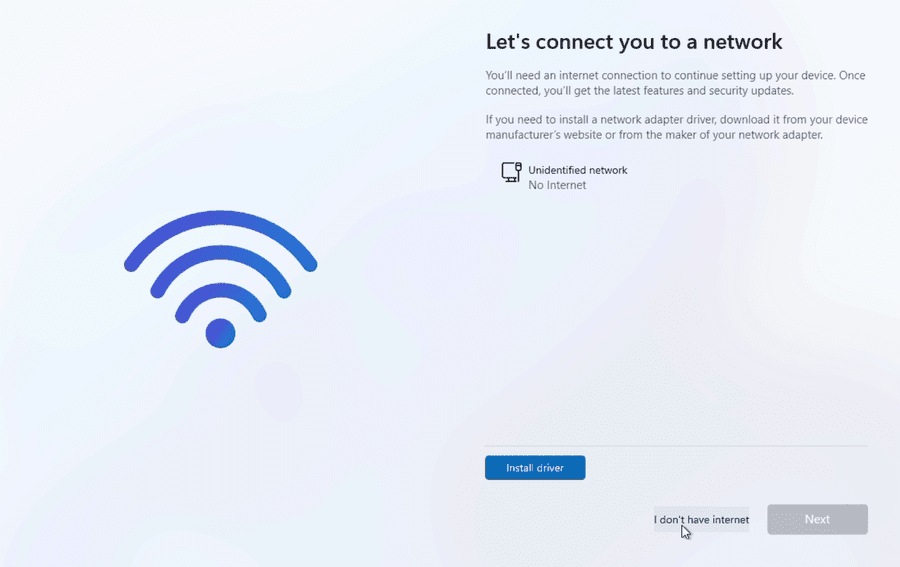
Then continue through Windows Setup until you reach Let's connect you to a network.
You should now see I don't have internet. Click it to continue with the offline setup.
Step 4: Continue with the Local Account
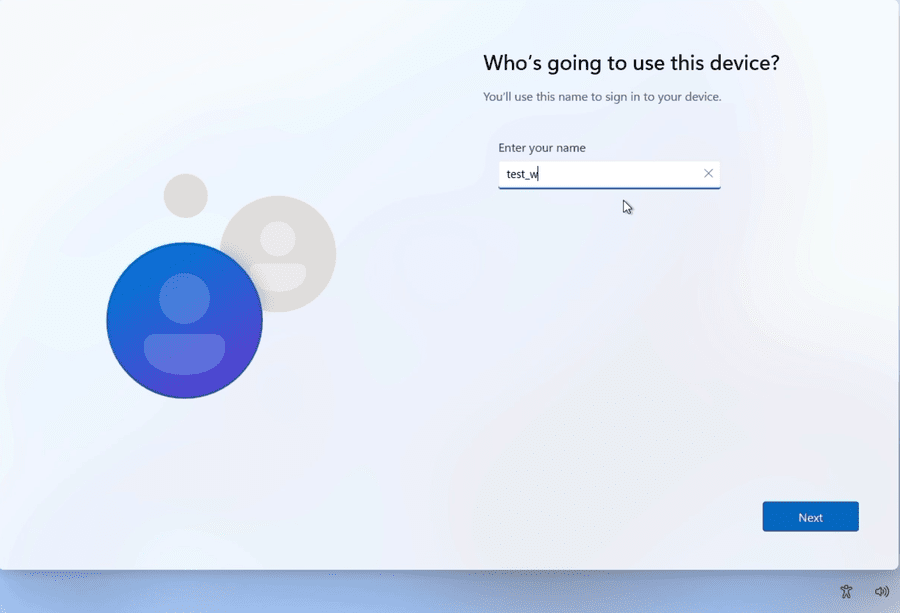
Depending on the Windows 11 build, Windows may next show an option such as Continue with limited setup. Select it to continue without a Microsoft account.
Windows should then display Who's going to use this device? Enter the name for your local Windows account.
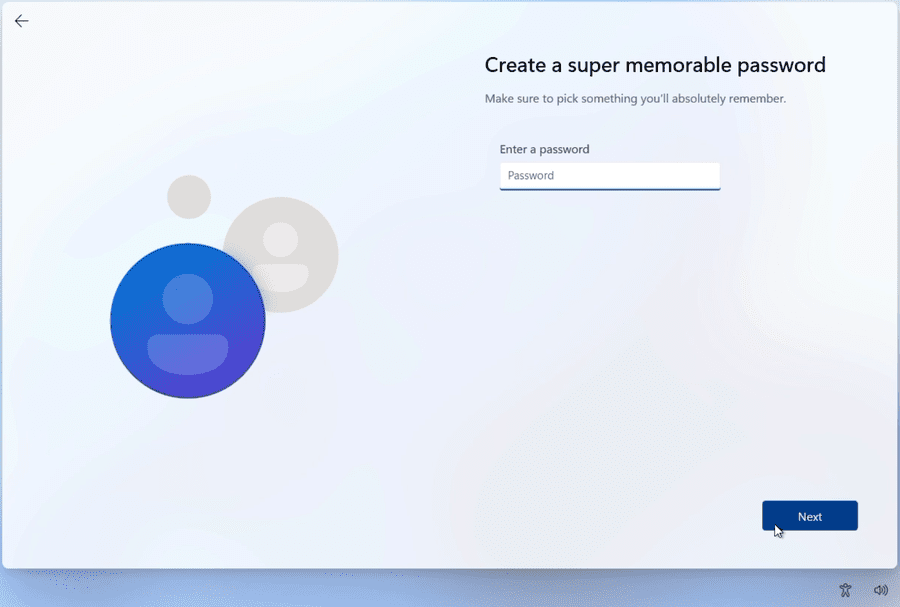
Step 5: Create a Password
Enter a password for the local account if desired. Choose a password you can remember and keep it stored safely.
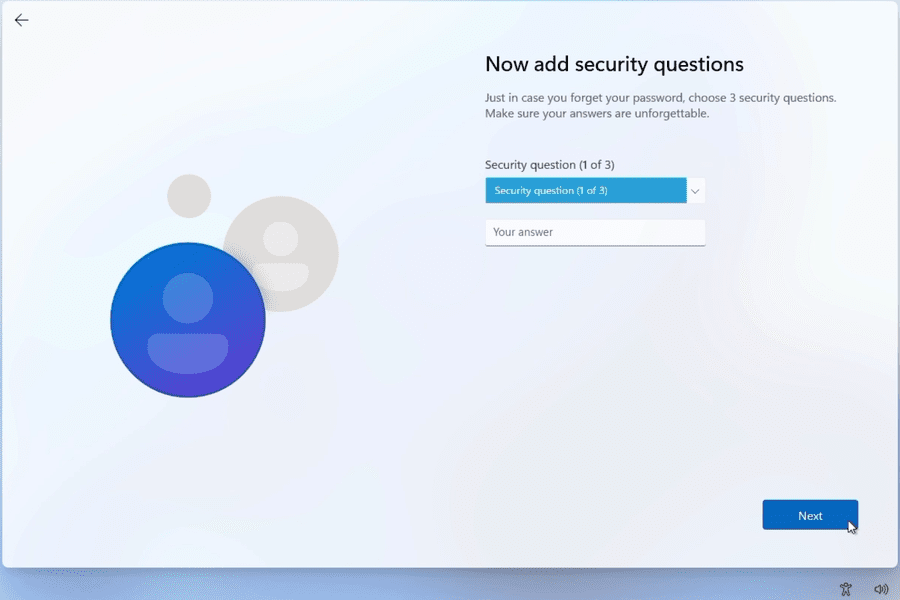
Step 6: Configure Security Questions
Windows may ask you to choose three security questions and provide answers. These questions can help recover access to the local account if you forget the password.
Continue through the remaining Windows Setup screens to reach the desktop.
Which Method Should You Use?
On a Windows 11 build where both methods are available:
| Method | Main advantage | Restart required |
|---|---|---|
start ms-cxh:localonly | Opens local-account creation directly | No |
OOBE\BYPASSNRO | Uses the traditional offline/limited-setup path | Yes |
If your Windows 11 build supports start ms-cxh:localonly, it is usually the quicker method because Windows does not need to restart. If that command is unavailable, you can check whether your build still supports OOBE\BYPASSNRO.
Do not assume that OOBE\BYPASSNRO will be available on every newer Windows 11 build. Availability depends heavily on the Windows build being installed.
What If the Command Does Not Work?
If Windows reports that OOBE\BYPASSNRO is not recognized, or start ms-cxh:localonly does not open the local-account dialog, the command may have been disabled or removed from that Windows build.
This does not necessarily mean you typed it incorrectly.
Windows 11 OOBE behavior differs by release, edition, and deployment scenario, and local-account setup shortcuts can change over time.
Can You Switch to a Microsoft Account Later?
Yes. If you initially install Windows using a local account, you can later open:
Settings → Accounts → Your infoand choose Sign in with a Microsoft account instead.
This means creating a local account during installation does not permanently prevent you from using Microsoft services later.
Local Account vs. Microsoft Account
A local account:
- Exists primarily on that Windows device
- Does not require internet access to sign in
- Is not automatically tied to Microsoft cloud services
A Microsoft account:
- Uses your Microsoft identity
- Can integrate with services such as OneDrive and Microsoft 365
- Can synchronize supported settings and information between devices
Conclusion
If you want to install Windows 11 without immediately signing in to a Microsoft account, two command-line methods have been widely used during OOBE:
start ms-cxh:localonly
OOBE\BYPASSNRO
The first can take you directly to local-account creation on compatible builds, while the second traditionally restarts OOBE and exposes the offline setup path.
Once your local account is created, you can finish Windows Setup normally and connect a Microsoft account later if you choose.
More Windows 11 Recovery and Setup Guides
Lazesoft Recovery Suite includes Windows recovery, boot repair, backup, disk cloning, data recovery, and password recovery tools.