
Windows Boot Repair Guide
Fix Error 0xc000000f (BCD Missing) – Rebuild Boot BCD with Lazesoft
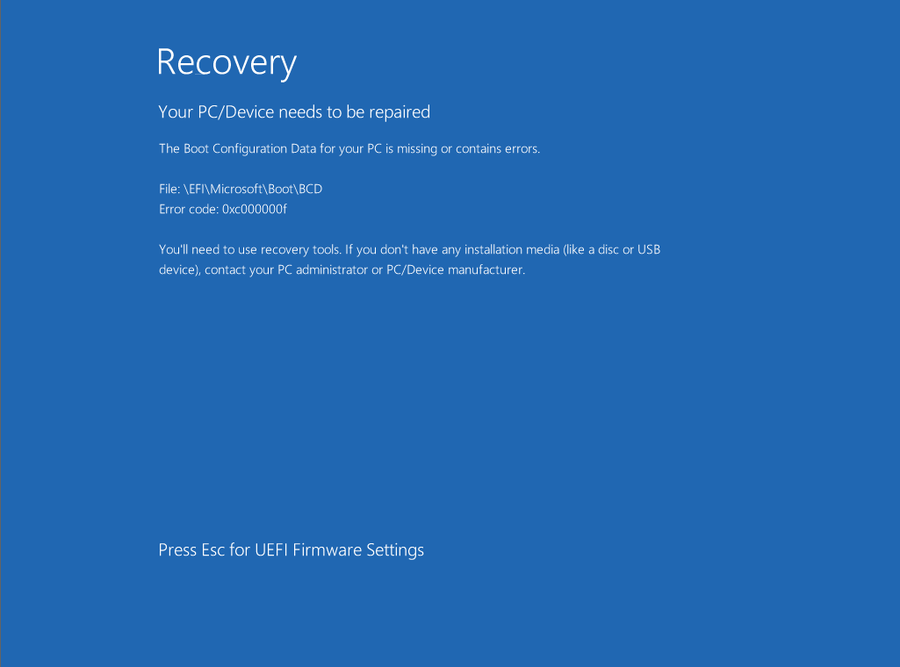
If your PC shows “Your PC/Device needs to be repaired” with error code 0xc000000f, Windows may no longer be able to read the Boot Configuration Data (BCD). This guide shows how to rebuild the boot BCD step by step with Lazesoft BCD Doctor.
Works well when Windows will not start normally and you need a practical GUI-based repair method instead of command-line boot repair.
Quick Answer
To fix error 0xc000000f, create a Lazesoft boot USB on another working PC, boot the problem computer from that USB, select the Windows installation, open Repair Tools > BCD Doctor, then use Rebuild/Repair to rebuild the BCD store.
What Does Error 0xc000000f Mean?
The BCD, or Boot Configuration Data, tells the PC where Windows is installed and how to start it. If that information becomes damaged, missing, or inconsistent, the system cannot continue booting and instead shows a recovery screen.
Common causes include:
- damaged or missing boot files
- interrupted Windows updates
- disk or file system errors
- partition changes or failed cloning
- corrupted EFI boot information
Before You Start
Because the affected PC cannot boot normally, you need another working computer to prepare the recovery USB first.
- another working PC
- a USB drive, 1GB or larger
- Lazesoft Recovery Suite downloaded and installed
- access to the problem PC’s boot menu
Step 1: Create a Lazesoft Boot USB
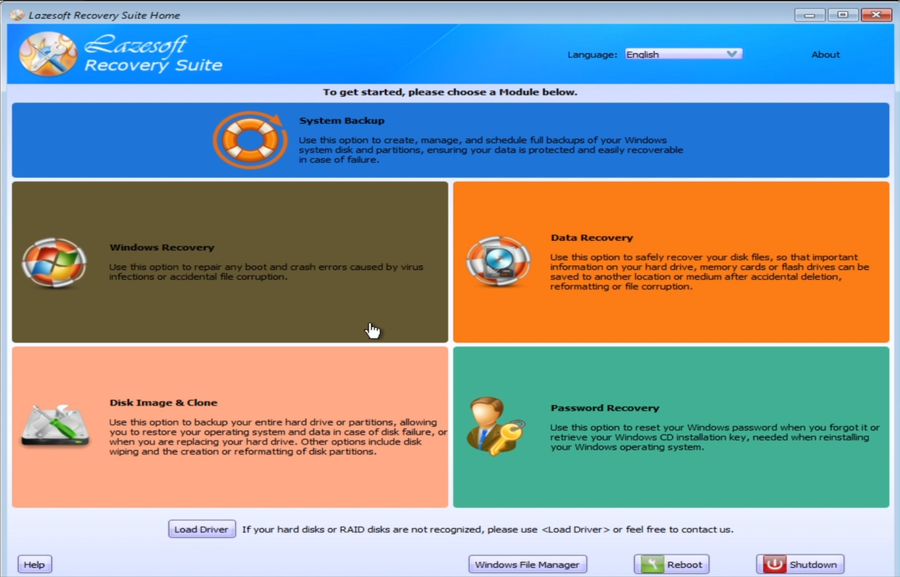
On another working computer, download and install Lazesoft Recovery Suite, then use it to create a bootable USB recovery disk. This boot USB lets you repair systems that no longer start normally.
Step 2: Select the Windows Installation
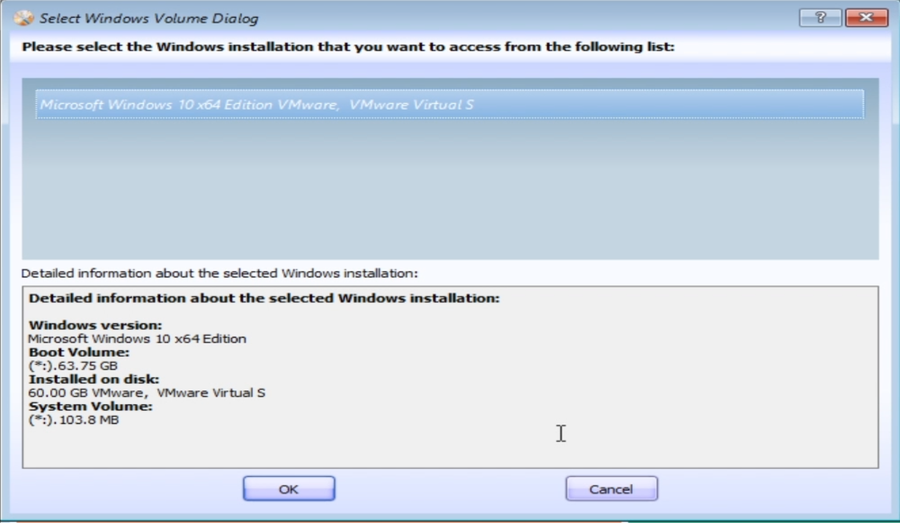
After booting from the Lazesoft USB, open the Windows Recovery module. Windows Recovery scans for Windows installations and asks you to choose the one to repair. Make sure the version, boot volume, and system volume match the installation you want to restore.
Step 3: Open Windows Recovery and Launch BCD Doctor
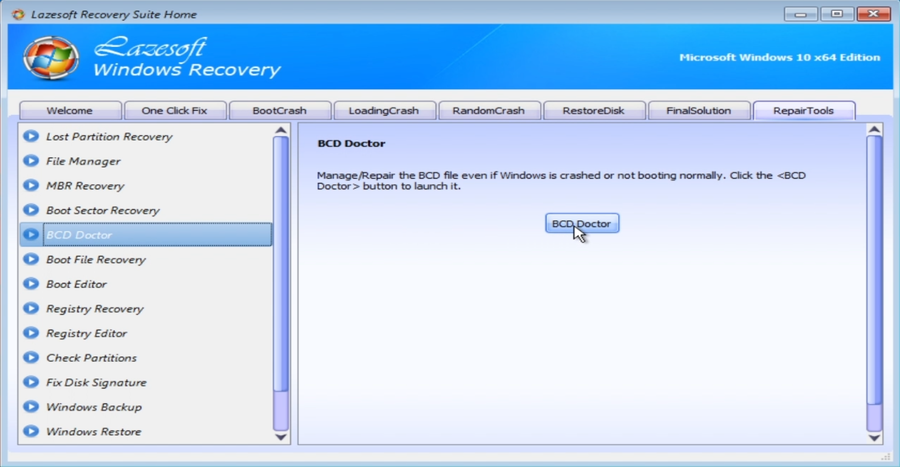
In Windows Recovery module, go to Repair Tools, and click BCD Doctor.
Step 4: Review the Current Boot Entry
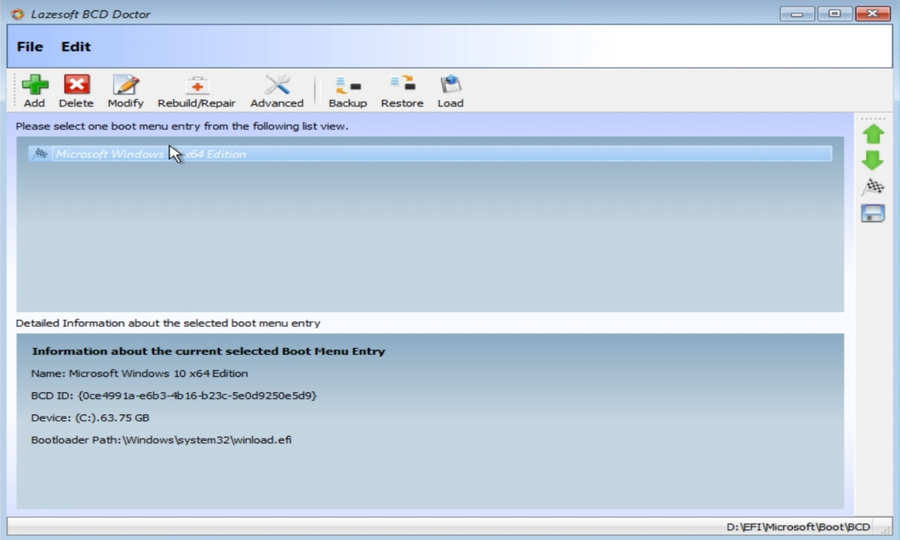
Once the BCD store loads, check the current boot menu entry list. In many cases, the entry is incomplete, damaged, or inconsistent, which is enough to trigger boot error 0xc000000f.
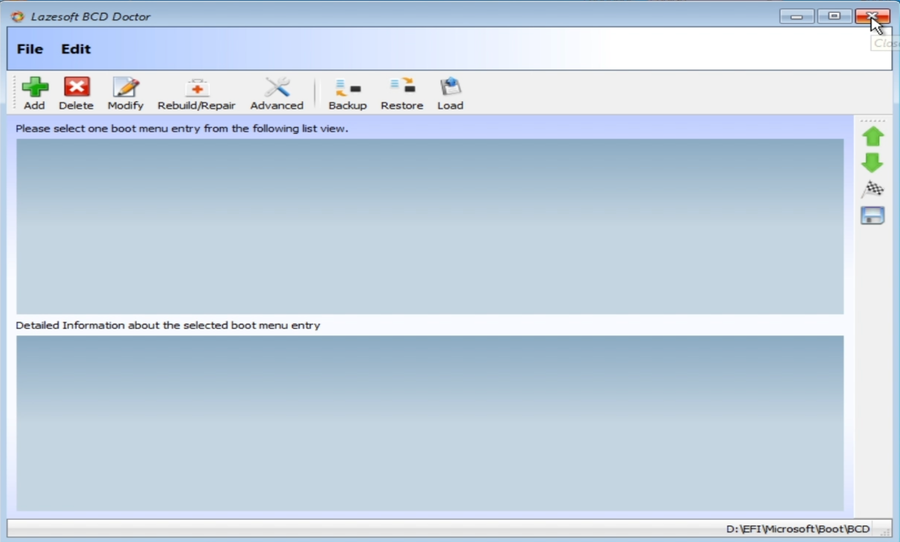
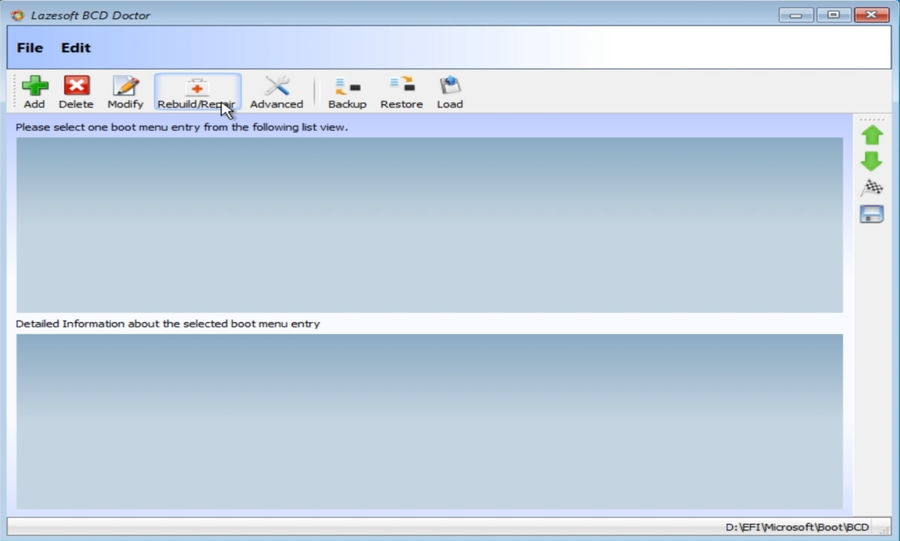
Step 5: Click Rebuild/Repair
Click the Rebuild/Repair button to let Lazesoft rebuild the Windows BCD store automatically.
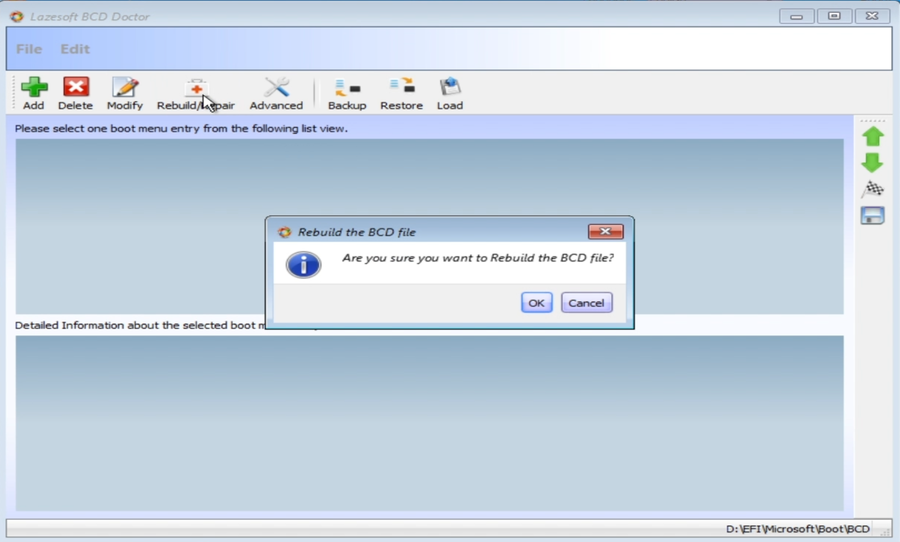
Step 6: Confirm the Rebuild Operation
A confirmation box appears before the BCD file is rebuilt. Click OK to continue.
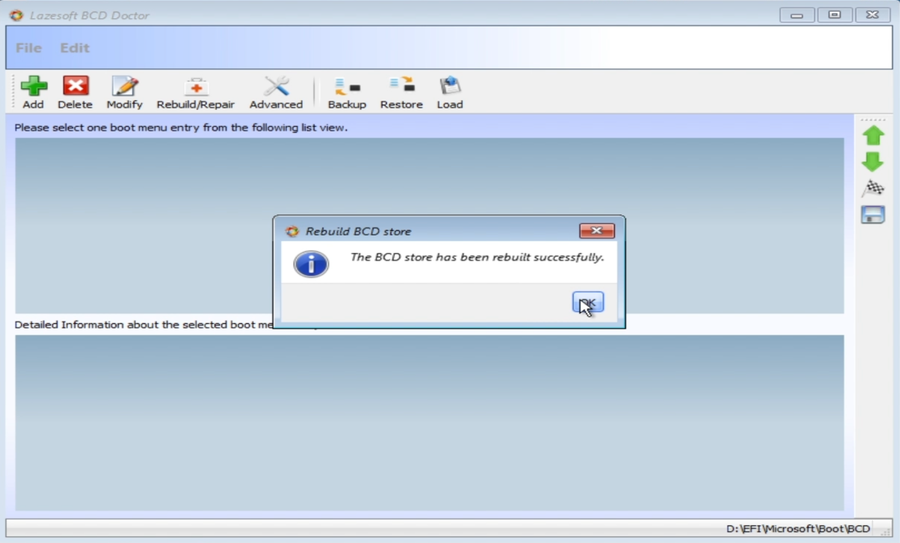
Step 7: Wait for the Repair to Finish
When the process completes, Lazesoft shows a message confirming that the BCD store has been rebuilt successfully.
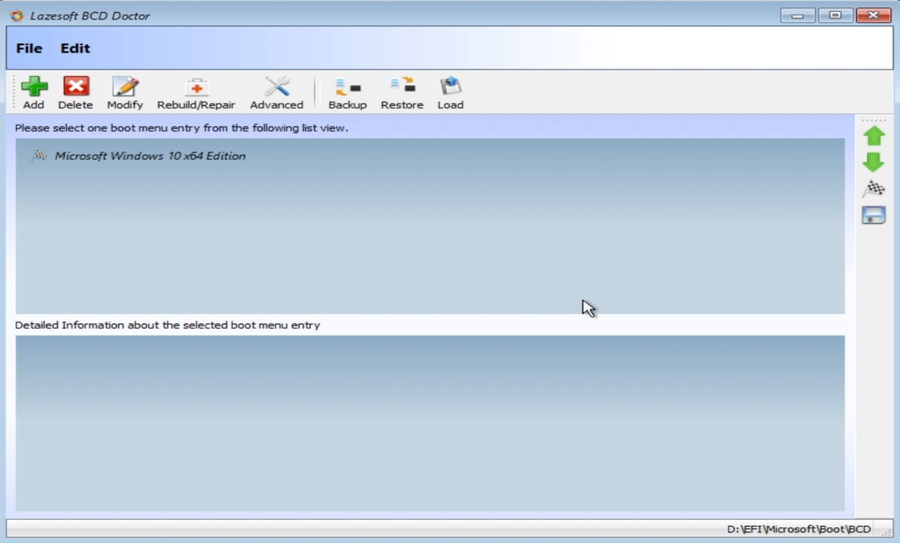
Step 8: Verify That the Boot Entry Has Been Restored
After rebuilding the BCD, the Windows boot entry should appear again in the boot menu list.
Step 9: Restart and Boot into Windows
Close BCD Doctor, remove the USB drive, and restart the PC. If the repair was successful, Windows should boot normally again.

Step-by-Step Summary
- Create a Lazesoft boot USB on another working PC.
- Boot the affected computer from that USB.
- Open Windows Recovery, select the correct Windows installation.
- Go to Repair Tools > open BCD Doctor.
- Click Rebuild/Repair.
- Confirm the rebuild.
- Verify the boot entry is restored.
- Remove the USB and reboot into Windows.
Why Use Lazesoft BCD Doctor Instead of Command Line?
Many users try to fix 0xc000000f with manual boot repair commands. That can work, but it is easy to make mistakes, especially when drive letters, EFI partitions, or boot records are unclear in the recovery environment.
- simple graphical workflow
- no need to remember boot repair commands
- easy to review the repaired boot entry
- helpful when Windows will not boot at all
Free for Home Users + 1TB Free for Professionals
Lazesoft Recovery Suite offers a very generous free policy:
Use Lazesoft Recovery Suite to repair boot problems, recover data, reset passwords, clone disks, and more.
Frequently Asked Questions
Can I fix error 0xc000000f without reinstalling Windows?
Yes. If the problem is caused by damaged or missing BCD data, rebuilding the BCD often restores bootability without reinstalling Windows.
Do I need another working computer?
Yes. Because the affected PC does not boot normally, you need another computer to download Lazesoft and create the USB boot disk.
Will rebuilding the BCD delete my files?
No. Rebuilding the BCD repairs boot configuration information. It does not normally delete personal files.
What if the USB does not appear in the boot menu?
Rebuild the boot disk with the appropriate partition scheme, such as GPT or MBR, then try again from the BIOS or boot menu.
Does this work on Windows 11 and Windows 10?
Yes. This method is commonly used for modern Windows systems when the boot configuration has been damaged.
Conclusion
Error 0xc000000f looks serious, but in many cases the real issue is simply a damaged or missing boot configuration store. With Lazesoft BCD Doctor, you can create a recovery USB, rebuild the BCD, restore the boot entry, and get Windows starting normally again.