
Fix Windows boot error 0xc0000098
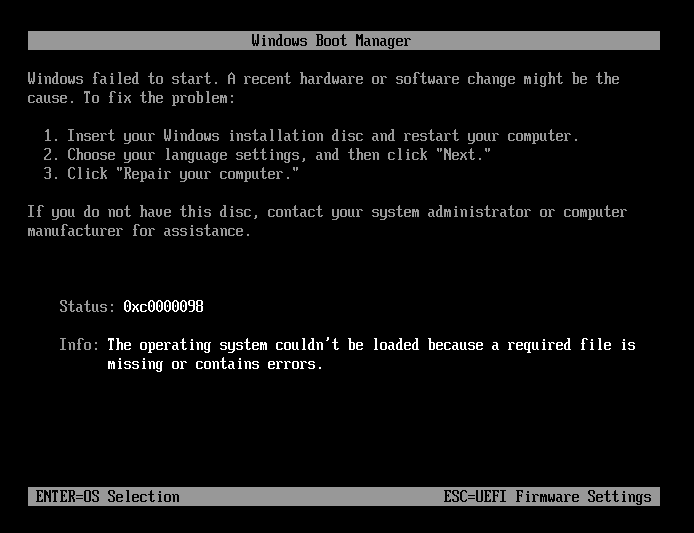
If your PC fails to boot and shows error code 0xc0000098, it usually means the Boot Configuration Data (BCD) file is missing or corrupted. Don’t panic — in most cases your personal files are still on the disk. Follow the steps below to repair the boot configuration and start Windows normally again.
Understanding error 0xc0000098
The BCD is a small boot database used by Windows Boot Manager. If the BCD is damaged (for example after an unexpected power loss, disk errors, malware, or failed updates), Windows may stop at a recovery screen and report 0xc0000098.
Before you start
- A working computer to create a bootable recovery USB/CD.
- A USB flash drive (at least 1GB, empty is recommended) or a blank CD/DVD.
- The problem PC that shows error 0xc0000098.
Solution 1 (recommended): Rebuild BCD with Lazesoft BCD Doctor
This is the easiest option if Windows can’t boot into the Recovery Environment.
Step 1: Create a bootable Lazesoft Recovery USB or CD
- Download and install Lazesoft Recovery Suite on the working computer.
- Launch the program and choose Burn CD/USB Disk (Media Builder).
- Select USB Flash Drive (recommended) or CD/DVD, then follow the wizard to build the bootable media.
- When finished, safely eject the USB/CD.
Step 2: Boot the problem PC from the Lazesoft media
- Insert the USB/CD into the problem computer.
- Restart and enter BIOS/UEFI or the Boot Menu (common keys: F2, F10, F12, Del, Esc — check your PC manual).
- Set the USB/CD as the first boot device, then save and exit.
- The PC should boot into the Lazesoft WinPE environment.
Step 3: Use BCD Doctor to repair/rebuild BCD
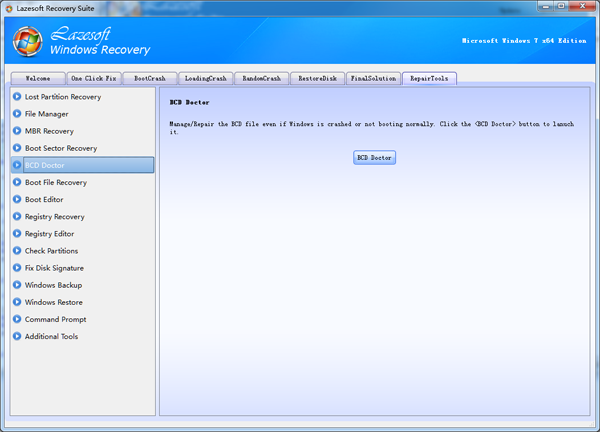
- In Lazesoft, open Windows Recovery.
- Select your Windows installation (choose the correct one if multiple are detected).
- Open Boot Crash and run Lazesoft BCD Doctor.
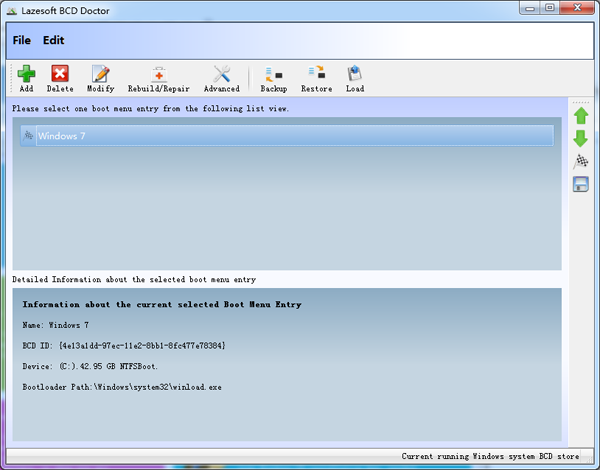
- Click Repair/Rebuild. Lazesoft will scan the boot configuration, back up the existing BCD (if any), and rebuild it.
- When it completes, click Finish / Reboot. Remove the USB/CD before rebooting.
Solution 2: Repair BCD using Windows installation media (advanced)
If you have a Windows installation USB/DVD, you can try repairing the boot configuration using Microsoft’s tools.
- Boot from the Windows installation USB/DVD.
- Choose Repair your computer (do not select “Install now”).
- Go to Troubleshoot > Advanced options > Command Prompt.
- Run the commands below (press Enter after each line):
bootrec /fixmbr
bootrec /fixboot
bootrec /scanos
bootrec /rebuildbcd
Note: If you get “Access is denied” on bootrec /fixboot on some UEFI systems, you may need to mount the EFI system partition and rebuild boot files using bcdboot. Using Lazesoft BCD Doctor (Solution 1) is usually simpler.
Troubleshooting tips
- PC won’t boot from USB/CD: try another USB port (prefer USB 2.0), recreate the media, or use the Boot Menu key instead of changing BIOS boot order.
- Disk not detected in BIOS/UEFI: check cables (desktop), test another port, or confirm the drive is healthy (a failing disk can also trigger boot errors).
- Still stuck after rebuild: boot from Lazesoft again and check whether the correct system partition is set (UEFI/MBR configurations differ).
If you still cannot boot after these steps, the disk may have file system damage or physical issues. In that case, use Lazesoft tools to recover important files first, then consider reinstalling Windows.
Lazesoft Recovery Suite is easy to use, powerful boot disk design to Recover Data, Recover crashed Windows System, Recover Windows Password, Clone or Backup Disk, etc.
Free Windows recovery manual
build a Windows 7 USB System Repair Disc
Fix Error 0xc000000f - BCD Missing
Fix a damaged MBR for Windows XP
Fix a Windows XP Loading Crash
Fix 'Operating system not found'
fix Windows Server 2008 BOOTMGR is missing Error
fix the 'Hal.dll is Missing' error
Start Menu on Lazesoft boot disk
Build Windows 7 System Repair Disc
Build Windows 8 recovery USB disk