
How to Fix “Hal.dll is Missing or Corrupt”
Seeing “Windows could not start because the following file is missing or corrupt: \Windows\System32\Hal.dll” usually means Windows can’t find the correct system files during boot. This guide focuses on the most common causes on Windows XP and Windows Server 2003, and walks you through reliable fixes.
Quick summary
- Most cases are caused by a wrong or damaged boot.ini (multi-boot, partition changes, cloning, etc.).
- Less commonly, Hal.dll is actually missing/corrupted or the file system has errors.
- You can fix it quickly using Lazesoft Windows Recovery (recommended), or use the Windows CD’s Recovery Console.
Why this error happens
Hal.dll is the Windows Hardware Abstraction Layer. The message appears when the boot loader points to the wrong Windows installation, or when key boot/system files can’t be read.
- boot.ini points to the wrong partition (common after resizing/moving partitions or installing another OS).
- Disk cloning/migration changed disk order (the ARC path in boot.ini no longer matches).
- File system corruption (bad sectors or an unclean shutdown).
- Missing/overwritten system files (rare, but possible).
Fix 1 (recommended): Repair boot files with Lazesoft Windows Recovery
- Create a bootable recovery USB/CD using Lazesoft Windows Recovery on a working PC.
- Boot the affected computer from the Lazesoft USB/CD (use your BIOS/boot menu key).
- When Lazesoft loads, select the target Windows installation.
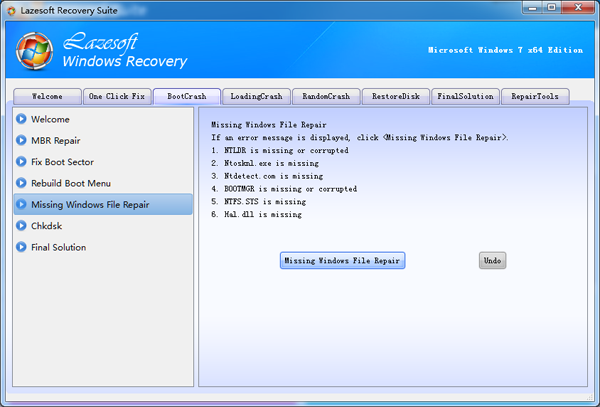
- Open Boot Crash → Missing Windows File Repair, then run the repair.
- Remove the USB/CD and restart. Windows should boot normally.
Download Lazesoft Recovery Suite
Free tools to repair boot issues, recover data, reset passwords, and clone/backup disks.
Fix 2: Use the Windows XP/2003 Recovery Console (manual)
If you prefer built-in tools, boot from a Windows XP/Server 2003 installation CD, choose Repair to enter the Recovery Console, then try these in order (starting with the safest).
Step A: Check the disk for file system errors
chkdsk /rLet it finish completely. Reboot and test.
Step B: Rebuild boot.ini
bootcfg /rebuildThis is the most effective fix when the error is caused by an incorrect Windows path in boot.ini.
Step C: Repair boot sector and MBR (only if needed)
fixboot
fixmbr
Use these if you suspect boot-sector damage. On some systems with third-party boot managers or unusual disk layouts, these commands may change boot behavior.
Step D: Restore Hal.dll (rare)
If Hal.dll is genuinely missing/corrupted, you can expand it from the CD. The CD drive letter can differ in Recovery Console.
expand D:\i386\hal.dl_ C:\Windows\System32\hal.dllAfter it boots
- Back up important files immediately (a hal.dll error can be an early warning of disk issues).
- If you recently resized/moved partitions or cloned the disk, double-check the boot configuration and disk order in BIOS.
- Run a SMART/health check on the drive if you suspect hardware problems.
Need help?
If you still can’t boot after the steps above, contact Lazesoft support and include: the exact error text, Windows version, and whether the machine was recently cloned, partitioned, or updated.