
How to Fix “Invalid Boot.ini” (Windows XP/2000/Server 2003)
If you see the message “Invalid Boot.ini” while starting a Windows XP/2000/Server 2003 computer, it usually means the boot.ini file is missing, damaged, or contains incorrect entries. As a result, Windows may fail to start, or you may be redirected to the wrong installation.
Note: Newer Windows versions (Vista/7/8/10/11) do not use boot.ini; they use BCD (Boot Configuration Data). If you’re on a newer system, jump to the Modern Windows (Vista and later) section below.
What is boot.ini?
boot.ini is a hidden text file located on the system partition (often C:\). It defines the boot menu and points the loader to your Windows installation.
If it’s missing or corrupted, you may get:
- “Invalid Boot.ini”
- “Windows could not start because the following file is missing or corrupt …”
- Endless reboots or boot menu issues
Method 1: Fix with the Windows XP installation CD (Recovery Console)
- Insert the Windows XP installation CD.
- Restart the computer and boot from the CD (when prompted, press any key to boot from CD).
- At the Welcome to Setup screen, press R to open the Recovery Console.
- Select the Windows installation you want to repair (usually
1), then press Enter. - Type the Administrator password (leave blank if none), then press Enter.
- Back up the current file (if it exists):
copy C:\boot.ini C:\boot.ini.bak - Rebuild boot.ini:
bootcfg /rebuild
Follow the on-screen prompts to add the Windows installation(s). - Remove the CD, then type:
exit
Press Enter to restart.
Method 2: Fix using Lazesoft Recovery Suite (easier, no commands)
- Create a bootable recovery USB/CD using Lazesoft Recovery Suite (Windows Recovery module).
- Boot the problem PC from the Lazesoft recovery USB/CD.
- When Lazesoft Windows Recovery loads, select the target Windows installation.
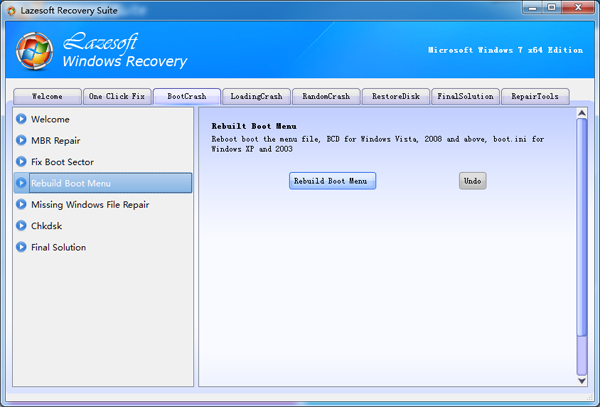
- Open Boot Crash → Rebuild Boot Menu, then click Rebuild Boot Menu.
Modern Windows (Vista/7/8/10/11): use BCD repair tools
If you’re seeing “Invalid Boot.ini” on a newer PC, it’s usually a legacy message or a mis-detected boot issue. For Vista and later, common repair commands from Windows Recovery Environment (WinRE) include:
bootrec /fixmbrbootrec /fixbootbootrec /rebuildbcdbcdboot C:\Windows
If you prefer a guided approach, Lazesoft’s boot repair tools can help rebuild the boot menu and fix common boot crashes without manually typing commands.
Tips
- If you have multiple Windows installations, make sure you select the correct one during
bootcfg /rebuild. - If the system partition isn’t
C:in Recovery Console, adjust commands accordingly. - After repair, consider checking the disk for errors and backing up important data.
If you have questions or need help choosing the right boot repair method, please contact us.
Lazesoft Recovery Suite is easy to use, powerful boot disk design to Recover Data, Recover crashed Windows System, Recover Windows Password, Clone or Backup Disk, etc.
Free Windows recovery manual
build a Windows 7 USB System Repair Disc
Fix Error 0xc000000f - BCD Missing
Fix a damaged MBR for Windows XP
Fix a Windows XP Loading Crash
Fix 'Operating system not found'
fix Windows Server 2008 BOOTMGR is missing Error
fix the 'Hal.dll is Missing' error
Start Menu on Lazesoft boot disk
Build Windows 7 System Repair Disc
Build Windows 8 recovery USB disk