
How to Fix a Damaged MBR (Master Boot Record) in Windows XP
If your computer does not boot normally and you see error messages such as:
- Error loading operating system
- Missing operating system
- Invalid partition table
- Hard disk boot failure
- Operating system not found
- Black screen with no information
These problems often indicate that the Master Boot Record (MBR) on your hard disk is corrupted.
What is the Master Boot Record (MBR)?
The MBR (Master Boot Record) is the first sector of a hard drive. It contains important boot information that tells the BIOS where the operating system is located. If the MBR becomes damaged or overwritten, Windows will fail to start.
To restore normal system startup, you must repair the damaged MBR.
Method 1 – Repair MBR Using Windows XP Installation CD
You can repair the MBR using the Windows XP installation disc and the Recovery Console.
Step 1 – Boot from the Windows XP CD
Insert the Windows XP setup CD and restart your computer.
When the message "Press any key to boot from CD" appears, press any key.
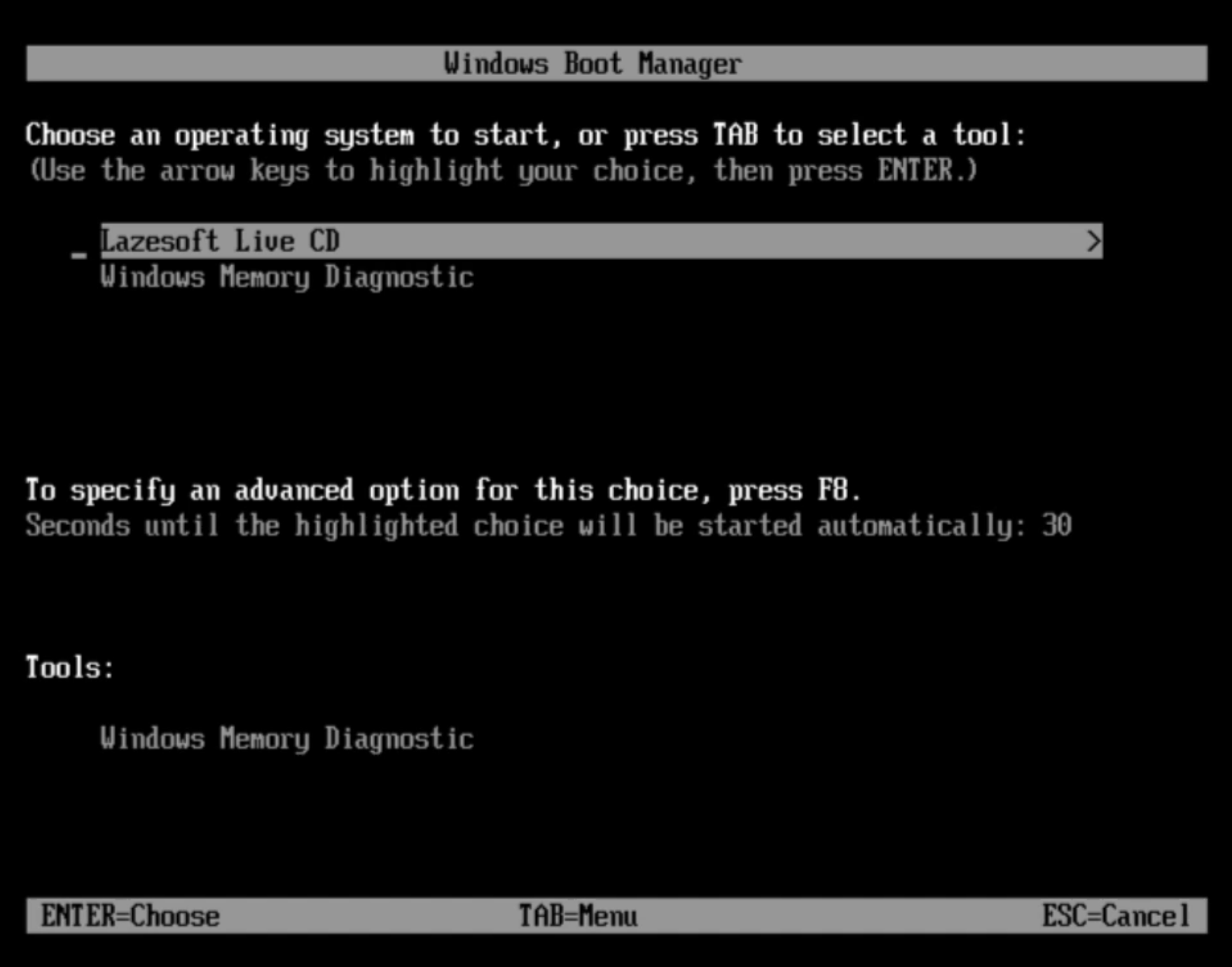
Step 2 – Enter Recovery Console
When the Windows Setup screen appears, press R to open the Recovery Console.
Step 3 – Select Windows Installation
Select the Windows installation you want to repair.
Usually you simply press:
1 then press Enter
You may also be asked to enter the Administrator password.
Step 4 – Repair the MBR
Type the following command:
fixmbr
Press Enter and confirm the operation.
This will rewrite the Master Boot Record on the system disk.
Step 5 – Restart the Computer
Type:
exit
Your computer will restart and should boot normally if the MBR was the problem.
Method 2 – Repair MBR with Lazesoft Windows Recovery (Easier Method)
If you do not have a Windows XP installation disc or prefer a simpler graphical solution, you can use Lazesoft Recovery Suite Home Edition.
This free tool allows you to repair boot problems using a bootable recovery disk.
Step 1 – Create a Bootable Recovery Disk
Install and run Lazesoft Recovery Suite and create a bootable USB or CD.
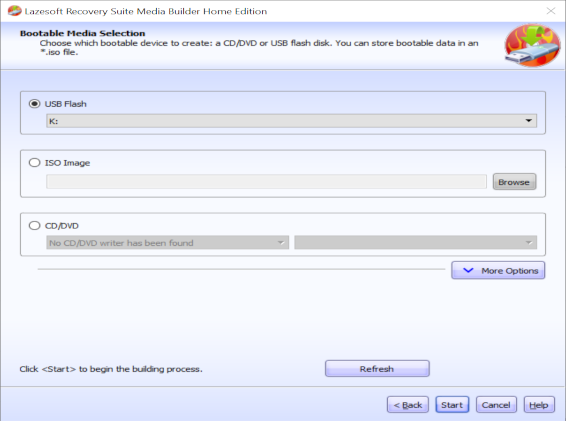
Step 2 – Boot Your Computer from the Recovery Disk
Insert the created USB or CD and restart your computer.
Use the BIOS boot menu (usually F12, F11, or ESC) to select the boot device.
Step 3 – Run the MBR Repair Tool
After the Lazesoft recovery environment loads, navigate to:
Windows Recovery → Boot Crash → Repair MBR
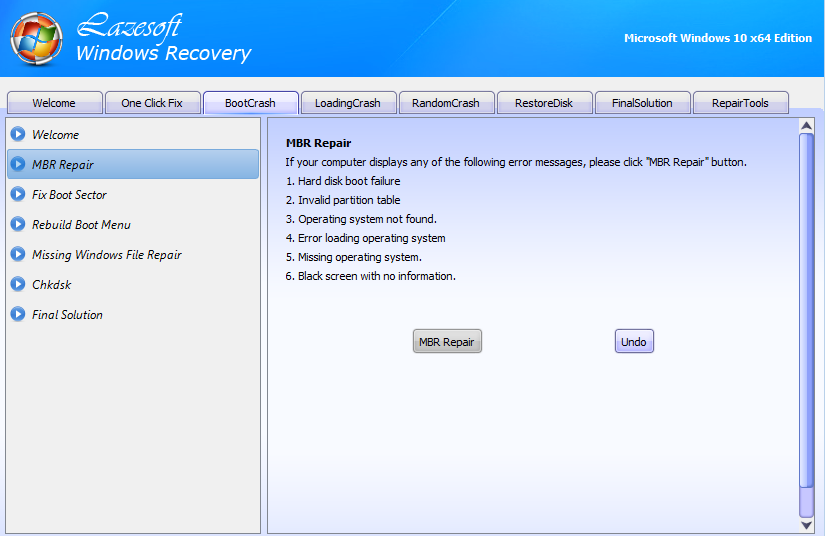
Click the MBR Repair button to automatically repair the corrupted boot record.
Step 4 – Restart Your Computer
Remove the recovery disk and restart the computer.
Your system should now boot normally.
Is MBR Repair Safe?
Yes. Repairing the MBR does not delete your files or installed programs. The tool only repairs the boot information required for Windows to start.
If your system fails to boot because of a damaged MBR, repairing it will restore normal startup without affecting your data.
Lazesoft Recovery Suite provides one of the easiest ways to repair MBR problems and recover a non-bootable Windows system.
Lazesoft Recovery Suite is easy to use, powerful boot disk design to Recover Data, Recover crashed Windows System, Recover Windows Password, Clone or Backup Disk, etc.
Free Windows recovery manual
build a Windows 7 USB System Repair Disc
Fix Error 0xc000000f - BCD Missing
Fix a damaged MBR for Windows XP
Fix a Windows XP Loading Crash
Fix 'Operating system not found'
fix Windows Server 2008 BOOTMGR is missing Error
fix the 'Hal.dll is Missing' error
Start Menu on Lazesoft boot disk
Build Windows 7 System Repair Disc
Build Windows 8 recovery USB disk