
Fix “DISK BOOT FAILURE, INSERT SYSTEM DISK AND PRESS ENTER”
If your PC stops at the message “DISK BOOT FAILURE, INSERT SYSTEM DISK AND PRESS ENTER” during startup, it means the firmware (BIOS/UEFI) can’t find a valid boot loader on the device it tried to boot from.
Before you start: If you recently changed BIOS/UEFI settings, added new hardware, or moved the disk to another PC, that can easily trigger this error. If the drive is making unusual noises or disappears in BIOS/UEFI, back up data first (if possible).
Common causes
- Wrong boot order (firmware is trying to boot from the wrong device).
- A non-bootable USB drive, SD card, or DVD is connected.
- Loose/failed SATA or power cable, or a failing drive.
- Corrupted boot records (MBR/boot sector) on legacy BIOS systems.
- Corrupted EFI boot files (EFI System Partition) on UEFI systems.
- Recent hardware changes (new drive, USB enclosure, controller mode change like AHCI/RAID).
1) Quick checks (fast wins)
- Remove all removable media: unplug USB sticks, external drives, SD cards, and eject any DVD/CD.
- Power off and check cables: reseat SATA/data and power cables (or re-seat NVMe drive in the slot).
- Try a different port/cable: especially for SATA drives; a bad cable is common.
- If you have multiple drives: temporarily disconnect non-system drives to avoid boot confusion.
2) Check BIOS/UEFI boot settings
Restart and enter BIOS/UEFI setup (common keys: Del, F2, Esc, F10). Then verify:
- Boot order: your system disk (or “Windows Boot Manager” on UEFI) should be first.
- UEFI vs Legacy/CSM: match the disk’s installation mode. A UEFI-installed Windows typically needs UEFI enabled and boots via Windows Boot Manager.
- Storage mode: if you changed AHCI/RAID/IDE recently, switch back to the previous mode.
CMOS battery note: If boot settings reset after power-off, the CMOS battery may be weak. Replacing it can stop recurring boot-order problems.
3) Use Windows Recovery tools (Startup Repair / Command Prompt)
If the disk is detected in BIOS/UEFI but still won’t boot, repair the boot files using Windows Recovery Environment (WinRE). You can boot from a Windows installation USB/DVD or a recovery drive and choose Repair your computer.
Option A: Try Startup Repair
In WinRE: Troubleshoot → Advanced options → Startup Repair. Let it finish and reboot.
Option B: Repair boot files manually (advanced)
In WinRE: Troubleshoot → Advanced options → Command Prompt.
Legacy BIOS / MBR systems (common on older PCs):
- Run:
bootrec /fixmbr - Run:
bootrec /fixboot - Run:
bootrec /scanos - Run:
bootrec /rebuildbcd
UEFI / GPT systems (common on Windows 10/11 PCs):
- First, find the EFI System Partition (ESP) and assign it a drive letter using
diskpart. - Then rebuild boot files with
bcdboot.
Typical UEFI fix (example):
diskpartlist vol(find the small FAT32 volume labeled EFI)select vol Xassign letter=Sexitbcdboot C:\Windows /s S: /f UEFI
Reboot when done.
4) Windows 11 notes (BitLocker / Secure Boot / TPM)
- BitLocker recovery key: If the PC asks for a key after firmware changes, you may need the BitLocker recovery key to unlock the OS drive.
- Secure Boot: If you toggled Secure Boot or restored defaults, double-check that the system still boots via Windows Boot Manager.
- TPM / firmware changes: Updating BIOS/UEFI or changing TPM settings can trigger recovery screens. Revert the change if possible, then boot normally and update carefully.
5) Repair MBR / boot sector using Lazesoft Recovery Suite
If the steps above don’t help (or you prefer a guided repair), you can use Lazesoft Recovery Suite to repair boot records and common boot issues.
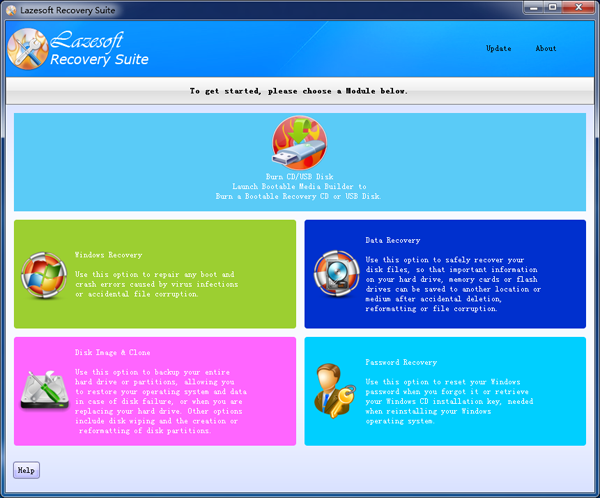
- Create a bootable recovery disk: Install and run Lazesoft Recovery Suite on a working PC, then create a bootable USB or CD/DVD.
- Boot the problem PC from the recovery media: Use the boot menu key (often F12, F11, Esc) or set boot order in BIOS/UEFI.
- Repair MBR: In the recovery environment, follow Windows Recovery → Boot Crash → Repair MBR.
- Fix boot sector: Then run Windows Recovery → Boot Crash → Fix Boot Sector.
- Remove the media and reboot: Set your original system drive (or Windows Boot Manager) back as the first boot device.
If the error keeps coming back
- Run a disk health check: if you can boot from recovery media, check SMART/drive health and scan for bad sectors.
- Back up your data: intermittent boot failure is often an early sign of drive failure.
- Consider replacing the drive: especially if the drive disappears from BIOS/UEFI or fails diagnostics.
Lazesoft Recovery Suite is easy to use, powerful boot disk design to Recover Data, Recover crashed Windows System, Recover Windows Password, Clone or Backup Disk, etc.
Free Windows recovery manual
build a Windows 7 USB System Repair Disc
Fix Error 0xc000000f - BCD Missing
Fix a damaged MBR for Windows XP
Fix a Windows XP Loading Crash
Fix 'Operating system not found'
fix Windows Server 2008 BOOTMGR is missing Error
fix the 'Hal.dll is Missing' error
Start Menu on Lazesoft boot disk
Build Windows 7 System Repair Disc
Build Windows 8 recovery USB disk