
Fix Windows Boot Crash
Indicators a 'boot Crash' system failure include a blank screen with a blinking cursor, any of several error messages or a missing loading bar.
The possible causes of computer crashes during booting include virus attacks, abnormal shutdowns, bad disk sectors, MBR errors, boot sector damage, no active partition as well as other issues.
Computer boot crashes may have multiple symptoms and causes, so Lazesoft software package was designed with multiple possible remedies. The repair options listed below will be available to help you fix a computer that always crashes and never gets to Windows loading bar.
The options are only available to fix boot crash problem that Windows startup does not get the Windows loading bar. The crash problem after getting Windows loading bar, we call it ‘Loading Crash’.
The repair options listed below will be available to help you fix a computer that always crashes and never gets to Windows loading bar.
The first thing you will need before you can repair your system startup is to create an automatically booting disk or CD. You easily burn this medium using Lazesoft Windows Recovery.
When the new bootable disk is ready, you will be able to use it to replace the primary operating system on your computer, selected at startup time by your BIOS or boot menu.
After you reboot successfully from the new medium, the Lazesoft ‘Windows Recovery’->’Boot Crash’ option can be applied to get your broken computer working again.
These simple options, from which you can select in the Lazesoft ’Boot Crash’ module, will help you to repair almost all Windows crash problems.
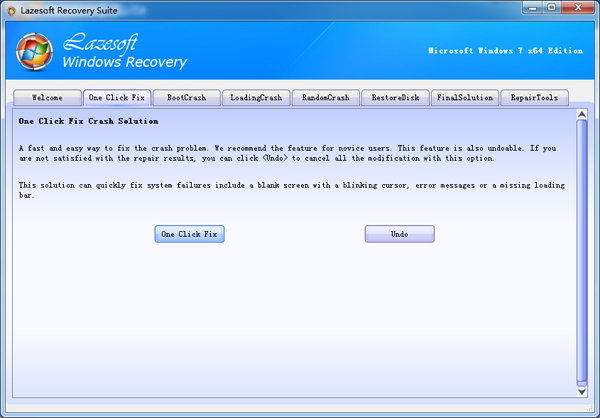
1. Use 'One Click Fix' module in Lazesoft Windows Recovery Home Edition
This module can check and fix most of Windows boot errors automatically. The function is also reversible. If you are staticfied with the repair results, you can just click <Undo> to restore the states before repair.
- Use the new Lazesoft Windows Recovery bootable CD or USB disk to boot your Windows 7 based computer.
- After rebooting, enter the Lazesoft ‘Windows Recovery’->’One Click Fix’ module.
- Click <One Click Fix> button to check and fix the Windows boot error.
- 4. Reboot the computer after the operations is completed to check the results.
2.Repair MBR
If your computer displays any of the following error messages, click the <MBR Repair> button.
- Hard disk boot failure
- Invalid partition table
- Operating system not found
- Error loading operating system
- Missing operating system
- Black screen with no information
3.Fix Boot Sector
Select <Fix Boot Sector> to fix boot crashes caused by boot sector errors. If your computer reboots normally from your repaired original hard drive, you do not need to perform additional steps.
4. Fix boot menu :
- Build a recovery CD or USB disk using Lazesoft Windows Recovery.
- Boot your computer from the new Lazesoft recovery CD or USB disk.
- When Lazesoft Windows Recovery runs, select the target Windows installation.
- Click the "Rebuild Boot Menu" button on the ‘Boot Crash->Rebuild Boot Menu’ module.
5. Repair Missing Windows File
If an error message from the following list is displayed, click <Missing Windows File Repair> to perform a repair.
- NTLDR is missing or corrupted
- Ntosknl.exe is missing
- Ntdetect.com is missing
- BOOTMGR is missing or corrupted
- NTFS.SYS is missing
- Hal.dll is missing
6.Run Windows ‘Chkdsk’
You can run Microsoft Chkdsk to repair many errors affecting system file loading. If your computer starts normally after you attempt to reboot your Windows operating system, you can ignore any additional steps.
7.Do a Windows restore
If you have backed up your Windows system volume or operating system disk, you can restore it to fix the crash problem.
8.Contact Lazesoft Team
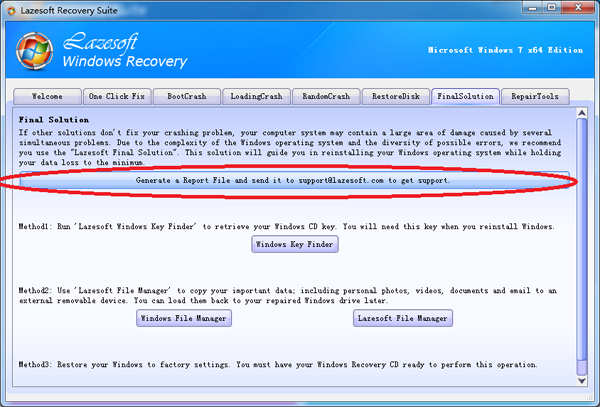
If you tried the repair tools and still did not solve the boot problem, you can use the ,’ Generate Report’ on the ‘Final Solution’ on Windows Recovery module to build report files and then send the files to support@lazesoft.com. We will analyze the files carefully and get back with detailed steps to fix the boot problem.
Lazesoft Recovery Suite is easy to use, powerful boot disk design to Recover Data, Recover crashed Windows System, Recover Windows Password, Clone or Backup Disk, etc.
Free Windows recovery manual
build a Windows 7 USB System Repair Disc
Fix Error 0xc000000f - BCD Missing
Fix a damaged MBR for Windows XP
Fix a Windows XP Loading Crash
Fix 'Operating system not found'
fix Windows Server 2008 BOOTMGR is missing Error
fix the 'Hal.dll is Missing' error
Start Menu on Lazesoft boot disk
Build Windows 7 System Repair Disc
Build Windows 8 recovery USB disk