
Partition Recovery Guide
Partition Recovery Guide: Recover Lost, Deleted, RAW, or Damaged Partitions
A partition can become missing, RAW, inaccessible, unallocated, or accidentally deleted after formatting, repartitioning, disk cloning, resize failure, power loss, damaged MBR/GPT partition tables, file system corruption, or a failed Windows update. The most important rule is simple: stop writing new data to the affected drive until your important files are recovered.
Free partition recovery with Lazesoft
Lazesoft Recovery Suite Home Edition is unlimited free for home users. For professional users, Lazesoft provides a 1TB free recovery quota before upgrading. This makes it practical to scan, preview, and recover important files from lost, deleted, RAW, formatted, or damaged partitions without a fake-free surprise.
Before you start: protect your recoverable data
- Do not format the partition when Windows asks you to format it.
- Do not run CHKDSK first if the files are important. Recovery should come before repair.
- Do not create a new partition on the unallocated space.
- Do not save recovered files back to the same partition or disk. Use another drive.
- Use a bootable recovery USB if Windows cannot start or the system partition is damaged.
What is partition recovery?
Partition recovery means finding and recovering files from a partition that is no longer available normally in Windows. The partition may still physically exist on the disk, but Windows may not be able to read it because the partition table, boot sector, file system, MFT records, directory structure, or other metadata has been damaged.
Lazesoft Data Recovery is designed to scan the affected disk in read-only mode, so it can search for recoverable files without modifying the damaged partition. This is safer than trying random repair commands first, especially when the drive contains important photos, documents, videos, business files, or backup images.
Common partition recovery situations
Deleted or lost partition
The partition disappeared after Disk Management changes, disk cleanup tools, clone failure, Ghost failure, OS reinstall, or accidental deletion.
RAW or inaccessible partition
Windows shows the partition as RAW, asks you to format the drive, or displays errors such as “The parameter is incorrect” or “The file or directory is corrupted.”
Formatted or damaged partition
The partition was formatted by mistake, the file system was damaged, or the partition cannot be opened after resize, conversion, or power interruption.
MBR/GPT partition table damage
The disk layout is missing, the wrong partition table is shown, or a GPT/MBR problem prevents Windows from recognizing the partition correctly.
Recommended recovery workflow
- Prepare another storage device with enough free space to save recovered files. This can be another HDD, SSD, USB drive, or external hard drive.
- Download and install Lazesoft Recovery Suite on a healthy Windows computer, or create a Lazesoft bootable USB if the affected PC cannot start.
- Connect the problem disk to the computer. For internal disks, you can also boot the computer from the Lazesoft recovery USB.
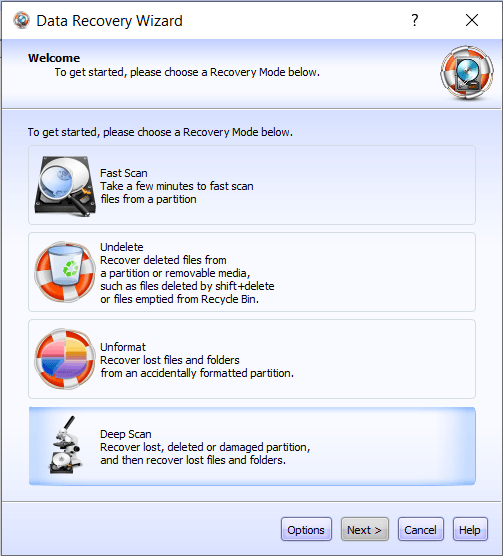
- Open the Data Recovery module and choose Deep Scan.
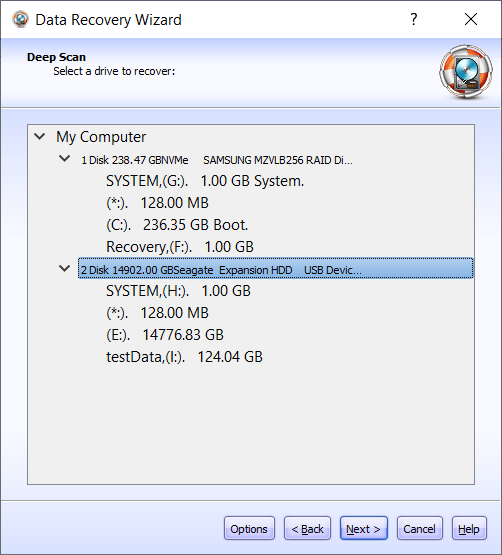
- Select the affected disk or partition and start the scan. Let the scan finish for the best result, especially on large HDDs, SSDs, USB drives, or memory cards.
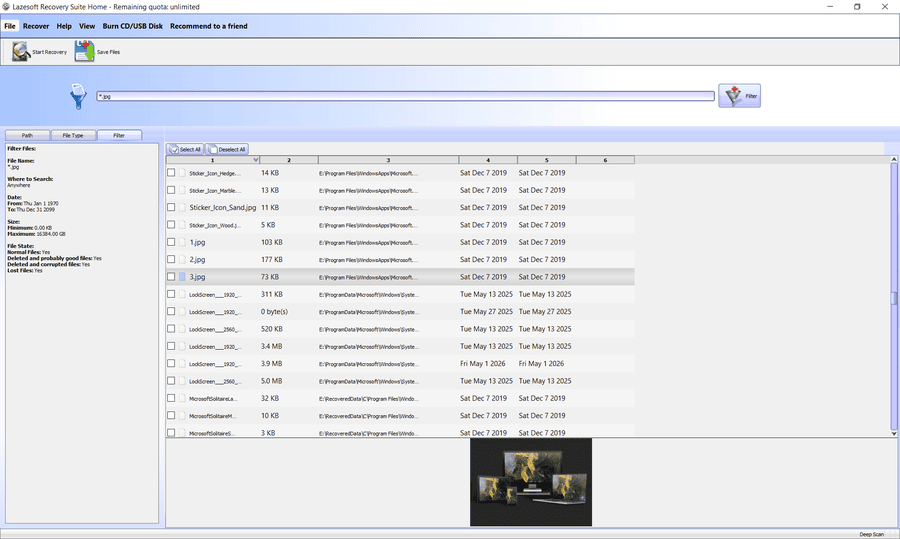
- Preview and select the files you need. Recover the most important files first if the disk is unstable.
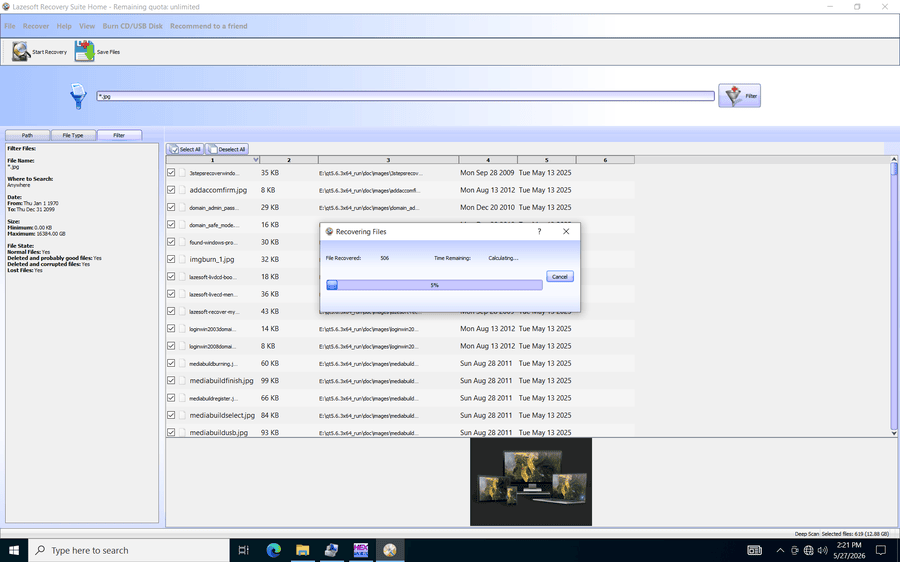
- Save recovered files to a different physical drive. Never save recovered data to the same damaged partition because it may overwrite more recoverable files.
When should you use a bootable recovery USB?
A bootable recovery USB is recommended when Windows cannot boot, the Windows system partition is lost, the disk is not stable enough for normal Windows use, or you want to avoid writing temporary files to the affected system drive. Lazesoft Recovery Suite can create a boot disk so you can start the computer in a recovery environment and copy recovered files to another internal disk, external USB drive, or network location.
Learn more: Create a bootable recovery USB disk.
Partition recovery vs. partition repair
Partition recovery and partition repair are not the same thing. Recovery focuses on copying your important files to a safe location. Repair attempts to make the original partition usable again. If the files are important, recover them first. After your data is safe, you can consider repair steps such as rebuilding partition entries, fixing boot records, running file system checks, or recreating the partition.
Important: be careful with CHKDSK, formatting, and disk initialization
CHKDSK, formatting, partition deletion, disk initialization, and reinstalling Windows may write new data to the disk. These actions can make recovery more difficult. Use them only after your important files have been recovered or backed up.
Supported recovery cases
Lazesoft Data Recovery can help recover files from many Windows storage scenarios, including NTFS, FAT, FAT32, and exFAT partitions; MBR and GPT disks; HDDs, SSDs, NVMe drives, USB flash drives, external hard drives, memory cards, and other removable storage devices.
For SSDs with TRIM enabled, recovery may be limited after file deletion or formatting because the SSD may clear unused blocks automatically. However, scanning file system metadata and remaining records may still help find recoverable file information in some cases. The best chance is to stop using the SSD immediately and scan it as soon as possible.
Why use Lazesoft for partition recovery?
- Read-only scanning: helps avoid additional changes to the damaged drive during recovery.
- Bootable recovery environment: recover files even when Windows cannot start.
- Wide device support: works with internal disks, external USB drives, flash drives, memory cards, HDDs, SSDs, and NVMe drives.
- Unlimited free for home users: recover data for personal/home use without a recovery-size limit.
- 1TB free for professionals: professional users can recover up to 1TB for free before upgrading.
Start partition recovery
Download Lazesoft Recovery Suite, create a bootable USB if needed, scan the affected disk, preview recoverable files, and save the recovered data to a safe location.
Download Lazesoft Recovery Suite Free for Home Users 1TB Free for Professionals
Partition Recovery Guides (Browse by Topic)
Core Topics
- Partition recovery overview
- Free partition recovery software
- Best partition recovery
- Best partition recovery software
- Best free partition recovery
- Best free partition recovery software
- Partition recovery software
- Partition recovery tool
- Partition recovery software reviews
Deleted / Lost / Unallocated
- Deleted partition recovery
- Lost partition recovery
- Free recover partition
- Recover partition using freeware
- Recover deleted partition (Windows 7)
RAW / Corrupt / Damaged
- RAW partition recovery
- Corrupt partition recovery
- Damaged partition recovery
- Disk partition recovery
- Hard disk partition recovery
File Systems & Disk Layout (NTFS / FAT / GPT / RAID)
- Partition recovery (NTFS)
- Free NTFS partition recovery
- NTFS partition recovery software
- FAT partition recovery
- GPT partition recovery
- RAID partition recovery
Bootable Recovery Media
- Bootable partition recovery
- Partition recovery boot disk
- Partition recovery bootable CD
- USB partition recovery
External Drives & Flash Media
- External hard drive partition recovery
- Flash drive partition recovery
- Hard drive partition recovery
- HDD partition recovery
Windows Versions (Legacy)
- Windows 7 partition recovery
- Windows 8 partition recovery
- Windows XP partition recovery
- Vista partition recovery
Frequently asked questions
Can I recover a partition after formatting?
In many cases, yes. The result depends on the file system, whether a quick format or full format was performed, how much new data was written, and whether the drive is an SSD with TRIM enabled.
Can I recover files from a RAW partition?
Yes. A RAW partition often means Windows cannot recognize the file system. Recovery software can scan the disk directly and search for file records and file content.
Should I repair the partition table first?
If your data is important, recover files first. Partition table repair may help in some cases, but it can also change the disk layout and make recovery harder if the wrong repair is applied.
Where should I save recovered files?
Save recovered files to another physical drive, such as an external USB hard drive. Do not save them to the same lost, RAW, formatted, or damaged partition.
Is Lazesoft partition recovery really free?
Yes. Lazesoft Recovery Suite Home Edition is unlimited free for home users. Professional users can recover up to 1TB for free before upgrading.