
How to Recover a Deleted Partition in Windows 7, 10, and 11
Accidentally deleting a partition is a common problem for many Windows users. A deleted partition may suddenly disappear from Windows Explorer, making it look like all files stored on the drive have been lost.
Fortunately, in most cases the data is still physically present on the disk. Only the partition information in the partition table has been removed. With the right recovery tools, you can restore the partition or recover the files directly from the disk.
This guide explains how deleted partitions occur, what happens to the data, and how to recover a deleted partition in Windows using professional recovery tools.
Recovery Overview
Deleted Partition Recovery: What to Do First
If a partition was accidentally deleted, do not create a new partition or save new files to the same disk. In many cases, the partition can still be restored, or the files can be recovered directly.
Partition Deleted
The partition disappears from Windows Explorer and may show as Unallocated Space in Disk Management.
Choose Recovery Method
Use Lost Partition Recovery to restore the partition, or use Data Recovery to recover files directly.
Scan the Disk
Scan the affected disk for lost partition entries or recoverable files, depending on the selected method.
Restore or Recover
Restore the partition structure or save the recovered files to another safe disk location.
Method 1: Restore the Partition
Best when the partition was deleted but the disk structure is still recoverable.
- Tool: Lazesoft Disk Image & Clone
- Path: Repair Tools → Lost Partition Recovery
- Result: Restores the partition entry
- Best for: Getting the whole partition back quickly
Method 2: Recover Files Only
Best when the partition cannot be restored or the file system is badly damaged.
- Tool: Lazesoft Data Recovery Home Edition
- Action: Scan the disk and recover files
- Result: Saves documents, photos, videos, and more
- Best for: Recovering important files directly
Which Recovery Option Should You Use?
If you want to restore the original partition and make it visible in Windows again.
If the partition cannot be rebuilt, but you still need to recover files from the disk.
What Happens When a Partition Is Deleted?
When a partition is deleted in Windows Disk Management or by a disk utility, the operating system removes the partition entry from the partition table. However, the actual data blocks remain on the disk until they are overwritten.
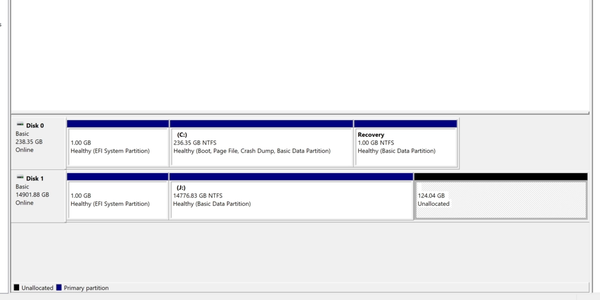
Because of this, deleted partitions are often recoverable as long as you avoid writing new data to the disk.
Common symptoms of a deleted partition include:
- The drive letter disappears in Windows Explorer
- The disk shows Unallocated Space in Disk Management
- The partition suddenly becomes inaccessible
- The disk capacity appears incorrect
If you notice these symptoms, stop using the disk immediately to avoid overwriting the lost partition data.
Common Causes of Deleted Partitions
Partitions can be deleted for many reasons, including human error or system issues. Understanding the cause can help determine the best recovery approach.
- Accidental deletion in Windows Disk Management
- Incorrect disk operations using partition tools
- Operating system installation errors
- Disk cloning mistakes
- Partition table corruption
- Virus or malware damage
- Power failure during disk operations
In most of these situations, the partition structure is lost but the data still exists on the disk surface.
Can a Deleted Partition Be Recovered?
Yes. In many cases, a deleted partition can be fully restored if the partition table entry can be reconstructed.
There are two primary recovery methods:
- Partition recovery – restore the deleted partition entry so the drive appears again
- File recovery – scan the disk and recover individual files
The first method is usually faster and restores the entire partition structure, while the second method works even when the partition cannot be rebuilt.
Method 1: Recover Deleted Partition Using Lazesoft Recovery Suite
Lazesoft Recovery Suite includes a powerful partition recovery tool that can scan the disk and rebuild deleted partition entries.
This method restores the partition so that all files become accessible again.
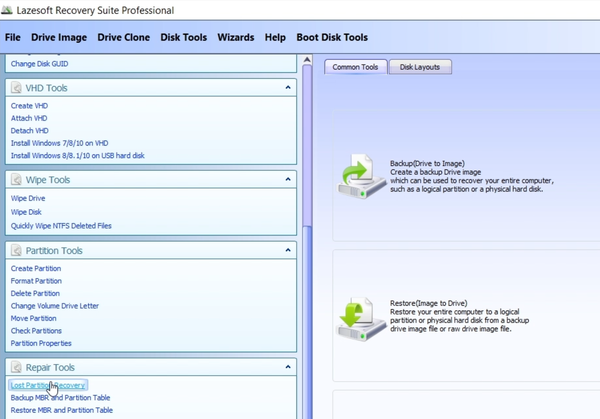
Steps to Recover a Deleted Partition
- Open Lazesoft Recovery Suite
- Select Disk Image & Clone
- Click Repair Tools
- Select Lost Partition Recovery
- Select the disk where the partition was deleted
- Start the disk scan
- Choose the detected partition
- Click Save Partition to restore it
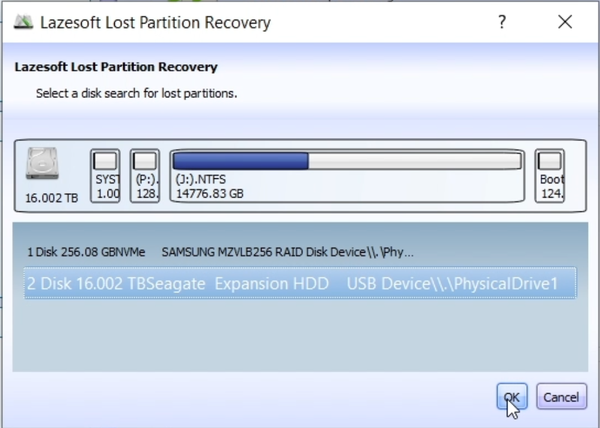
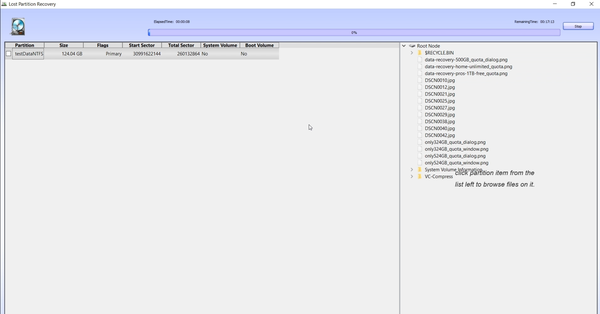
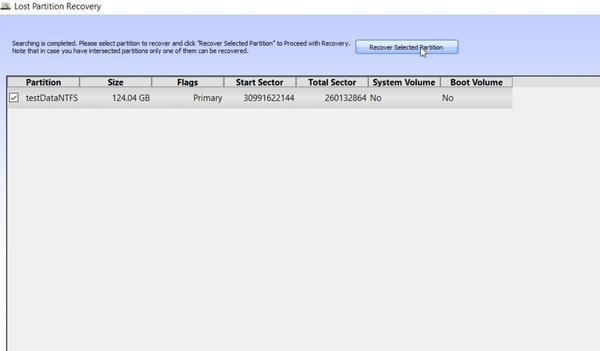
After the partition is restored, it should reappear in Windows Explorer with all files intact.
Video Guide: Recover Deleted Partition on GPT Disk
The following video demonstrates how to recover a deleted partition on a GPT disk in Windows 10 or Windows 11 using Lazesoft Recovery Suite. Watch the tutorial to see the complete recovery process step by step.
Method 2: Recover Files Using Lazesoft Data Recovery Home Edition
If the deleted partition cannot be reconstructed, you can still recover files directly from the disk.
Lazesoft Data Recovery Home Edition performs a deep scan of the disk and locates recoverable files even when the partition structure is missing.
Steps to Recover Files from a Deleted Partition
- Install and launch Lazesoft Data Recovery Home Edition
- Select the disk where the deleted partition existed
- Run a Deep Scan
- Preview the recovered files
- Select the files you want to recover
- Save them to another disk
This method allows you to recover documents, photos, videos, and other important files even if the original partition cannot be restored.
Important Tips for Successful Partition Recovery
To maximize the chances of successful recovery, follow these best practices:
- Stop using the disk immediately after discovering the deleted partition
- Do not create new partitions on the affected disk
- Avoid formatting the unallocated space
- Recover data to a different disk
- Use professional recovery tools rather than basic utilities
Writing new data to the disk may overwrite the original partition data and make recovery impossible.
Boot the Computer Using Lazesoft Boot Disk
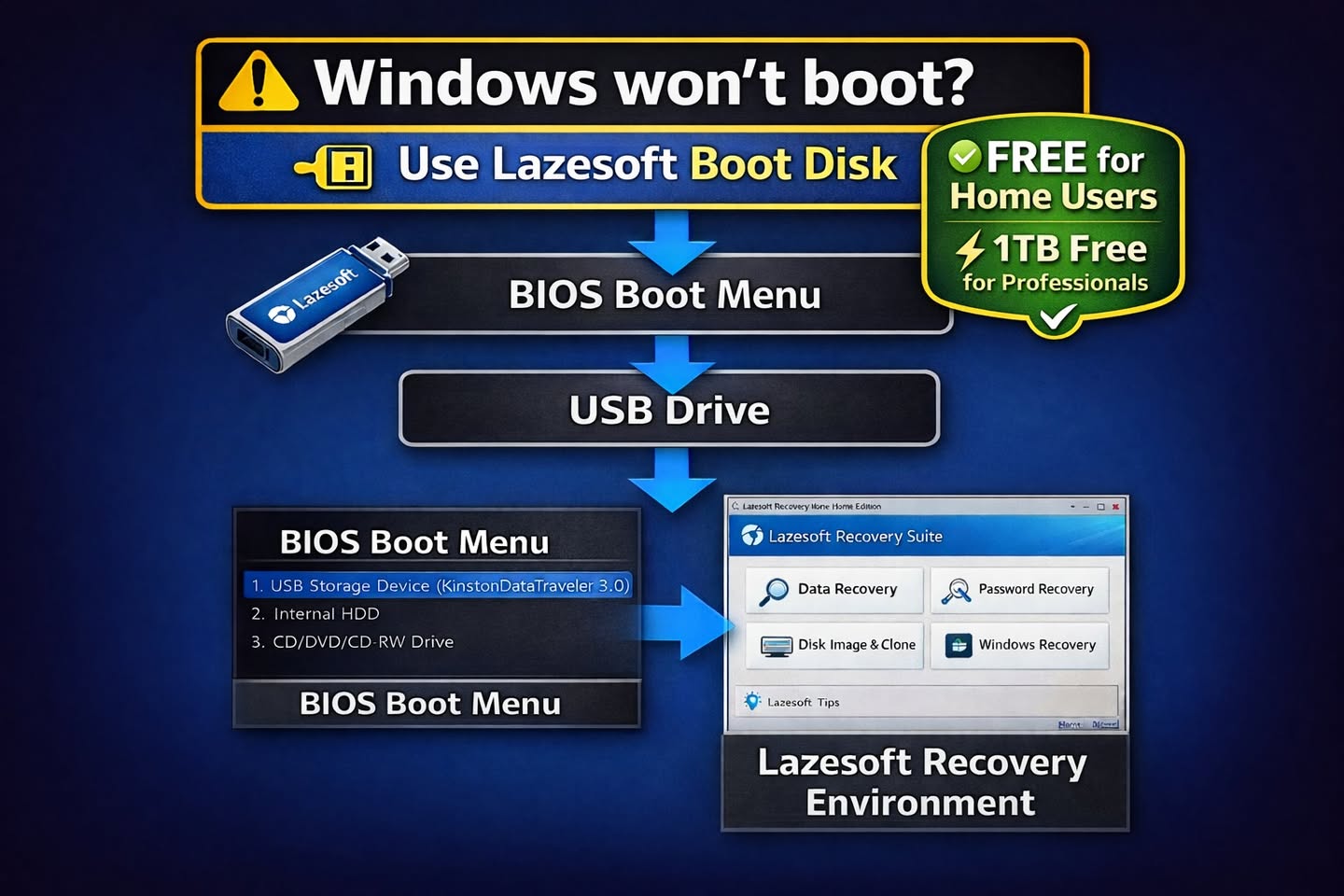
If Windows cannot start normally, you can boot the computer using the Lazesoft Boot Disk. This allows you to start a recovery environment and use tools such as Data Recovery, Disk Image & Clone, and Windows Repair even when the operating system will not boot.
Preventing Partition Loss in the Future
Although partition recovery tools are powerful, prevention is always the best strategy.
Consider the following precautions:
- Create regular system and disk backups
- Use reliable disk management software
- Verify disk operations before applying changes
- Avoid interrupting disk partition operations
- Use surge protection to prevent power interruptions
Maintaining regular backups ensures that even in worst-case scenarios, your important data can be restored quickly.
Conclusion
Deleting a partition does not necessarily mean the data is permanently lost. In many cases, the partition can be restored or the files can be recovered using specialized recovery tools.
Lazesoft Recovery Suite provides professional partition recovery capabilities that allow users to scan disks, rebuild lost partition tables, and restore deleted partitions safely.
If the partition cannot be restored, Lazesoft Data Recovery Home Edition can still recover files directly from the disk.
By acting quickly and using the right recovery tools, you can successfully recover deleted partitions and protect your important data.
Lazesoft Recovery Suite is easy to use, powerful boot disk design to Recover Data, Recover crashed Windows System, Recover Windows Password, Clone or Backup Disk, etc.
Partition Recovery Resources
How to perform a data recovery
How to recover data from formatted or damaged partition
Free partition recovery software
External hard drive partition recovery
Flash drive partition recovery
Best partition recovery software
Partition recovery bootable cd
Recover deleted partition windows 7
5 top partition recovery softwares
Disk partition recovery software
Partition recovery software reviews
Windows partition recovery software
NTFS partition recovery software