
NTFS Partition Recovery Software: Recover Lost or Damaged NTFS Partitions
NTFS is the standard file system used by most Windows system drives and many data drives. When an NTFS partition is deleted, formatted, becomes RAW, or disappears from File Explorer, the files may still remain on the disk until new data overwrites them. The most important rule is simple: stop using the affected drive and recover the files before making repair changes.
Important: Do not format the partition, reinstall Windows, run disk repair tools, or copy new files to the damaged drive before recovery. These actions may overwrite recoverable data and reduce the chance of successful NTFS partition recovery.
Lazesoft free policy: Lazesoft Data Recovery Home Edition is free for home users. Professional users can also recover up to 1TB free. This means you can scan the NTFS partition, preview recoverable files, and recover data without worrying about hidden home-use recovery limits.
When do you need NTFS partition recovery software?
You may need NTFS partition recovery software when Windows can no longer open a partition or when a partition disappears after deletion, formatting, disk conversion, resizing, cloning, or a system crash. Common symptoms include:
- The NTFS partition is missing from File Explorer or Disk Management.
- Windows shows the drive as RAW and asks you to format it.
- A partition was accidentally deleted during disk management or Windows installation.
- The disk partition table, MBR, GPT, MFT, or boot sector is damaged.
- An external hard drive, USB drive, SD card, or flash drive is detected but cannot be opened.
- A partition was lost after resizing, cloning, ghosting, restoring, or converting the disk.
In these situations, Lazesoft Data Recovery Home Edition can scan the damaged or lost partition in read-only mode and help recover files to another safe location.
Why NTFS partitions can often be recovered
When a partition is deleted or the file system becomes damaged, Windows may lose the information needed to display the partition correctly. However, the actual file data may still be present on the disk. A recovery program can search the disk for lost partition structures, folders, file records, and file signatures, then rebuild a recoverable file list for you to preview and save.
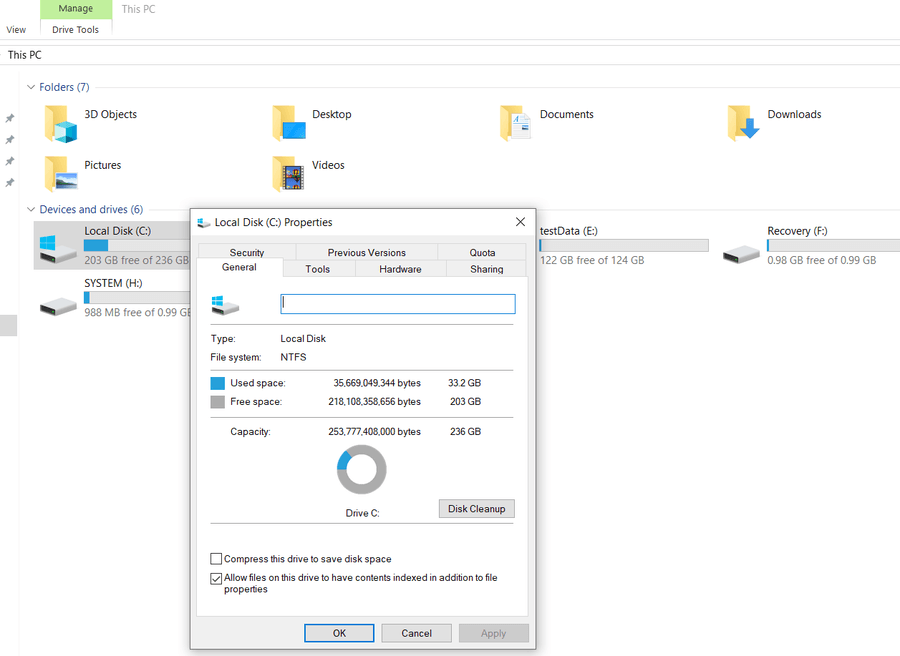
Recovery success depends mainly on whether the original data has been overwritten. If the drive has been used heavily after the partition was lost, some files may be damaged or unrecoverable. If the disk was stopped immediately, the chance of recovery is usually much better.
Can deleted files be recovered from an SSD with TRIM enabled?
SSD recovery is different from traditional hard drive recovery. When a file is deleted on an SSD and TRIM is enabled, Windows may tell the SSD that the deleted file's clusters are no longer in use. After the SSD processes that TRIM command, the original file content stored in those clusters may no longer be available, even if the file name still appears in a scan.
However, this does not always mean that recovery is impossible. Lazesoft Data Recovery does not rely only on reading raw data clusters. For NTFS partitions, it can also analyze file-system metadata such as MFT file records, directory information, file signatures, and NTFS log information. These records may help the program rebuild deleted file names, folder paths, file sizes, timestamps, and in some cases recover files or partial file content that has not been erased, trimmed, or overwritten.
Important for SSDs: Recovery from a TRIM-enabled SSD cannot be guaranteed. Stop using the SSD immediately, avoid restarting or installing software on it, and recover files to another disk. The sooner you scan the SSD, the better the chance of finding useful NTFS records and any remaining file data.
How to recover files from a lost or damaged NTFS partition
Follow these steps to recover data safely from a deleted, formatted, RAW, or damaged NTFS partition:
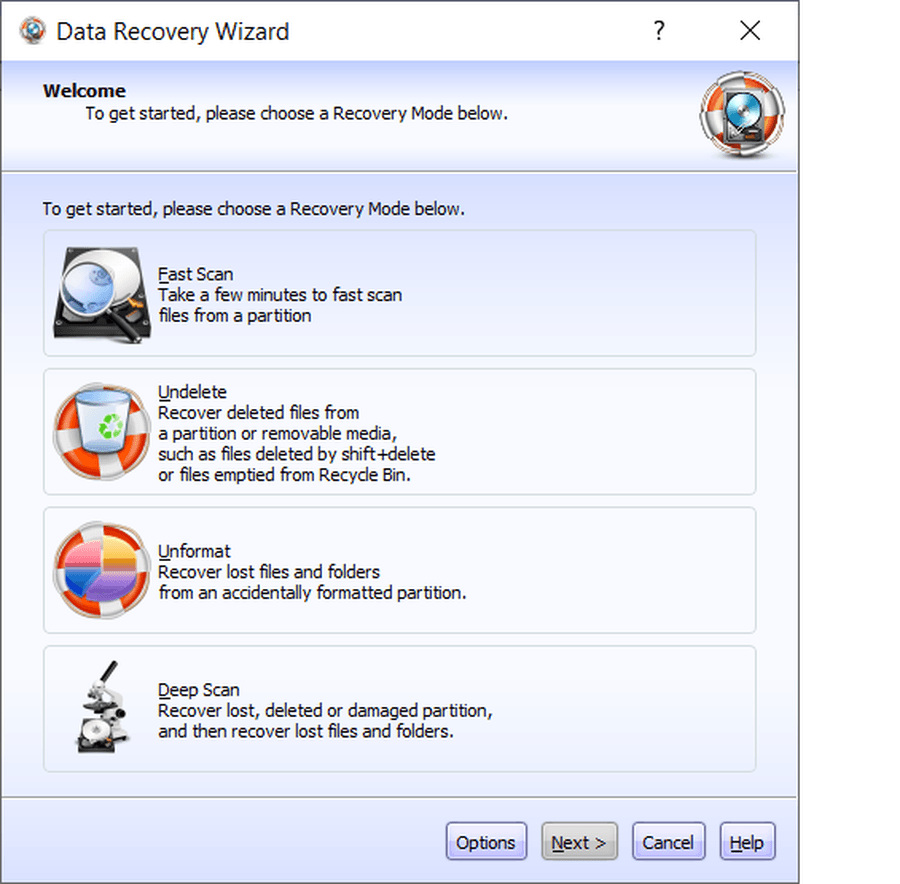
- Stop writing to the affected disk. Do not install software, download files, or save documents to the partition you want to recover.
- Install Lazesoft Data Recovery on another working drive or PC. If the lost partition is on a secondary drive, install the software on your Windows system drive. If the lost partition is on the system drive, use another computer to create bootable recovery media.
- Start a partition or file recovery scan. Choose the affected disk or lost partition and let the program scan for recoverable NTFS files and folders.
- Preview the found files. Check important documents, photos, videos, archives, or business files before saving them.
- Save recovered files to another disk. Never save recovered files back to the same damaged partition. Use an external drive or another healthy internal disk.
Best practice: Recover the important files first. After your data is safe, you can decide whether to repair the partition, recreate the partition, format the drive, or replace a failing disk.
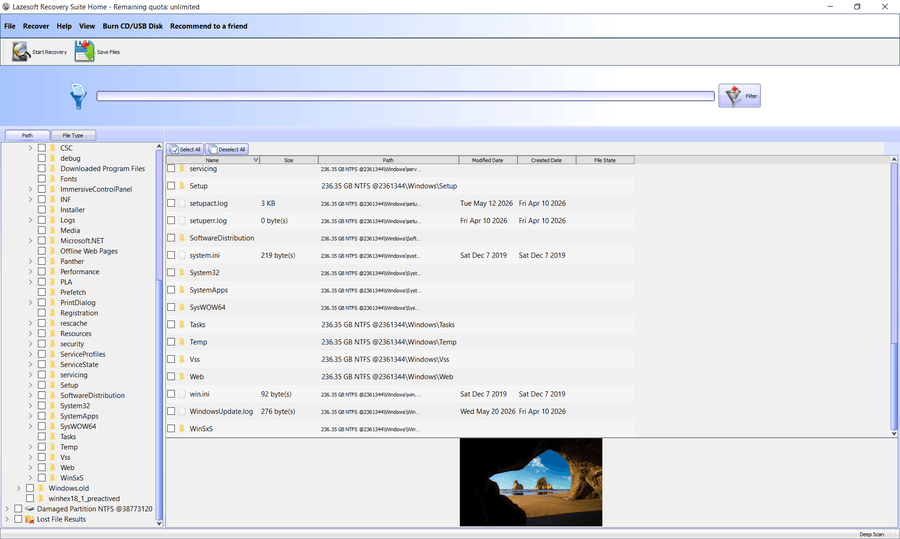
Recover an NTFS system partition that will not boot
If the damaged NTFS partition is your Windows system partition, avoid installing recovery software onto that same drive. Instead, use another working computer to create a Lazesoft bootable USB or CD, then boot the problem computer from the recovery media. This allows you to scan the offline Windows drive without writing new data to it.
This method is useful when Windows will not start, when drive C: is inaccessible, or when you need to recover files before reinstalling Windows. For step-by-step boot media instructions, see Create a Bootable Recovery USB and Boot from a Windows Recovery CD.
NTFS partition recovery for external drives and USB devices
NTFS is also commonly used on external hard drives and large USB drives. If an external NTFS partition becomes RAW or asks to be formatted, do not click Format. First, connect the device to a stable USB port, avoid using a loose cable, and scan it with recovery software. If the drive makes unusual noises, disconnects repeatedly, or shows serious hardware errors, recover the most important files first and consider professional data recovery service for physically damaged drives.
What not to do before recovering an NTFS partition
Some repair actions are useful after recovery, but risky before recovery. Avoid these actions until your important files have been copied to another disk:
- Do not format the drive, even if Windows asks you to.
- Do not create a new partition in the same unallocated space.
- Do not install Windows or other software on the affected disk.
- Do not save recovered files to the same partition being recovered.
- Do not run CHKDSK on a severely damaged partition before recovering important files.
Free NTFS partition recovery policy
Lazesoft is designed to be a practical recovery tool, not a “fake free” scanner that only shows files and then blocks recovery. For NTFS partition recovery, the free policy is simple:
- Home users: Lazesoft Data Recovery Home Edition is free for personal and home use.
- Professional users: Lazesoft provides a 1TB free recovery quota for professional use.
- Before recovery: You can scan the disk and preview files to confirm whether your lost NTFS files can be found.
- Safe recovery: Recovered files should be saved to another disk, not back to the damaged NTFS partition.
This free policy is especially useful when a partition suddenly becomes RAW, disappears after deletion, or contains important personal documents, photos, videos, or work files that need to be copied out quickly.
Why choose Lazesoft Data Recovery for NTFS recovery?
Lazesoft Data Recovery Home Edition is designed to help Windows users recover data from deleted, formatted, inaccessible, or damaged partitions. It supports recovery from internal hard disks, external hard drives, USB drives, memory cards, and other removable storage devices.
The recovery process is designed to be simple: select the disk, scan for lost data, preview the files, and save them to a safe location. Because Lazesoft offers free recovery for home users and a 1TB free quota for professional users, it is a practical option when you need to recover files from an NTFS partition before deciding what repair action to take next.
Read-only scan
Scan the damaged drive without intentionally writing recovered data back to the same partition.
Preview before recovery
Check found files before saving them, so you can focus on the files that matter most.
Bootable recovery option
Create bootable media to recover files from a Windows system partition that cannot boot normally.
Frequently asked questions
Can I recover an NTFS partition after formatting?
Yes, recovery may be possible if the formatted partition has not been overwritten. Stop using the drive immediately and run a recovery scan. A quick format usually leaves more recoverable data than a full overwrite.
Can I recover a RAW partition back to NTFS?
In many cases, you can recover files from a RAW partition first. After the files are safe, you may repair or reformat the partition. Do not format the RAW partition before recovering important data.
Should I repair the partition before recovering files?
Usually, recover files first and repair later. Repair tools may change file system structures. If the repair fails or writes unexpected changes, data recovery can become more difficult.
Where should I save recovered files?
Save recovered files to another healthy disk, such as an external hard drive or a different internal drive. Do not save them back to the same NTFS partition being recovered.
Is Lazesoft NTFS partition recovery free?
Yes. Lazesoft Data Recovery Home Edition is free for home users. Professional users can recover up to 1TB free. This makes it easier to scan, preview, and recover important files from a lost or damaged NTFS partition without hidden home-use recovery limits.
Can deleted files be recovered from an SSD with TRIM enabled?
Sometimes, but it is not guaranteed. If TRIM has already caused the SSD to discard the deleted file's data clusters, the original file content may be unrecoverable. Lazesoft Data Recovery can still scan NTFS metadata such as MFT records, directory entries, and NTFS log information to identify deleted files, rebuild folder information, and recover any data that remains available.
Download NTFS partition recovery software
If your NTFS partition is deleted, lost, RAW, formatted, or inaccessible, download Lazesoft Data Recovery Home Edition and scan the disk before attempting repairs. It is free for home users, and professional users can recover up to 1TB free. Acting quickly and avoiding overwriting gives you the best chance to recover your files.
Download Lazesoft Recovery Suite
Lazesoft Recovery Suite is easy to use, powerful boot disk design to Recover Data, Recover crashed Windows System, Recover Windows Password, Clone or Backup Disk, etc.
Partition Recovery Resources
How to perform a data recovery
How to recover data from formatted or damaged partition
Free partition recovery software
External hard drive partition recovery
Flash drive partition recovery
Best partition recovery software
Partition recovery bootable cd
Recover deleted partition windows 7
5 top partition recovery softwares
Disk partition recovery software
Partition recovery software reviews
Windows partition recovery software
NTFS partition recovery software