
Partition Recovery Using a Bootable CD or USB
When a Windows computer cannot boot due to a damaged or deleted partition, a bootable recovery disk allows you to access the hard drive and recover data safely.
Lazesoft Recovery Suite provides a powerful bootable recovery environment that can start your computer independently from Windows and help recover lost partitions or files from damaged disks.
When Do You Need a Bootable Partition Recovery Disk?
A bootable recovery disk is useful in situations such as:
- Windows cannot boot
- A partition was accidentally deleted
- The partition table is damaged
- The disk appears as RAW or unallocated
- The system drive cannot be accessed
Using a bootable recovery disk allows you to scan the disk without writing data to the damaged drive, which greatly improves the chance of successful recovery.
Booting from Lazesoft Recovery USB
Insert the bootable USB or CD created by Lazesoft Recovery Suite and restart the computer. Open the BIOS Boot Menu and choose the USB drive as the boot device.
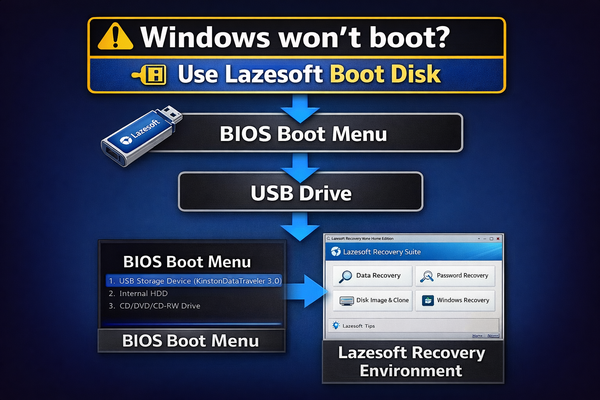
Boot your computer from the Lazesoft Recovery USB disk using the BIOS boot menu.
After booting, the Lazesoft Recovery Environment will start automatically and allow you to access powerful recovery tools.
Recovering Lost Partitions
Inside the Lazesoft Recovery Environment:
- Open the Disk Image & Clone module.
- Click Repair Tools and select Lost Partition Recovery.
- Select the disk that contained the lost partition.
- Click Start Scan to search for deleted or damaged partitions.
After the scan completes, Lazesoft will display detected partitions and recoverable files. You can preview files and restore them to another disk or external drive.
Important Recovery Tips
- Stop using the damaged disk immediately.
- Do not create new partitions on the affected disk.
- Do not install recovery software on the damaged drive.
- Always recover files to another storage device.
Helpful Guides
If you need detailed instructions, please refer to these step-by-step guides:
- How to create a bootable recovery USB disk
- How to boot from the recovery disk
- Recover data from formatted or damaged partition
- How to perform data recovery
Download Lazesoft Data Recovery Home Edition to create a recovery disk and start recovering lost partitions or data from your system.
Lazesoft Recovery Suite is easy to use, powerful boot disk design to Recover Data, Recover crashed Windows System, Recover Windows Password, Clone or Backup Disk, etc.
Partition Recovery Resources
How to perform a data recovery
How to recover data from formatted or damaged partition
Free partition recovery software
External hard drive partition recovery
Flash drive partition recovery
Best partition recovery software
Partition recovery bootable cd
Recover deleted partition windows 7
5 top partition recovery softwares
Disk partition recovery software
Partition recovery software reviews
Windows partition recovery software
NTFS partition recovery software