
5 Top Partition Recovery Tools (Quick Comparison + Safe Recovery Tips)
Accidentally deleted a partition, lost a drive letter, or can’t access files after a resize or power outage? Partition recovery tools can often rebuild the partition structure or help you copy your files out safely.
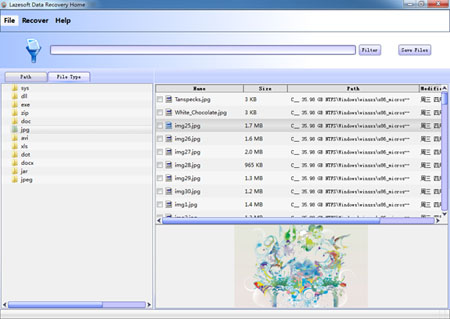
Screenshot: Preview recoverable files before saving them (recommended).
Quick comparison
This table highlights the common differences users care about: cost transparency, ease-of-use, safety, and UI.
TestDisk |
Active@ Partition Recovery |
Find and Mount |
EaseUS Partition Recovery |
|
Pricing |
Pricing |
Pricing |
Pricing |
Pricing |
Partition recovery |
Partition recovery |
Partition recovery |
Partition recovery |
Partition recovery |
Ease of use |
Ease of use |
Ease of use |
Ease of use |
Ease of use |
Safety |
Safety |
Safety |
Safety |
Safety |
Interface |
Interface |
Interface |
Interface |
Interface |
Note: Product names and trademarks belong to their respective owners. Features and licensing can change over time—always check the vendor’s current page before purchase.
Why Lazesoft is a practical choice for most users
Lazesoft Data Recovery Home Edition focuses on a simple, safe workflow: scan → preview → recover (save) to another drive. This helps reduce the risk of overwriting data on the damaged disk.
- Recover from common partition problems: deleted/lost partitions, corrupted file systems, and many “unreadable” or “inaccessible” scenarios.
- Works with many devices: internal disks, external USB drives, SSDs, SD cards, and other removable media.
- Preview before you recover: confirm file quality first, then save what you need.
- Beginner-friendly: a guided UI designed to reduce mistakes.
Before you start: 4 rules that dramatically improve recovery success
- Stop using the drive immediately. Don’t copy files onto it, don’t install software onto it, and don’t run “repair” tools that write changes.
- Recover to a different disk. Always save recovered files to another drive (external disk is ideal).
- If the system drive (C:) is affected, use a bootable recovery disk. Install the recovery software on a working PC, create a bootable recovery media, then boot the problem PC from it.
- When in doubt, copy files out first. Rebuilding partitions can be successful, but file-copy recovery is often the safest first step.
Recommended recovery workflow
If you’re not sure which approach is best, start with the safest one:
- Step 1: Scan the damaged disk/partition.
- Step 2: Preview critical folders/files to confirm they’re intact.
- Step 3: Recover (save) files to a different disk.
- Step 4: After your data is safe, decide whether you want to rebuild the partition structure or reformat and restore.
Download Lazesoft Data Recovery | Learn more
Lazesoft Recovery Suite is easy to use, powerful boot disk design to Recover Data, Recover crashed Windows System, Recover Windows Password, Clone or Backup Disk, etc.
Partition Recovery Resources
How to perform a data recovery
How to recover data from formatted or damaged partition
Free partition recovery software
External hard drive partition recovery
Flash drive partition recovery
Best partition recovery software
Partition recovery bootable cd
Recover deleted partition windows 7
5 top partition recovery softwares
Disk partition recovery software
Partition recovery software reviews
Windows partition recovery software
NTFS partition recovery software