
GPT Partition Recovery: Recover Lost, Deleted, or Damaged GPT Partitions
A GPT partition can become lost, deleted, damaged, or unreadable after a mistaken Disk Management operation, failed partition resizing, system crash, Windows reinstall, disk cloning problem, or sudden power loss. When the GPT partition table or partition entries are damaged, Windows may show the drive as Unallocated, RAW, or ask you to format the partition before you can use it.
Lazesoft Data Recovery can help scan the disk, find lost GPT partitions, and recover files from deleted, formatted, RAW, or inaccessible partitions. Lazesoft Recovery Suite Home Edition is free for home users. Professional users can also recover up to 1TB of data for free before purchasing a license.
What Is a GPT Partition?
GPT stands for GUID Partition Table. It is the modern partition style used by most UEFI-based Windows computers and large-capacity disks. Compared with the older MBR partition style, GPT supports more partitions, larger disks, and keeps backup partition table information at the end of the disk.
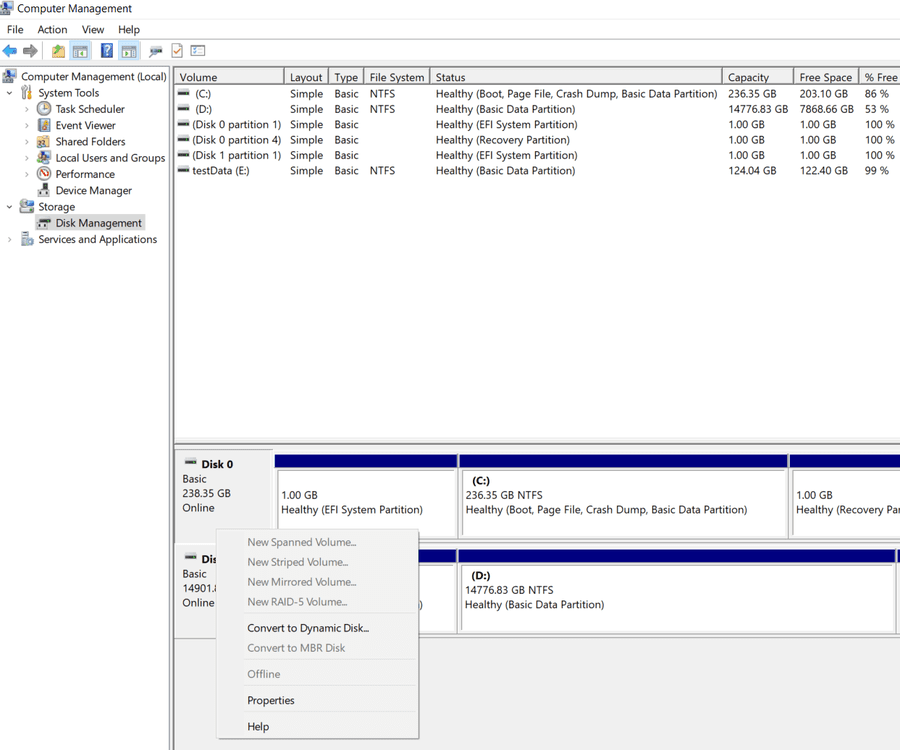
You can check whether a disk uses GPT in Windows Disk Management or with the DiskPart command. In DiskPart,
the command list disk displays an asterisk in the GPT column for GPT disks.
Common GPT Partition Problems
- A partition is accidentally deleted and the space becomes Unallocated.
- Windows reports the partition as RAW and asks you to format it.
- A disk is visible in BIOS or Windows, but one or more partitions are missing.
- The EFI System Partition, Microsoft Reserved Partition, or data partition is damaged after cloning or resizing.
- A USB, external hard drive, SSD, or NVMe disk suddenly shows the wrong capacity or no accessible volume.
Important: Stop Writing to the Disk First
Before attempting GPT partition recovery, stop using the affected disk. Do not create a new partition, do not format the drive, and do not install recovery software onto the damaged disk. Any write operation may overwrite old partition information or file data and make recovery more difficult.
If the lost partition is on the Windows system disk, install Lazesoft Recovery Suite on another working computer and create a bootable Lazesoft recovery USB. Then boot the problem computer from the USB disk and recover data without starting Windows from the damaged drive.
How to Recover Data from a Lost GPT Partition
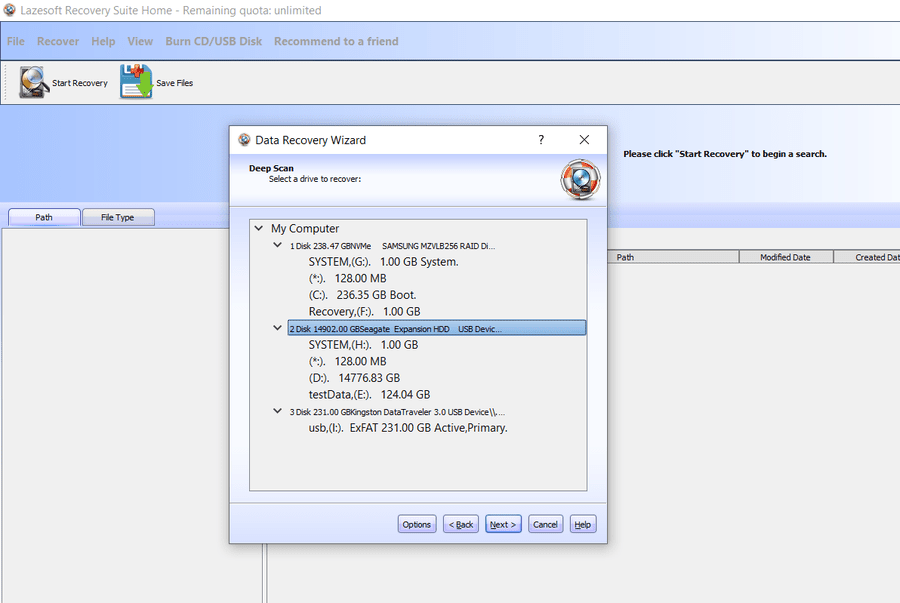
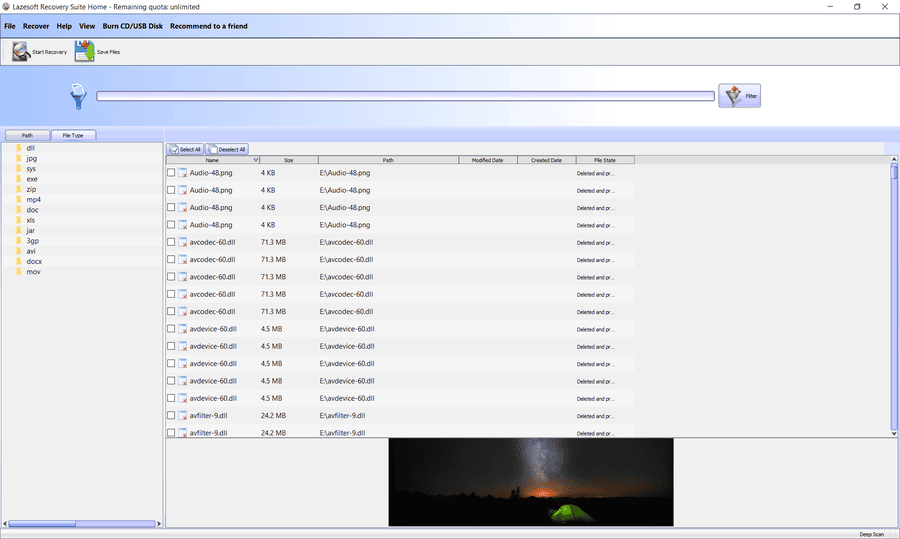
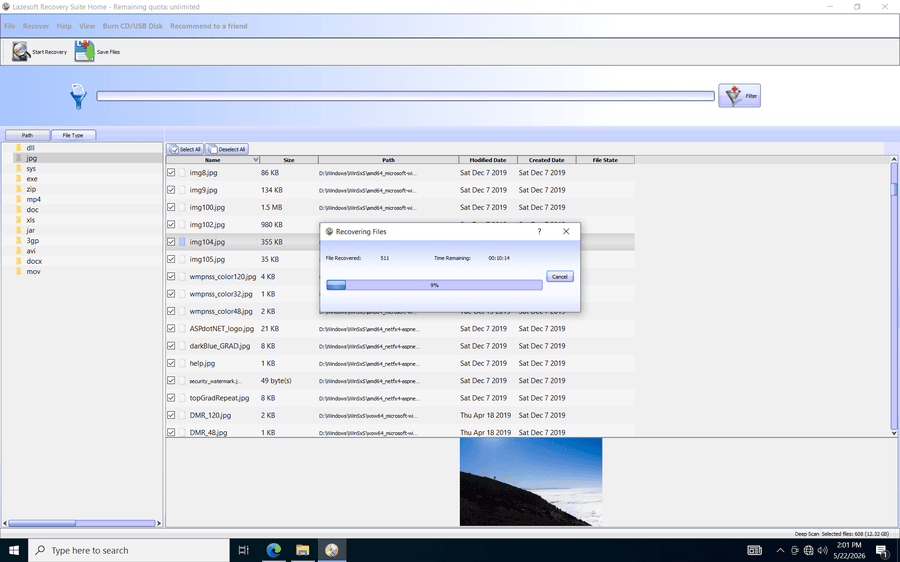
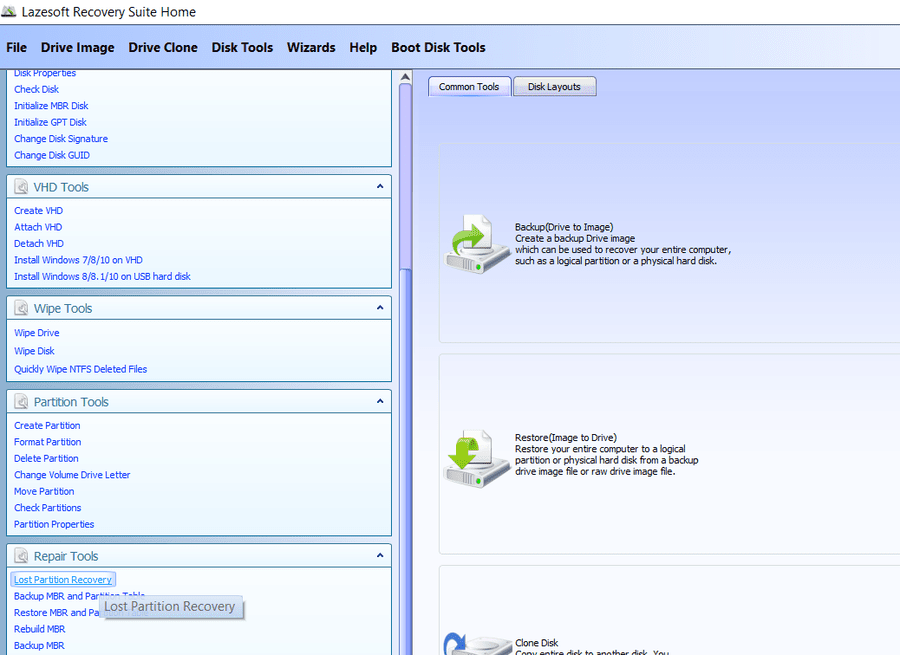
- Download and install Lazesoft Recovery Suite on a healthy Windows computer or prepare a Lazesoft bootable USB if the damaged disk is the system disk.
- Start Lazesoft Data Recovery and choose a recovery mode for deleted, formatted, damaged, or lost partition recovery.
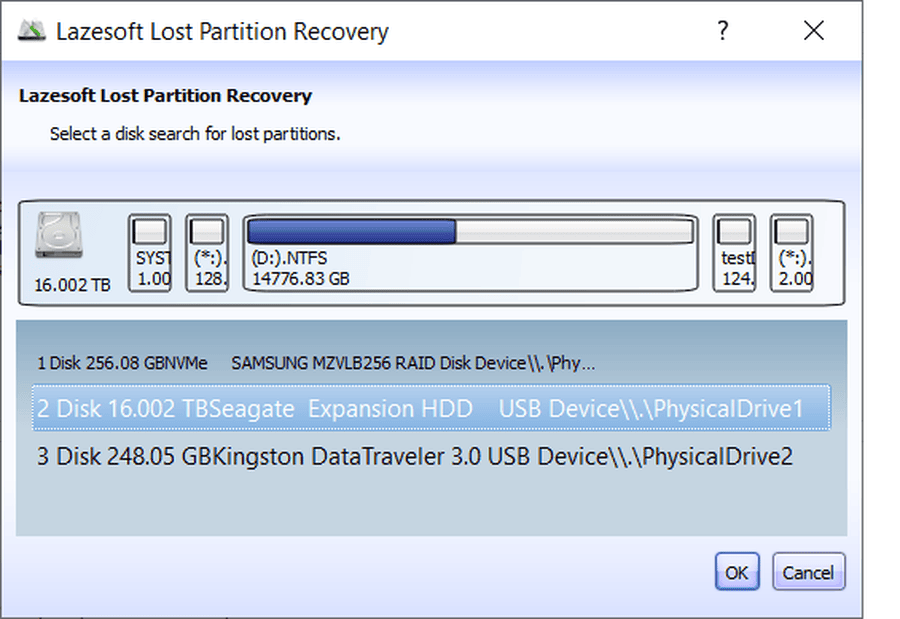
- Select the physical disk that contains the lost GPT partition. Select the disk itself when the original partition no longer has a drive letter.
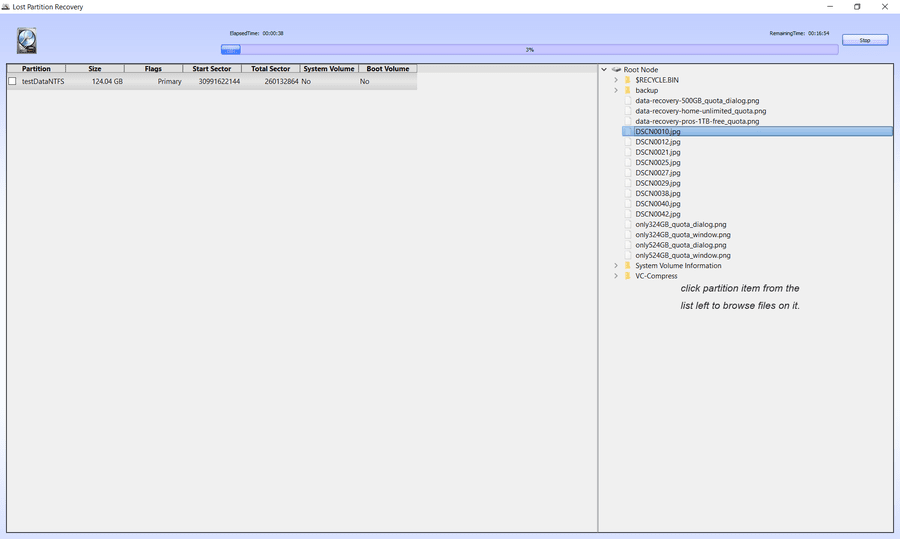
- Scan the disk. The program searches partition information and file system records to locate recoverable partitions and files.
- Preview and select files from the found partition or file list.
- Save recovered files to another disk. Never save recovered data back to the same damaged disk.
Why Use Lazesoft for GPT Partition Recovery?
- Read-only recovery: Lazesoft scans the damaged drive without modifying original data during recovery.
- Bootable recovery option: Recover data even when Windows cannot start or the system partition is missing.
- Works with common Windows disks: Supports GPT/MBR disks, HDDs, SSDs, NVMe drives, USB drives, and external disks.
- Supports common file systems: Recover data from NTFS, FAT, FAT32, and exFAT partitions.
- Free for home users: Lazesoft Recovery Suite Home Edition is free for personal, non-commercial use.
GPT Partition Recovery Tips
- Recover important files first before attempting partition table repair.
- If the disk is physically failing, clone or image the disk first and recover from the copy.
- Do not run
clean,format, or partition creation commands in DiskPart unless you have already recovered your data. - For SSDs, act quickly. TRIM and background cleanup may reduce the chance of recovering deleted file content.
- When recovering from a laptop with Intel RST/VMD storage mode, load the storage controller driver in the boot disk if the internal disk is not detected.
Frequently Asked Questions
Can a deleted GPT partition be recovered?
In many cases, yes. If the partition entry was deleted but the file system data has not been overwritten, Lazesoft Data Recovery can scan the disk and recover files from the lost partition.
Should I convert GPT to MBR to recover files?
No. Converting the disk style may overwrite partition information and make recovery harder. Recover or back up your files first, then decide whether disk conversion is needed.
Can I recover the partition itself, not just files?
The safest first step is to recover important files to another disk. After the data is safe, you can consider partition repair or rebuilding the disk layout if needed.
To get started, download Lazesoft Data Recovery or learn more from the Partition Recovery guide.
Lazesoft Recovery Suite is easy to use, powerful boot disk design to Recover Data, Recover crashed Windows System, Recover Windows Password, Clone or Backup Disk, etc.
Partition Recovery Resources
How to perform a data recovery
How to recover data from formatted or damaged partition
Free partition recovery software
External hard drive partition recovery
Flash drive partition recovery
Best partition recovery software
Partition recovery bootable cd
Recover deleted partition windows 7
5 top partition recovery softwares
Disk partition recovery software
Partition recovery software reviews
Windows partition recovery software
NTFS partition recovery software