
How to burn an ISO image file to a CD
Tips:How to boot a computer from a Lazesoft Recover My Password CD
You can also use a CD/DVD burn tool to burn a Lazesoft Recover My Password ISO file on a CD. The following detailed guides express how to burn a Lazesoft Recover My Password CD using the freeware 'ImgBurn' or using the commercial software 'Nero'.
If you are using Windows 7, you can burn an ISO Images Natively in Windows 7.
How to burn a Windows password recovery CD with ImgBurn.
ImgBurn is a free lightweight CD/DVD burning software. It is very easy to use. You can download ImgBurn from its website. After downloading ImgBurn, you can follow the steps as below to complete the burning.
Install ImgBurn:
- Double-click on the EXE file of ImgBurn to start the set-up process.
- On the set-up process, all you have to do is press NEXT for each of the prompts.
Write the Lazesoft Recover My Password iso with ImgBurn:
- Put your blank CD into your a CD or DVD writer.
- Launch ImgBurn.
-
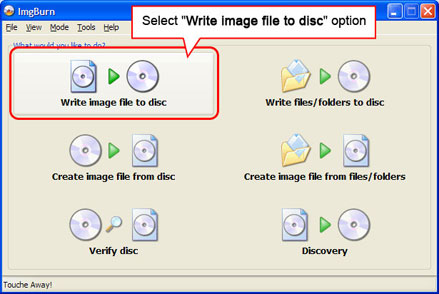
Select "Write image file to disc" option
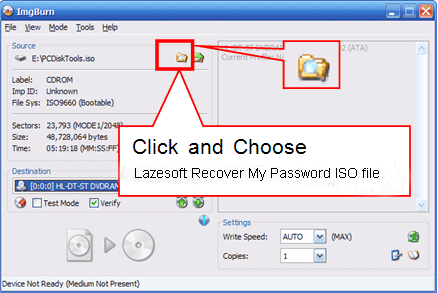
Click the Folder Icon and Choose Lazesoft Recover My Password iso file.
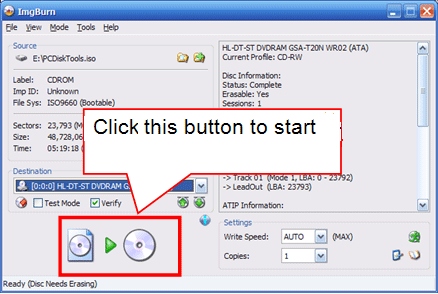
Click large icon "image file -> CD" to start burning.
If CD burning was finished, BurnImg will display a message box stating that it is done.
How to burn a windows password recovery cd iso with Nero.
Nero is one of the most popular CD burning software. Follow the steps below:
- Put your blank CD into your a CD or DVD writer.
- Start Nero Burning Rom.
There is a drop down menu containing a list of devices you can write to, make sure the CD or DVD Recording device you want to use is the one selected.
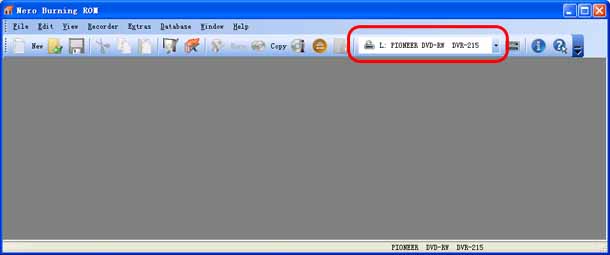
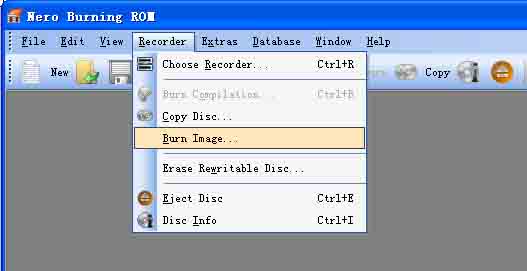
Select "Burn Image" from the "Recorder" menu.
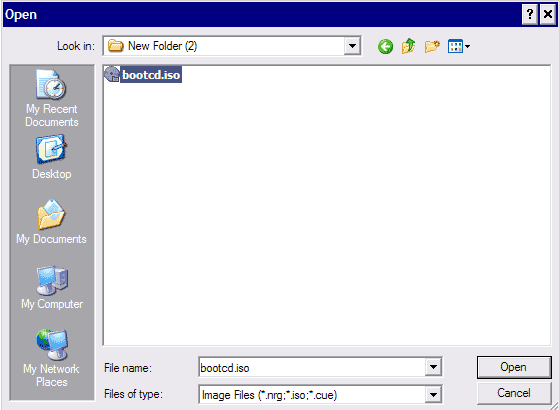
A new open file window will open. Look for Lazesoft Recover My Password ISO and click once to select to it. Then press the OPEN button.
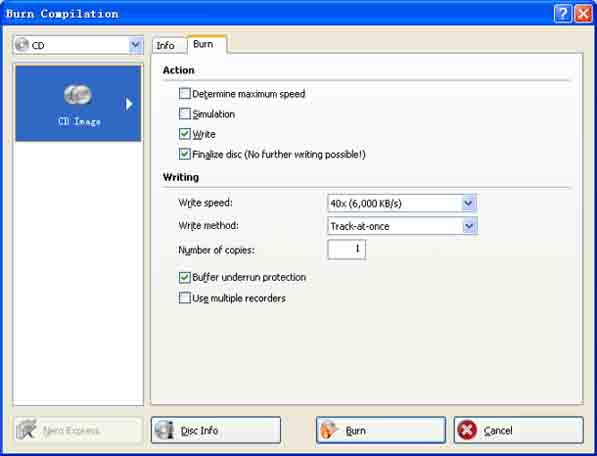
The Burn Compilation screen will open and put checkmarks next to "Write" and "Finalize disc".
If CD burning was finished, a message box will appear saying that it is done writing. Just press the OK button and then the DONE button to eject the CD or DVD.
Lazesoft Recovery Suite is easy to use, powerful boot disk design to Recover Data, Recover crashed Windows System, Recover Windows Password, Clone or Backup Disk, etc.
Recovery manual and guides
How to burn a bootable recovery CD
How to boot from the created recovery CD
How to create a bootable recovery USB Disk and boot from it
How to perform a data recovery
How to recover data from formatted or damaged partition
How to fix boot problems if Windows won't start correctly
How to clone entire disk for backup or upgrading
How to recover Windows login password
How to recover Windows Server password
Forgot Windows admin user password
Forgot Windows Server 2003 2008 Domain Administrator Password
How to burn a Windows password recovery CD
How to boot Windows password recovery CD
How to recover Windows login password
How to recover administrator password
How to recover Windows Server password
How to recover Windows XP password
How to recover Windows Vista password
More...