
How to Unlock BitLocker-Protected Drive C:
When performing deep scan data recovery, copying files offline, resetting a Windows password, or repairing a system that fails to boot, you may find that Drive C: is locked by BitLocker. If the system drive is protected by BitLocker encryption, it must be unlocked before Lazesoft tools can access files or run recovery operations.
Requirements
- A working Windows computer
- Your BitLocker recovery password (48-digit format) or your BitLocker recovery key file (
.bek) saved on a USB drive or external media
Step 1: Create a Lazesoft Boot Disk
- Run Lazesoft Recovery Suite on a working Windows computer.
- Click Burn CD/USB Disk.
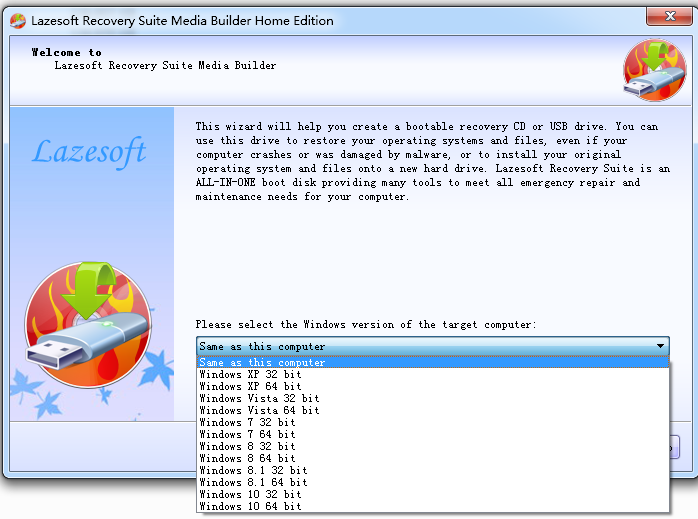
- On the Lazesoft Media Builder home page, select the target Windows version: same as this computer (this is important to ensure BitLocker unlock support).
- Follow the wizard to create a new Lazesoft bootable CD or USB disk.
Step 2: Boot the Locked Computer
- Insert the newly created Lazesoft boot disk into the locked computer or tablet.
- Reboot the device and boot from the Lazesoft CD/USB disk.
- Wait until the Lazesoft Recovery Suite boot environment is fully loaded.
Step 3: Open Command Prompt
- When the Lazesoft Recovery Suite main window appears, close it.
- Open the Start menu in the lower-left corner.
- Launch Command Prompt.
Step 4: Unlock Drive C: Using a BitLocker Recovery Password
If you have the BitLocker recovery password, run:
manage-bde -unlock C: -recoverypassword 111111-222222-333333-444444-555555-666666-777777-888888Important: Replace the numbers above with your actual 48-digit recovery password.
Step 5: Unlock Using a BitLocker Recovery Key File (Alternative)
If you have a BitLocker recovery key file, use:
manage-bde -unlock C: -recoverykey PathToExternalKeyFileExample:
manage-bde -unlock C: -recoverykey E:\BitLockerKey\RecoveryKey.bekStep 6: If Drive C: Still Appears Locked
After unlocking, if drive C: is still reported as locked, try disabling BitLocker protectors:
manage-bde -protectors -disable C:If needed, you can also turn off BitLocker entirely for the drive:
manage-bde -off C:Note: Turning off BitLocker will decrypt the drive and may take some time depending on disk size.
After Unlocking the Drive
Once drive C: is unlocked, you can safely proceed with:
- Deep scan data recovery
- Copying files offline
- Resetting Windows passwords
- Repairing boot or system issues
using Lazesoft Recovery Suite tools.
Troubleshooting Tips
- Ensure you selected target Windows version: same as this computer when creating the boot disk.
- Double-check the recovery password format (48 digits with hyphens).
- Confirm the recovery key file path and drive letter are correct.
- If BitLocker credentials are unavailable, unlocking the drive is not possible.
Need More Help?
If you cannot unlock the BitLocker-protected drive or need further assistance, please contact Lazesoft Support:
https://www.lazesoft.com/contact.html
Lazesoft Recovery Suite is easy to use, powerful boot disk design to Recover Data, Recover crashed Windows System, Recover Windows Password, Clone or Backup Disk, etc.
Recovery manual and guides
How to burn a bootable recovery CD
How to boot from the created recovery CD
How to create a bootable recovery USB Disk and boot from it
How to perform a data recovery
How to recover data from formatted or damaged partition
How to fix boot problems if Windows won't start correctly
How to clone entire disk for backup or upgrading
How to recover Windows login password
How to recover Windows Server password
Forgot Windows admin user password
Forgot Windows Server 2003 2008 Domain Administrator Password
How to burn a Windows password recovery CD
How to boot Windows password recovery CD
How to recover Windows login password
How to recover administrator password
How to recover Windows Server password
How to recover Windows XP password
How to recover Windows Vista password
More...