
Backing up Windows system disk and partitions
Steps:
- 1. Launch Lazesoft System Backup Wizard
- 2. Click the "System backup" button on the toolbar.
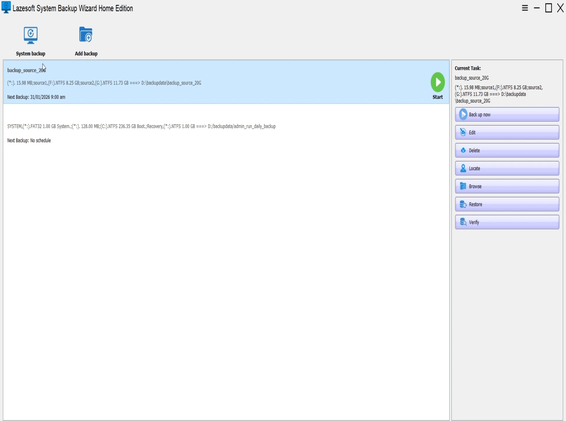
Lazesoft System Backup Wizard – main interface
Source and Target Selection
[Optional] To rename the backup task, click the task name to activate the single-line text editor. You can then modify the existing name or enter a new one. The target folder name will be generated based on the task name.
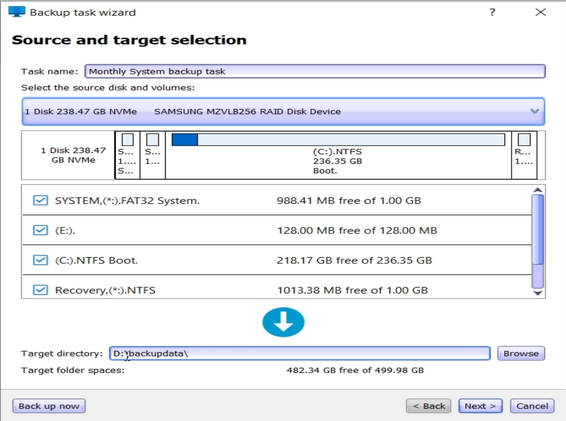
System disk, boot partitions, and target path auto-selected
Select Source Disk and Partitions
3. On the Source and Target Selection page:
- Lazesoft will automatically detect and select the system disk and related partitions by default.
- These typically include:
- The boot partition (e.g., C:)
- The EFI system partition
- Microsoft Reserved (MSR) partition
- Recovery partition
- To choose a different disk:
- Use the Disk dropdown to select a disk.
- The disk map will display the layout of partitions on the selected disk.
- Check the boxes next to the partitions you want to include in the backup.
Choose Target Location
- 4. Click the Browse button to select a destination folder, or manually enter the path in the Target input field.
- 5. Click Next to proceed to the Schedule Backup page.
Note
Backups are run one by one. The newest backups are added to the queue until the previous ones are completed.
Next Step
Choose one of the following options:
- To start the backup immediately, click "Back Up Now".
- To configure the backup schedule, scheme, and options, click "Next".