
Recovering Disks and Partitions
You can recover disks and partitions from backup files stored on local or network storage.
Note: Before starting the recovery process, ensure that the target disk has the same logical sector size as the original disk. Recovery will fail if the sector sizes do not match.
- Older hard drives typically use a 512-byte logical sector size.
- Modern HDDs and SSDs often use a 4096-byte logical sector size.
Steps to Recover Disks or Partitions:
- 1. Select the Backup:
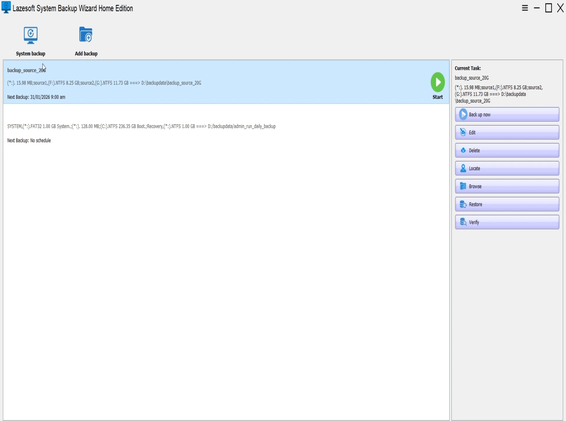
From the backup list, choose the backup that contains the disk or partitions you want to restore. Then click the "Restore" button or use the right-click context menu.
- 2. Choose a Backup Version:
On the Backup Version page, select the desired version based on the backup date and time.
- 3. Select Source Items to Restore:
On the Select Source Items in Backup File page, choose the volumes you wish to restore.
- If restoring a system disk, ensure that MBR and Track 0 is selected.
- To ensure a successful boot after restoration, include:
- Boot partition (contains
Windows\System32) - System partition (EFI)
- Reserved partition
- Recovery partition
- Boot partition (contains
- 4. Select Target Disk:
On the Select Target Disk page, choose the destination disk. The partition layout of the disk will be shown.
- The target disk must have enough free space for the restored data.
- The logical sector size of the target disk must match that of the source disk.
- 5. Start the Recovery Process:
Click "Commit" to begin the recovery process.
⚠️ Warning: This operation will overwrite all existing data on the selected disk. Make sure any important data is backed up before proceeding.