
Backup Schemes
On the Schedule Backup page, you can configure when the backup or validation should run.
Backup Scheduling Options:
• Daily – Run once or multiple times per day
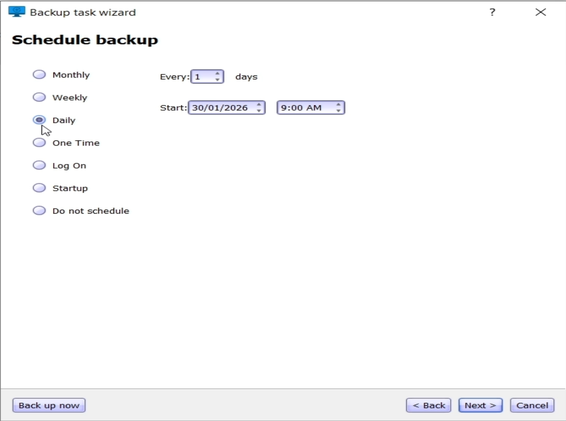
Schedule daily system backups
- Every – Set how often the backup should run, in days.
Example: enter 1 to run every day, or 2 for every other day. - Start Time – Choose the time of day when the backup should begin.
• Weekly – Run on selected days of the week
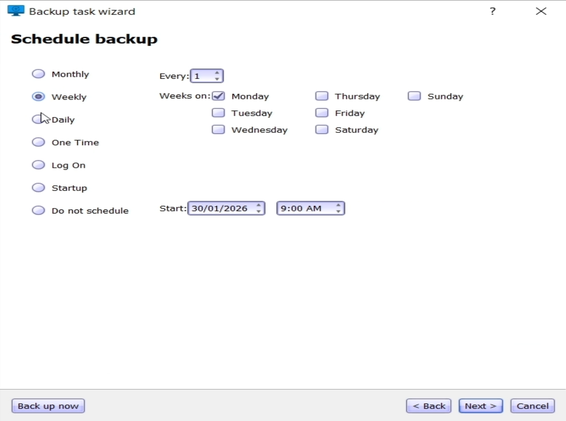
Schedule weekly system backups
- Every – Set how often the backup should run, in weekly intervals.
Example: enter 1 to run every week, or 2 to run every other week. - Days of the Week – Select the day(s) when the backup should run.
- Start Time – Choose the time of day when the backup should begin.
• Monthly – Run on selected dates each month
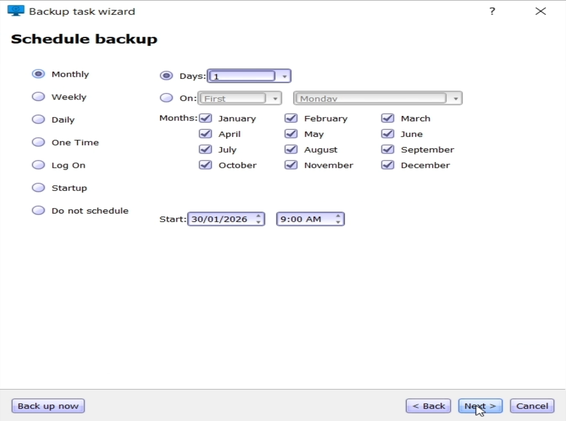
Schedule monthly system backups
- Day(s) – Select the specific day(s) of the month (e.g., 5th and 31st).
- Date Rule – Choose a combination of a number and weekday (e.g., "First Monday").
- Months – Select the months (e.g., March, June, September, December).
- Start Time – Choose the time of day when the backup should begin.
• One Time – Run once at a specific date and time
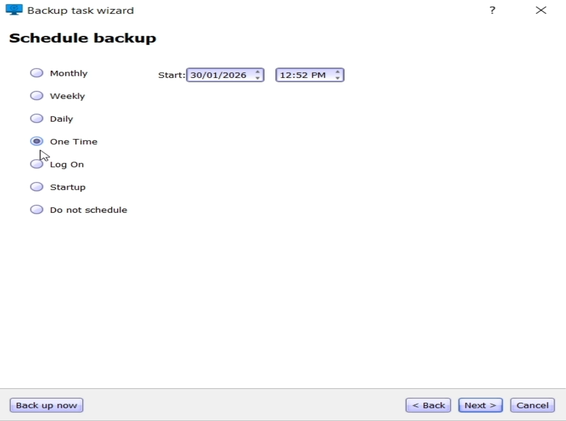
Run a one-time system backup
• Log on – Run each time a user logs in
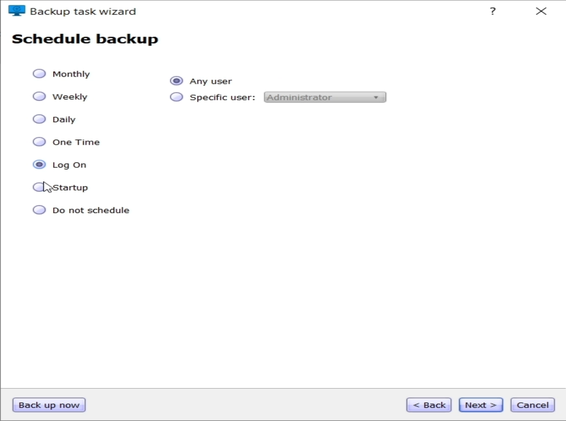
Run backup when user logs on
- You can specify Any user or a specific user.
• Startup – Run automatically when the system starts
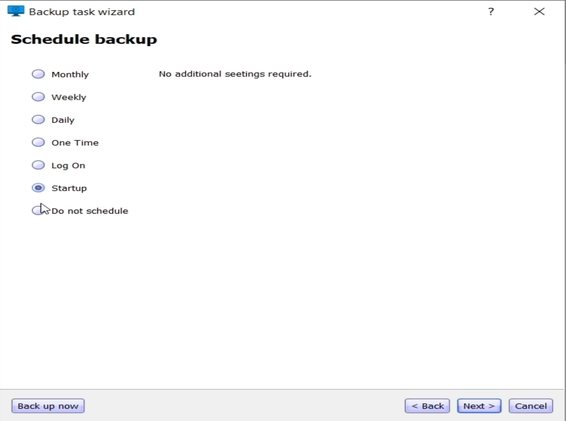
Run backup at system startup
- This happens before any user logs in.
• Do not schedule – Disable scheduling
- The operation will only run manually using the Back up now or Start buttons.
Choose an Action:
- Click Back Up Now to start the backup immediately.
- Click Next to configure the backup scheme and other options.