
How to Fix the Error 'BOOTMGR is missing'
If you computer does not boot up normally and you receive an error message similar to the following:
BOOTMGR is missing Press Ctrl Alt Del to restart
BOOTMGR is missing Press any key to restart
Couldn't find BOOTMGR
These messages indicate the file 'bootmgr' or the boot sector is damaged or missing.
'BOOTMGR' is a hidden system file in Windows Vista, Windows Server 2008, Windows 7, Windows Server 2008 R2, Windows 8, Windows 8.1, Windows Server 2012 and Windows 10. It is an important component of Windows'new boot manager, and is loaded by the boot sector.
When a computer boots from BIOS mode, it loads and excutes the boot code of MBR (Master boot record) first. Then, the active partition boot sector is loaded. When the boot code of boot sector is running, it finds the bootmgr file in the system partition.
When a computer boots from UEFI modek, the file "amd64\efi\boot\bootx64.efi" in the EFI system partiiton is launched first on a 64 bit computer and the file "x86\efi\boot\bootia32.efi" in the EFI system partiiton is launched first on a 32 bit computer. Next, the loaded EFI boot file loads the bootmgr.efi file.
The 'BOOTMGR' managers the boot menu of Windows. It reads the BCD file to provide the boot menu and boot options. If the 'BOOTMGR' file is missing, compressed or corrupted, Windows will not boot.
If you are prompted 'bootmgr is missing', you can use either of the following two solutions to fix your problem and to make your computer boot again normally.
Solution one: Use Windows 7 Installation DVD to fix the Error 'BOOTMGR is missing'
- Insert your Windows 7/8/8.1/10 Installation DVD to your computer CD/DVD drive.
- Restart, setting BIOS to boot your computer from the DVD OR boot from your computer by selecting boot menu.
- When you are prompted "Press any key to boot from CD or DVD", press a key. (If you do not get the message, you need to set BIOS and use boot menu to ensure boot from the DVD.)
- Once the "What to know before installing Windows" screen appears, click the <Repair your computer> button NOT the <install now> button.
- The Windows 'System Recovery Options' tool will be launched and begin a search for the current Windows installation, When the search is completed, click <Next> to continue.
- When you see the System Recovery Options dialog box, click the <Startup Repair> button.
- Please wait until the 'Startup Repair' operation is completed. Reboot your computer, and check to see if the boot problem has been repaired. If it persists, you need to use a Lazesoft recovery medium to fix your computer using the alternate solution given below.
If this method does not work, or you do not have a Windows 7/8/8.1/10 installation DVD. You can try the solution two.
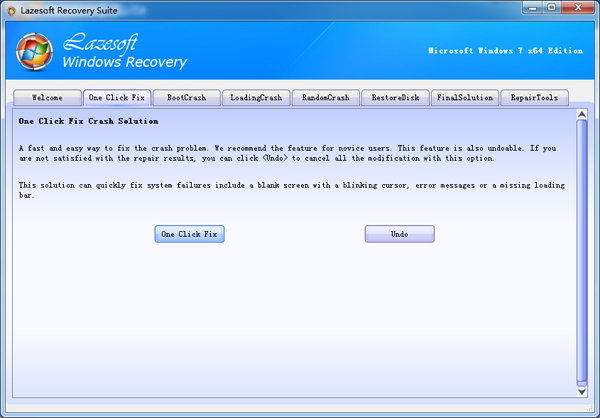
Solution two: Use the <One Click Repair> function in Lazesoft Recovery Suite boot disk to fix the error 'BOOTMGR is missing'
- Downand Lazesoft Recovery Suite on a working computer.
- Install the downloaded setup file and run it to burn a Lazesoft recovery CD or USB disk.
- Reboot your computer with Lazesoft boot disk.
- When the boot disk is loaded and ready, enter the "Windows Recovery” module and select the Windows installation that needs repairing.
- Click the <One Click Fix> button and wait for the repairing.
- After the process is completed, you can remove the CD or USB disk and reboot the computer.
- After you reboot your computer, everything should be working correctly.
Solution three: Use Lazesoft Recovery Suite manually to fix the error 'BOOTMGR is missing'
- Downand, install and run Lazesoft Recovery Suite, to burn a Lazesoft recovery CD or USB disk.
- Restart your computer, setting BIOS to boot from the DVD. You can also boot from your computer by using your computer's built-in boot menu. To boot from a Dell) computer, press F12. Press F9 to access the boot menu on an HP computer. Your computer will usually display instructions on how to access the boot menu during start up. If you do not see the instructions or are not sure about how to proceed, check your vendor’s documentation. Select boot into CD/DVD.
- When accessing to the Lazesoft boot environment, enter the "Windows Recovery-> Boot Crash” module and select the Windows installation that needs repairing.
- Click the <Fix Boot Sector> button then <Fix Missing Windows system files>
- At this point, you can remove the CD or USB disk.
- After you reboot your computer, everything should be working correctly. However, in the very rare event that your problem persists, feel free to contact our service representatives for additional instructions.
Lazesoft Recovery Suite is easy to use, powerful boot disk design to Recover Data, Recover crashed Windows System, Recover Windows Password, Clone or Backup Disk, etc.
Free Windows recovery manual
build a Windows 7 USB System Repair Disc
Fix a damaged MBR for Windows XP
Fix a Windows XP Loading Crash
Fix 'Operating system not found'
fix Windows Server 2008 BOOTMGR is missing Error
fix the 'Hal.dll is Missing' error
Start Menu on Lazesoft boot disk
Build Windows 7 System Repair Disc
Build Windows 8 recovery USB disk