
How to Fix a Windows 10/11 Loading Crash
Important: IT IS IMPORTANT THAT YOU USE LAZESOFT WINDOWS RECOVERY (or Lazesoft Disk Image & Clone) to make a backup image of your computer as soon as possible, and keep regular backups of your system and data. A recent system image backup is the fastest way to recover from a boot crash, update failure, or disk corruption.
If your Windows 10/11 computer does not boot properly, freezes at the Windows logo/spinning dots, reboots repeatedly (boot loop), shows a blue screen (BSOD), or crashes at the sign-in screen, this is commonly called a Windows loading crash.
Many issues can cause a loading crash, including:
- Windows update failure or interrupted update
- Driver conflicts (graphics/storage/network)
- Disk errors, file-system corruption, or bad sectors
- Boot configuration (BCD) or EFI boot files damaged
- Registry corruption or malware damage
Try the methods below in order. Start with Microsoft’s built-in repair options. If Windows cannot reach the recovery screen, use a bootable Lazesoft USB/CD to repair offline.
Method 1: Run Windows 10/11 Startup Repair (Automatic Repair)
- Power on the PC. If Windows fails to boot, force power off (hold the power button) and repeat 2–3 times. Windows should enter Preparing Automatic Repair.
- On the recovery screen, choose Troubleshoot > Advanced options > Startup Repair.
- Select your Windows account (if prompted), enter password if required, and let Windows attempt repairs.
- Restart the computer and check if the crash is fixed.
Method 2: Boot into Safe Mode and remove the cause (driver / update / software)
- From Windows Recovery, go to Troubleshoot > Advanced options > Startup Settings.
- Click Restart, then press:
- 4 to enable Safe Mode, or
- 5 to enable Safe Mode with Networking
- If Windows boots in Safe Mode:
- Uninstall recently installed drivers/software
- Remove recently installed Windows updates (Settings > Windows Update > Update history)
- Run malware scan if you suspect infection
- Restart normally to confirm the issue is resolved.
Windows 11 Mini Section: BitLocker, TPM & Secure Boot
Windows 11 systems (especially modern laptops) often use TPM 2.0, Secure Boot, and sometimes BitLocker device encryption. After a BIOS/UEFI change, firmware update, or hardware change, Windows may refuse to boot normally or may ask for a BitLocker recovery key.
1) If Windows 11 asks for a BitLocker Recovery Key
- Do not repeatedly restart. If BitLocker is enabled, repeated failed boots can make recovery harder.
- On the BitLocker recovery screen, note the Recovery Key ID (it helps identify the correct key).
- On another device, sign in to the Microsoft account used on that PC and retrieve your recovery key from:
https://aka.ms/myrecoverykey - If this PC is managed by a company/school, the key may be stored in Azure AD / Entra ID or Active Directory—contact your IT admin.
Important: Without the BitLocker recovery key, encrypted system volumes cannot be accessed normally. Always back up the recovery key in a safe place.
2) TPM / Secure Boot changes that can trigger boot problems
- Secure Boot toggled (enabled/disabled) after a BIOS update or “Load Optimized Defaults”.
- TPM reset/cleared (sometimes called “Clear TPM” or “Security Device Reset”).
- Boot mode changed (UEFI vs Legacy/CSM). Windows 11 is typically installed in UEFI mode.
- Storage mode changed (AHCI vs RAID/Intel RST). Changing this can cause boot crashes or INACCESSIBLE_BOOT_DEVICE.
Recommended checks (safe order):
- Enter BIOS/UEFI setup and confirm the system disk is detected and the correct Windows Boot Manager entry is selected as the first boot option.
- Keep UEFI mode as originally installed (avoid switching to Legacy/CSM unless you know Windows was installed that way).
- If the crash started right after firmware changes, revert only what changed:
- Restore the original Secure Boot state (usually Enabled on Win11).
- Do not clear TPM unless you fully understand the impact (it can trigger BitLocker recovery and affect credentials).
- Return storage mode (AHCI/RAID) to the previous setting.
3) BitLocker + Offline Repair Tools
- If you boot from a recovery USB (Windows PE or third-party), an encrypted Windows partition may appear locked.
- To repair Windows files offline (or back up data) you may need to unlock the BitLocker volume first using the recovery key.
- If you cannot unlock it, focus on fixing firmware/boot settings first so Windows can boot and unlock the drive automatically.
If your Windows 11 boot crash started after a big update: try Uninstall updates from Windows Recovery: Troubleshoot > Advanced options > Uninstall Updates (remove the latest quality update first, then feature update if necessary).
Method 3: Use System Restore (restore to a previous working point)
- From Windows Recovery, choose Troubleshoot > Advanced options > System Restore.
- Select a restore point created before the loading crash started.
- Complete the restore process, then restart the PC.
Note: System Restore does not usually remove personal files, but some apps/drivers installed after the restore point may need reinstalling.
Method 4: Restore Windows 10/11 from your backup made using Lazesoft Recovery Suite Home Edition
If you created a disk/volume image backup using Lazesoft, restoring it is often the fastest and most reliable solution.
The following are the steps:
1. Create a Lazesoft Windows Recovery bootable CD or USB on a working computer.
2. Boot the crashed Windows 10/11 computer from the Lazesoft bootable CD/USB.
3. Enter: Windows Recovery → Restore Disk → Restore from Disk Image module.
4. Click <Lazesoft Windows Restore> to restore Windows from your backup image.
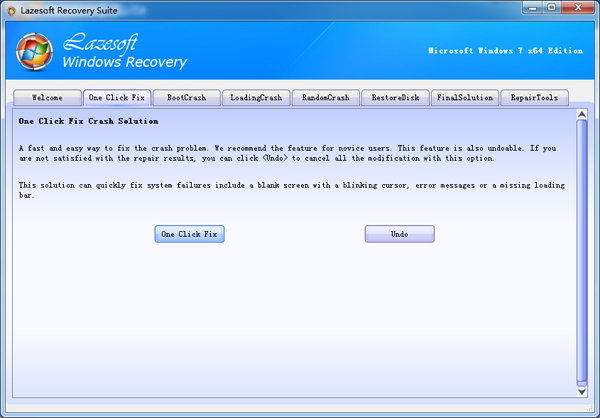
Method 5: Use One Click Fix module in Lazesoft Windows Recovery
This module checks and fixes many common Windows boot errors automatically (boot files, BCD/boot settings, etc.). The operation is also reversible. If you are not satisfied with the repair results, you can click <Undo> to restore the previous state.
1. Boot the Windows 10/11 computer from the Lazesoft Windows Recovery bootable CD or USB disk.
2. Enter: Windows Recovery → One Click Fix module.
3. Click <One Click Fix> to check and fix boot errors.
4. Reboot the computer after the operation completes and check the results.
Method 6: Use Lazesoft Registry Recovery module (fix loading crash caused by registry corruption)
This module restores the Windows registry to a previous good state. It often fixes crashes caused by serious registry conflicts/corruption.
Important: SOME SOFTWARE PROGRAMS INSTALLED BEFORE YOUR COMPUTER FAILURE MAY NO LONGER FUNCTION AFTER WINDOWS IS REPAIRED. THESE PROGRAMS MAY NEED TO BE REINSTALLED.
1. Boot from the Lazesoft Windows Recovery bootable CD or USB disk.
2. Enter: Windows Recovery → Loading Crash → Registry Recovery module.
3. Click <Registry Recovery> to recover your registry to its previous good status.
4. The operation is reversible. Click <Undo> to cancel modifications if needed.
Method 7: Use Registry Editor module in Lazesoft Windows Recovery (advanced users)
You can boot Windows 10/11 from a Lazesoft bootable disk and run Lazesoft Registry Editor to fix registry conflicts or repair virus damage.
Important: If you are not familiar with editing the registry, skip this method. Use File Manager in Lazesoft Windows Recovery to back up your important files first, then consider reinstalling Windows if required.
To run this tool, boot from the Lazesoft CD/USB, then enter:
Windows Recovery → Loading Crash → Registry Editor module.
Always back up the registry files before modifying any keys/values.
Final Tips: If the loading crash still happens
- Use File Manager in the Lazesoft boot environment to back up important files from the system disk first.
- Check your disk health (SMART errors / unusual noises / repeated bad sectors). A failing drive can cause endless boot loops.
- If you suspect a recent hardware change (RAM/SSD/GPU), revert to the previous hardware configuration and test again.
Lazesoft Recovery Suite is easy to use, powerful boot disk design to Recover Data, Recover crashed Windows System, Recover Windows Password, Clone or Backup Disk, etc.
Free Windows recovery manual
build a Windows 7 USB System Repair Disc
Fix Error 0xc000000f - BCD Missing
Fix a damaged MBR for Windows XP
Fix a Windows XP Loading Crash
Fix 'Operating system not found'
fix Windows Server 2008 BOOTMGR is missing Error
fix the 'Hal.dll is Missing' error
Start Menu on Lazesoft boot disk
Build Windows 7 System Repair Disc
Build Windows 8 recovery USB disk