
What Boot Errors Can SFC Fix?
SFC (System File Checker) is one of the most useful built-in Windows repair tools, but it does not fix every startup problem. SFC is designed to scan and repair protected Windows system files. It can be very effective when Windows will not start because an important file is missing or corrupted, but it usually cannot repair BCD, EFI partition, MBR/GPT, BIOS/UEFI, or physical disk problems.
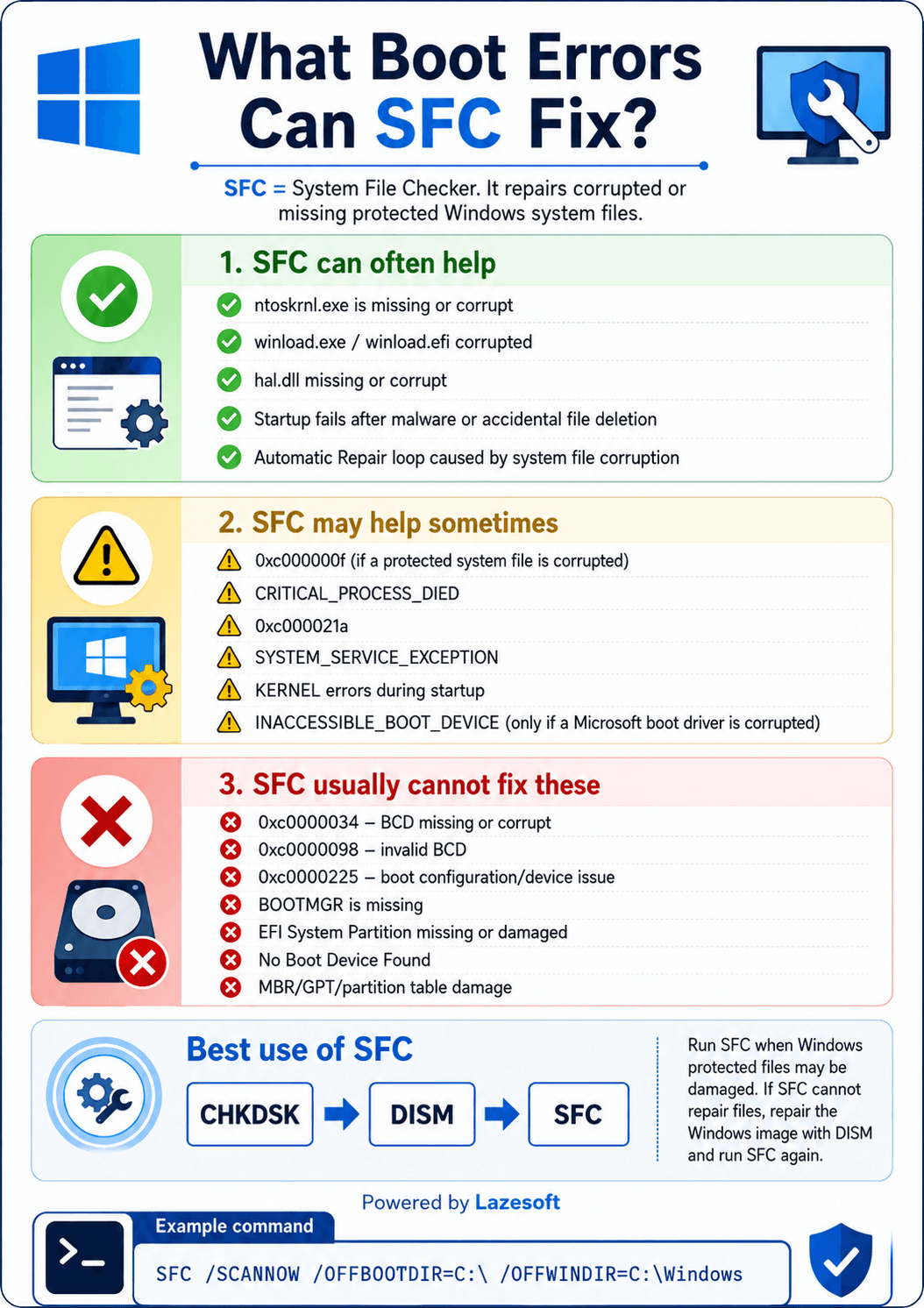
What Does SFC Actually Repair?
SFC checks protected Windows files against known-good versions and replaces damaged or missing copies when possible. This includes many core boot and operating-system files. The normal online command is:
When Windows cannot boot, SFC can also scan an offline Windows installation from Windows Recovery Environment (WinRE), WinPE, or another recovery disk. That is especially useful when the boot error names a Windows file such as ntoskrnl.exe, winload.exe, winload.efi, or hal.dll.
1. Boot Problems SFC Can Often Help Fix
| Boot problem | Why SFC may work |
|---|---|
| ntoskrnl.exe is missing or corrupt | ntoskrnl.exe is a protected Windows system file. If the file itself is damaged or missing, SFC may restore it. See also Fix 0xc000000f ntoskrnl.exe Error. |
| winload.exe / winload.efi is corrupted | SFC may replace a corrupted Windows loader file when the boot configuration is otherwise correct. For a related case, see Fix 0xc0000221 winload.efi Error. |
| hal.dll is missing or corrupt | If the Windows Hardware Abstraction Layer file is damaged, SFC may restore the protected file. See Fix HAL.dll is Missing or Corrupt. |
| Startup fails after malware or accidental file deletion | If protected Windows files were deleted or modified, SFC can often restore valid copies. |
| Automatic Repair loop caused by system-file corruption | SFC can help when the repair loop is caused by corrupted protected operating-system files rather than BCD, disk, driver, or hardware problems. |
2. Boot Errors SFC May Help Sometimes
Some error codes describe a broad startup failure rather than one specific cause. In these cases, SFC helps only when corrupted Windows system files are part of the problem.
- 0xc000000f — SFC may help if the error is caused by a corrupted protected system file. If the screen reports missing or damaged BCD, use BCD repair instead.
- CRITICAL_PROCESS_DIED — damaged system files are one possible cause, so SFC is worth trying after storage and hardware problems are ruled out.
- 0xc000021a — SFC can help when a critical Windows component has been corrupted.
- SYSTEM_SERVICE_EXCEPTION — SFC may help if damaged Windows files are involved, but drivers and hardware can also cause this stop error.
- Kernel errors during startup — SFC may repair corrupted protected kernel components.
- INACCESSIBLE_BOOT_DEVICE — SFC is useful only in the narrower case where a Microsoft storage/boot driver has become corrupted. Storage mode, RAID/VMD drivers, controller settings, or disk problems require a different fix.
3. Boot Errors SFC Usually Cannot Fix
SFC repairs Windows system files; it does not rebuild the structures that tell the firmware and Windows Boot Manager where Windows is or how to start it. The following problems usually need other repair methods:
| Error / problem | What usually needs repair |
|---|---|
| 0xc0000034 — BCD missing or corrupt | Rebuild or repair Boot Configuration Data. |
| 0xc0000098 — invalid BCD | Repair or recreate the BCD store. |
| 0xc0000225 — boot configuration/device issue | Check BCD entries, boot device availability, partitions, and storage configuration. |
| BOOTMGR is missing | Repair boot files, the active/system partition, boot sector, or BCD as appropriate. |
| EFI System Partition missing or damaged | Repair or recreate the EFI boot partition and Windows boot files. |
| No Boot Device Found | Check BIOS/UEFI detection, boot order, storage controller mode, cabling, and disk health. |
| MBR/GPT/partition table damage | Repair the disk's boot/partition structures. SFC does not rewrite the partition table. |
How to Run SFC When Windows Will Not Boot
If Windows cannot reach the desktop, boot into Windows Recovery Environment, WinPE, or a bootable recovery USB, open Command Prompt, and scan the offline installation.
- Find the Windows drive letter. Drive letters can change in WinRE/WinPE. You can use DiskPart:
diskpart list volume exitThen check likely volumes, for example:dir C:\Windows dir D:\Windows dir E:\Windows
- Run offline SFC. If Windows is on C:, use the command shown in the infographic:
sfc /scannow /offbootdir=C:\ /offwindir=C:\WindowsIf Windows is actually on D:, replace both C: paths with the correct offline Windows location.
- Restart and test Windows. If SFC says it repaired files successfully, reboot normally and check whether the startup error is gone.
If SFC Cannot Repair the Files
If SFC reports that it found corrupt files but could not repair some of them, the Windows component store may also be damaged. A common repair sequence is to address file-system problems when present, repair the Windows image with DISM, and then run SFC again.
Example offline DISM command when Windows is on C:
After DISM finishes successfully, run the offline SFC command again. If DISM cannot find repair source files, you may need a matching Windows installation image as the repair source.
How to Interpret Common SFC Results
- “Windows Resource Protection did not find any integrity violations.” — protected system files appear intact; investigate BCD, storage, drivers, disk health, or hardware instead.
- “Windows Resource Protection found corrupt files and successfully repaired them.” — restart and test the system.
- “Windows Resource Protection found corrupt files but was unable to fix some of them.” — try DISM/image repair, then run SFC again.
- “Windows Resource Protection could not perform the requested operation.” — verify the offline Windows path, file-system condition, and recovery environment.
SFC vs. Boot Repair: Which Tool Should You Use?
| Likely cause | Best starting point |
|---|---|
| Missing/corrupted protected Windows file | SFC |
| Damaged Windows component store | DISM, then SFC |
| BCD missing, invalid, or corrupt | BCD/boot configuration repair |
| EFI System Partition or boot files damaged | EFI/boot-file repair |
| MBR, boot sector, GPT, or partition structure damaged | Disk/boot structure repair |
| Disk not detected or “No Boot Device Found” | BIOS/UEFI, controller, driver, cabling, and disk checks |
An Easier Way to Repair Windows Startup Problems
If you do not want to diagnose every boot component manually, Lazesoft Windows Recovery provides bootable recovery tools for Windows startup problems. It can help repair MBR and BCD corruption, BOOTMGR and winload errors, partition boot-sector problems, startup crashes, and system-file corruption.
Download Lazesoft Recovery Suite to create a bootable recovery disk and access Windows recovery tools even when the installed system will not start.
Frequently Asked Questions
Can SFC fix Windows boot error 0xc000000f?
Sometimes. If 0xc000000f is caused by a corrupted protected Windows file such as ntoskrnl.exe or winload.efi, SFC may repair it. If the error says the BCD is missing or corrupt, use BCD repair instead.
Can SFC repair the BCD?
No. SFC repairs protected Windows system files. It does not rebuild the BCD, recreate an EFI System Partition, or repair MBR/GPT partition structures.
Can SFC repair winload.efi or ntoskrnl.exe?
Yes, when the file itself is corrupted or missing and Windows servicing has access to a valid replacement. Offline SFC is useful when the PC cannot boot into Windows.
Can I run SFC from WinPE or a recovery USB?
Yes. Identify the drive letter of the offline Windows installation and use the /offbootdir and /offwindir options.
Summary
SFC is the right tool when a Windows boot failure is caused by corrupted or missing protected system files. It can often help with damaged ntoskrnl.exe, winload.exe/winload.efi, hal.dll, and some startup crashes. It may help with broad stop errors when file corruption is the underlying cause. But SFC usually cannot repair BCD, EFI partition, MBR/GPT, partition-table, boot-device-detection, or hardware problems. Matching the repair tool to the actual cause is the fastest way to get Windows booting again.